

Work order dependencies
A dependency says that one step cannot start until another step is finished. This keeps the shop floor in the right order. For the sample laptop, Test & Pack must wait until Assemble Components is done.
In simple words: Dependencies decide which work order goes first.
Open Manufacturing → Settings → Manage Operations, then Manufacturing → Products → Bills of Materials.
Settings
Gate
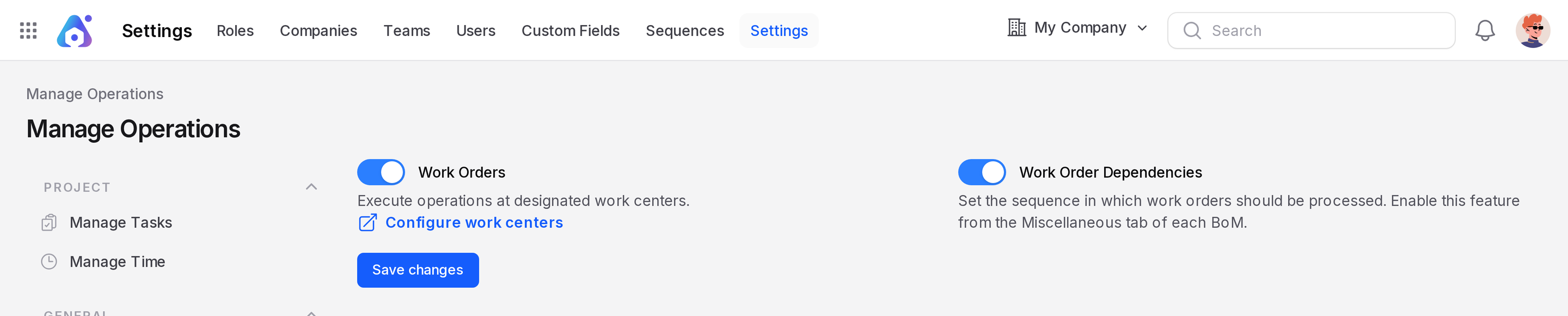
In Manufacturing → Settings → Manage Operations, turn on Work Order Dependencies. It also turns on Work Orders. Turning Work Orders off turns it off again.
Default behaviour: one after another
Aureus orders the work for you. Each work order waits for the one before it in the Operations list of the BoM. Steps run strictly in sequence.
Scenario: BOM-MC-LAPTOP has two operations, Assemble Components and Test & Pack. Test & Pack must wait for Assemble Components.
- Create a manufacturing order for Business Laptop with BOM-MC-LAPTOP and confirm it.
- Open its Work Orders tab.

- Open the Test & Pack work order. Its Blocked By tab lists Assemble Components.
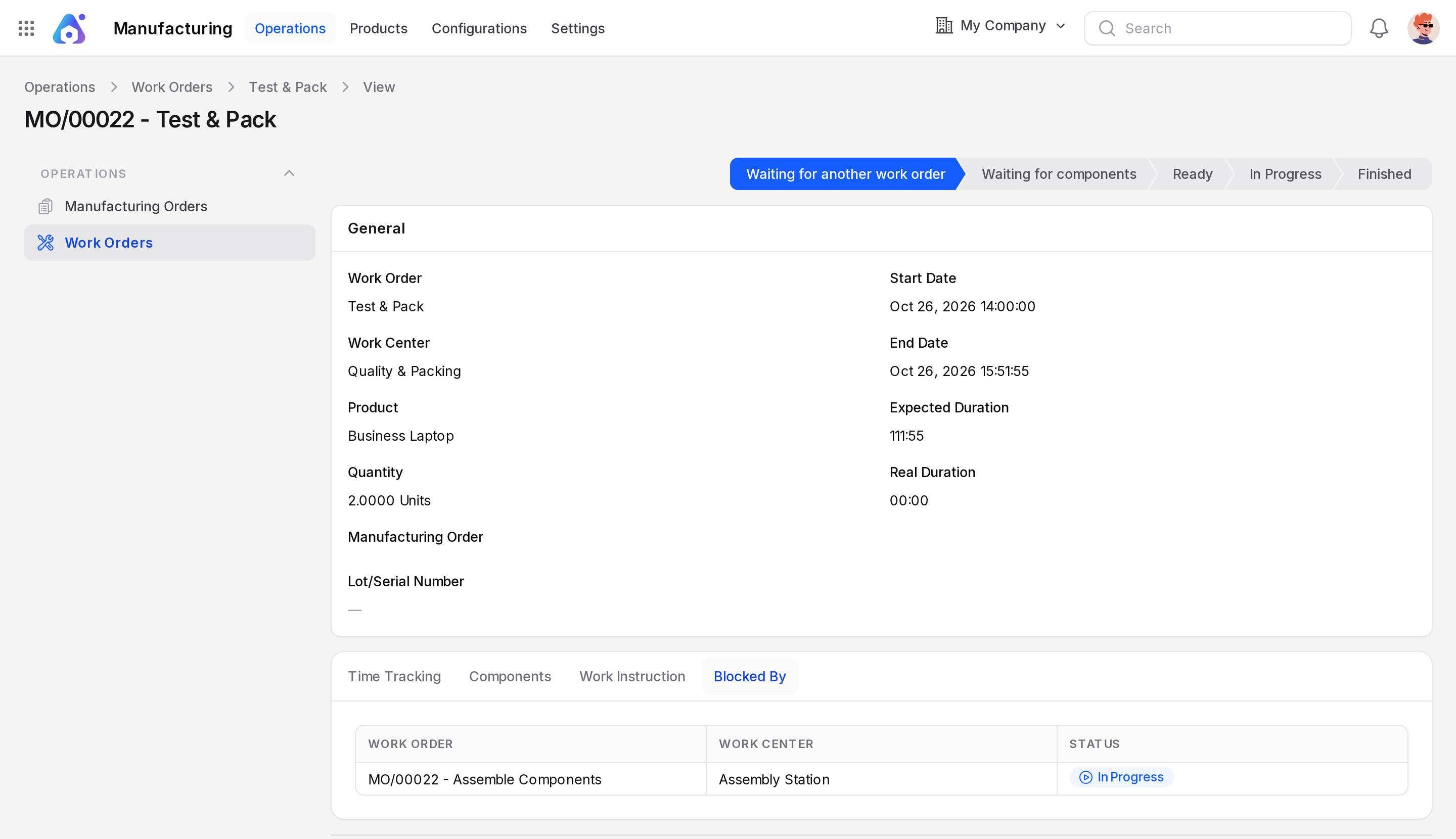
Assemble Components -> Finished -> Test & Pack becomes ready to startWhile the blocker is open, Test & Pack shows Waiting for another work order. When Assemble Components is Finished (or cancelled), Aureus rechecks the next one. It moves to Ready once its components are available, or Waiting for components if they are not.
WARNING
Blockers are created with the work orders. Plan the order of your operations before you confirm the manufacturing order.