

Two step flow
The two step flow adds one staging step. Received goods wait in WH/Input until someone stores them. Outgoing goods are picked from stock into WH/Output before the final delivery. Each step is its own document.
In simple words: Receive, then store. Or pick, then deliver.
When to use it
- Goods arrive in bulk and are put away later.
- You want to prepare orders before the truck comes.
- Different people receive and store.
Set it in the warehouse
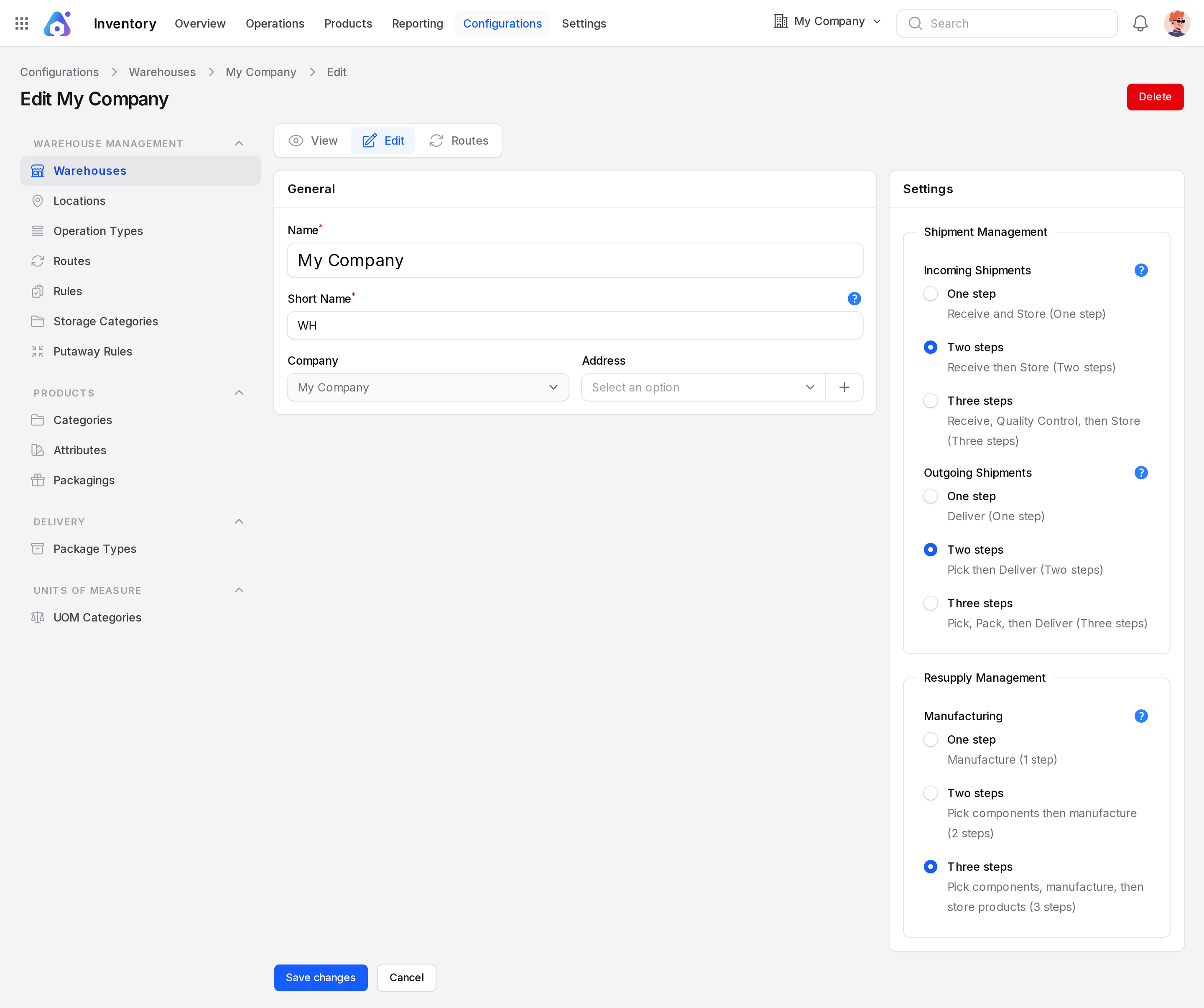
- Open
Inventory → Configurations → Warehouse Management → Warehouses. - Click Edit on your warehouse.
- Set Incoming Shipments to Receive then Store (Two steps).
- Set Outgoing Shipments to Pick then Deliver (Two steps).
- Click Save changes.
INFO
Needs Inventory → Settings → Manage Warehouses → Multi Steps Routes and Locations on.
Documents created
| Flow | Document | Prefix | Path |
|---|---|---|---|
| Receipt | Receipts | WH/IN | Partners/Vendors → WH/Input |
| Receipt | Storage | WH/STOR | WH/Input → WH/Stock |
| Delivery | Pick | WH/PICK | WH/Stock → WH/Output |
| Delivery | Delivery Orders | WH/OUT | WH/Output → Partners/Customers |
The second document appears when you validate the first. The prefixes are the ones used in the example warehouse.
Example: receiving
You receive 10 SSD 512GB from Consolidated Components.
- Open receipt WH/IN/00018 and click Validate. The SSDs land in
WH/Input. - A storage transfer WH/STOR/n is created and shows Ready.
- Open it from
Inventory → Operations → Transfers → Internal Transfers. - Click Validate. The SSDs move to
WH/Stock.
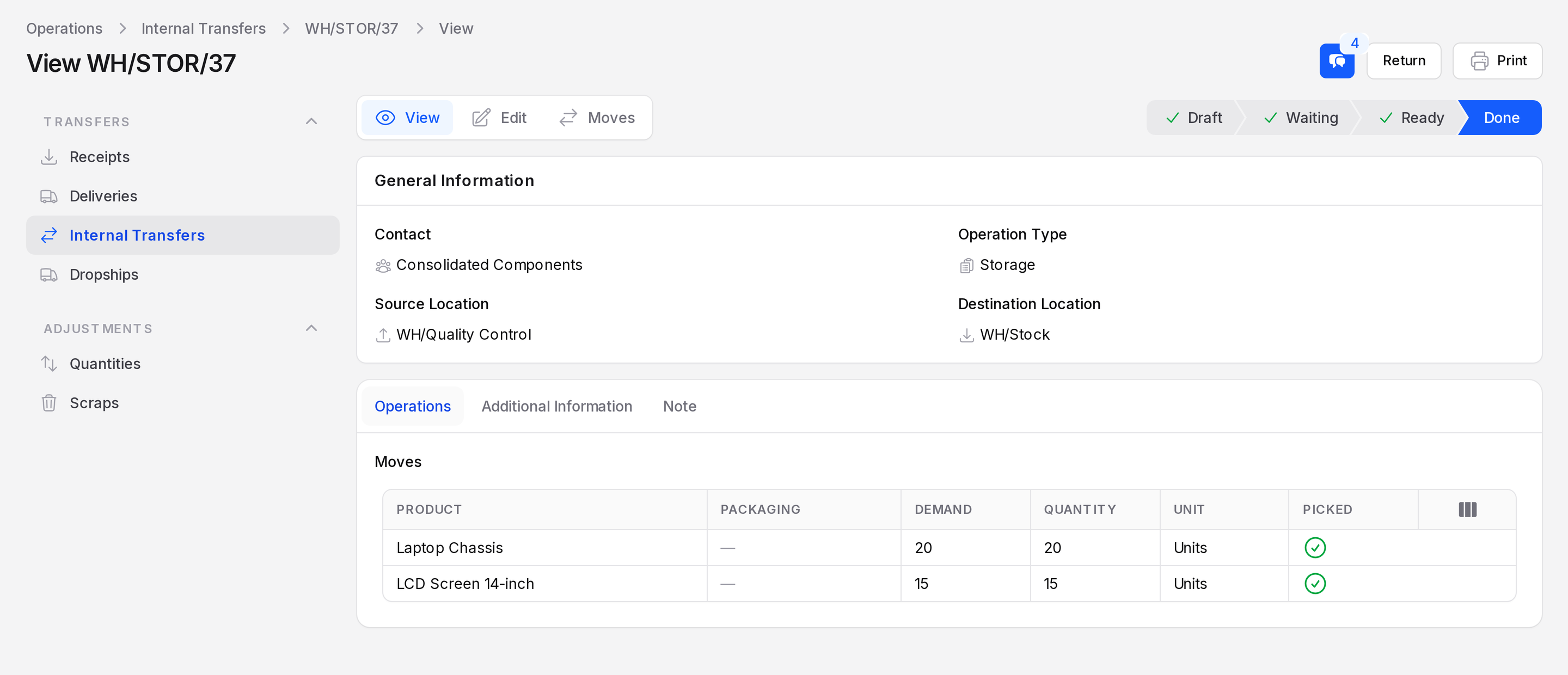
The screenshot shows a finished storage transfer, WH/STOR/37, from the three-step example warehouse. It moves goods from WH/Quality Control to WH/Stock. In the two-step flow the same kind of document moves goods from WH/Input to WH/Stock.
On a finished receipt, the Next Transfer button jumps to the follow-up document.
Example: delivering
Confirming a sales order creates the delivery WH/OUT and a pick WH/PICK. Validate the pick first. Goods move to WH/Output. Then validate WH/OUT so they reach the customer.
What you do at each step
| Step | Your action |
|---|---|
| Receive | Validate WH/IN |
| Store | Validate WH/STOR |
| Pick | Validate WH/PICK |
| Deliver | Validate WH/OUT |