

Create a vendor bill
A vendor bill is the invoice your supplier sends you. You enter it in Aureus so the amount you owe is recorded, taxes are counted correctly and you can pay on time. You do this every time you receive a supplier invoice.
In simple words: You copy the supplier's invoice into a form, click Confirm, and later click Pay.
Open the list with Invoices → Vendors → Bills or Accounting → Vendors → Bills. Both apps show the same screen.
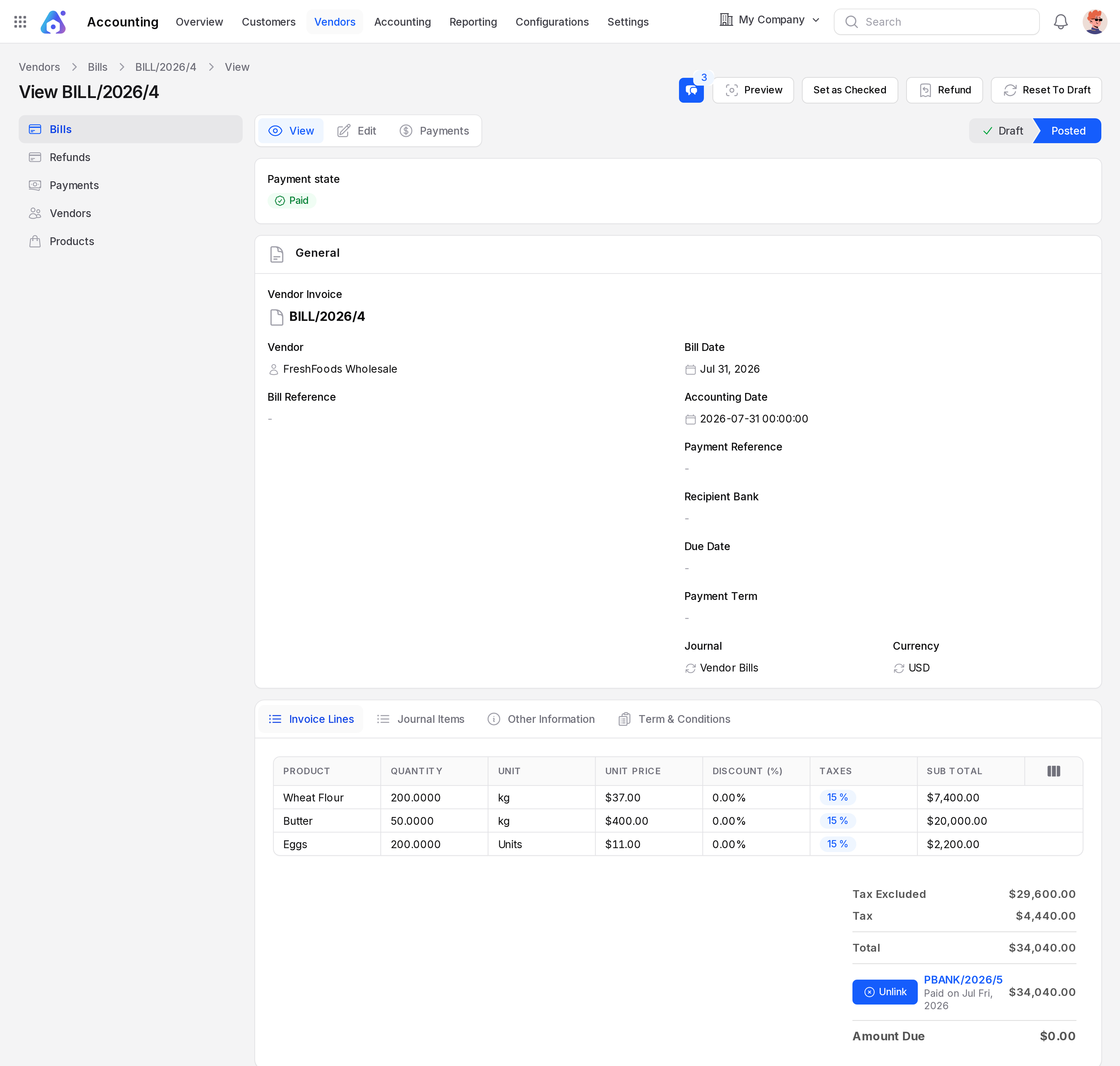
In this page we use one example. The vendor FreshFoods Wholesale sends a bill for 200 kg of Wheat Flour at $40.00 per kg. Other pages follow a larger bill, BILL/2026/4, for the same vendor. The steps are the same.
The bill list
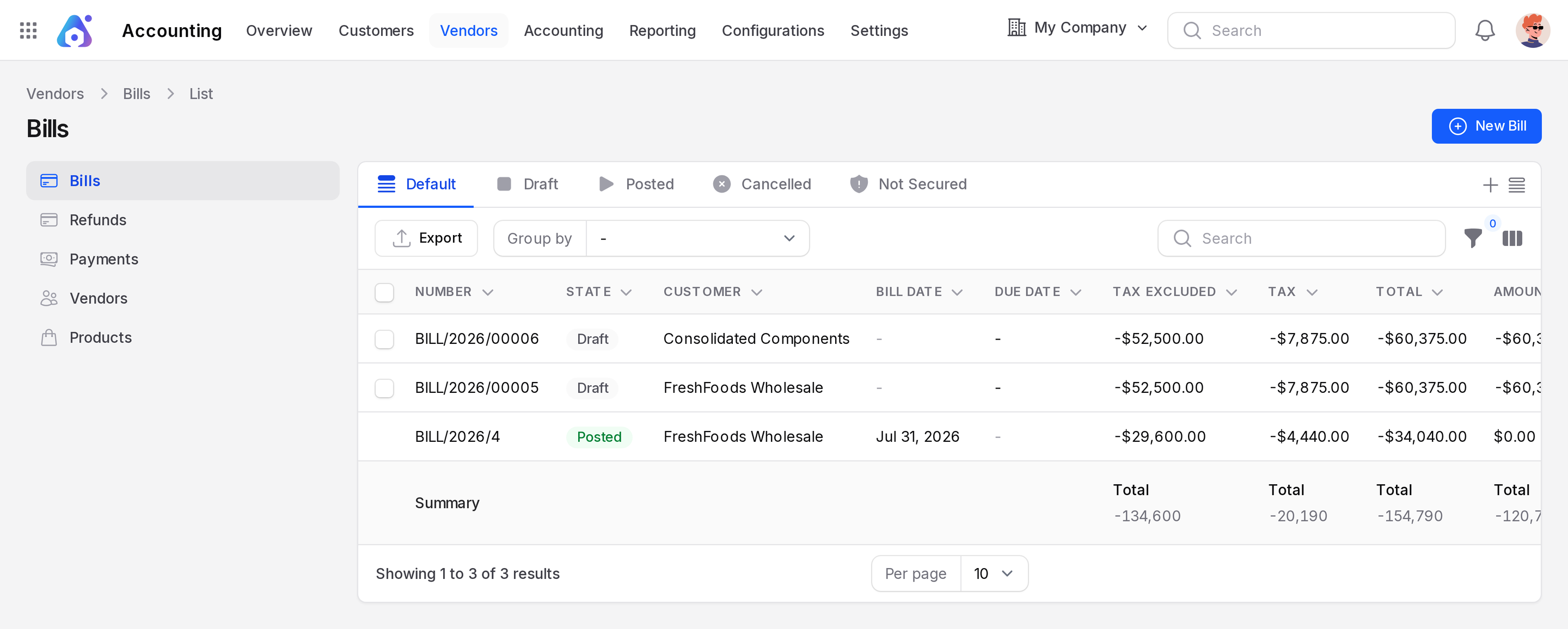
- Views: Default, Draft, Posted, Cancelled, Not Secured, To Check, To Pay, Unpaid, In Payment and Overdue. Click the three dots to see the hidden tabs.
- Columns: Number, State, the vendor name, Bill Date, Due Date, Tax Excluded, Tax, Total, Amount Due and Payment State. The vendor name sits in the column titled Customer.
- Extra columns: Checked, Accounting, Source Document, Reference, Sales Person and Bill Currency. Show them with the column toggle.
- Group by and filters: Fold by Bill Partner Display Name, Bill Date, Bill Due Date or Currency. Filter by fields such as Partner, Journal, Bill Date and Amount Due.
- Export: Downloads the rows you see.
Amounts of bills show as negative numbers in the list, because they are money you owe.
Create a bill
- Go to
Invoices → Vendors → BillsorAccounting → Vendors → Bills. - Click New Bill.
- Fill in the General section and the Invoice Lines tab.
- Click Create, or Create & create another.
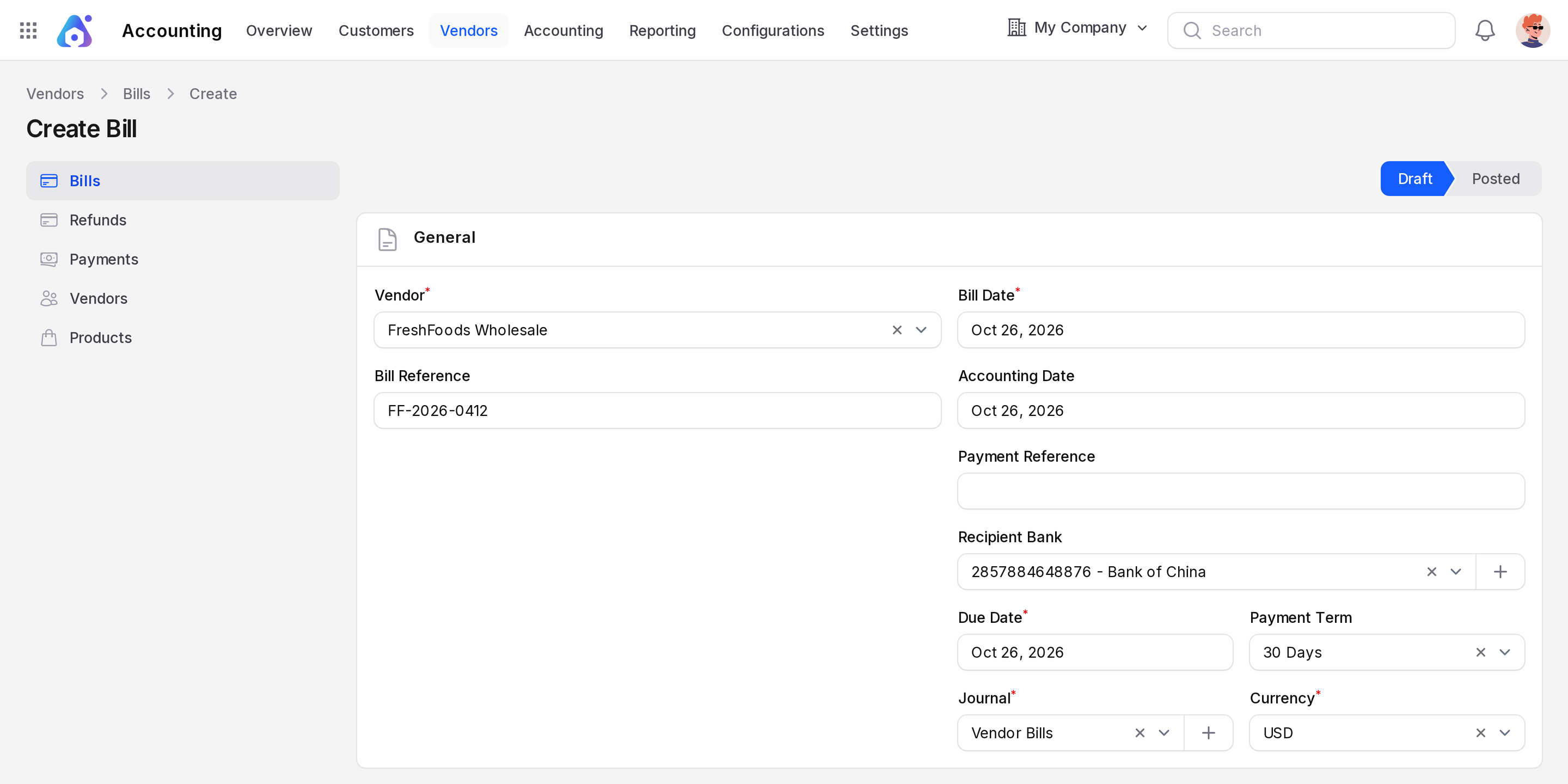
The state bar shows Draft and Posted. A new bill is a Draft.
General
- Vendor: The supplier. Required. Create new suppliers first: see Vendors and Contacts. It fills the Payment Term, Payment Method and the recipient bank from the vendor record.
- Bill Reference: The number printed on the supplier's invoice. Type it exactly. It helps you find the bill later and avoid entering it twice.
- Bill Date: The date on the supplier's invoice. Required.
- Accounting Date: The date the bill is recorded in your books. It starts as today. Change it to put the bill in another period.
- Payment Reference: The text to write on your payment, if the supplier asks for one.
- Recipient Bank: The supplier's bank account that you pay into.
- Due Date: The last day to pay. Required. It hides when you pick a Payment Term.
- Payment Term: The rule for the due date, such as 30 Days. See Payment terms.
- Journal: Required. Only purchase journals are listed, normally Vendor Bills.
- Currency: Required. It starts as the company currency. Choose another if the supplier bills in a foreign currency.
Example: Pick FreshFoods Wholesale. Type the supplier's invoice number in Bill Reference. Set the Bill Date from the document.
Invoice Lines
- Open the Invoice Lines tab.
- Click Add Product.
- Choose the Product and fill in the line.
- Product: What you bought.
- Quantity: How many.
- Unit: The unit of measure. It shows only when Unit of Measure is turned on.
- Unit Price: The price on the supplier's invoice. Check it against the document.
- Discount (%): A percentage off the line.
- Taxes: The purchase taxes of the product.
- Sub Total: The line total before tax. Aureus calculates it.
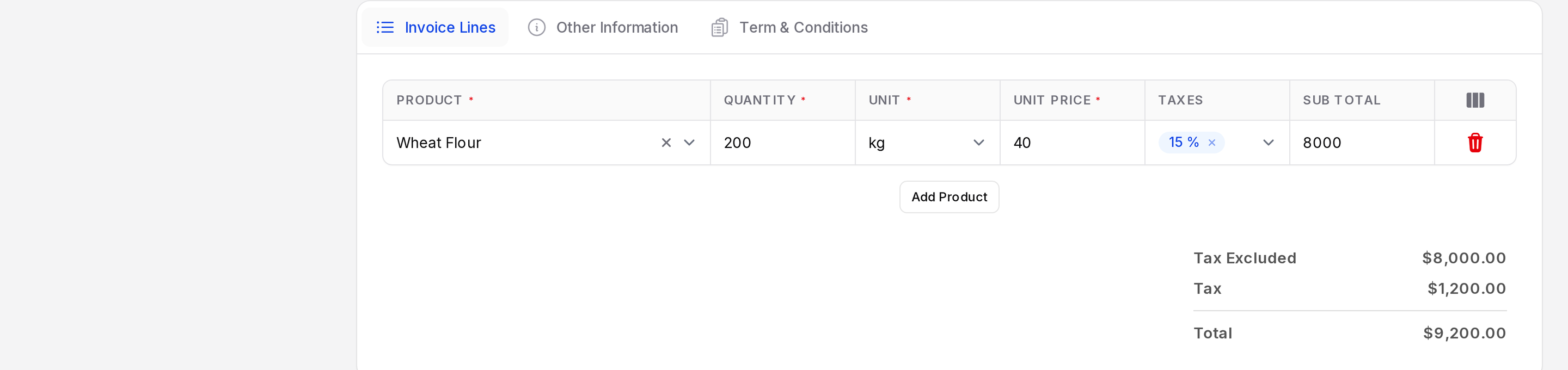
A summary below shows Tax Excluded, Tax and Total. Compare Total with the supplier's invoice. They must match.
Example: Add Wheat Flour, quantity 200 kg, unit price $40.00, tax 15 %. The sub total is $8,000.00, the tax is $1,200.00 and the total is $9,200.00.
Other Information and Term & Conditions
The Other Information tab has an Accounting block with Company, Incoterm, Incoterm Location, Payment Method, Fiscal Position, Cash Rounding Method (only if enabled in the settings) and Checked. The Term & Conditions tab holds notes.
Buttons on the bill
The buttons change with the state.
- Confirm (draft): Posts the bill. Aureus needs a vendor, a Bill Date and at least one line. The state becomes Posted.
- Cancel (draft): Sets the state to Cancelled.
- Delete (draft or cancelled): Removes the bill. A posted bill cannot be deleted.
- Preview (posted): Shows the bill in a window.
- Pay (posted and not fully paid): Records a payment. See Register a payment.
- Set as Checked (posted): Marks the bill as reviewed.
- Refund (posted): Creates a refund from the bill. See below.
- Reset To Draft (posted or cancelled): Moves the bill back to Draft. Linked payments are unlinked.
- Chatter: Notes, messages and activities. See Chatter.
WARNING
Reset To Draft unlinks the payments of the bill. Check the payments afterwards.
Refund button
Use it when the supplier credits you for returned goods or a price error.
- Open the posted bill and click Refund.
- In the Create Refund window, fill in Reason displayed on Reverse, Journal and Date.
- Submit. A draft refund opens. Edit and confirm it.
Payments and journal items
- Payments tab: Lists the payments of the bill.
- Journal Items tab: Shows the accounting lines: Account, Partner, Label, Currency, Due Date, Taxes, Debit and Credit.
- Under the totals, a paid bill lists the payment (for example PBANK/2026/5) with Unlink, and Amount Due shows $0.00.
What happens when you confirm
- The state becomes Posted.
- Aureus creates a journal entry. The amount you owe the vendor is recorded, and the expense and tax accounts are updated.
- The contact is counted as a vendor.
- The bill shows in To Pay or Unpaid until you pay it.
Tips
- Always fill in Bill Reference. It is the fastest way to find a bill again.
- Compare the Total to the supplier's document before you confirm.
- Use Set as Checked after your accountant approves the bill.