

Preventive maintenance
Preventive maintenance is planned work that stops a machine from breaking. You service it on a schedule, such as greasing every month. A preventive request can repeat on its own, so you create it once and Aureus makes the next one each time you finish.
In simple words: Set the request to repeat. When you close one, the next one appears with a new date.
Open Maintenance → Maintenance Requests and click New Maintenance Request.
Before you start
You need a team, stages and equipment. Read Create a maintenance request for the main form.
Make a request repeat
The example is Monthly lubrication, Hydraulic Press 200T. It must happen once a month.
- Type Monthly lubrication, Hydraulic Press 200T in Request.
- Choose Hydraulic Press 200T in Equipment.
- Under Maintenance Type, click Preventive. A Recurrent checkbox appears.
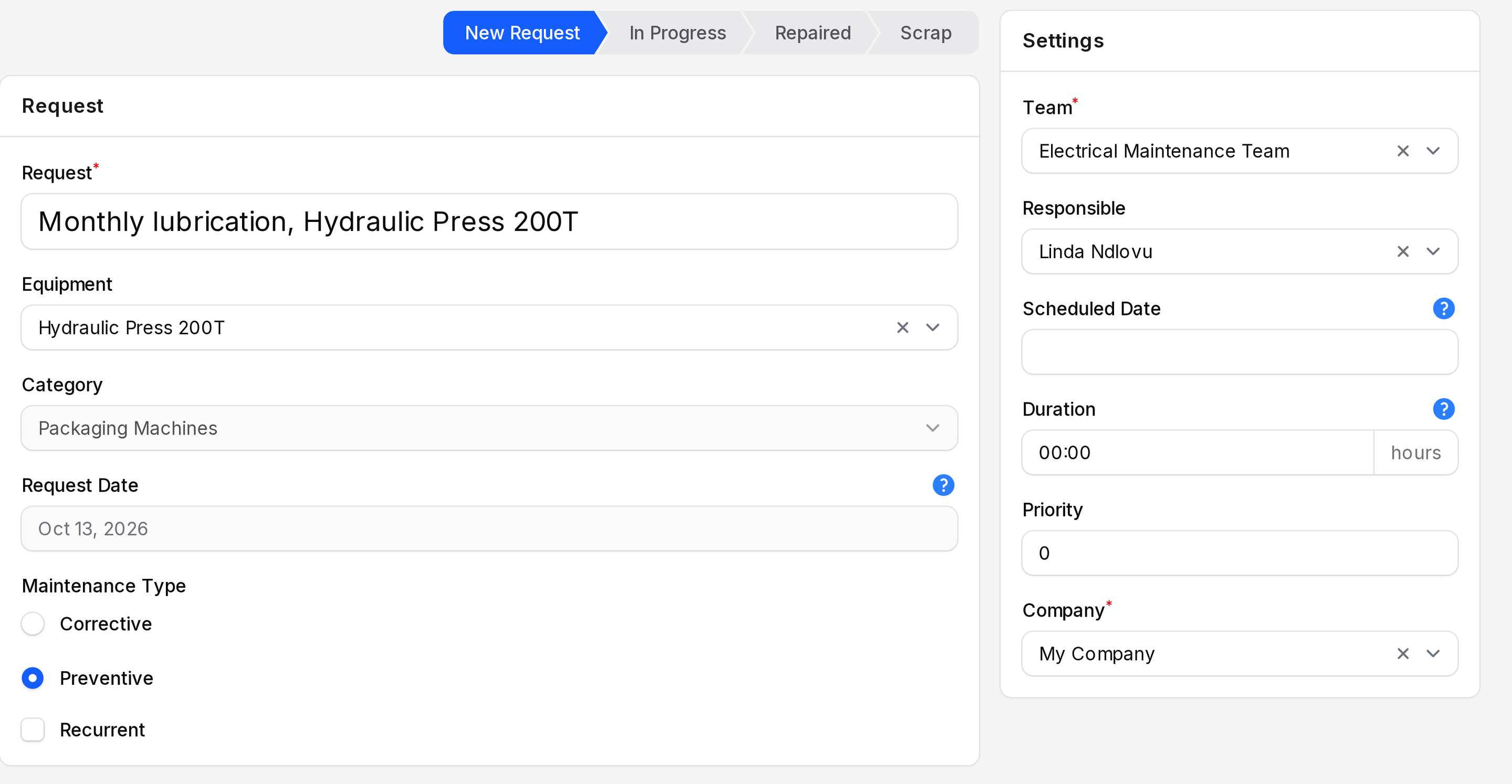
- Tick Recurrent. The Repeat Every field appears.
- Type 1 in the number box. Choose Months in the unit list. Leave the last list on Forever.
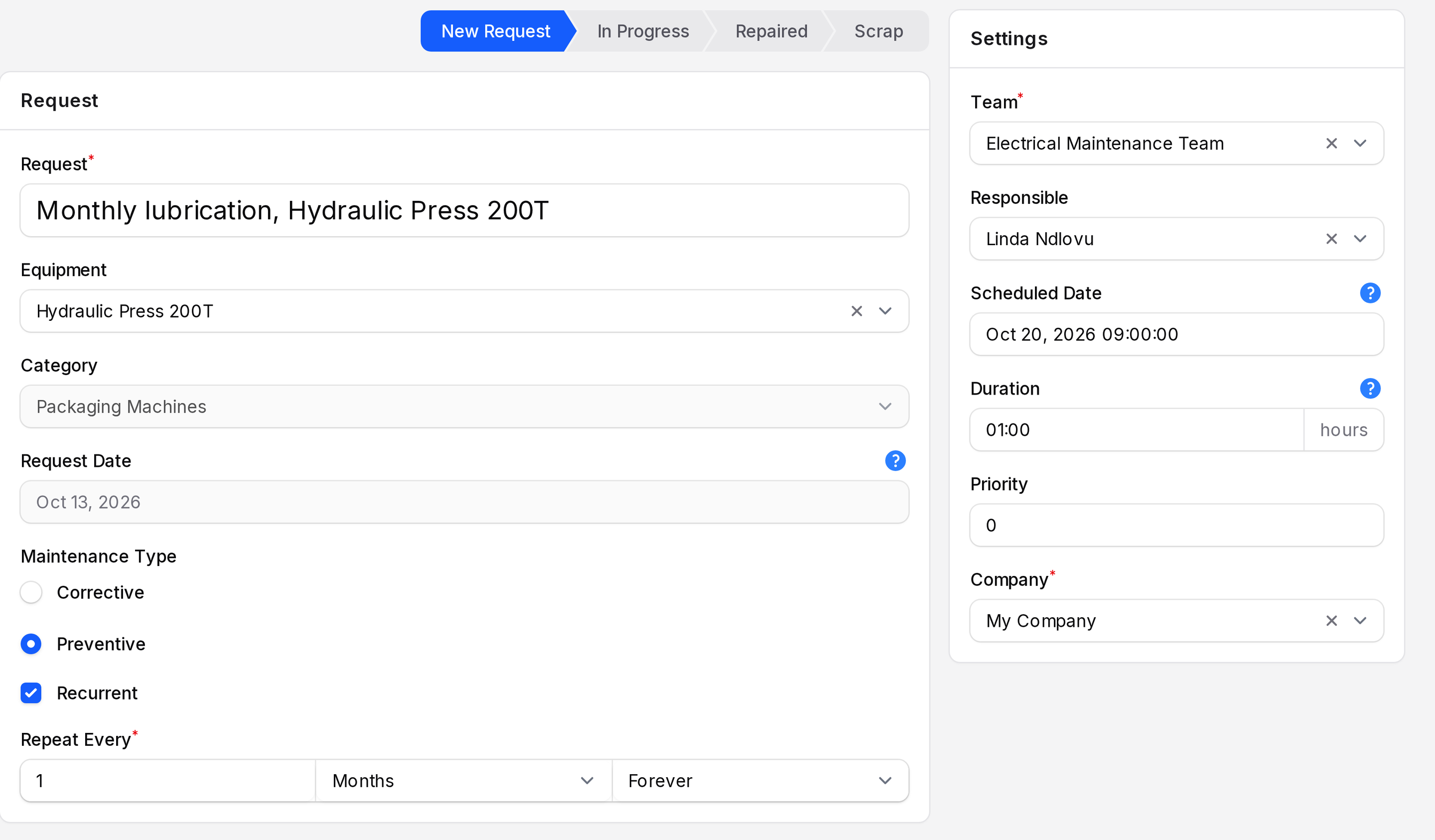
- In Settings, set Scheduled Date to
Oct 20, 2026 09:00and Duration to01:00. This date starts the cycle. - Click Create. You land on the View page of the request.
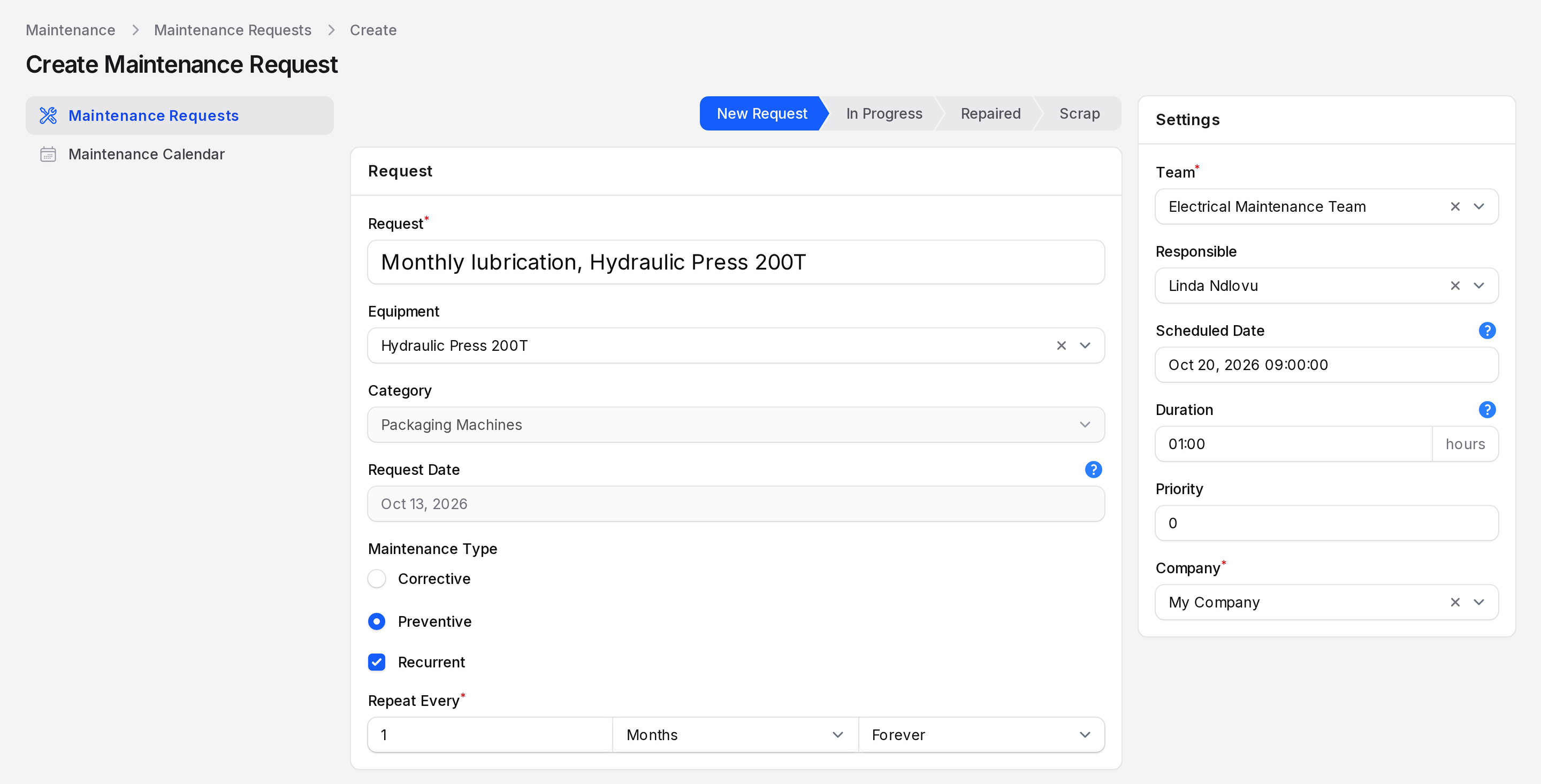
- Recurrent: Tick it to repeat the job. It shows only for Preventive. If you switch back to Corrective, the box disappears and is cleared.
- Repeat Every: Required. A whole number of at least 1.
- Unit: Days, Weeks, Months or Years. The default is Weeks.
- Forever: The request repeats without an end. This is the default.
- Until: the other choice of this list.
To stop a repeating request, open the latest copy, click Edit, untick Recurrent and click Save changes.
What happens when you close it
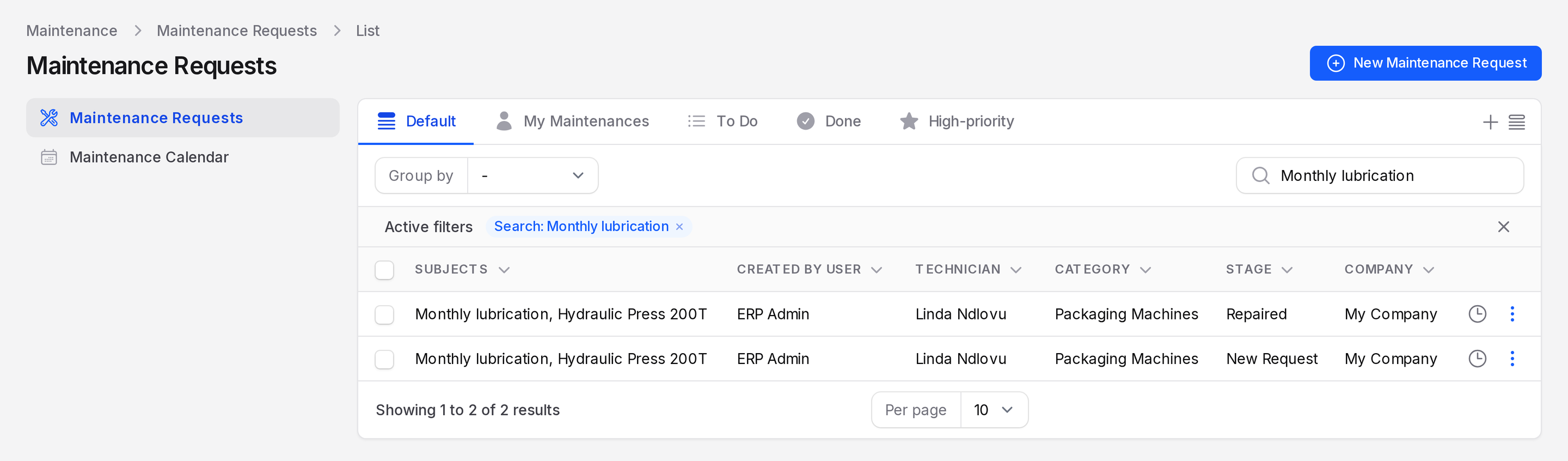
The request repeats when you save it in a stage with the Done flag, such as Repaired.
- A technician finishes the job, chooses Repaired on the Edit page and clicks Save changes. See Process a request.
- Aureus makes a copy in the first stage, New Request.
- The copy has a new Scheduled Date: the original date plus the interval. It keeps the time and duration.
- An activity is created for the Responsible person on the copy.
Dates in the example
| Step | Scheduled Date |
|---|---|
| First request, scheduled | 20 Oct 2026 09:00 |
| You save it in Repaired | A copy is created |
| Copy appears in New Request | 20 Nov 2026 09:00 |
| You save the copy in Repaired, and the next copy appears | 20 Dec 2026 09:00 |
The new date is the old Scheduled Date plus the interval, not today plus the interval. Closing late does not shift the cycle.
Behind the scenes
The copy keeps the same equipment, team, responsible person, duration, priority, notes and instructions. The activity for the copy appears in the request's Chatter and in Activities. The old request stays in Repaired as your history.
Corrective requests never create a copy.
TIP
Keep the repeating request assigned to someone. The next activity goes to the Responsible person, so an empty field leaves the new job without an owner.
TIP
A scheduled date makes the request appear on the Maintenance calendar. You see each month's job ahead of time.