

Publish and draft
Every page is either a draft or published. A draft is visible in the admin to every user who can open Pages. A published page is visible to everyone on your website. This lets you write and review without showing unfinished work.
In simple words: Draft means hidden. Published means live. Publish and Set as Draft switch between the two.
Open Website → Pages.
Draft versus published
| Draft | Published | |
|---|---|---|
| Is Published column | Off | On |
Visitor opens /pages/{slug} | Gets a "page not found" result (404) | Sees the page |
| Link in header or footer menu | Not shown | Shown if the switch is on |
| Edit button on the page | Publish | Set as Draft |
Create → Draft → Publish → Published → Set as Draft → DraftWARNING
A new page always starts as a draft. Creating it does not put it on the website.
Publish a page
Scenario: make the new Our Team page live.
- Open
Website → Pages. - Click Edit on the Our Team row.
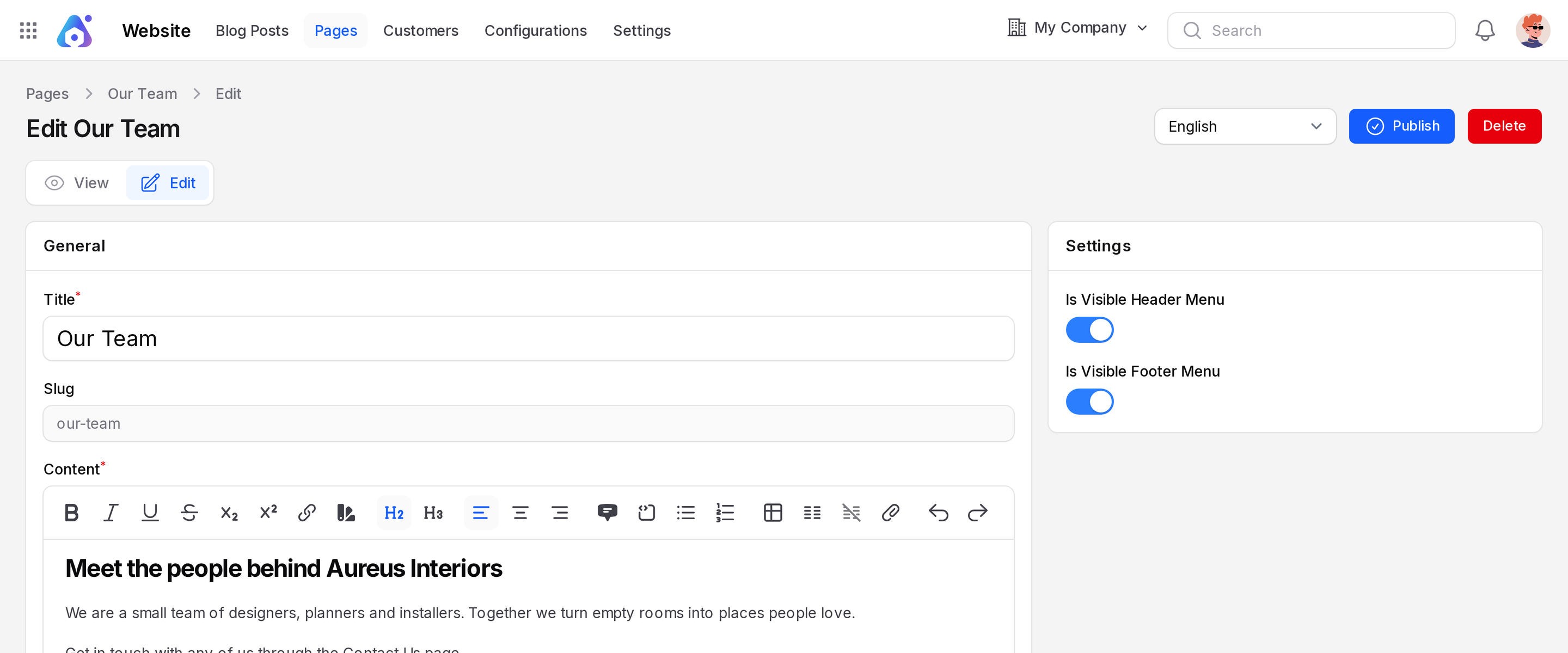
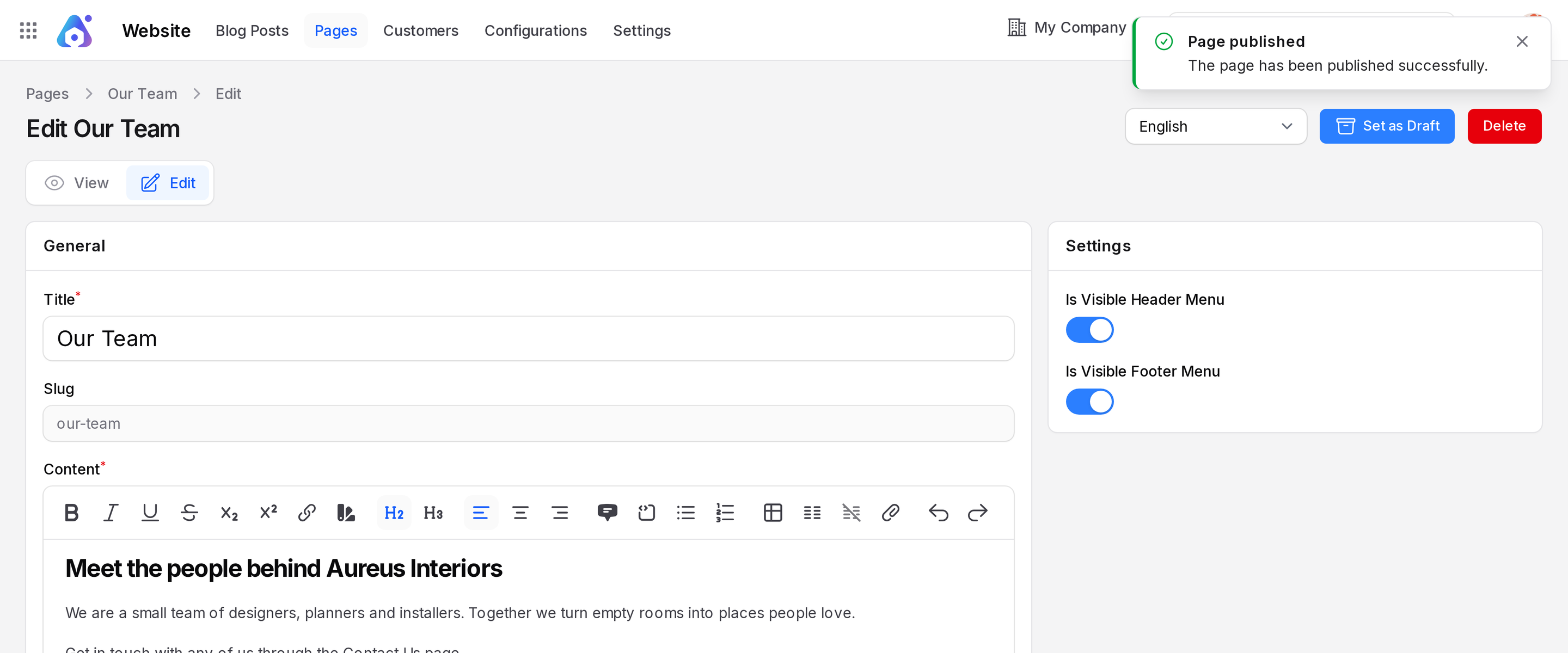
- Click Publish in the top right. Aureus shows Page published. It also records the publish date.
- Go back to the list. Is Published is on for that row.
Set a page back to draft
Use this to take a page off the site, for example while you rewrite it.
- Click Edit on a published page.
- Click Set as Draft. Aureus shows Page set as draft.
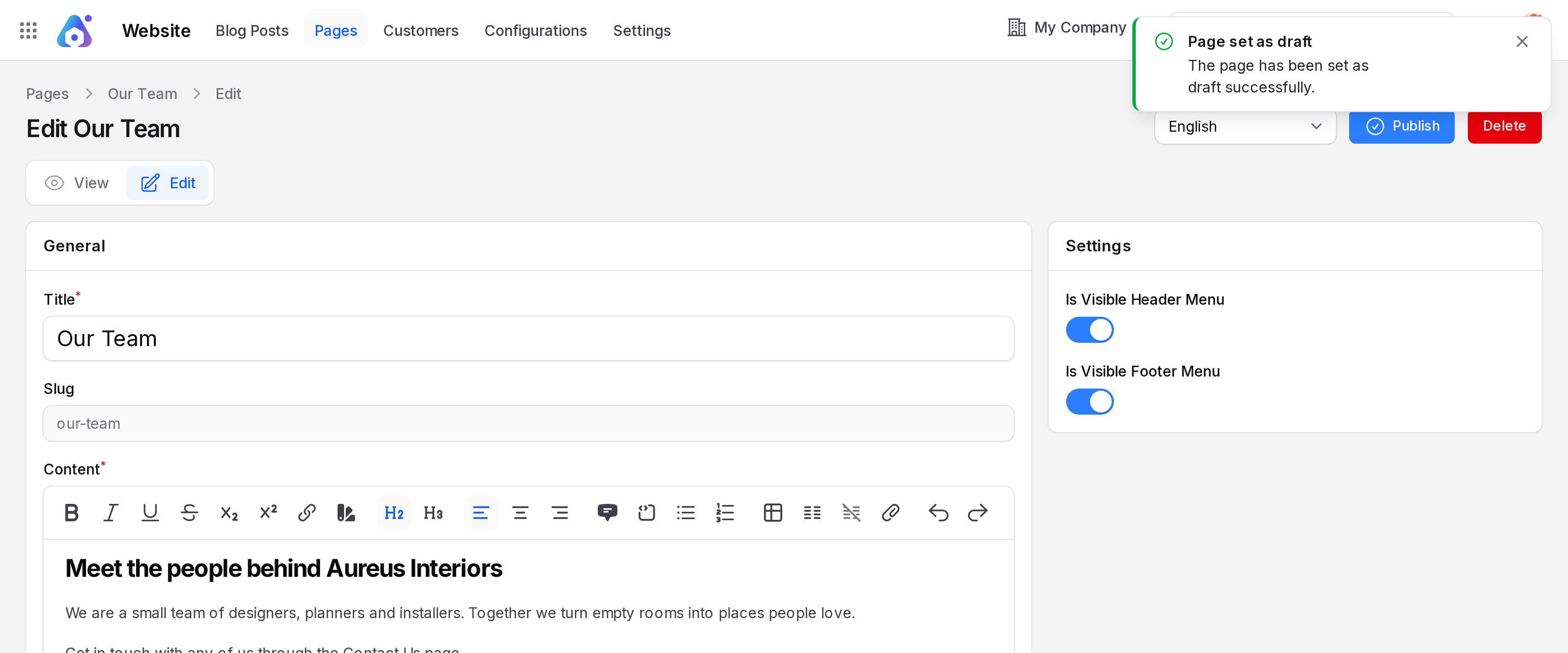
The link leaves the menus and /pages/{slug} stops working at once.
Archive, restore and delete
In Aureus, Delete on a page moves it to the Archived tab. It is not gone.
- Click Delete on the row, or on the edit page. Aureus shows Page deleted.
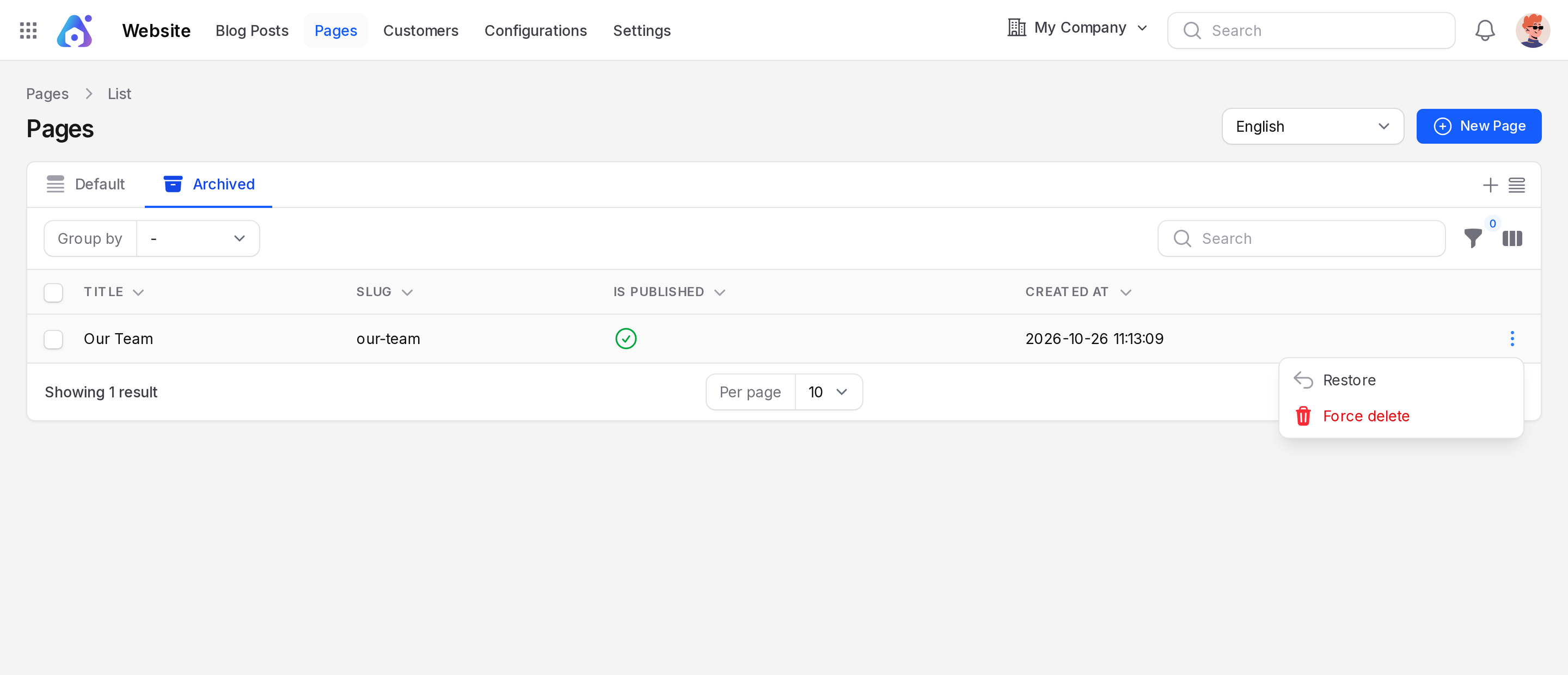
- Open the Archived tab to find the page.
- Click Restore to bring it back. Aureus shows Page restored.
- Click Force delete to remove it for good.
WARNING
Force delete cannot be undone.
Translate a page
Every list and form has a Locale switcher. It offers English, Arabic, Spanish, Portuguese (Brazil) and French.
- Choose a language in the Locale switcher.
- Enter the Title, Content and SEO fields in that language.
- Click Save changes.
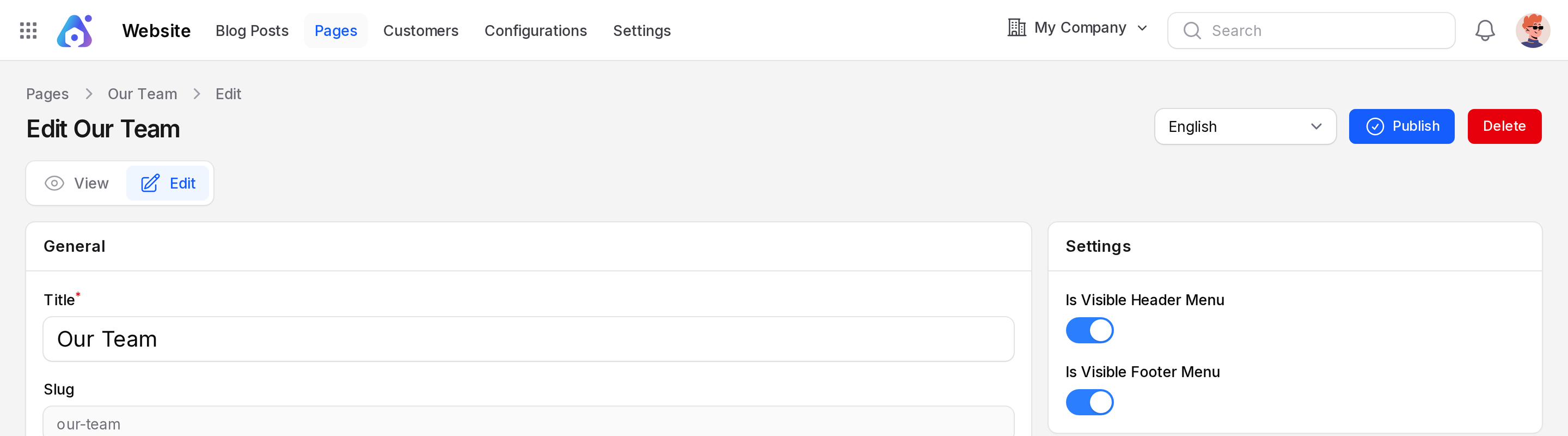
Use the same switcher later to review or change each translation.
Pages that come with the site
Aureus ships with Home, About Us, Privacy Policy, Terms & Conditions, News & Announcements, Our Services, Contact Us, Careers and FAQ. The page with the slug home is the home page. It opens at /, not at /pages/home.
TIP
Do not set the Home page back to draft on a live site. Your front door would be empty.
What the visitor sees
Only published pages appear. A visitor who types the address of a draft page sees a not found page. Menu links appear and disappear with the publish state.