

Generate leads from visitors
Visitor rules create leads for you when people browse your website. You decide which visitors count, such as those from one country or those who open one page. Aureus then adds a lead with the tags, priority, team and salesperson you chose.
In simple words: A rule watches your website and makes a lead when a visitor matches it.
This feature needs the Website app to be installed. Without it, the switch in the settings stays off.
About the example
Sharma Textiles wants more enquiries from India. You create a rule named Textile page visitors. It makes a lead for each visitor from India who opens a page with /textile in its address.
Settings
Turn the feature on first.
- Go to
CRM → Settings → Manage Lead Generation. - Switch on Visitors to Leads.
- Click Save changes.
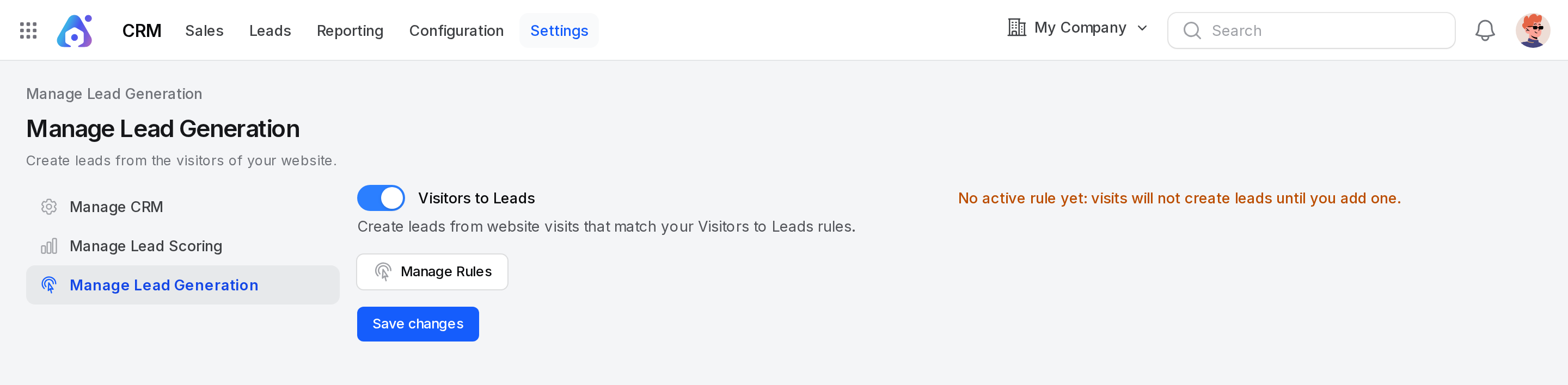
Once the switch is on, a line tells you how many rules are active. If there are none, it warns you that visits will not create leads until you add a rule.
- Manage Rules opens the list of rules.
- Create Leads for Existing Visitors applies the active rules to pages that visitors already opened. It shows only when at least one rule is active and some visitors have no lead. Aureus asks you to confirm, then reports how many leads it created.
The rules list
Open CRM → Configuration → Visitors to Leads Rules. The page appears only when the feature is on.
Columns
The list shows Rule Name, URL Expression, Countries, Type, Sales Team, Salesperson, Leads, Opportunities and Active.
- URL Expression shows Whole website when the rule has no expression.
- Countries shows All countries when the rule has none.
- Leads and Opportunities count what the rule created.
- Click the Active switch to turn a rule on or off.
Search, filter and order
- Type in the search box to find a rule by name.
- Use the Active filter to show active or inactive rules.
- Drag a row to change the order. The first matching rule wins when a visitor fits more than one.
- Row actions are View, Edit and Delete. Bulk actions let you export or delete ticked rules.
Create a rule
- Go to
CRM → Configuration → Visitors to Leads Rules. - Click New Visitors to Leads Rule.
- Fill in the form.
- Click Create. Use Create & create another to save and open an empty form.
Rule
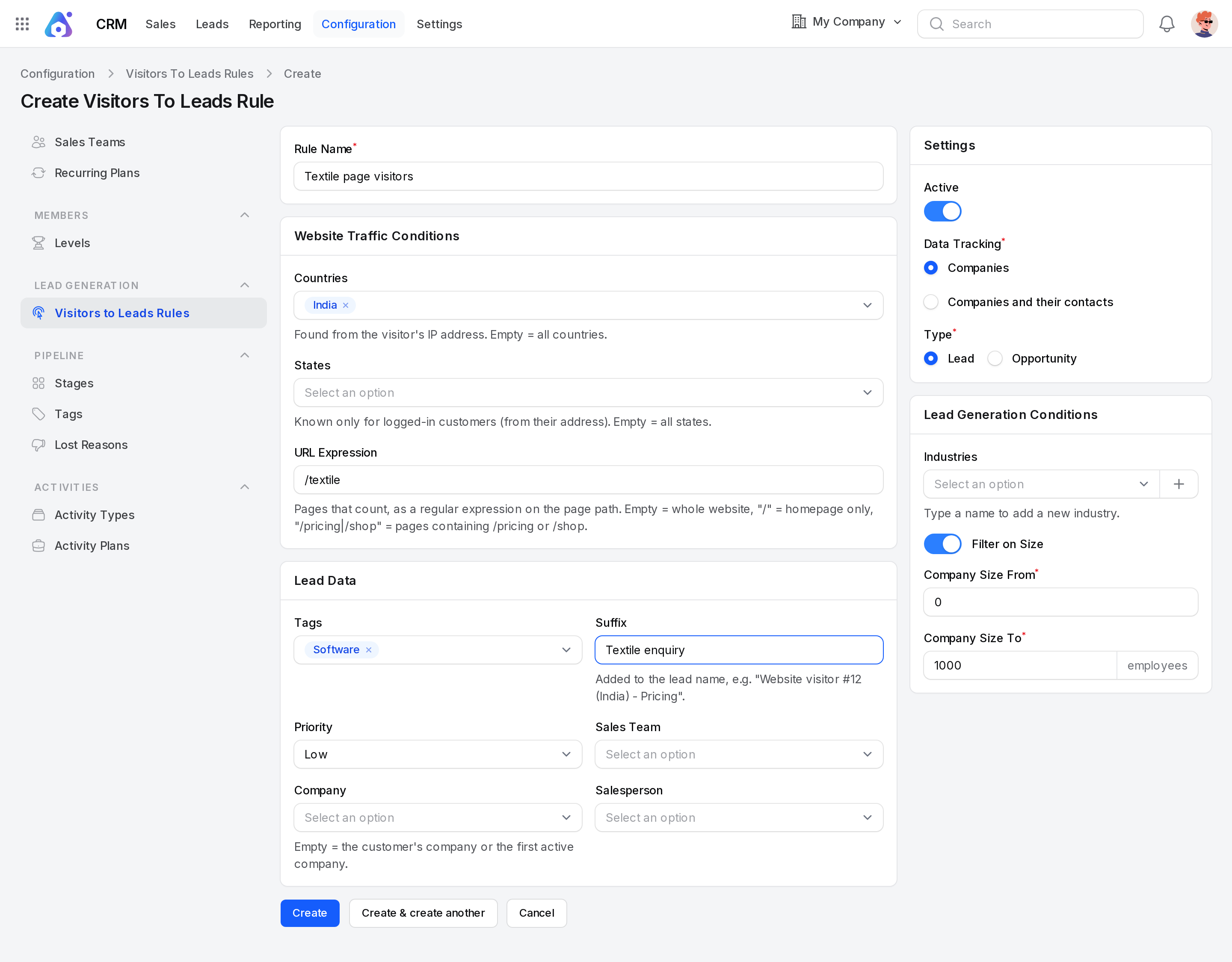
- Rule Name: A clear name for the rule. Required, up to 255 characters. The hint reads e.g. US Visitors.
Example: Textile page visitors.
Website Traffic Conditions
- Countries: Only visitors from these countries match. Aureus finds the country from the visitor's IP address. Leave it empty for all countries.
- States: Only visitors from these states match. It shows after you pick a country. Aureus knows the state only for logged-in customers, from their address. Leave it empty for all states.
- URL Expression: The pages that count. Enter a regular expression on the page path. Leave it empty for the whole website. Enter
/for the home page only. Enter/pricing|/shopfor pages that contain/pricingor/shop. An invalid expression is rejected with the message Enter a valid expression.
Example: Pick India as Countries. Enter /textile as URL Expression.
Contact Filter
This section shows only when Data Tracking is Companies and their contacts. A note reminds you to check whether you must follow data protection law (GDPR) when you store personal data.
- Number of Contacts: 1 contact to 5 contacts. It starts at 1 contact. Required.
- Filter Contacts On: Choose Role or Seniority. It starts as Role. Required.
- Preferred Role: The main role you look for. It shows for Role. Pick one, or type a new name to add it.
- Other Roles: More roles you accept. It shows after you pick a Preferred Role.
- Seniority: The level you look for. It shows for Seniority. Pick one, or type a new name to add it.
Lead Data
The title of this section is Opportunity Data when the Type is Opportunity.
- Tags: Tags added to each lead the rule creates. You can pick many. See Tags.
- Suffix: Text added to the end of the lead name. For example,
Website visitor #12 (India) - Pricing. - Priority: The priority of the new lead. It starts as Low.
- Sales Team: The team that receives the lead.
- Company: The company the lead belongs to. Leave it empty to use the customer's company, or the first active company.
- Salesperson: The owner of the lead. The list depends on the Company you chose.
Example: Add the tag Software. Set Suffix to Textile page, Priority to High, and Sales Team to Sales.
Settings
- Active: Turns the rule on. It starts on.
- Data Tracking: Choose Companies or Companies and their contacts. It starts as Companies. Required.
- Type: Choose Lead or Opportunity. It shows only when Lead Qualification is on. Then it starts as Lead. Required.
Lead Generation Conditions
The title is Opportunity Generation Conditions when the Type is Opportunity.
- Industries: The industries you target. Pick many, or type a name to add a new industry.
- Filter on Size: Switch on to limit by company size. It starts on.
- Company Size From: The smallest number of employees. It starts at 0. Required when the size filter is on.
- Company Size To: The largest number of employees, shown with the unit employees. It starts at 1000 and cannot be lower than Company Size From. Required when the size filter is on.
The rule page
A saved rule opens with three tabs: View, Edit and Generated Leads. A number on Generated Leads shows how many records the rule created. The tab lists their Name, Country, Stage and Created date.
Behind the scenes
- Aureus watches each visitor page view. If an active rule matches the page and the place, it queues the visit and creates the lead.
- A visitor gets one lead only. If more than one rule matches, the first rule in the list order is used.
- The lead name is
Website visitor #<number>, with the country in brackets when known. For a logged-in customer it isWebsite visitor: <customer name>. Your Suffix follows after a hyphen. - The lead copies the customer's name, email, phone and address when the visitor is a known customer. Referred By shows Website Visitor.
- The Notes field lists the rule, IP address, country, time zone, language, landing page and first visit date. The lead page also shows the IP Address.
- The lead is created as a Lead only when the rule Type is Lead and Lead Qualification is on. Otherwise it is an opportunity.
- Leads from a rule appear in
CRM → Leads → Leadslike any other lead.
TIP
Test a rule with a narrow URL Expression first. A broad rule can create many leads in a day.