

Mark an opportunity won or lost
When a deal ends, you close it. A won deal moves to the won stage. A lost deal keeps a reason and a note, so you can learn why customers say no.
In simple words: Click Won when the customer says yes. Click Lost when they say no, and say why.
You can close a deal from the opportunity page, from a list row menu, or from the Teams pipeline. The steps are the same everywhere.
Settings
To mark a deal won, one stage must be a won stage. Go to CRM → Configuration → Stages, open the stage and turn on Is Won Stage?. See Stages.
Without a won stage, clicking Won shows the warning No won stage. It tells you to set one first.
For lost deals, prepare your reasons in CRM → Configuration → Lost Reasons. See Lost reasons.
Mark an opportunity as won
Sharma Textiles accepts the offer for Annual ERP licence - Sharma Textiles.
- Open the opportunity from
CRM → Sales → My Pipeline. - Click Won.
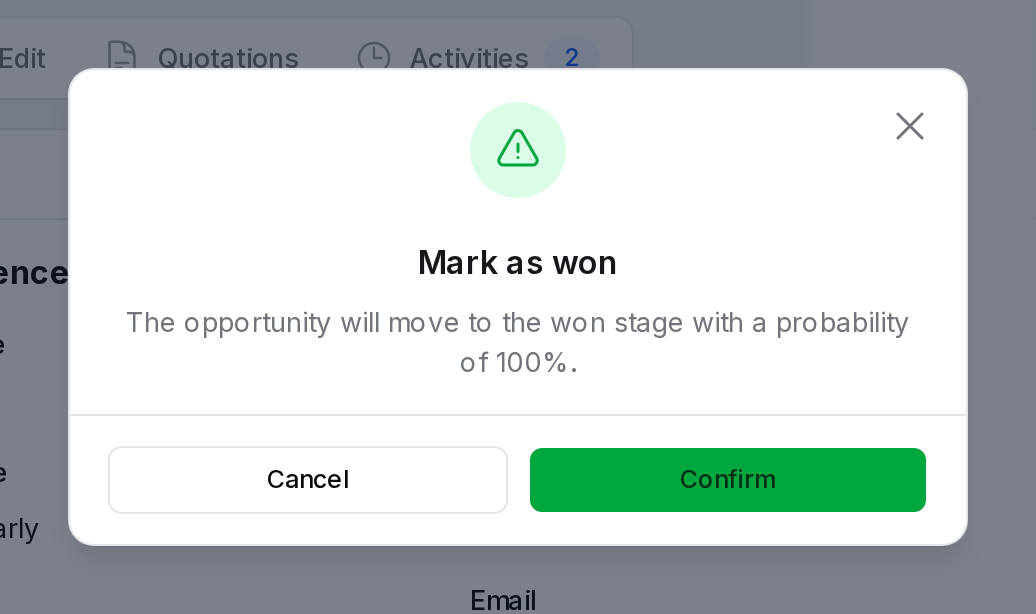
- Read the dialog Mark as won. It says the opportunity moves to the won stage with a probability of 100%.
- Confirm. A notification Opportunity won appears.
The card now sits in the won column with a Won label. It shows under the Won tab.
INFO
The Won button is hidden on a deal that is already won, on a lost deal, and on a lead. Convert a lead first.
Mark an opportunity as lost
Say another deal, with another customer, falls through because the price is too high.
- Open the opportunity.
- Click Lost.
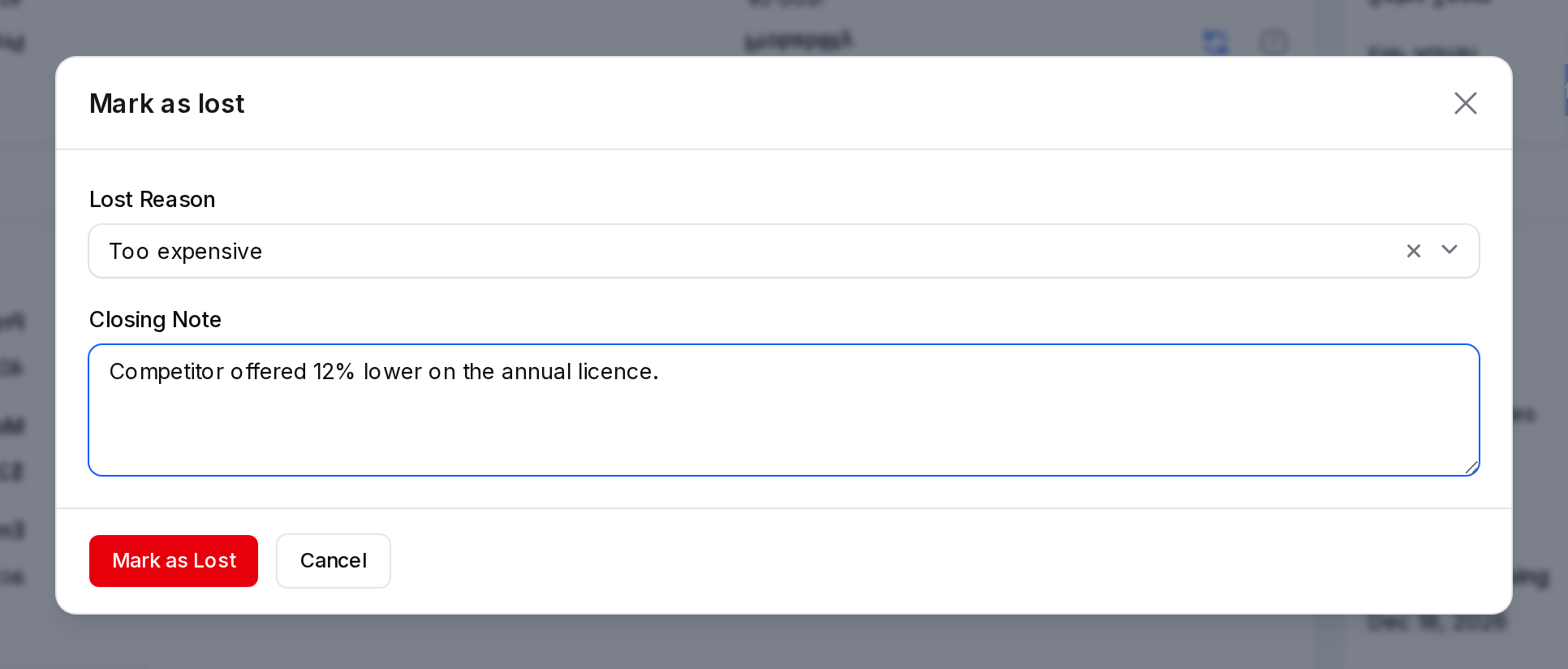
- Fill in the dialog Mark as lost.
- Lost Reason: Why you lost. Optional. Search the list, for example Too expensive.
- Closing Note: A short note for your team. Optional.
Example: Lost Reason Too expensive. Closing Note Competitor offered 12% lower on the annual licence.
- Click Mark as Lost. A notification Opportunity lost appears.
The record leaves the board and moves to the Lost tab. You can also mark a lead as lost with the Lost button on the lead page.
Mark many deals as lost
- Open the list layout of
CRM → Sales → My Pipeline. - Select the rows.
- Choose Mark Lost from the bulk actions.
A notification tells you how many records were marked as lost.
Read a lost deal
Open a lost opportunity from the Lost tab. A Lost section shows the Lost Reason and the Closing Note. The Sales section shows Closed At.
Restore a lost deal
A lost deal can come back.
- Open the Lost tab and select the opportunity.
- Click Restore.
The opportunity returns to the pipeline. A notification Opportunity restored appears. The lost reason, closing note and closed date are cleared. Probability goes back to Automatic.
Actions and statuses
| Action | Where | Result |
|---|---|---|
| Won | Open deals | Stage becomes the won stage. Probability becomes 100%. |
| Lost | Open and won deals | The deal moves to the Lost tab. Probability becomes 0%. |
| Restore | Lost deals | The deal returns to the pipeline as open. |
| Force delete | Lost deals | The deal is removed for good. |
WARNING
Force delete cannot be undone. Use Restore if you only want the deal back.
Behind the scenes
- Stage. Won moves the deal to the first won stage in the stage order.
- Probability. Won sets 100%. Lost sets 0%.
- Closed date. Both actions store Closed At with today's date.
- Moving out of won. Dragging a won card to an open stage clears Closed At and returns the probability to Automatic.
- Reports. Won and lost deals feed the pipeline and lead scoring. See CRM reports.
TIP
Fill in Closing Note every time. A clear note helps the team improve its offers.