

Produce and consume
Producing is the last step of an MO. You tell Aureus how much you made and how much of each component you used. Aureus then removes the components from stock, adds the finished goods and closes the order.
In simple words: Produce means "I made it". Consume means "these parts were used up".
Use the buttons on the MO at Manufacturing → Operations → Manufacturing Orders.
Settings
How strict Aureus is about extra or missing components is set on the bill of materials. Open the BoM and look at Flexible Consumption in the Miscellaneous box. See Bill of materials.
| Value | What you see when you produce |
|---|---|
| Allowed | No warning. Consumed amounts are accepted as typed. |
| Allowed with warning | The Consumption Warning window opens if amounts differ. This is the default for a new BoM. |
| Blocked | The same window opens. Use it for recipes where amounts should not change. |
Produce All
Scenario: finish MO/2, 2 Business Laptops, with nothing changed.
- Open MO/2. Its state is Confirmed or In Progress.
- Check Quantity Producing. It equals the order quantity, 2.
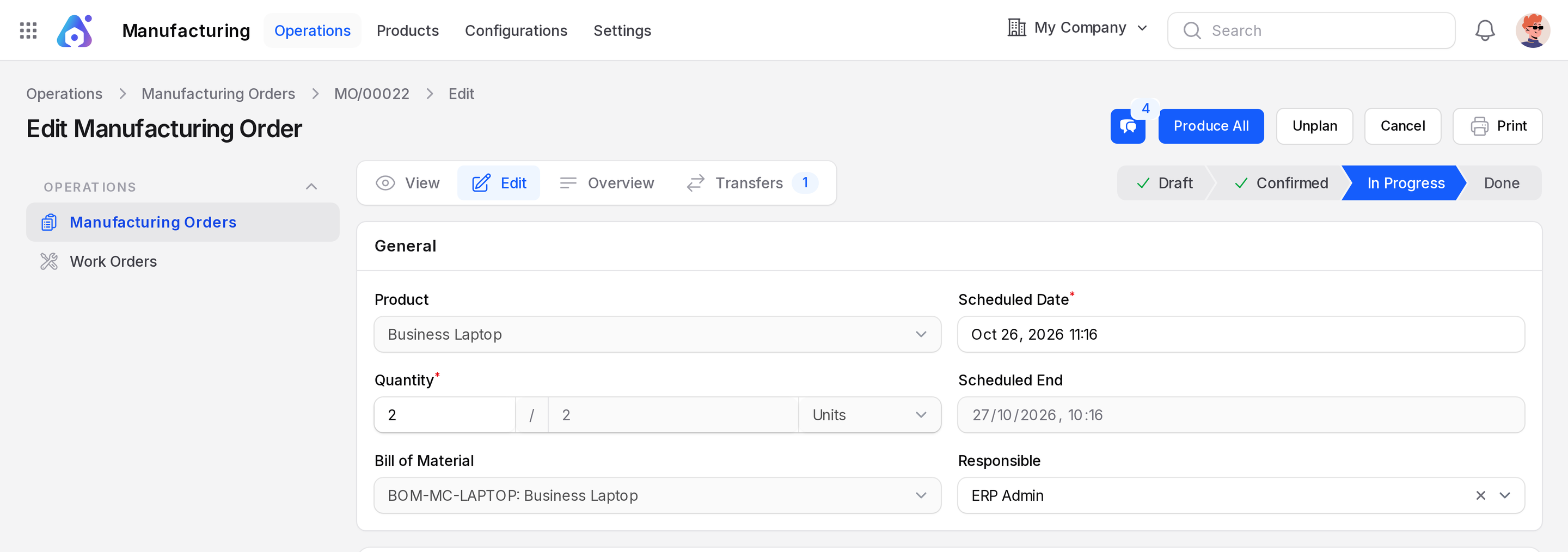
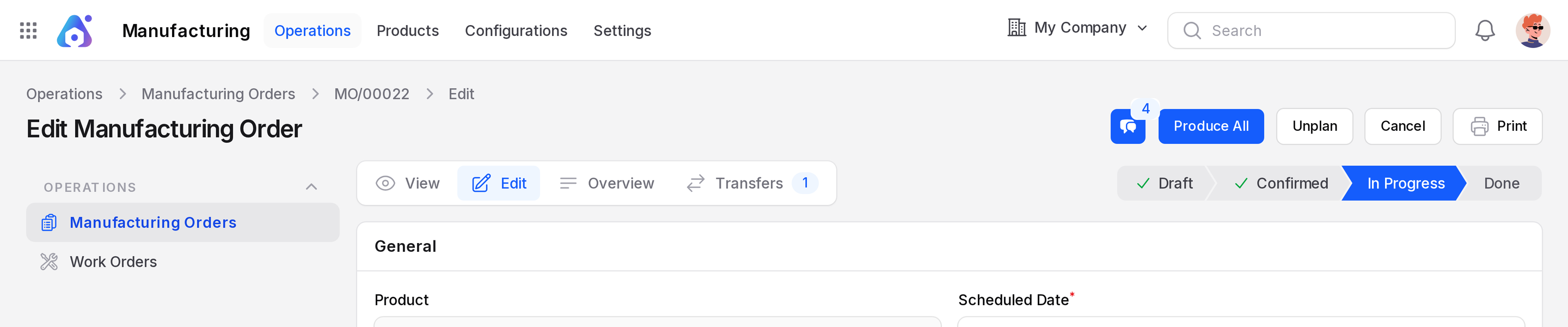
- Click Produce All.
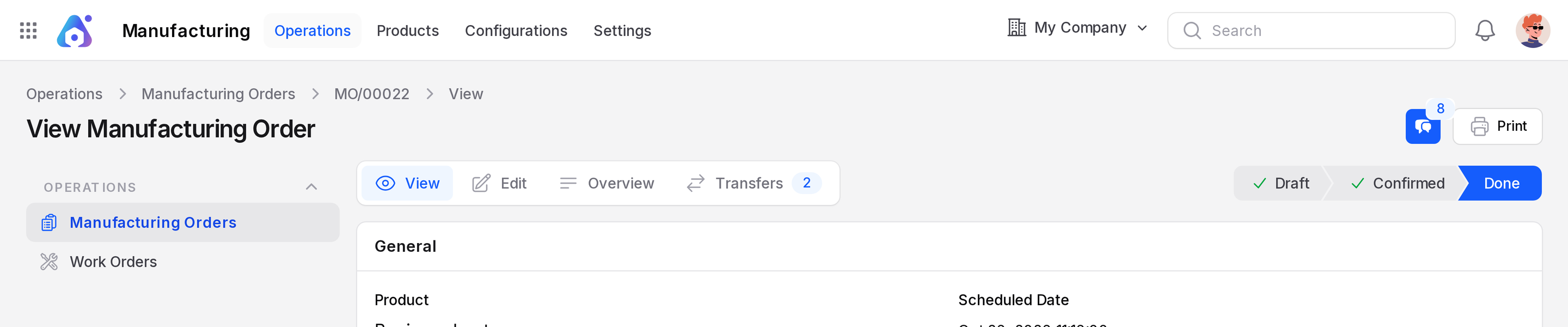
- Aureus shows Manufacturing order completed. The state becomes Done.
What happens
- Open work orders are finished.
- Components are consumed.
- The finished goods are created.
- The MO is locked. No action buttons remain.
Stock → Pre-Production → Production        (components used up)
Production → Stock                         (finished laptops)
With a three step warehouse, a store transfer (prefix SFP) also moves the finished goods to Stock. See Three step manufacturing.
Produce a different quantity
Change Quantity Producing to a number below or above the order quantity. The button label changes from Produce All to Produce.
- Open the MO and click Edit.
- Set Quantity Producing to 1 and save.
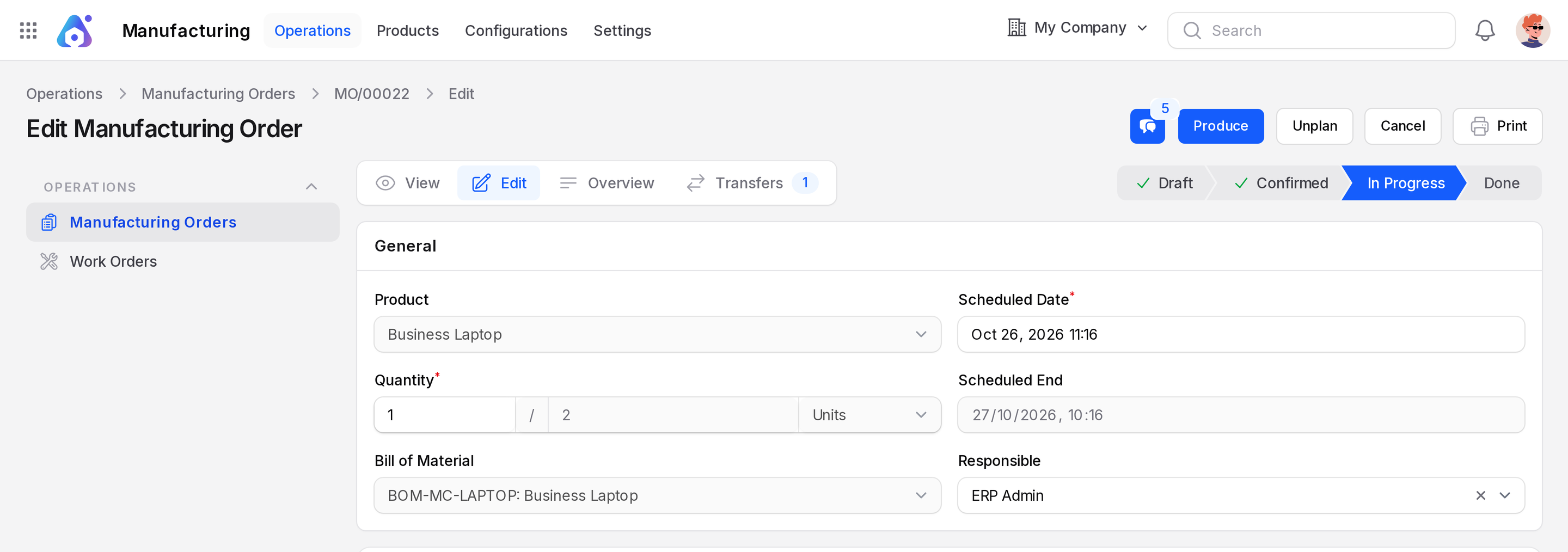
- Click Produce. Aureus asks you to confirm with Submit or Cancel.
The window is titled Produced is different than expected. It says: "The quantity produced is different than expected. Do you want to confirm the manufacturing order with the current quantity?"

Click Submit. The order completes with the quantity you entered.
Actions and statuses
| Action | Result |
|---|---|
| Produce All | Finishes the full quantity. State Done. |
| Produce | Finishes the quantity in Quantity Producing. The order completes. State Done. |
A Done order is locked. To start again, create a new MO.