

Task list views and filters
The task list shows every task you may see. A busy project can hold hundreds, so use the tabs, grouping and filters to find the right ones. The list shows parent tasks only. Sub-tasks sit inside their parent.
In simple words: Pick a tab for a ready-made view, then group or filter to narrow it down.
Open Project → Tasks. A row of figures at the top sums up tasks, hours spent and time remaining.
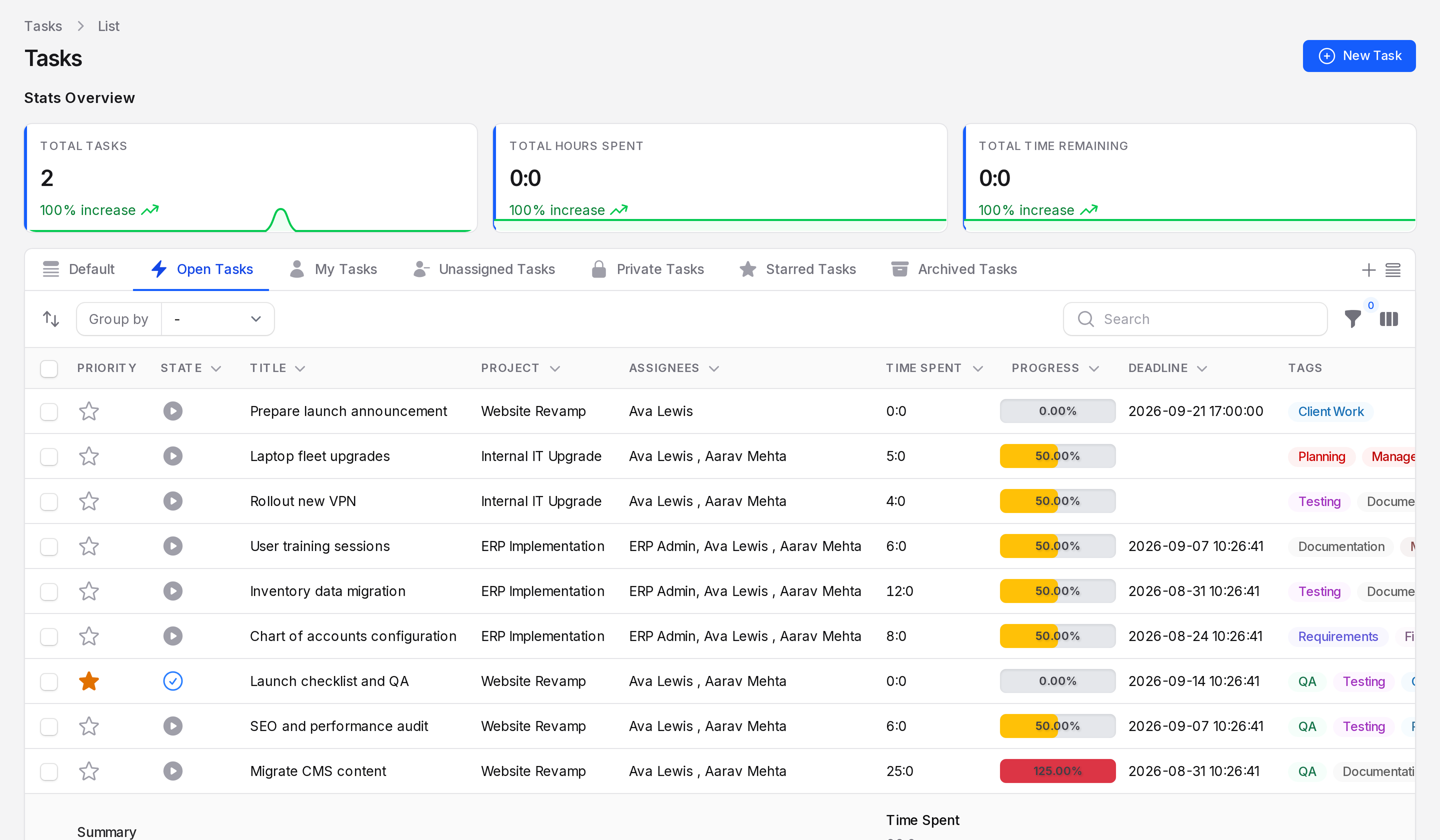
View tabs
| Tab | Shows |
|---|---|
| Default | Every task |
| Open Tasks | Tasks that are not Cancelled or Done. This tab is selected when you open the list. |
| My Tasks | Tasks assigned to you |
| Unassigned Tasks | Tasks with no assignee |
| Private Tasks | Tasks with no project |
| Starred Tasks | Tasks with a priority star |
| Archived Tasks | Tasks you deleted |
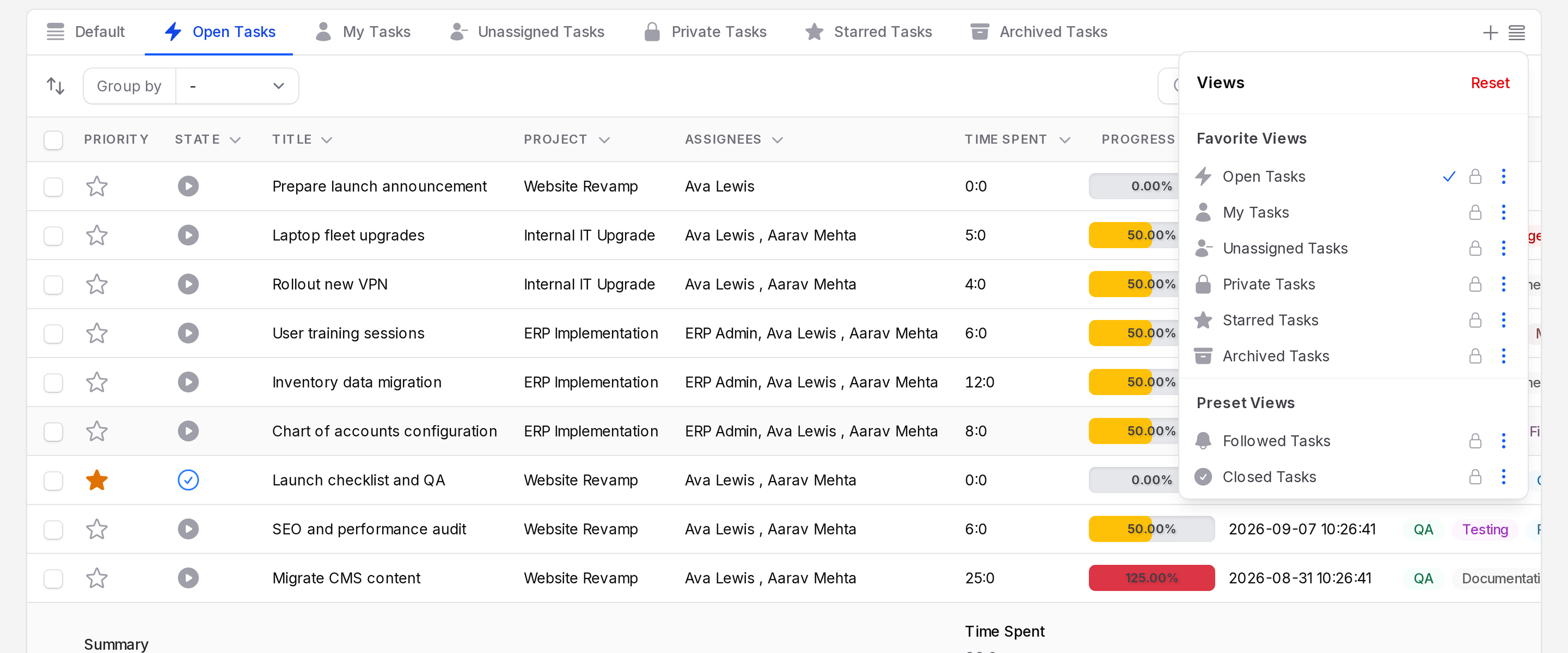
Two more views, Followed Tasks and Closed Tasks, are in the views dropdown. Closed Tasks lists tasks that are Cancelled or Done.
Columns
Click the column icon to show, hide or reorder columns.
- Priority: the star. Click it to switch on or off.
- State: an icon. Click it to open Update Task State.
- Title, Project, Assignees, Deadline, Tags and Stage.
- Milestone, Customer and ID: hidden at first. Milestone needs Enable Milestones.
- Time Spent, Allocated Time, Time Remaining and Progress: need Enable Timesheets.
Drag a row to change the sort order.
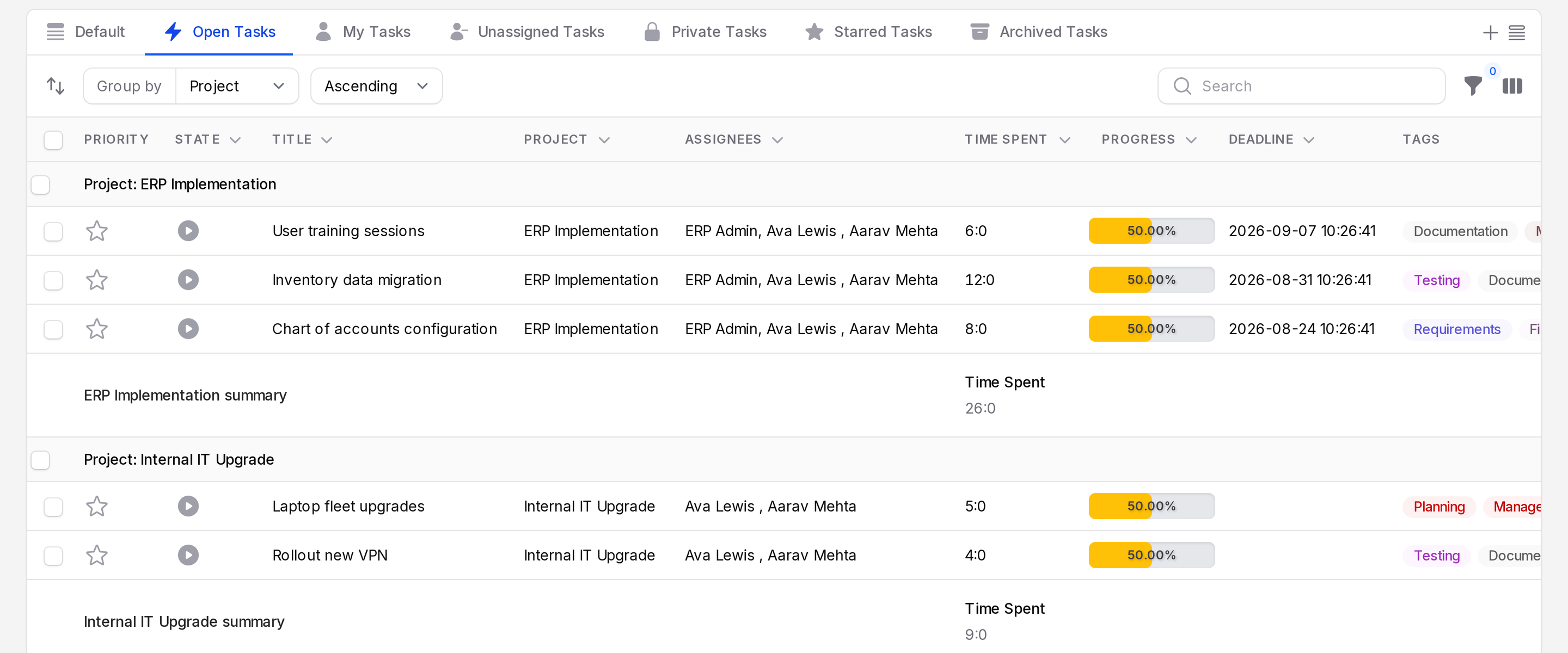
Group by
Click Group and pick one of: State, Project, Deadline, Stage, Milestone, Customer or Created At.
Filters
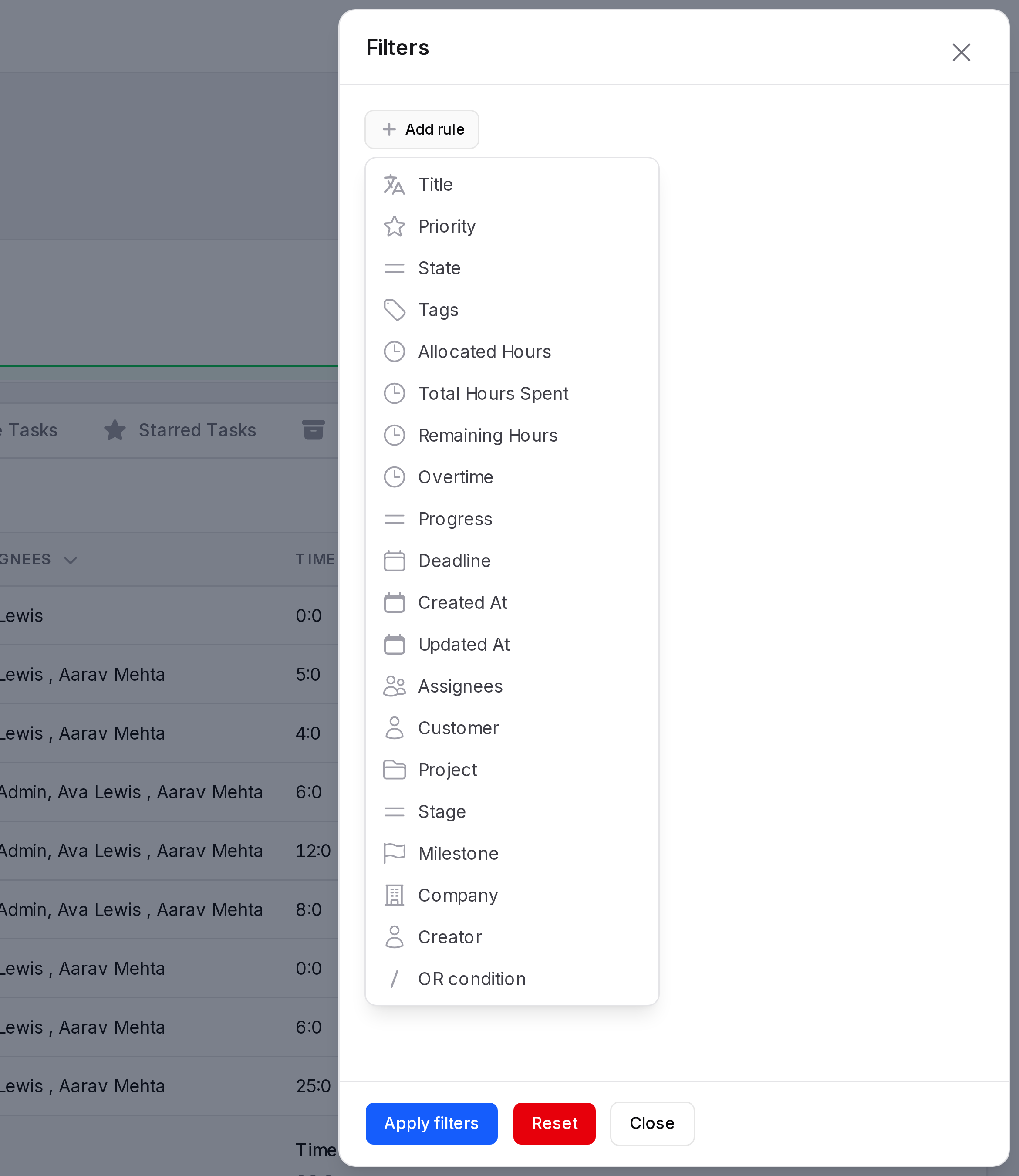
Click the filter icon to open the filter panel. You can filter by these fields:
- Title, Priority, State, Tags, Deadline, Created At and Updated At.
- Assignees, Customer, Project, Stage, Milestone, Company and Creator.
- With timesheets on: Allocated Hours, Total Hours Spent, Remaining Hours, Overtime and Progress.
Click Add rule, pick a field, then set its value. For example, add a rule for Project and choose Website Revamp. Click Apply filters to see the result. Reset clears the rules.
Row and bulk actions
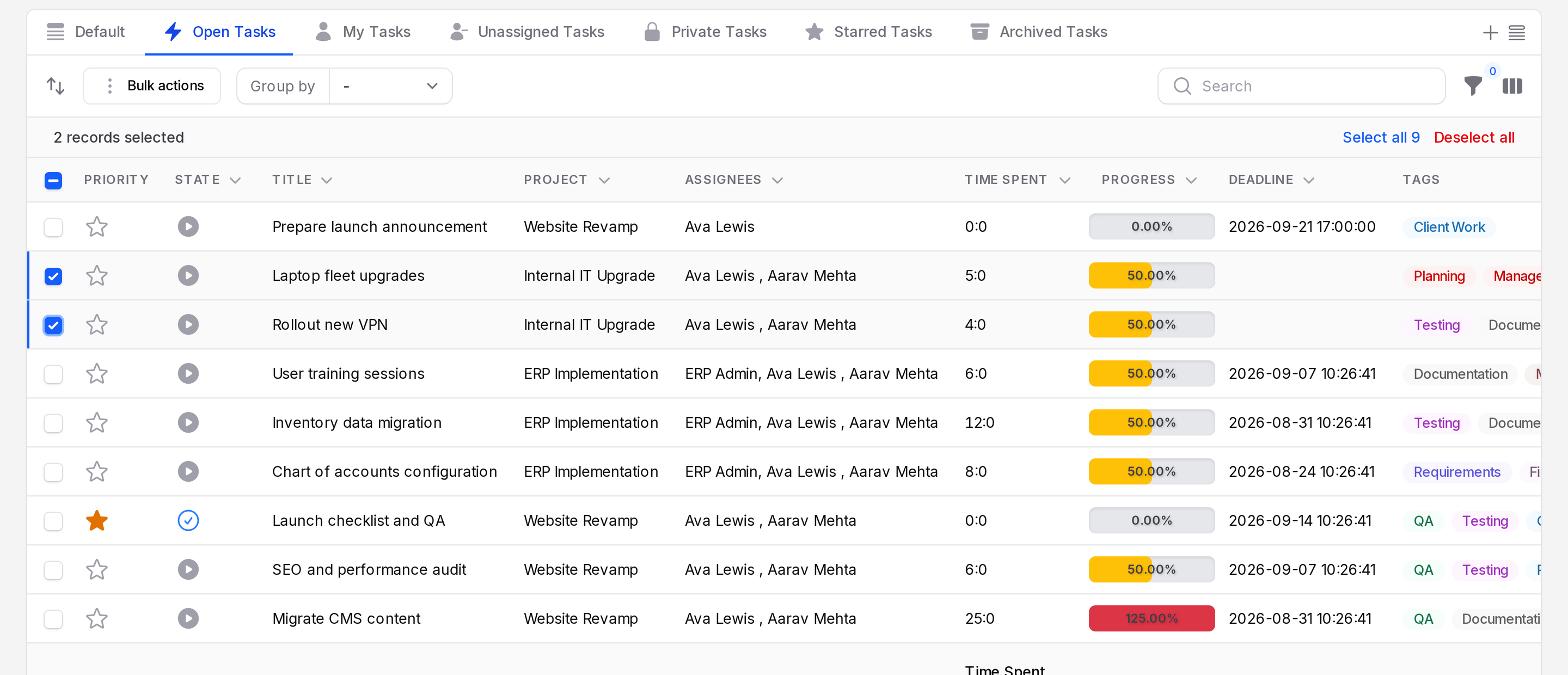
The row menu has View, Edit, Delete, Restore and Force delete. Tick several rows to use bulk Delete, Restore or Force delete. Checkboxes show only if your role allows these actions.
WARNING
Delete archives a task. Force delete removes it for good. You cannot undo it.
Tasks of one project
Open the project and click Tasks in the sub navigation. The list is the same without the Project column. It has the views Open, My, Unassigned, Closed, Starred and Archived. New Task opens the full form, so pick the project there.
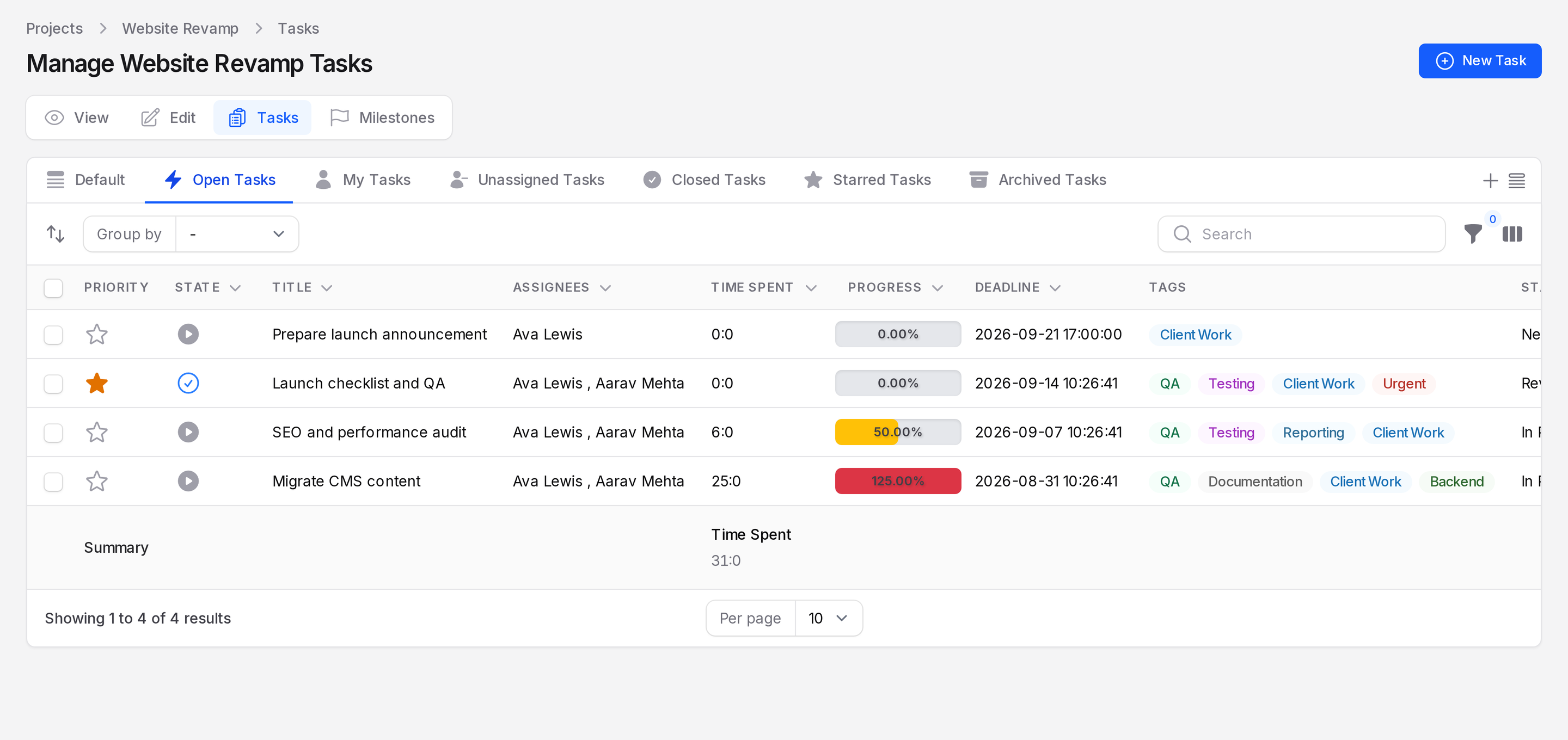
Click the task count on a project card to open the same page.