

Configure a product for purchase
A product is anything you buy or sell. The Purchase app opens the same product record as Sales and Inventory, with the tabs a buyer needs. The most useful one is Vendors, where you record who sells the product and at what price.
In simple words: Open the product from Purchase and tell Aureus which vendors sell it.
Open the list with Purchase → Products → Products. This page covers what a buyer needs. The base fields (name, price, taxes) are in the Sales guide. See Manage products.
Settings
Some tabs depend on settings and apps.
| Tab or field | Needs |
|---|---|
| Attributes and Variants | Purchase → Settings → Manage Products → Variants |
| Unit of Measure on lines | Manage Products → Unit of Measure |
| Packagings | Manage Products → Packagings |
| Stock tabs (quantities and moves) | The Inventory app |
| Bill of materials tab | The Manufacturing app |
See Purchase settings.
Overview
The product list has the tabs Default, Goods, Services, Favorites, Archived, Inventory Management, Components and POS. Columns include Name, Variants, Reference, Price, Cost, On Hand and Forecasted.
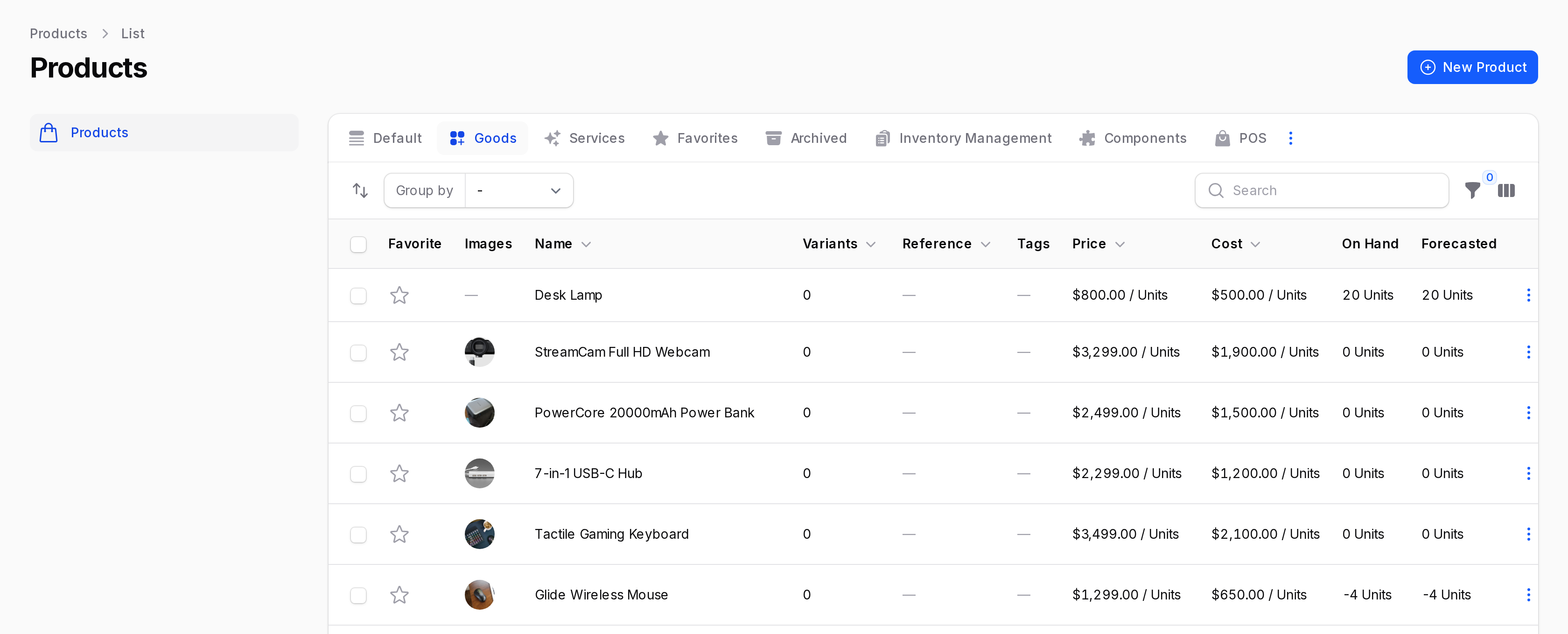
- Price: What you sell it for.
- Cost: What it costs you. Aureus uses it as the order line price when no vendor price row matches.
TIP
Use the Goods tab for things you receive and the Services tab for work you buy.
Open a product
- Go to
Purchase → Products → Products. - Click a product, for example SSD 512GB.
- Use the switcher at the top: View, Edit, Attributes, Variants, Vendors. With Inventory installed you also see quantities and moves.
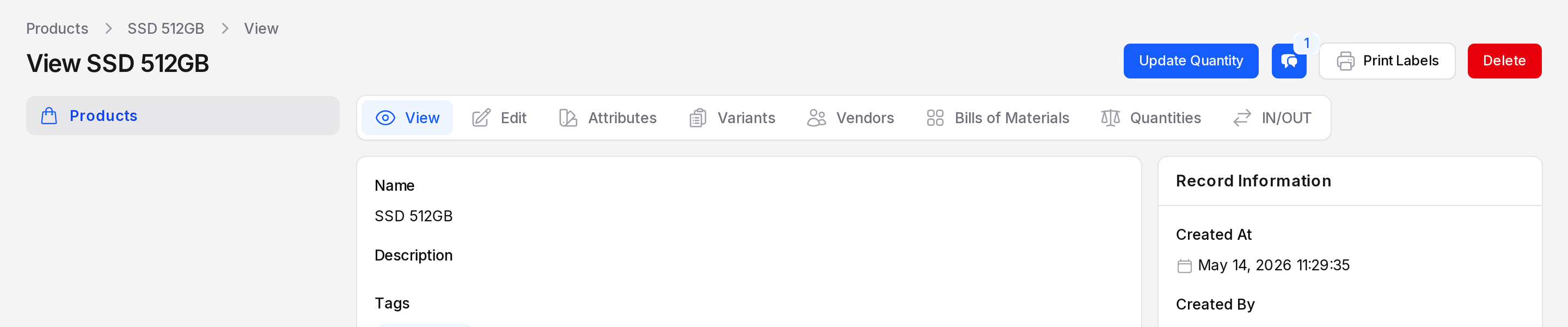
Purchase fields on the product
- Type: Goods or Service. Only goods create a receipt.
- Category: Groups products. Pick one from your category list.
- Cost: Your standard cost. It is the fallback order line price when no vendor price matches.
- Reference and Barcode: Codes your team uses to find the product.
Set Cost to a realistic number. If Cost is empty, Aureus falls back to Price.
Add a vendor to the product
- Open the product and click Vendors in the switcher.
- Click Add Vendor Price.
- Choose the Vendor. Enter Quantity and Unit Price.
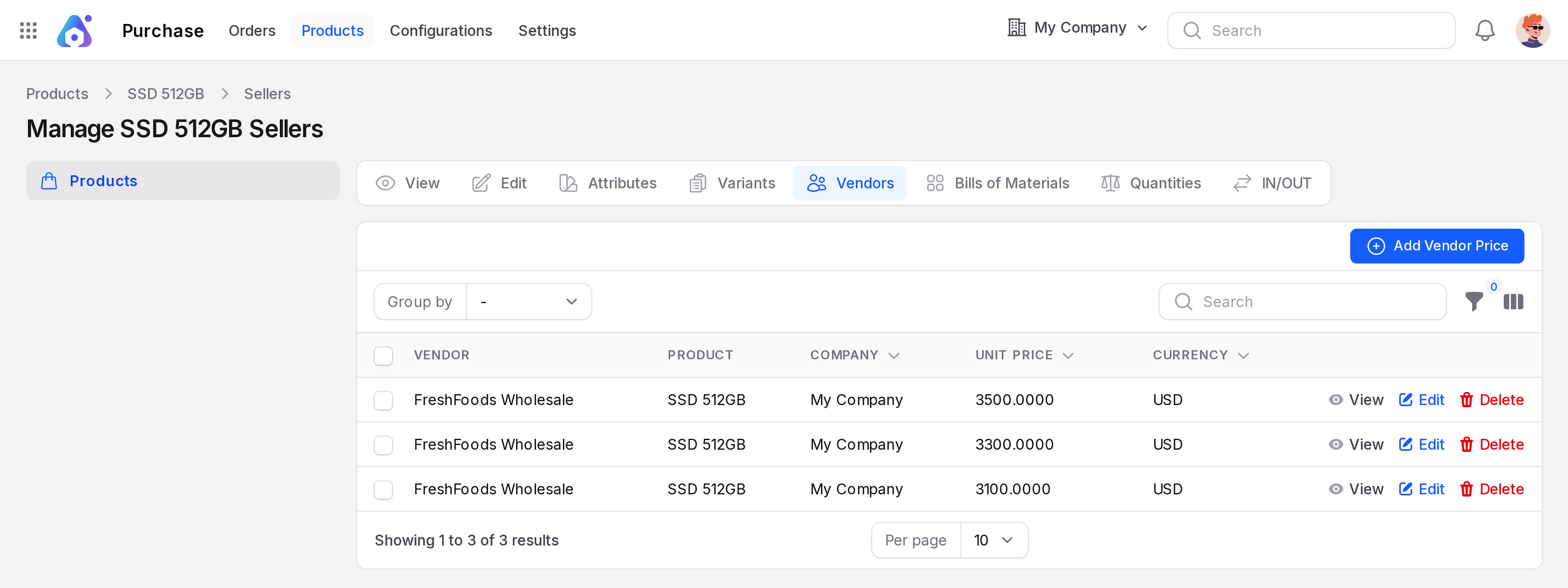
- Click Create.
Every field is explained in Vendor price lists.
Behind the scenes: The row is stored with the product. The same row also appears in Purchase → Configurations → Vendor Price Lists.
Variants
With Variants on, a product can have attributes such as size or colour. Each combination becomes a variant with its own price rows. On a product with variants, Add Vendor Price asks you to choose the Product variant.
- Click Attributes in the switcher and add an attribute with its values.
- Click Variants to see the generated combinations.
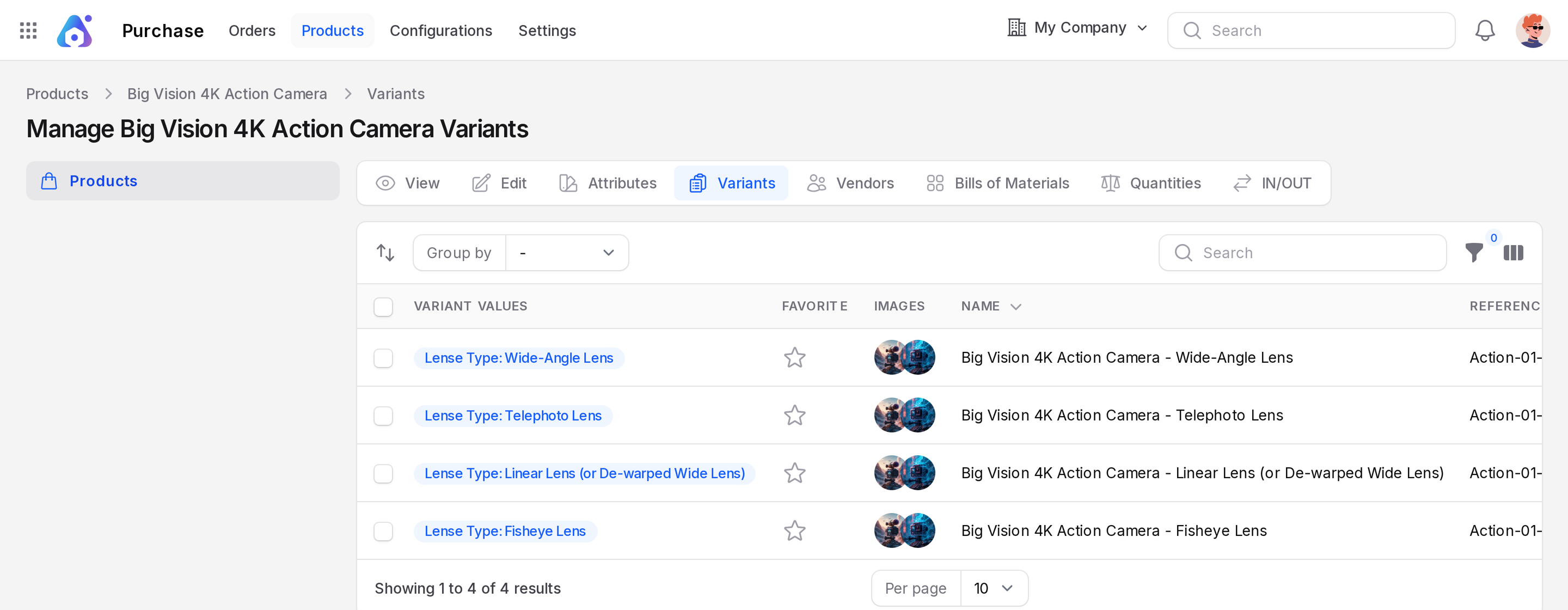
Create the attributes first. See Product configuration.
Link to other guides
- Prices, taxes and sales fields: Manage products.
- Tracking, routes and stock: Configure a product for inventory.