

Fiscal positions
A fiscal position is a set of rules for a type of customer or a region. Customers in another country, or businesses that are tax exempt, may need different accounts or different taxes than your usual customers. You describe those rules once and attach the position to a customer or a document.
In simple words: A fiscal position says: for this kind of customer, swap these accounts and these taxes.
This screen exists only in the Accounting app.
When to use this page
- You sell to customers in another country.
- You need a different income account for exports.
- You want to record that a customer follows a special tax rule.
Open the page
Accounting → Configurations → Accounting → Fiscal Positions
Overview
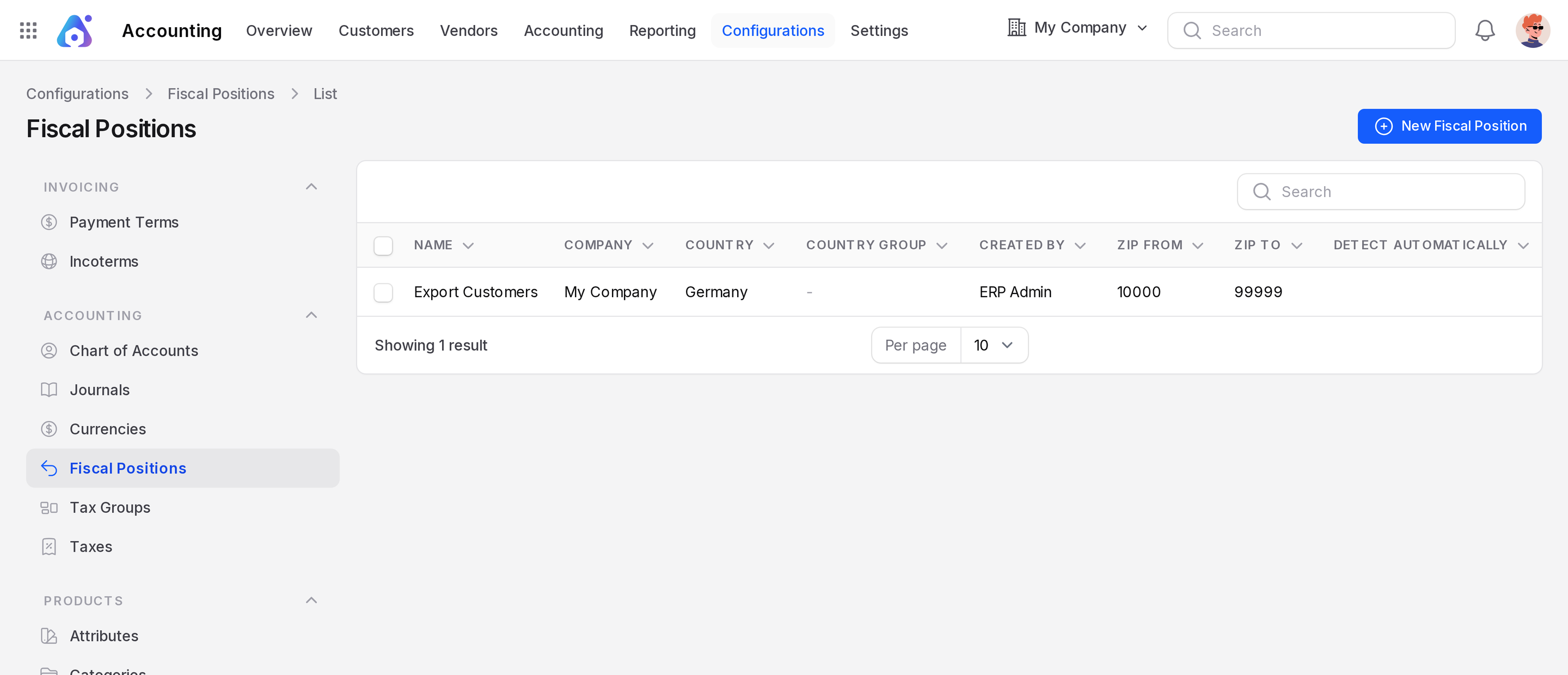
The list shows Name, Company, Country, Country Group, Created By, Zip From, Zip To and Detect Automatically. A new database has no fiscal positions.
Create a fiscal position
- Go to the Fiscal Positions page.
- Click New Fiscal Position.
- Fill in the fields below.
- Click Create.
General
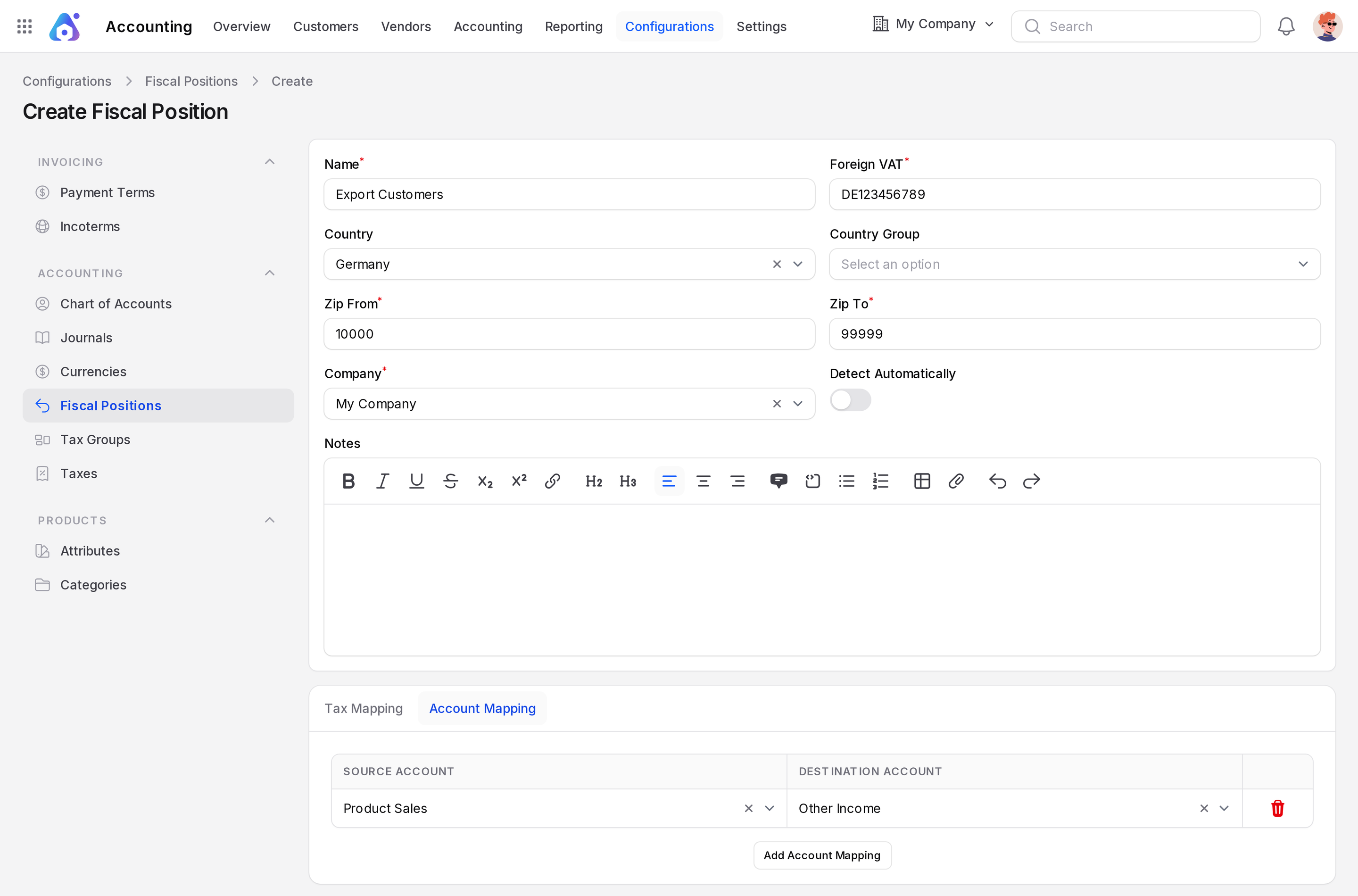
- Name: A name you will recognise, such as
Export Customers. Required. - Foreign VAT: The tax number to use for this position. Required.
- Country: The country the position is meant for.
- Country Group: A group of countries, instead of a single country.
- Zip From and Zip To: A range of postal codes the position covers. Both are required.
- Company: The company that owns the position. Required. Mappings can only use taxes and accounts of this company.
- Detect Automatically: Mark the position as one that fits customers by their country or postal code.
- Notes: Free text for your team.
Tax Mapping tab
Click Add Tax Mapping and fill in:
- Tax Source: The tax you normally use. Required.
- Tax Destination: The tax to use instead. Leave it empty to mean "no tax".
Account Mapping tab
Click Add Account Mapping and fill in:
- Source Account: The account Aureus would normally use. Required.
- Destination Account: The account to use instead. Required.
Where a fiscal position is used
- On a customer, in the Sales & Purchases tab, Fiscal Position. See Customers.
- On an invoice or bill, in Other Information, under Accounting, Fiscal Position. The field hint says: "Fiscal positions are used to adapt taxes and accounts based on the customer location." You cannot change it after the document is posted.
- On a journal entry, in Other Information.
When Aureus builds the lines of a document that has a fiscal position, it swaps accounts using the Account Mapping. This works for the receivable and payable accounts and for the income and expense accounts of products.
INFO
The taxes on a line come from the Taxes field of the line. After you choose a fiscal position, check the Taxes column and change a tax by hand if needed.
Example
Create Export Customers, Country Germany. In Account Mapping, set Source Account Product Sales and Destination Account Export Sales. Choose this position on a customer from Germany. Invoices for that customer book their product income to Export Sales.