

Manage opportunities
An opportunity is a deal you are working on with a customer. It records what you hope to earn, how likely you are to win, and when you expect to close. The pipeline shows every opportunity, so you see at a glance what needs attention.
In simple words: An opportunity is one possible sale. You keep its details up to date until you win or lose it.
Open CRM → Sales → My Pipeline. The page title is Opportunities.
Settings
Two fields appear only when a setting is on. Go to CRM → Settings → Manage CRM.
- Recurring Revenue Plans: shows Recurring Revenue and Recurring Plan on the form. See Recurring plans.
- Lead Qualification: adds a lead step before an opportunity exists. See Convert a lead.
The opportunity pages
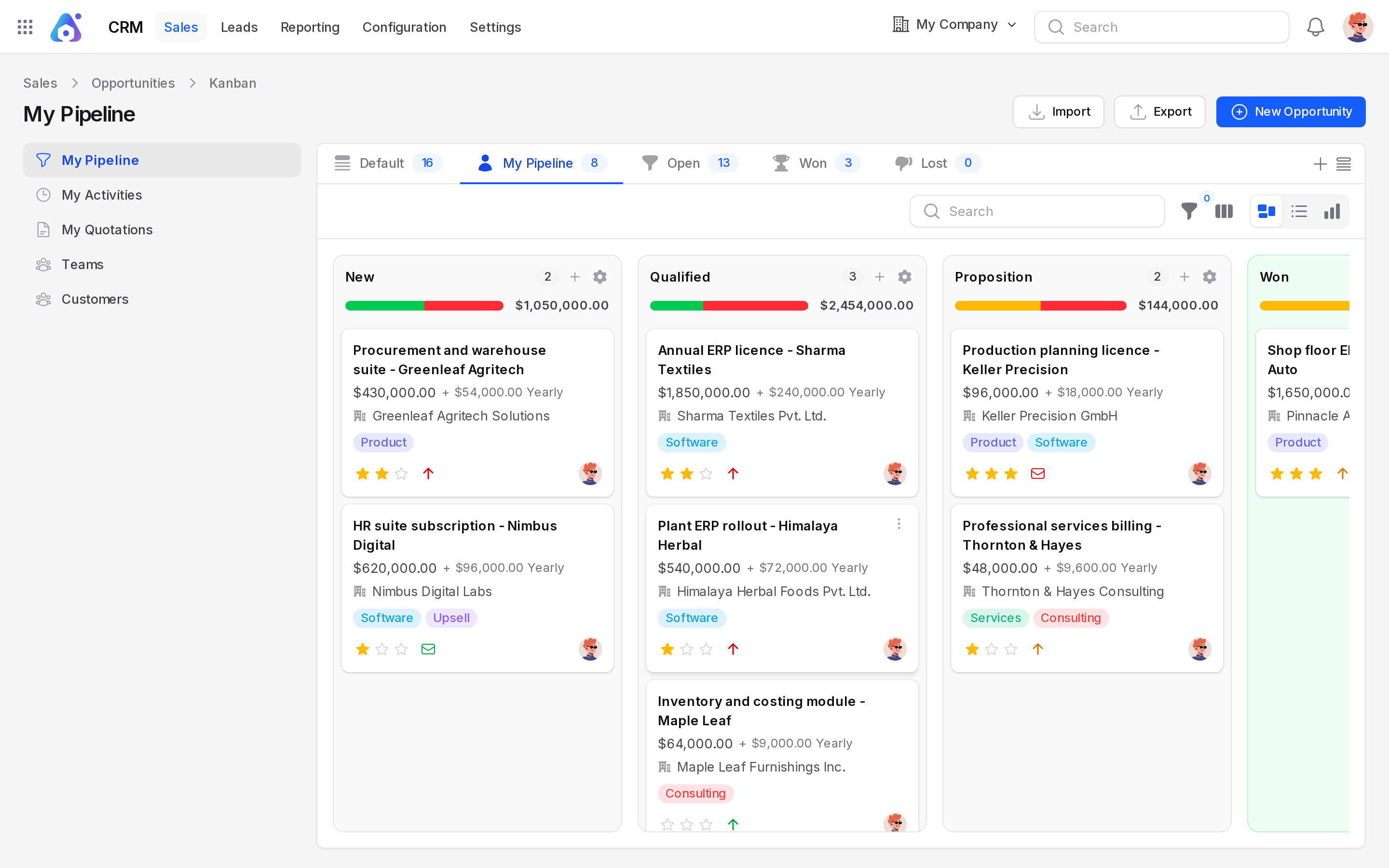
The page has three layouts: Kanban, List and Graph. Switch between them with the layout buttons. It opens in Kanban.
Views
The tabs above the board filter the records. The counts show how many records each tab holds.
| Tab | What it shows |
|---|---|
| Default | All opportunities. |
| My Pipeline | Opportunities where you are the salesperson. |
| Open | Opportunities not yet in a won stage. |
| Won | Opportunities in a won stage. |
| Lost | Opportunities closed as lost. |
| Unassigned | Opportunities with no salesperson. Find it in the views menu. |
Kanban
Each column is a stage, such as New, Qualified, Proposition and Won. Won stages have a green header.
- Column header. It shows the stage name and the total Expected Revenue of its cards.
- Activity bar. A coloured bar counts overdue, today, planned and unplanned deals. Click a colour to show only those cards.
- + button. It opens Quick create opportunity. Fill in the Opportunity name, Customer, Expected Revenue and Priority. The deal lands in that stage.
- Settings menu. Choose Edit to rename the stage or Delete to remove it. A stage that still has deals cannot be deleted. Move its cards first.
- Add Stage. The button at the end of the board adds a new column.
Each card shows:
- the opportunity name;
- the expected revenue, plus the recurring revenue and plan when you use them;
- the customer, or the contact name when no customer is set;
- tags;
- priority stars. Click a star to set the priority. Click the same star again to go back to Low;
- a clock button for activities. It is red when overdue, orange when due today and green when planned;
- a colour dot and the salesperson;
- a Won or Lost label once the deal is closed.
Open the card menu to choose Edit, Color or Delete. Click the card to open the opportunity.
Drag a card to another column to change its stage. Cards in the Lost tab cannot be moved. Restore them first.
List
The list has these columns.
- Shown by default: Opportunity, Customer, Stage, Expected Revenue, Probability, Priority, Salesperson, Sales Team, Expected Closing and Tags.
- You can hide Expected Closing and Tags from the column menu.
- Hidden by default: Recurring Revenue, Email, Phone, Medium, Lost Reason, Created At. Show them from the column menu.
The list sorts by Created At, newest first.
Search, filter, group and export
- Search. Type in the search box to match the opportunity name, customer or email.
- Filter. Build rules on Opportunity, Customer, Email, Phone, Stage, Salesperson, Sales Team, Tags, Priority, Source, Medium, Campaign, Country, Lost Reason, Expected Revenue, Probability, Expected Closing and Created At.
- Group by. Choose Stage, Sales Team, Salesperson, Priority or Expected Closing. The Graph layout charts the same groups.
- Export and import. Click Export to download the records you see. Click Import to load a file of opportunities.
For general help, see Search, filter and group.
TIP
Select rows in the list to use bulk actions: Export, Restore, Delete, Force delete, Mark Lost, Merge, Send email and Send SMS.
Create an opportunity
Example: A salesperson records a chance with Sharma Textiles.
- Go to
CRM → Sales → My Pipeline. - Click New Opportunity.
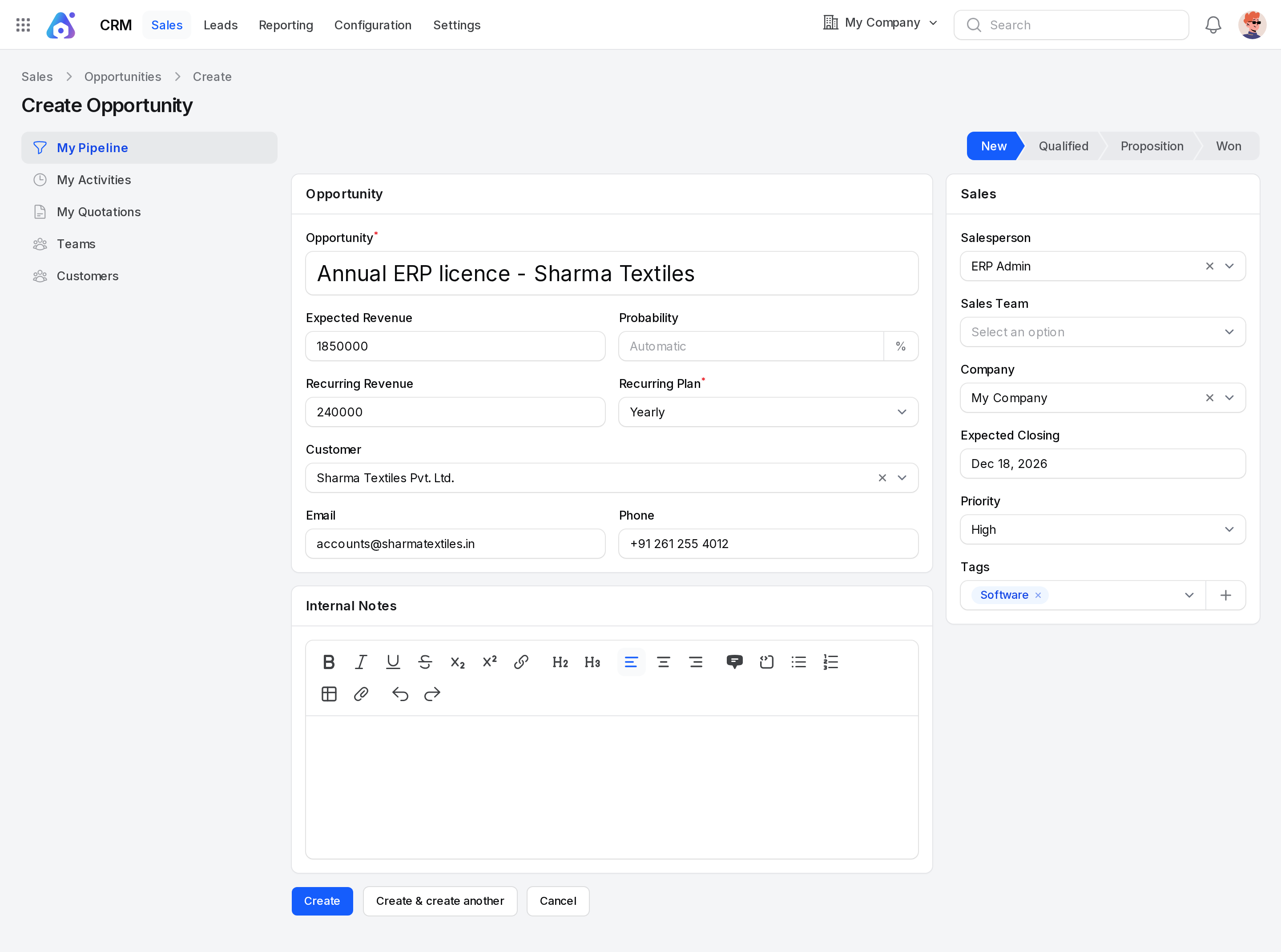
- Fill in the form. The stage bar at the top shows every stage. The first stage is chosen for you.
Stage
- Stage: Where the deal starts. Required. The default is the first stage. Click another stage in the bar to change it.
Opportunity
- Opportunity: The name of the deal. Required, up to 255 characters. The hint reads "e.g. Product Pricing".
- Expected Revenue: The amount you hope to earn. The default is 0. It cannot be negative.
- Probability: Your chance of winning, from 0 to 100%. Leave it empty to show Automatic, which uses lead scoring. See Lead scoring.
- Recurring Revenue: The amount that repeats each period. Shown only when Recurring Revenue Plans is on. The default is 0.
- Recurring Plan: How often it repeats, such as Monthly or Yearly. Required when Recurring Revenue is above 0.
- Customer: The company or person you sell to. Search for it. Choosing one fills Email and Phone for you.
- Email: The contact email.
- Phone: The contact phone number.
Internal Notes
- Internal Notes: A text box for your team. The customer does not see it.
Sales
- Salesperson: The owner of the deal. The default is you.
- Sales Team: The team that handles it. This feeds the team cards.
- Company: Your company that owns the deal. The default is the current company.
- Expected Closing: The date you expect to close. Use it for the forecast.
- Priority: Low, Medium, High or Very High. The default is Low.
- Tags: Labels such as Software or Upsell. You can create a tag from this field.
Example: Name Annual ERP licence - Sharma Textiles, Expected Revenue 1850000, Recurring Revenue 240000 with Recurring Plan Yearly, Customer Sharma Textiles, Salesperson ERP Admin, Expected Closing 18 December 2026, Priority High, Tag Software.
- Click Create. A notification says Opportunity created.
TIP
Customers live in Contacts. See Contacts.
Work on an opportunity
Open a card or a list row. The page shows the details in read mode. Click the Edit tab to change them. The edit form has the same fields as above. A notification says Opportunity updated when you save.
The page tabs are:
- Activities: planned calls and meetings, with a count. Click Schedule Activity here. See Schedule activities.
- Quotations: offers made for this deal, with a count. See Create a quotation.
- Similar Opportunities: other leads or opportunities with the same email, phone or customer. You can merge them.
The Chatter button opens notes, messages and files. See Chatter.
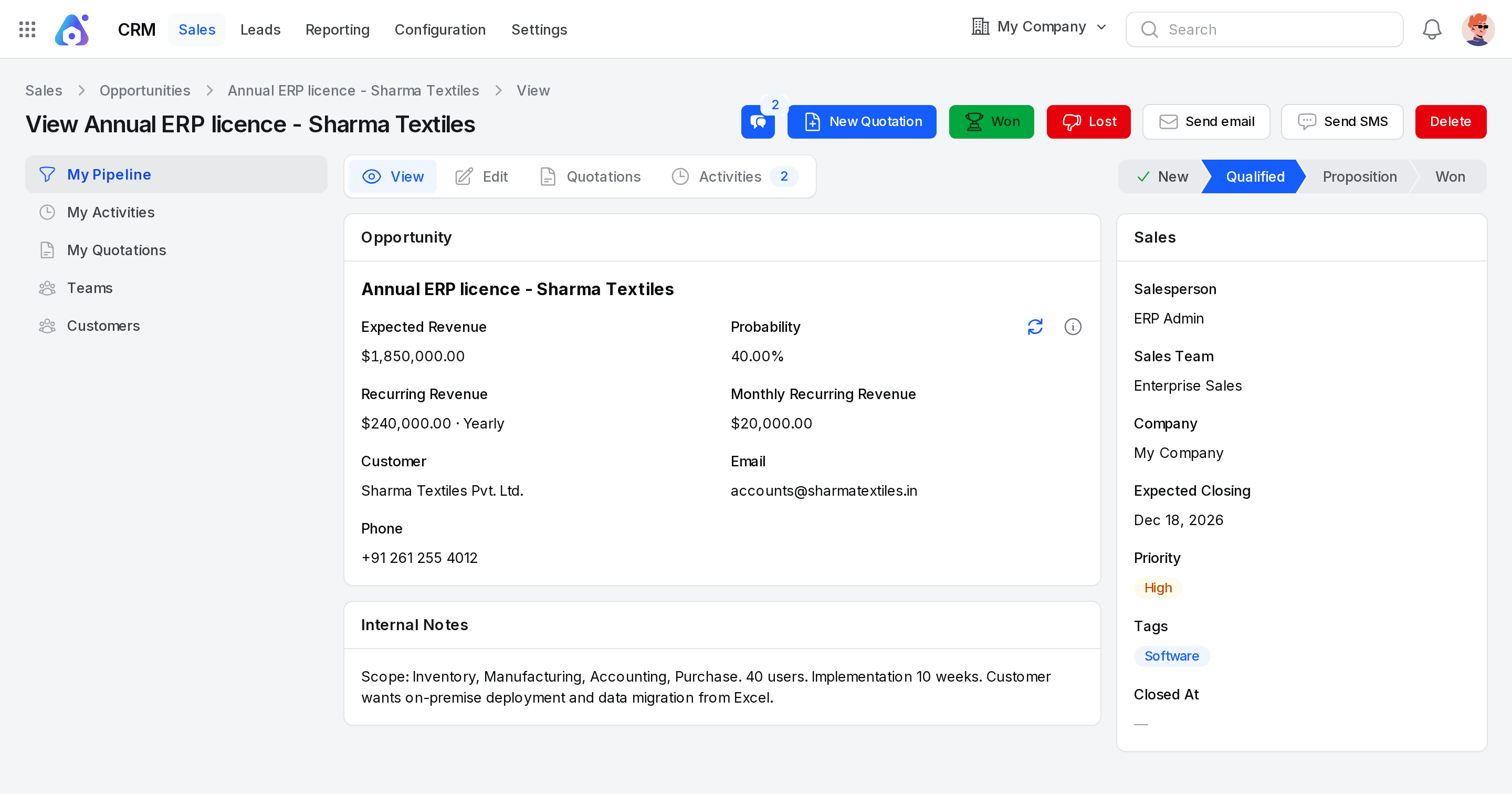
Probability details
Next to Probability are two small actions on the edit form.
- Probability details shows the computed probability and the sales team used.
- Use computed probability drops your manual value and returns to Automatic.
Actions and statuses
| Button | What it does |
|---|---|
| Chatter | Opens notes, messages and files for the record. |
| New Quotation | Starts a quotation for this opportunity. |
| Won | Moves the deal to the won stage. |
| Lost | Closes the deal as lost, with a reason. |
| Send email | Emails the contact. Needs an email address. |
| Send SMS | Sends a text to the contact. |
| Delete | Deletes the opportunity. |
| Restore | Brings a lost opportunity back to the pipeline. |
Behind the scenes
- Stage change. Moving a card, or choosing a stage, updates the stage at once.
- Probability. Entering a value switches off Automatic. A won stage sets 100%.
- Closed date. Winning or losing stores the date as Closed At. It shows in the Sales section.
- Quotation link. Quotations made here appear on the Quotations tab.
- Assignment date. Changing the salesperson stores the date of assignment.