My Time
My Time is your personal Time Off page. It shows how many days you have left for each leave type, how many requests wait for a decision, and a calendar of your requests. You can also start a new request from here.
In simple words: Look here to see your balance and your booked days, then click a date to ask for time off.
Menu: Time Off → My Time → Dashboard. The left sub-menu also has My Time off and My Allocation.
Before you start
Your user needs an employee record. Create it in Employees. Balances come from approved allocations.
Balance cards
The Time Off Analysis block shows one card per leave type that has Show on Dashboard turned on. Each card has the type name, your balance and Valid until with the end of the current year, for example Valid until 2026-12-31. Valid until always shows the end of the current year. Cards use the colour of the leave type.
Sarah Mitchell has Paid Time Off 20.0 and 0.0 for the other types.
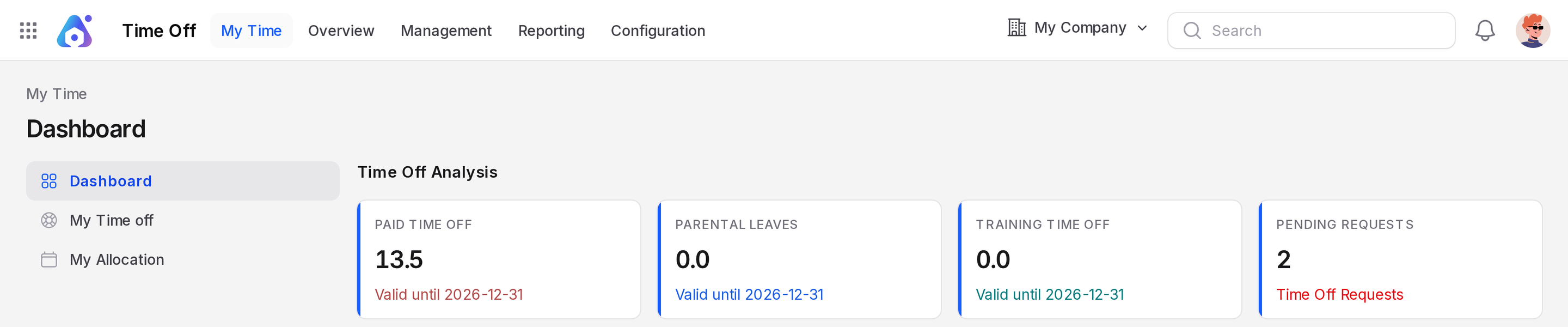
The last card, Pending Requests, counts your requests that are To Approve. It carries the line Time Off Requests. A request that waits for approval adds 1 here and also lowers the balance of its type at once.
Choose which types appear in Leave types with Show on Dashboard.
Calendar
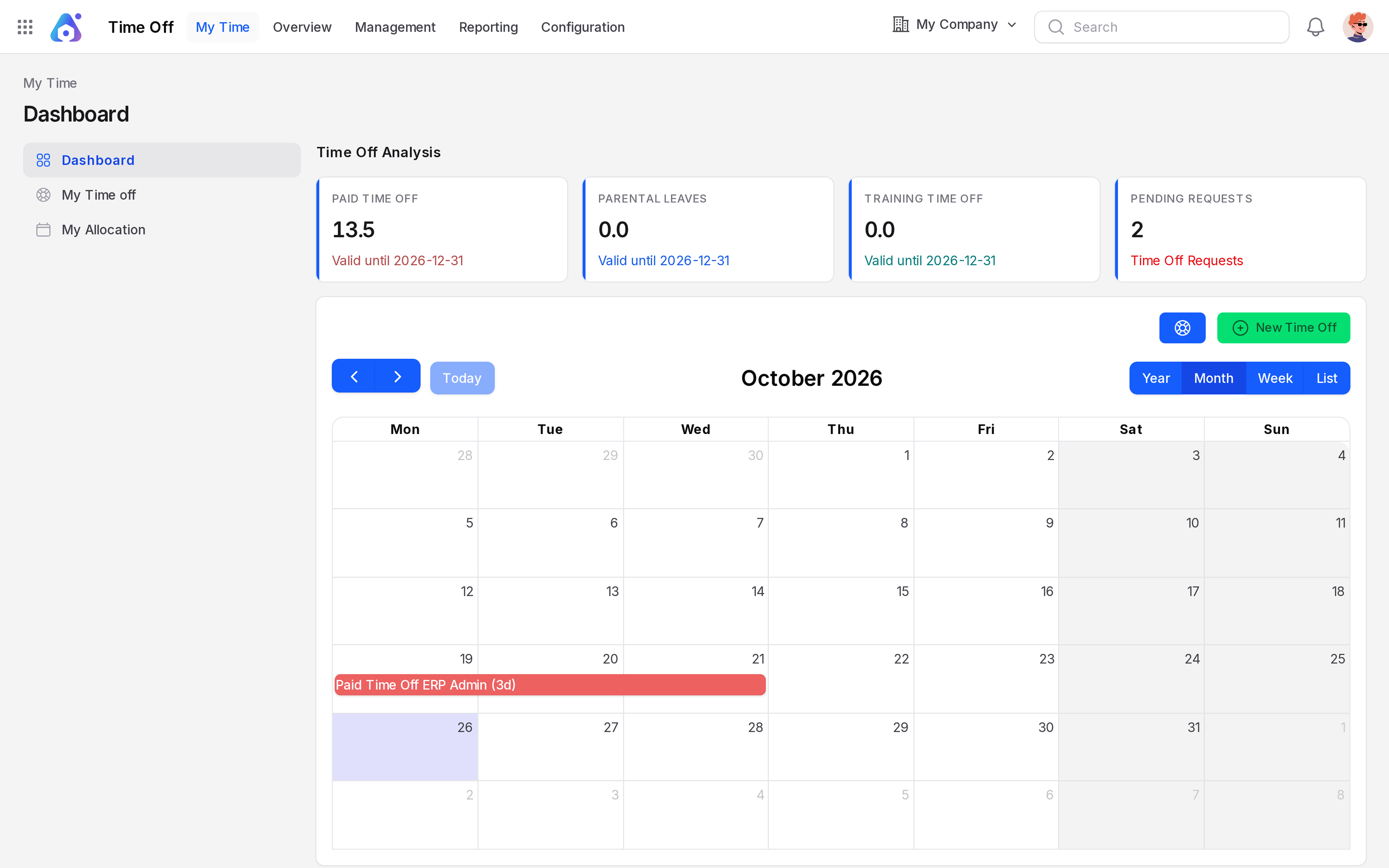
Below the cards is your calendar. It shows your own requests, coloured by leave type. A title shows the leave type, the name of the logged in user and the length, for example Paid Time Off ERP Admin (3d). Here ERP Admin is the user name.
- Toolbar: previous and next arrows, Today, and the title, for example October 2026.
- Views: Month (default), Week and List. The week starts on Monday and weekends are shaded.
- List view: shows No events to display when the week is empty.
Holidays panel
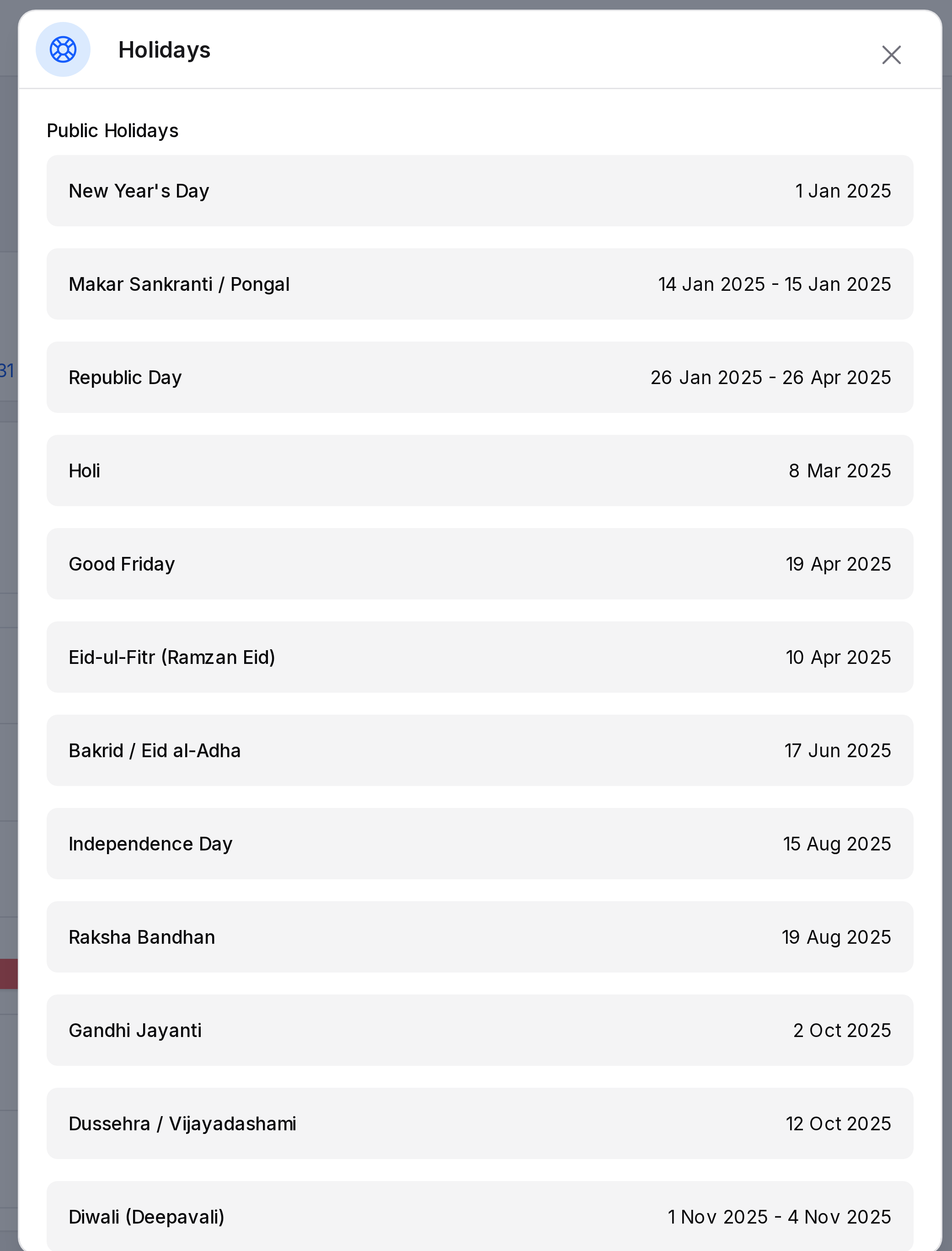
Click the blue icon at the top right of the calendar, next to New Time Off. The Holidays panel slides in from the right with:
- Public Holidays: names with dates, for example Gandhi Jayanti and Christmas Day.
- Mandatory Holidays: company days such as Company Anniversary, shown with their date range.
Manage these lists in Public holidays and Mandatory days.
Create from the calendar
- Click the green New Time Off button, or click a date.
- A click on a date fills both date fields and shows Duration as
1 working day. - Complete the form. See Request time off.
Open a request
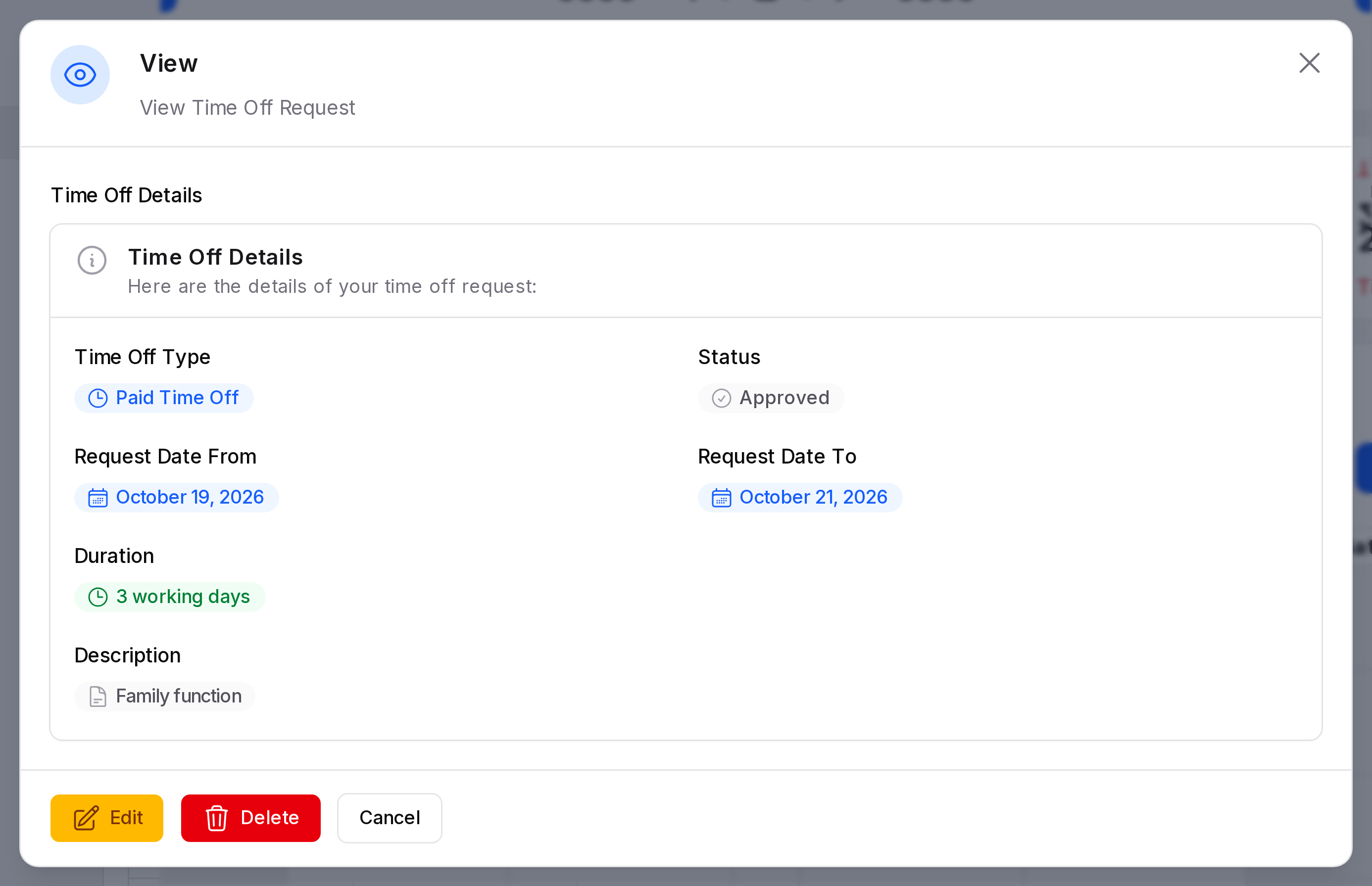
Click an event on the calendar. The View window has the subtitle View Time Off Request and a Time Off Details section. It shows Time Off Type, Status, Request Date From, Request Date To, Duration (3 working days) and Description. It has three buttons.
- Edit: (yellow button) change the request.
- Delete: remove it.
- Cancel: close the window.
My Time off list
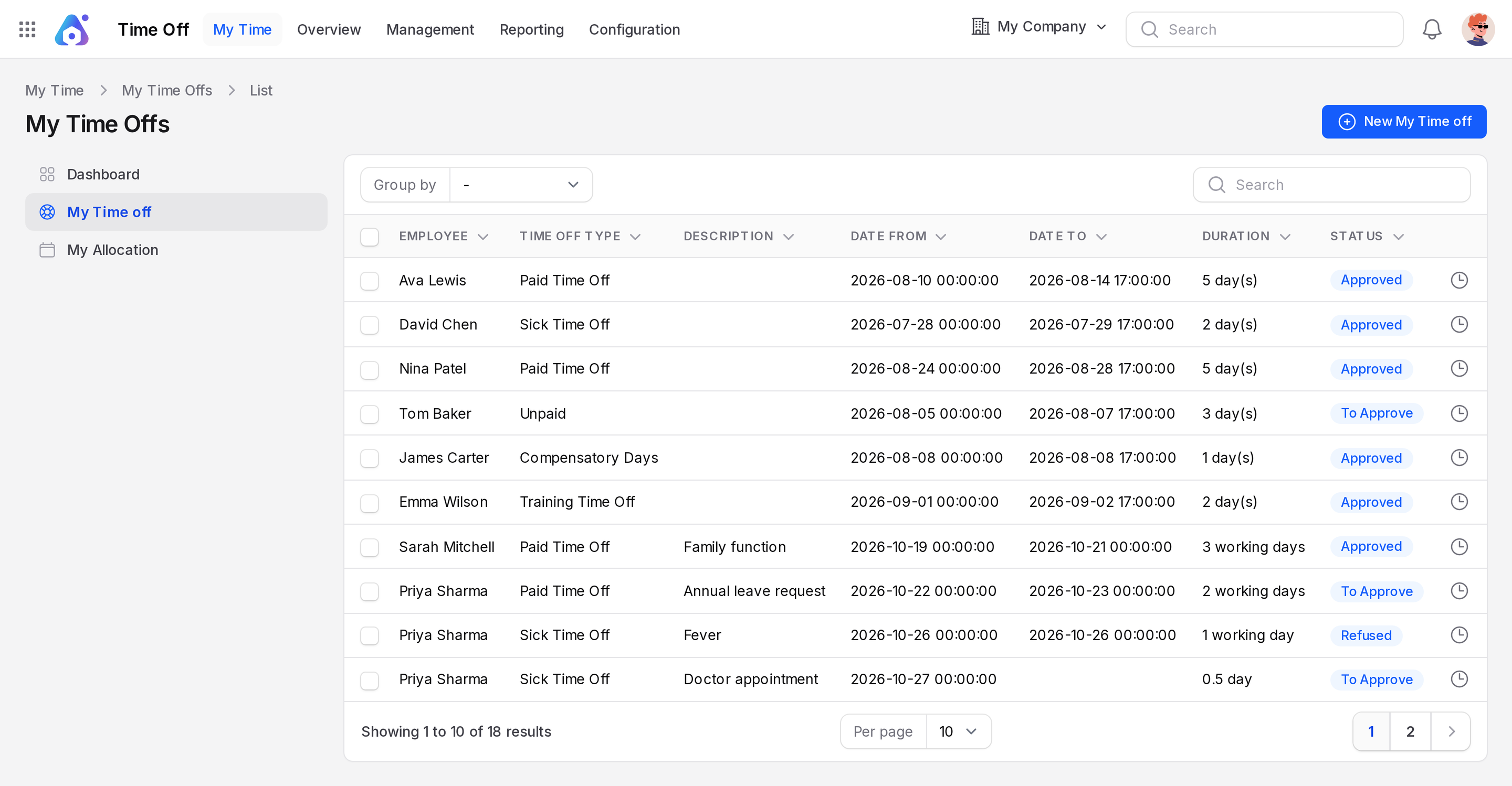
Open Time Off → My Time → My Time off. The page is titled My Time Offs. Click New My Time off to start a request.
The list shows the requests of all employees, not only yours.
- Columns: Employee, Time Off Type, Description, Date From, Date To, Duration, Status.
- Group by: Employee, Time Off Type, Status, Start Date, End Date.
- Search box and a Delete selected bulk action.