

Roles
A role is a named set of permissions. You give a role to a user, and the user gets everything the role allows. Aureus ERP groups permissions by module, so you can allow or block each screen of each module.
In simple words: A role says which screens a user can open and which actions they can take.
Overview
Open Settings → Roles to see the list of roles.
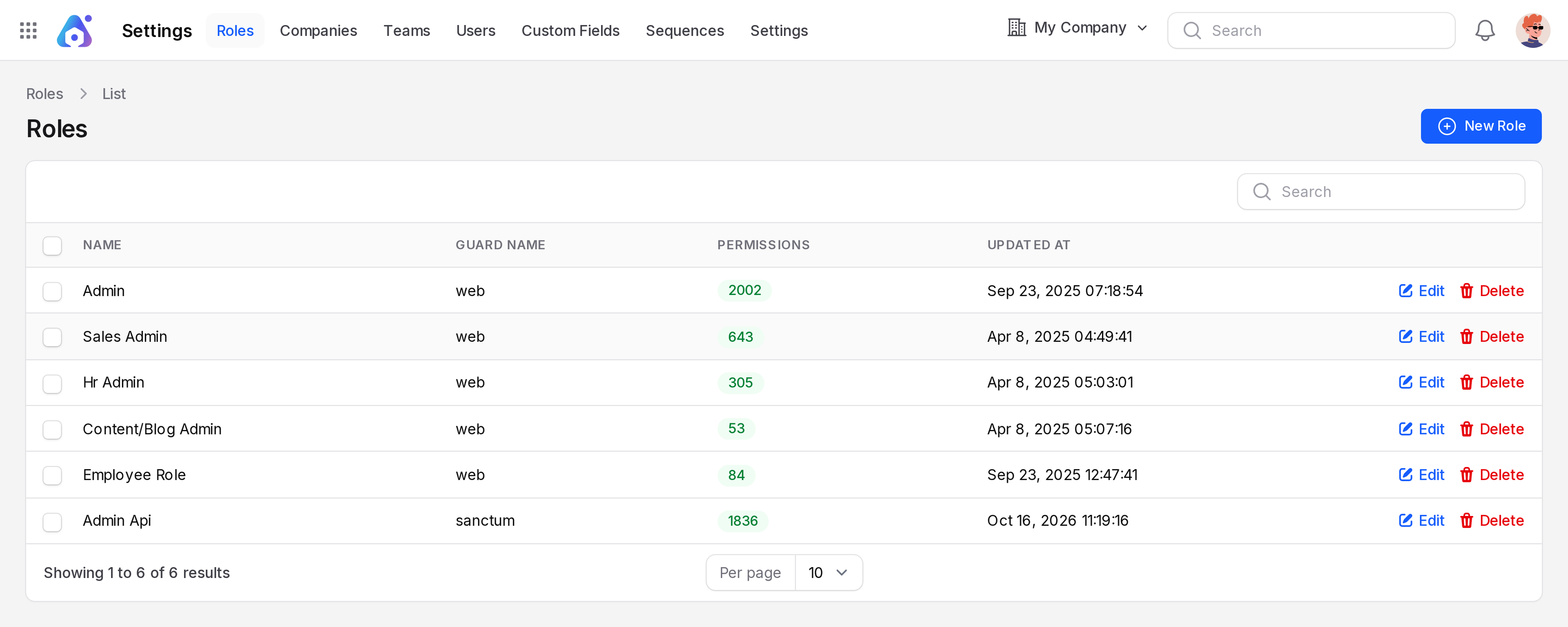
The list has these columns:
- Name: The role name.
- Guard Name: Web is for people who sign in through the browser. Sanctum is for software connections (API). If unsure, keep Web.
- Permissions: A badge with the number of permissions in the role.
- Updated At: The last change date.
Role or Resource Permission?
A role controls screens and actions. Resource Permission on the user controls whose records the user sees. See Users.
Create a role
Go to
Settings → Roles.Click New Role at the top right.
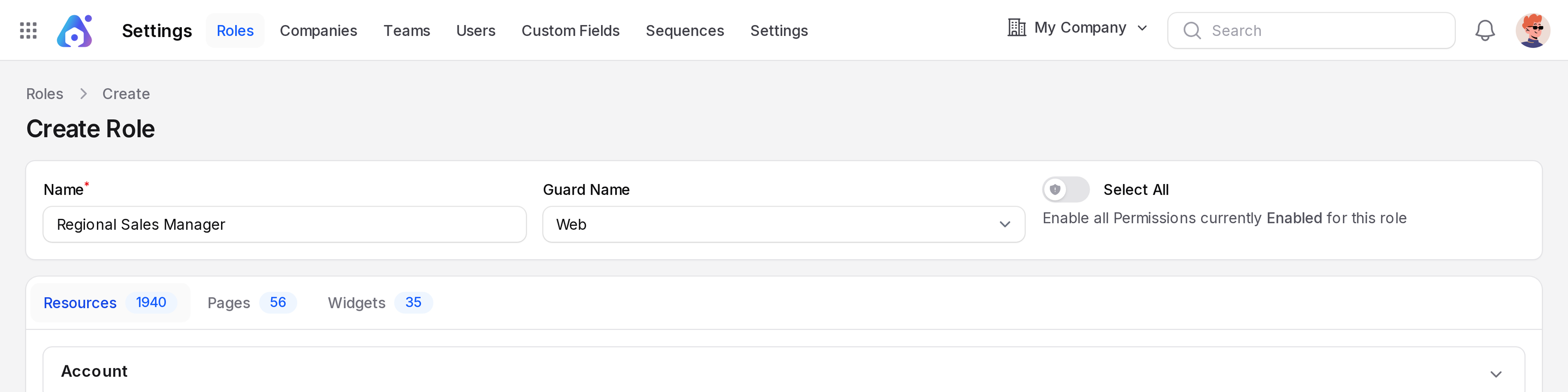
Fill in the top of the form:
- Name: A unique role name. Required.
- Guard Name: Choose Web or Sanctum. Keep Web for people who sign in to the application.
- Select All: A switch. It turns on every permission for this role.
Choose the permissions, as described in the next section.
Click Create. A Role Created message appears.
Choose permissions
Permissions sit in tabs. Each tab shows a count badge.
- Resources: Permissions for the main screens, such as lists and forms.
- Pages: Permissions for single pages, such as settings pages.
- Widgets: Permissions for dashboard widgets.
Inside each tab, permissions are grouped by module. Each module is a collapsible section, closed at first. Click a section to open it.
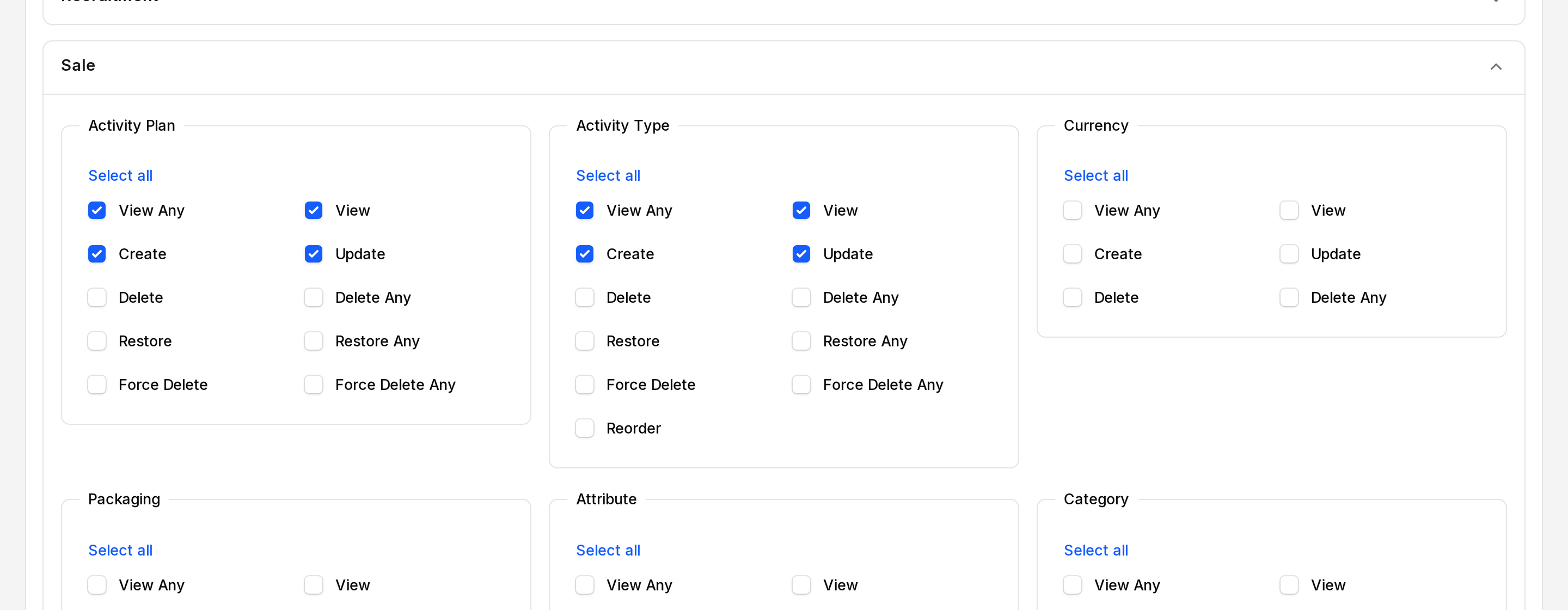
Under Resources, each screen has its own box of checkboxes. The permission types are:
- View: Open one record.
- View Any: See the list.
- Create: Add a new record.
- Update: Edit a record.
- Delete: Delete one record.
- Delete Any: Delete several records at once.
Some screens may show other permissions. Only the ones the screen supports appear.
TIP
Each checkbox group has a Select all link. Click it to tick every box of that screen.
WARNING
A user can open a screen only if the role has the matching permission. If a menu is missing, check the role first.
Assign a role to a user
- Go to
Settings → Users. - Create or edit a user.
- In Permissions, choose one or more roles in Roles.
- Save the user.
A user can have several roles. See Users.
INFO
You can also set a Default Role for new users. It is on Settings → Settings → General → Manage Users. See Manage users.
Actions and statuses
Each row has these actions:
- Edit: Change the name, guard or permissions. A Role Updated message appears.
- Delete: Remove the role.
You can also tick several rows and use the bulk Delete.
WARNING
System roles are protected. You cannot rename them, change their guard or delete them. The system shows System Role Cannot Be Deleted.