

Add equipment
An equipment record describes one machine, tool or device that you maintain. It holds identity details such as model and serial number. It also holds who looks after it and how long you expect it to run between failures. You add equipment once, then raise requests against it whenever it needs attention.
In simple words: Add each thing you maintain here once, with its category, team and technician. After that, requests fill in most details for you.
Path: Maintenance → Equipment → New Equipment

Before you start
Create an equipment category and a maintenance team first. You choose both on this form. If the item comes from a supplier, add the supplier in Contacts.
Add the equipment
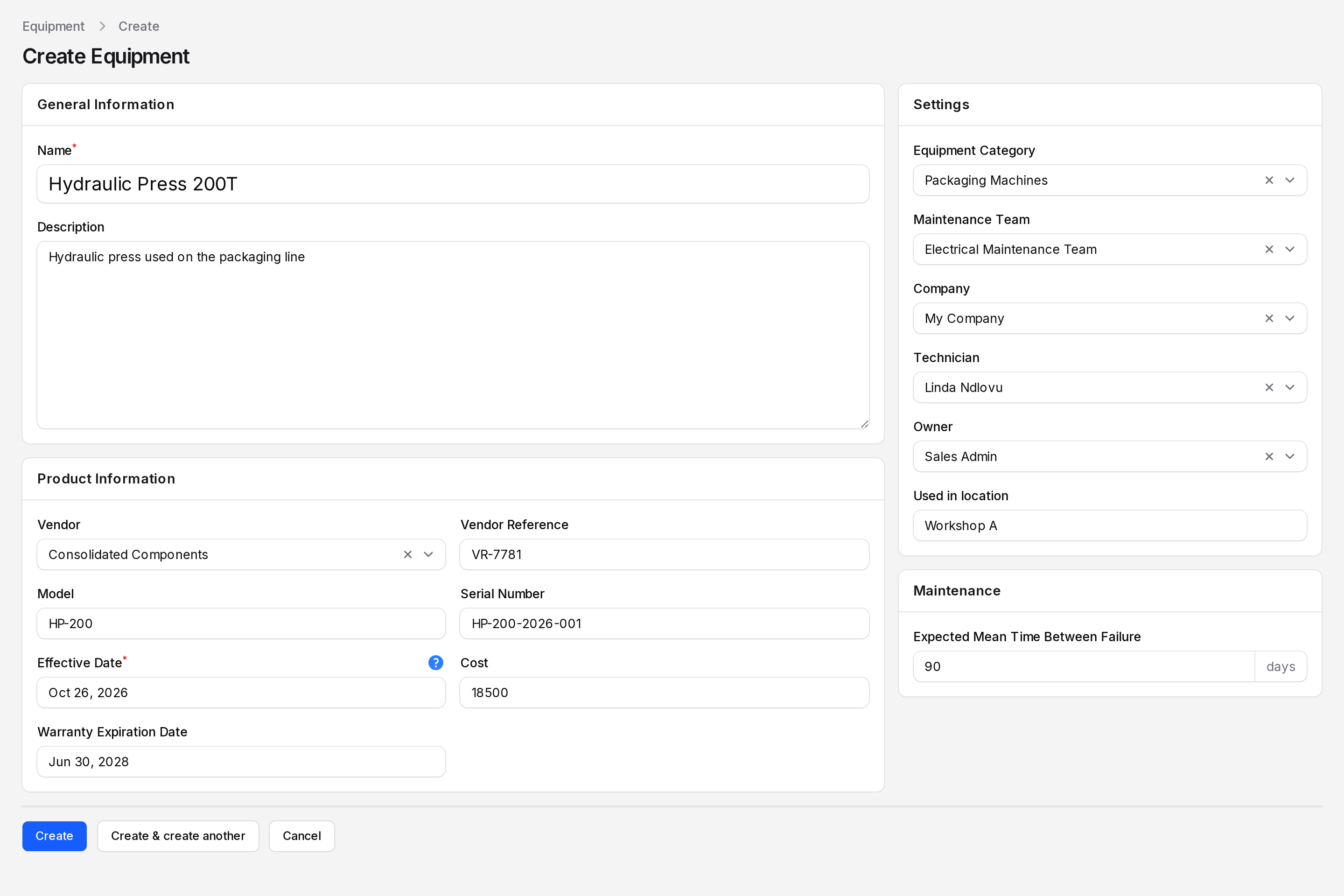
In this example you add Hydraulic Press 200T.
- Click Equipment in the top menu, then click New Equipment.
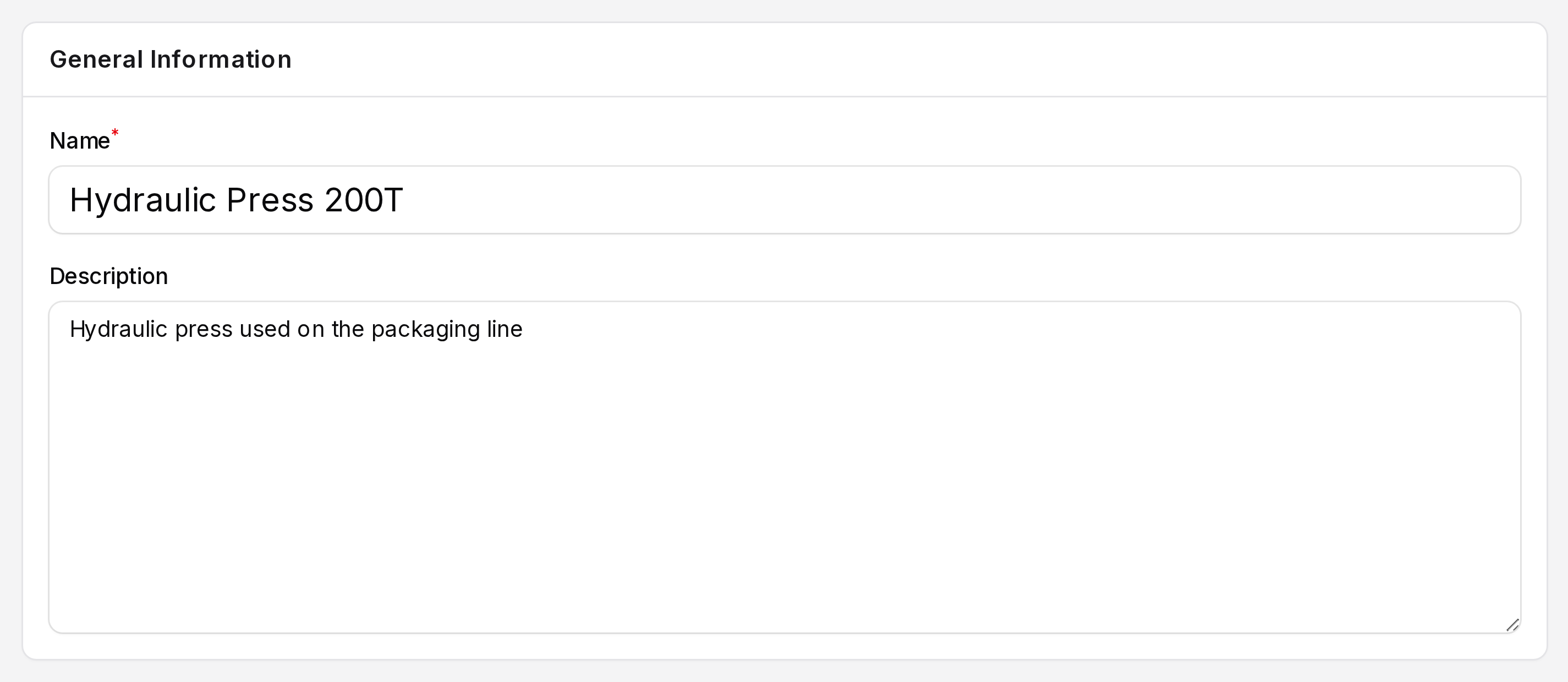
General Information
Fill in the first section.
- Name: Required. Type
Hydraulic Press 200T. This name appears on every request. - Description: Optional. Add a short note about what the equipment does.
- Name: Required. Type
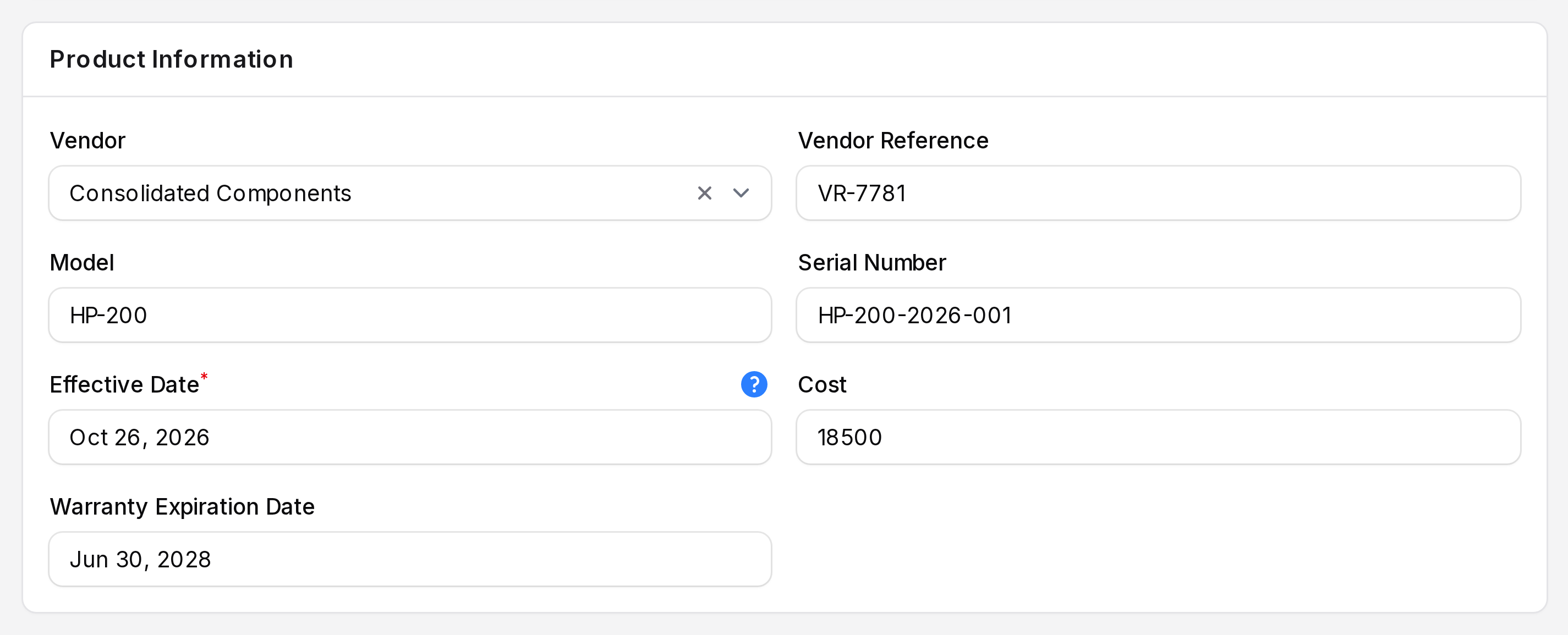
Product Information
Fill in the supplier and product details. All fields are typed, except where noted.
- Vendor: The supplier. Pick a company from your contacts, for example
Consolidated Components. - Vendor Reference: The supplier's code for the item. Type
VR-7781. - Model: Type
HP-200. - Serial Number: Type
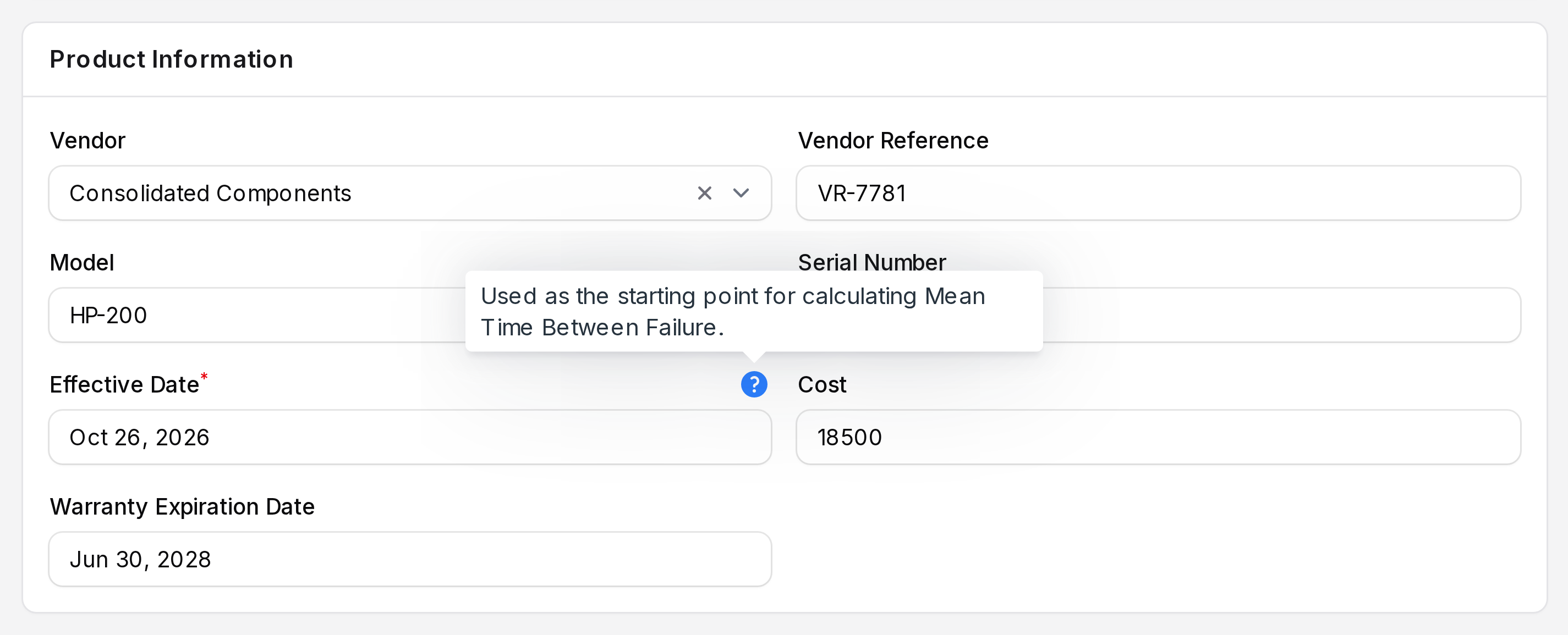
HP-200-2026-001. Use it to search for the equipment later. - Effective Date: Required. The date shown is today. Enter the day the equipment started working, usually the purchase or install date. Hover over the tooltip icon to read: "Used as the starting point for calculating Mean Time Between Failure."
- Cost: The purchase cost. Type
18500. - Warranty Expiration Date: Pick
2028-06-30.
- Vendor: The supplier. Pick a company from your contacts, for example
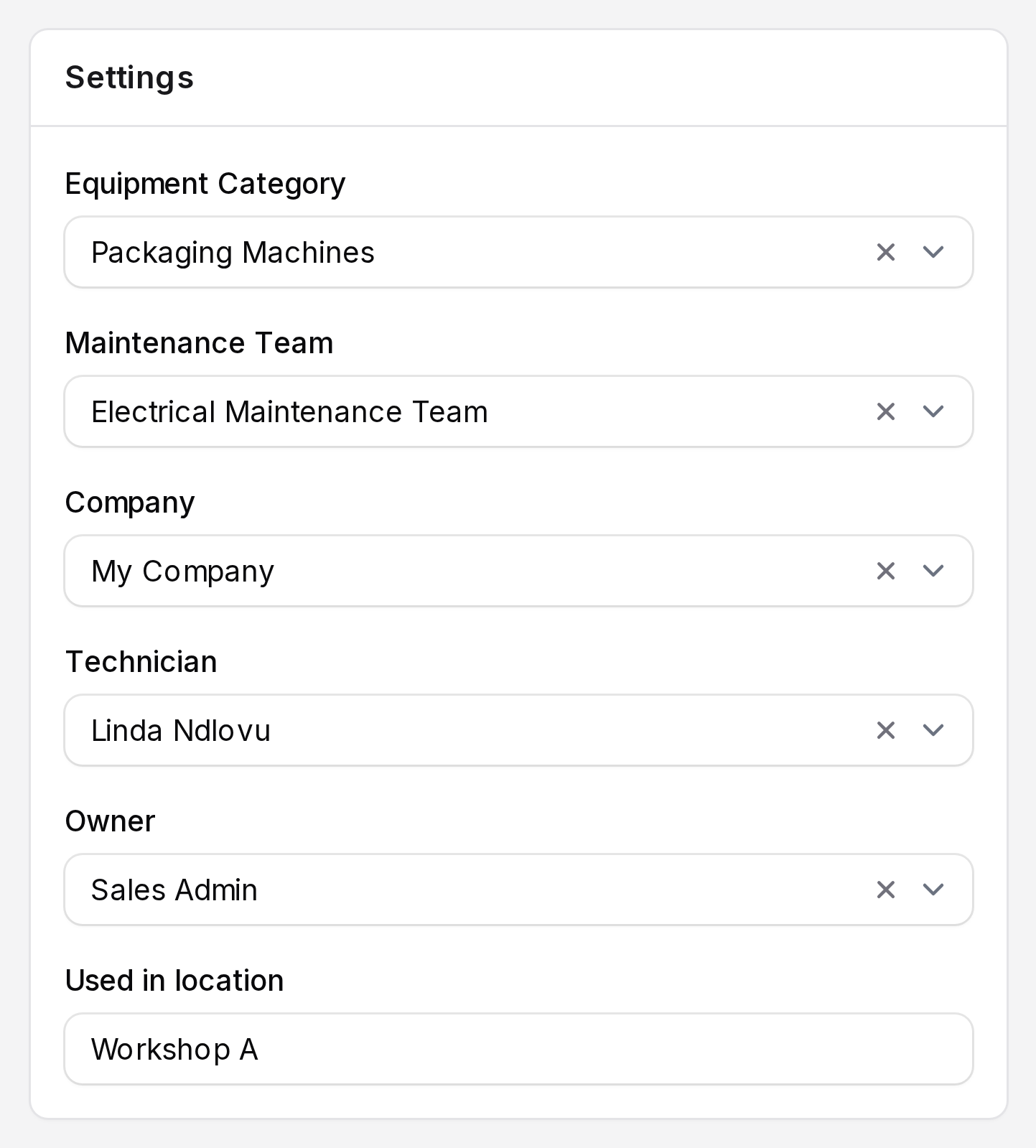
Settings
Choose who owns and looks after the equipment.
- Equipment Category: Pick
Packaging Machines. The list shows only categories of the selected company. Technician then fills with the category's Responsible. - Maintenance Team: Pick
Electrical Maintenance Team. - Company: Shows your company. If you change it, the category and team are cleared. Choose them again.
- Technician: The person who does the repairs. Pick
Linda Ndlovu. Change it if another person repairs this machine. If you leave it empty, requests use the Responsible of the category. - Owner: The user who uses or is accountable for the equipment, for example
Sales Admin. - Used in location: Type where it stands, for example
Workshop A.
- Equipment Category: Pick
Technician or Owner?
The Technician repairs the equipment. The Owner uses it. The Owner also decides which list tab shows the item (see Manage equipment).
Maintenance
Fill in the last section.
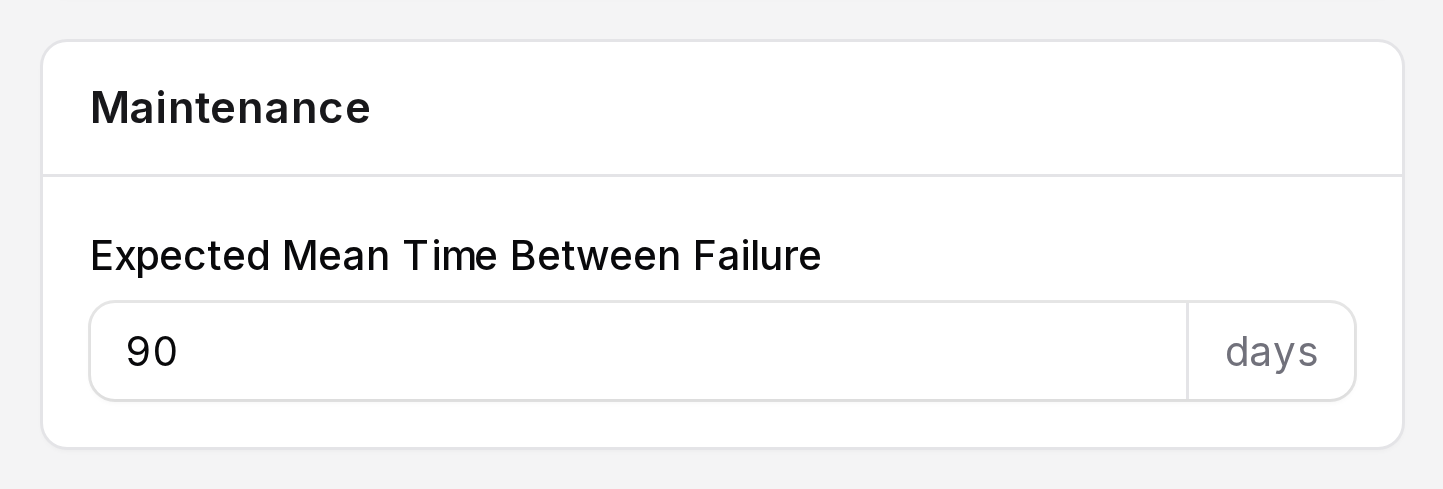
- Expected Mean Time Between Failure: Optional. The expected number of days between failures. Type
90for a break about every three months.
- Expected Mean Time Between Failure: Optional. The expected number of days between failures. Type
Click Create. The equipment opens on its view page. To add another item straight away, click Create & create another. Click Cancel to leave without saving.
Check the saved record
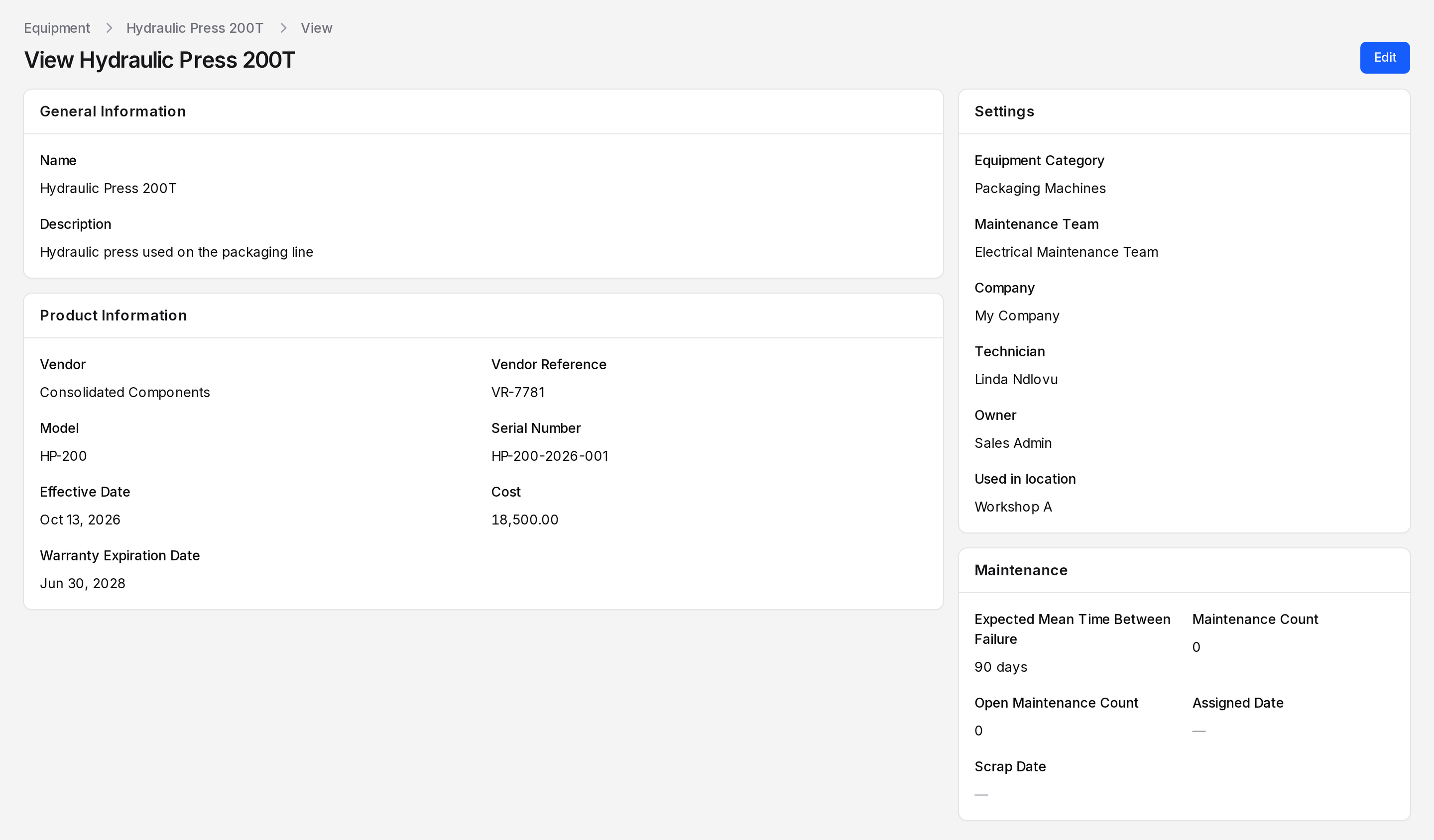
After you save, the View page opens with the same sections in read-only form. Click Edit in the header to change any value.
Behind the scenes
Cost shows with two decimals on the view page, for example 18,500.00. When you raise a request for this equipment, the category, team, technician and company are copied onto the request. Change them on the equipment once and later requests follow.