

Point of Sale dashboard
The Point of Sale dashboard shows the state of your registers and the results of your sales in one place. It has two screens. The first shows one card per register. The second shows totals and a chart for the period you choose.
In simple words: The register cards tell you who is selling right now. The totals page tells you how well the shop is doing.
Register cards
Open Point of Sale → Dashboard. Each register you created appears as a card.
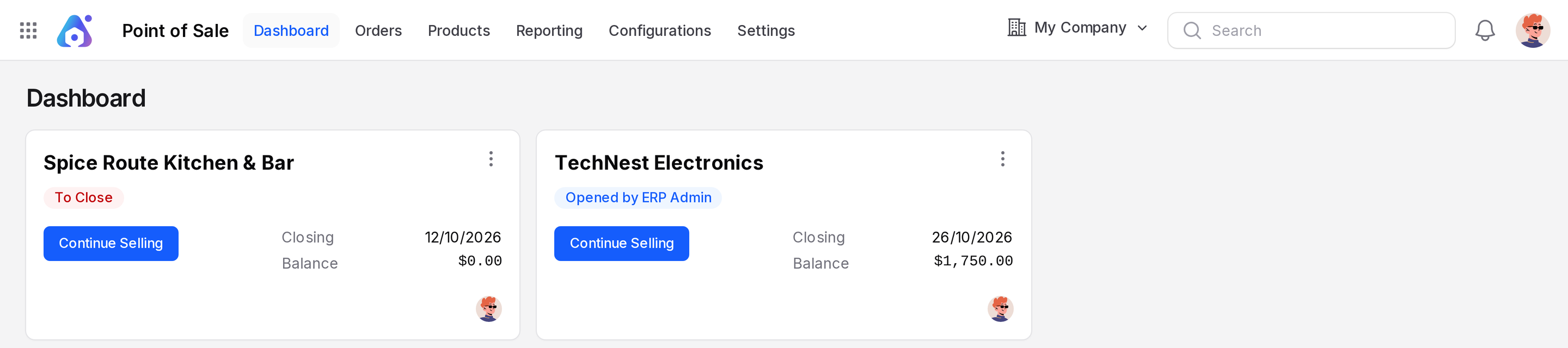
Every card shows:
- Register name: For example Spice Route Kitchen & Bar or TechNest Electronics.
- Status badge: Opened by followed by the cashier name when a session is running. The badge reads Opening Control while the opening count is open and Closing Control while the close is in progress.
- Closing: The date the last session of this register was closed.
- Balance: The counted cash at that last closing, in the register currency.
- Cashier avatar: The picture of the person who opened the current session.
The main button
- Click Open Register when no session is running. The terminal opens at the Opening Control window. See Open a register.
- Click Continue Selling when a session is already open. The terminal opens on the same session.
- When a session is in closing control, a Close button appears instead. Click it to finish the close.
Warnings on a card
- A badge To Close appears when a session has stayed open for more than one day. It turns red after three days. Hover on it to read the hint.
- A red link such as 1 outstanding rescue session appears when a recovery session is still not closed. Click it to open the session list.
The three-dot menu
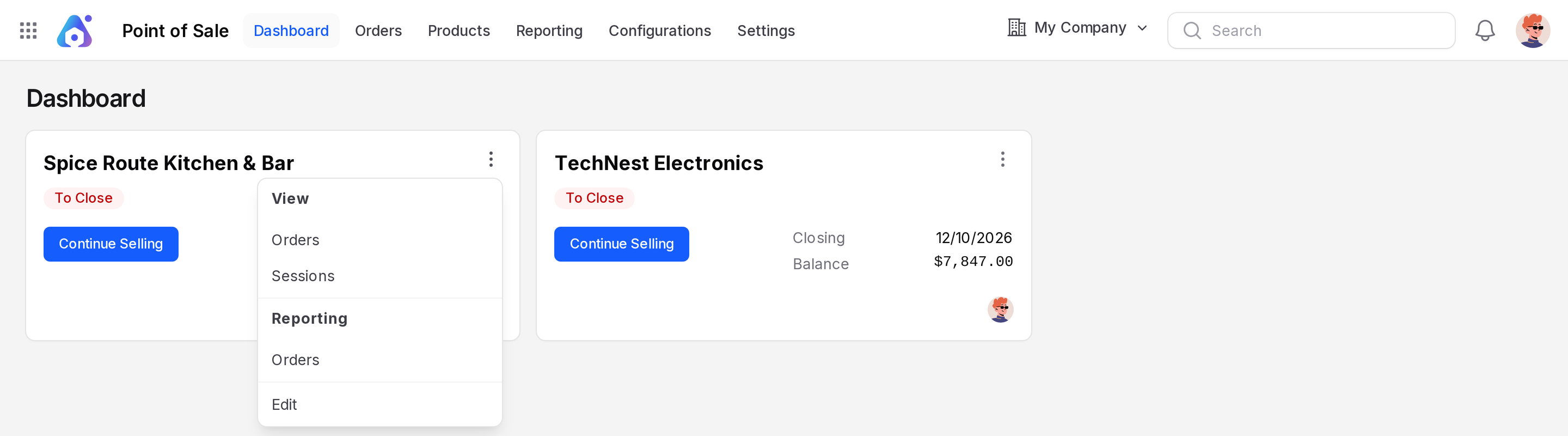
Click the three dots at the top right of a card.
- Under View, click Orders to see the orders of this register or Sessions to see its sessions.
- Under Reporting, click Orders to open the Orders report for this register.
- Click Edit to open the register settings. See Set up a register.
INFO
If you have no register yet, the page shows No register configured. Create a register first.
Totals and chart
Click Point of Sale in the top bar to open the totals page, titled Point of Sale Dashboard.
Set the filters
The filter bar sits at the top. Every filter accepts several values. Leave a filter empty to include everything.
- Click Terminals and pick one or more registers. The placeholder reads All Terminals.
- Click Date Range and pick a preset or two dates. The presets are Today, Yesterday, This Month, Last Month, This Quarter, Last Quarter, This Year and Last Year. The page starts on This Year.
- Click Products to keep only orders that contain the chosen products.
- Click POS Categories to keep only orders that contain a product from the chosen POS categories.
- Click Salespersons to keep only orders taken by the chosen cashiers.
- Click Customers to keep only orders of the chosen customers.
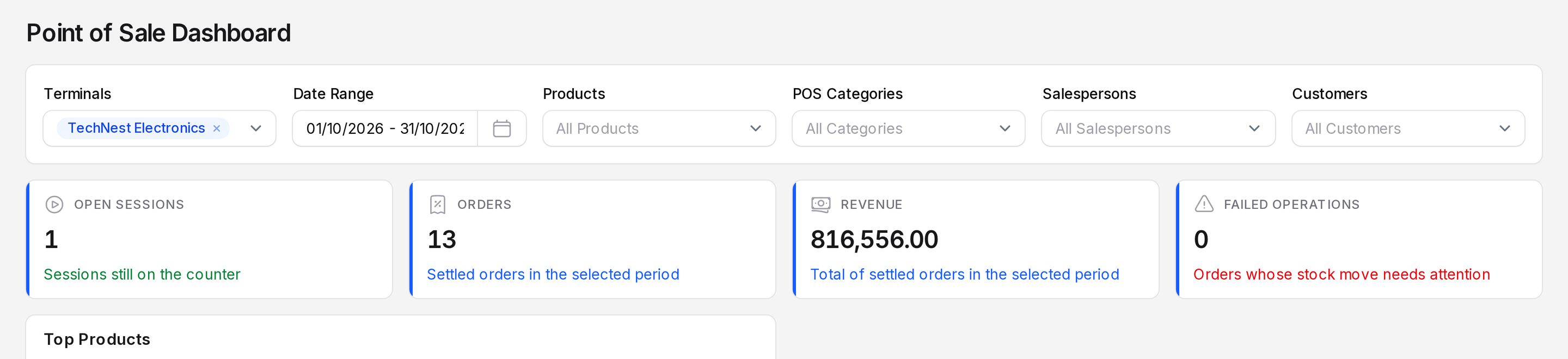
The cards and the chart refresh as soon as you change a filter.
Read the stat cards
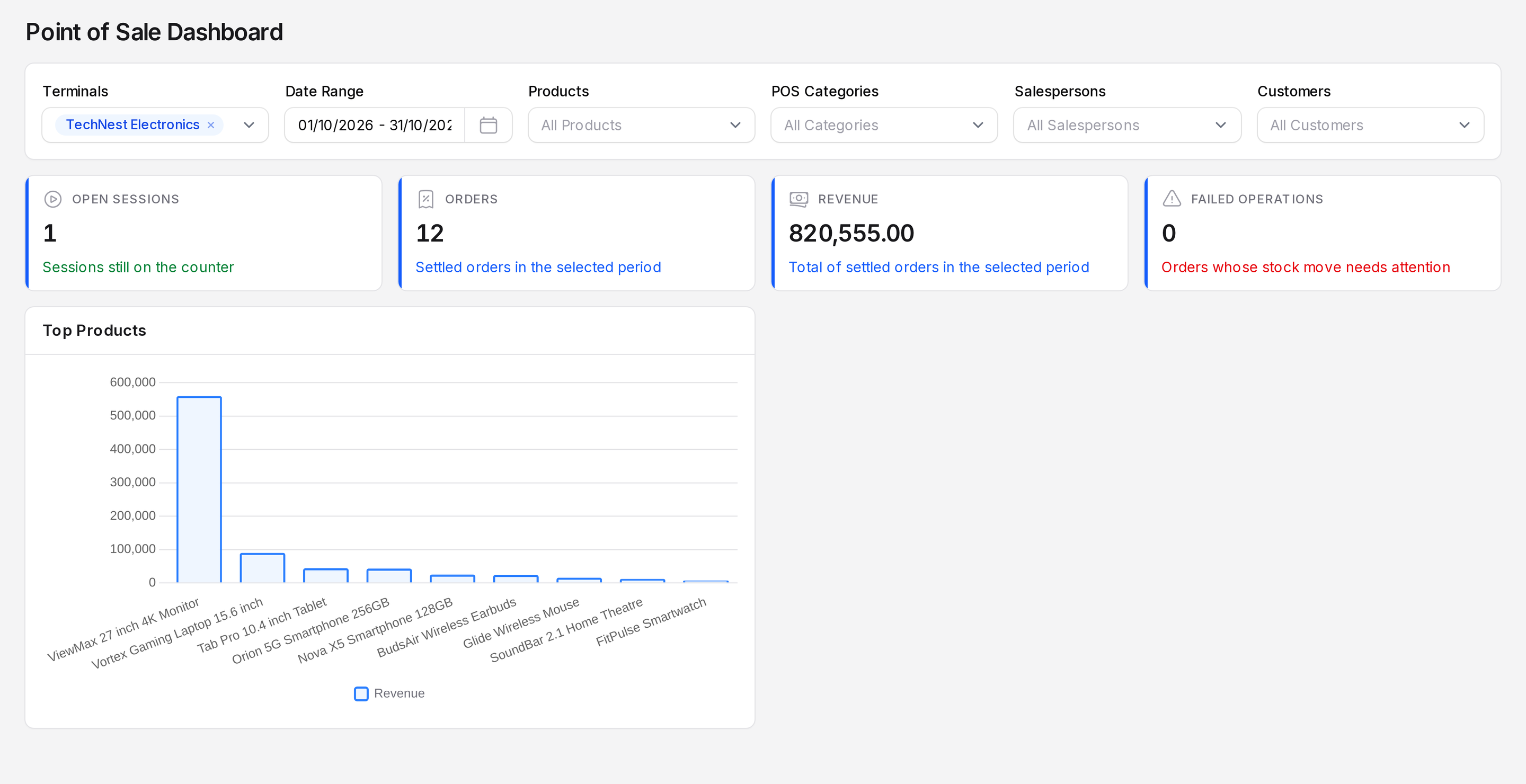
- Open Sessions: How many sessions are still on the counter. It counts sessions in opening control, open and closing control. Only the Terminals filter changes it.
- Orders: The number of settled orders in the period. Refund orders count as orders.
- Revenue: The total of those settled orders. Refunds are negative, so they lower the revenue.
- Failed Operations: Orders whose stock move needs attention. Open each such order and check its inventory transfer. Zero is the healthy value.
Read the Top Products chart
The Top Products bar chart shows the ten products with the highest revenue. Each bar is labelled with the product name. The bar height is the untaxed revenue of that product, named Revenue in the legend.
Worked example
Open the totals page, set Terminals to TechNest Electronics and Date Range to This Month in October 2026.
| Card | Value | Meaning |
|---|---|---|
| Orders | 3 | TNE/00001, TNE/00002 and the refund of TNE/00002 |
| Revenue | 6,597.00 | 6,597.00 + 24,999.00 - 24,999.00 |
| Failed Operations | 0 | No order has a stock problem |
The chart shows BudsAir Wireless Earbuds first with 3,999.00, then Glide Wireless Mouse with 2,598.00.
TIP
Use the Date Range Today at closing time to compare the revenue with your cash and card totals.