

Bill of materials
A bill of materials (BoM) is the recipe of a finished product. It lists the components for one batch, the quantity it makes and, with Work Orders on, the operations. Every manufacturing order copies its components and work orders from the BoM.
In simple words: A BoM says what goes in, in what amount, and which steps make the product.
Open it from Manufacturing → Products → Bills of Materials.
Settings
The Operations tab appears only when Work Orders is on. The setting is in Manufacturing → Settings → Manage Operations. See Manufacturing settings.
Overview
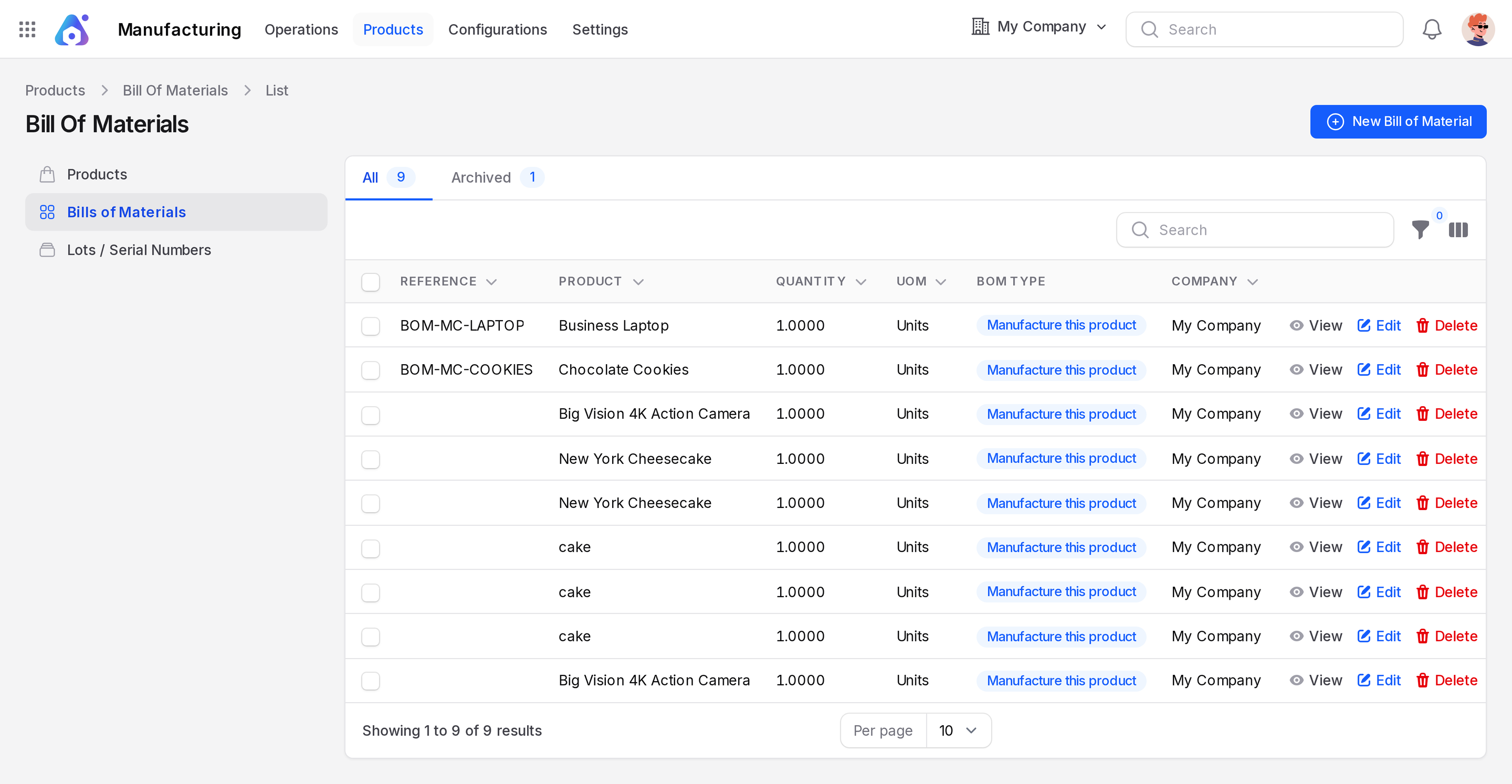
The list has the tabs All and Archived. Columns are Reference, Product, Quantity, UOM and Company.
Create a bill of materials
- Go to
Manufacturing → Products → Bills of Materials. - Click New Bill of Material.
- Fill the General box, then the tabs and Miscellaneous box below.
- Click Create. Use Create & create another to keep going.
General
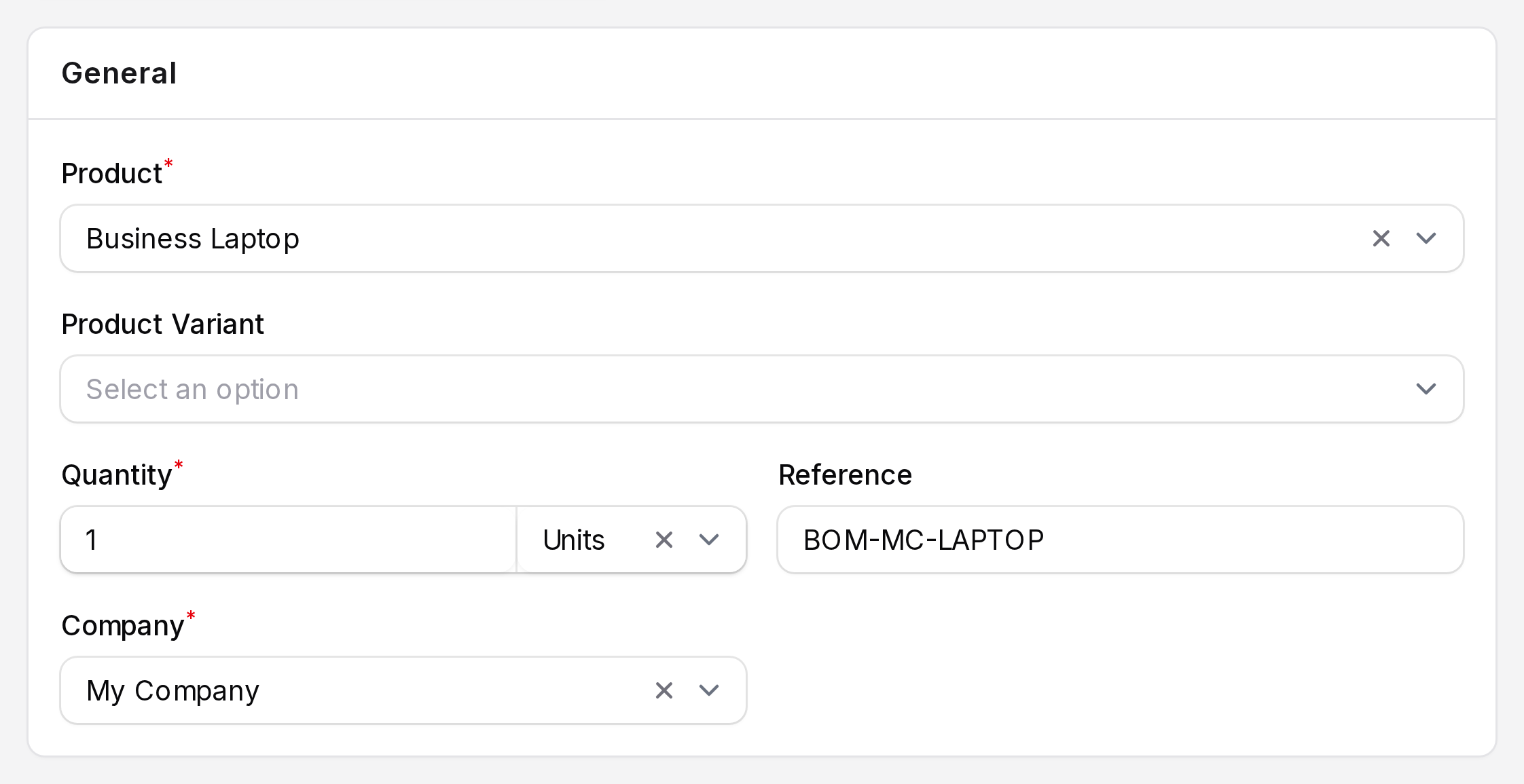
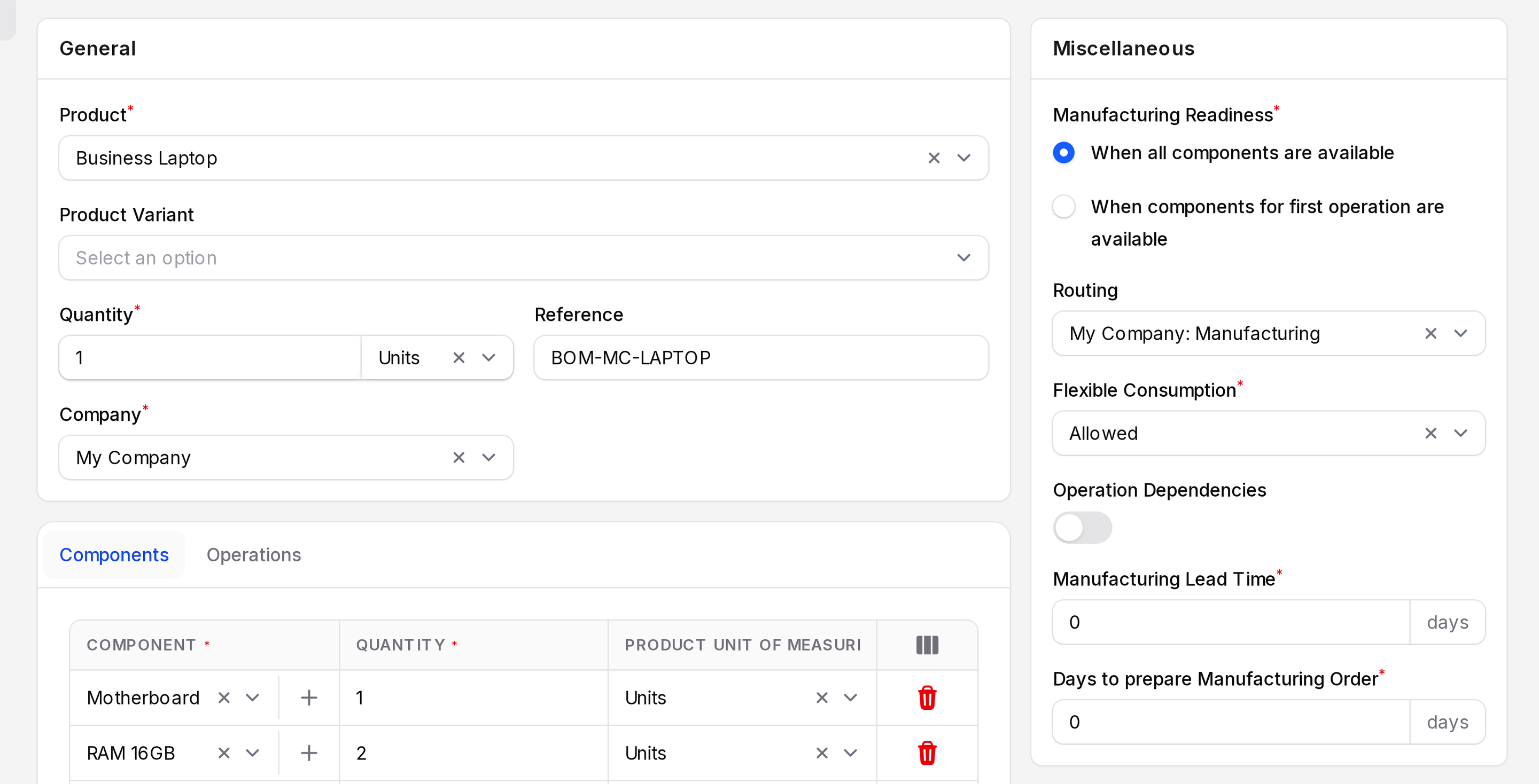
- Product: Required. The finished product, for example Business Laptop.
- Product Variant: Pick one variant, or leave empty to cover all variants.
- Quantity: Required. How many units this recipe makes, usually 1.
- UOM: Unit of the quantity.
- Reference: A code such as BOM-MC-LAPTOP. Useful when a product has several BoMs.
- Company: Required. The company that owns the BoM.
Components tab
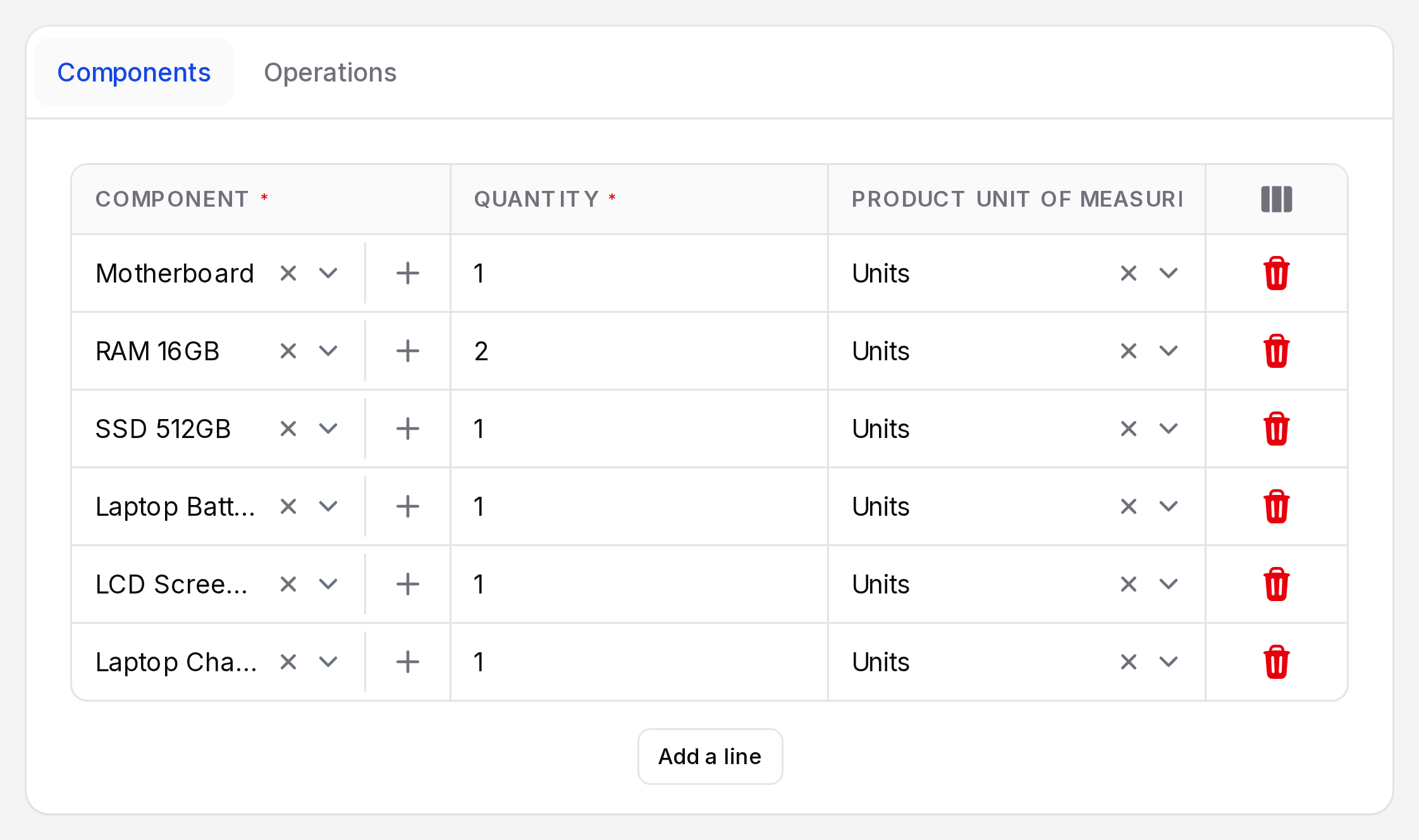
Click Add a line for each part.
- Component: Required. The product you consume.
- Quantity: Required. Amount needed for one batch. RAM 16GB is 2 for one laptop.
- Product Unit of Measure: Required. Unit of the component.
- Apply on Variants: Optional column. Limit the line to some variants. See BoM variants.
- Consumed in Operation: Optional column. Choose the operation that uses the part.
- Highlight Consumption: Optional column. Marks a key component.
Operations tab
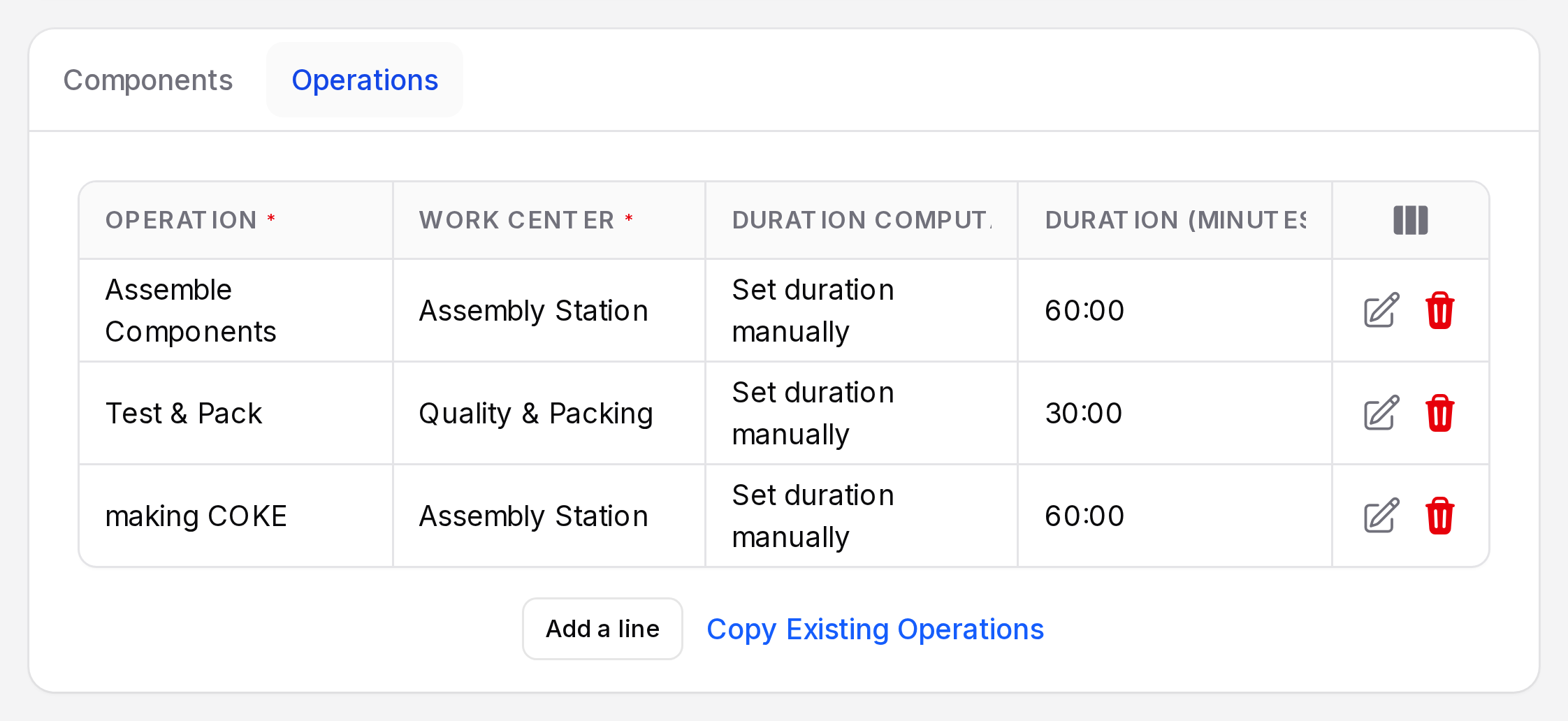
Shown when Work Orders is on. Each line becomes a work order on the manufacturing order.
- Operation: The step, such as Assemble Components.
- Work Center: Where it runs, such as Assembly Station.
- Duration Computation: Compute from tracked time or set it manually.
- Computed on last: Number of past work orders used for the average.
- Company, Apply on Variants, Duration (minutes): Company, variant limit and the planned time.
Use Add a line for a new step, Edit Operation to open the full form, or Copy Existing Operations to reuse steps from another BoM. See Operations.
Miscellaneous box
- Manufacturing Readiness: Required. When all components are available or When components for first operation are available. It decides when the order shows Ready.
- Routing: The operation type used for the order.
- Flexible Consumption: Required. Allowed, Allowed with warning or Blocked. New BoMs start on Allowed with warning. See below.
- Manufacturing Lead Time: Required. Days needed to build.
- Days to prepare Manufacturing Order: Required. Days of preparation before production.
Flexible Consumption
It controls what happens when operators use other quantities than planned.
| Choice | Result at Produce |
|---|---|
| Allowed | No question asked |
| Allowed with warning | The Consumption Warning window appears |
| Blocked | The same window appears |
See Produce and consume.
BoM Overview
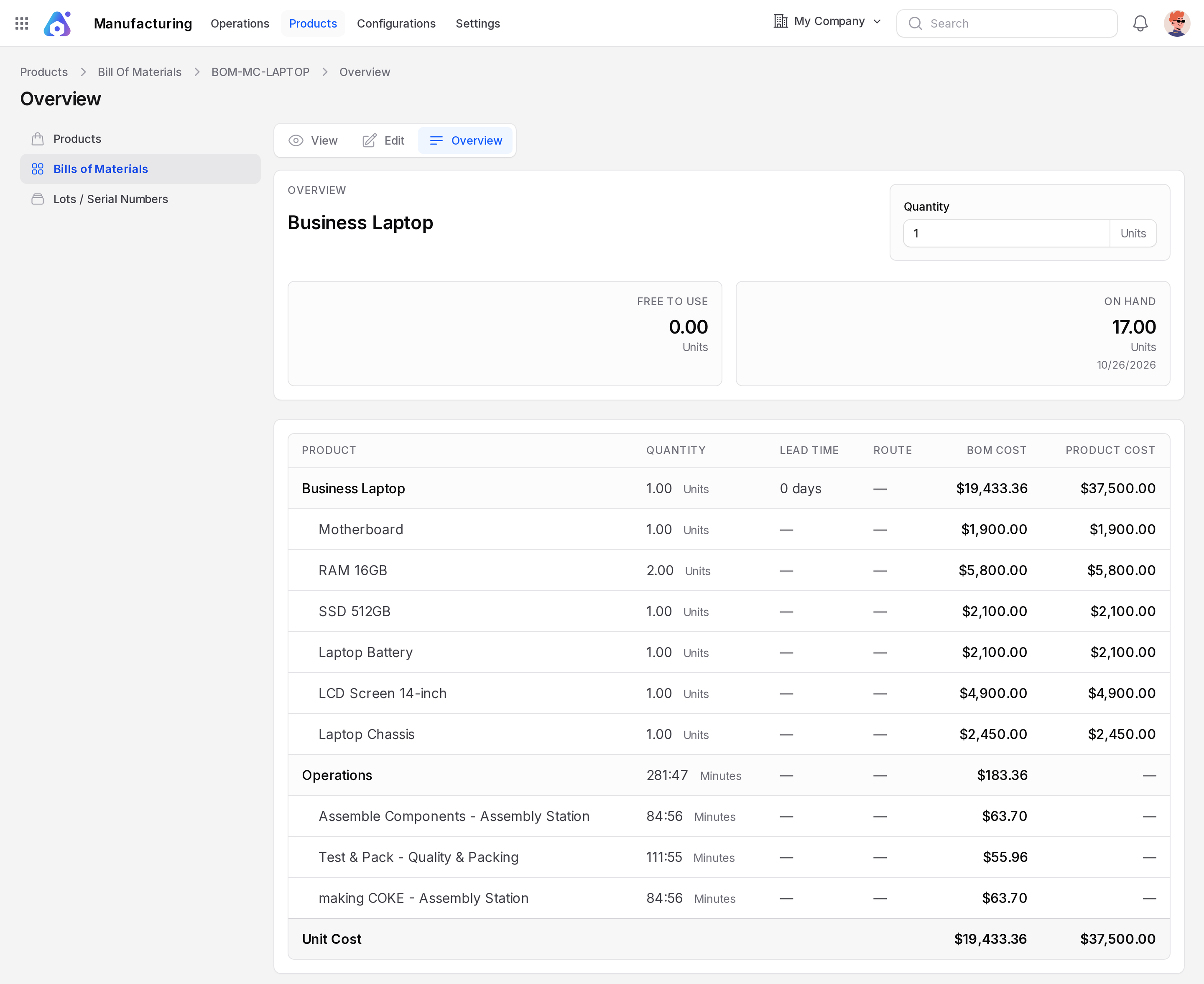
Open a BoM and click Overview. Choose Quantity and Variant filters. The page shows Free to Use, On Hand and Total Cost. The table lists each component with Quantity, Lead Time, Route, BoM Cost and Product Cost, plus operation minutes. The unit cost depends on current product costs. A worked cost example is on Manufacturing order costs.
Actions and statuses
- View, Edit and Overview are the sub tabs of a BoM.
- Deleting a BoM archives it. Open the Archived tab to find it.
Behind the scenes
When you create an order, Aureus scales the component quantities to the order quantity. It also adds one work order per BoM operation.