

Optional products
Optional products are extra items you suggest to a customer on a quotation. They sit next to the products you are already offering, but they are not part of the price yet. Use them for add-ons, upgrades or alternatives, so the customer sees what else is possible without you changing the main offer.
In simple words: Optional products are a "you might also like" list saved inside the quotation. They cost nothing until you move them to the order lines.
Example: Azure Interiors asks for 5 Camping Hammocks. You also want to suggest a Smart LED Desk Lamp. Put the lamp in Optional Products. The quotation total stays at the hammocks only.
When to use it
- You want to offer an add-on, such as a carry bag with a hammock.
- You want to show a better or cheaper alternative.
- You want the customer to decide later, without a second quotation.
Add an optional product
Go to
Sales → Orders → Quotations.Open a quotation, or click New Quotation. If you open a saved one, click the Edit tab.
Click the Optional Products tab.
Click Add Product.
Fill in the line:
- Product: The item you suggest. Required. Each product can be listed only once.
- Quantity: How many units you suggest. Required. It starts at 1.
- UOM: The unit of measure, meaning the unit you count in, such as Units. Required. It shows only when Unit of Measure is on in Settings.
- Unit Price: The price of one unit. Required. It is filled from the product, and you can change it.
- Discount (%): A percentage off the line. It shows only when Discount is on in Settings.
Click Create for a new quotation, or Save changes for a saved one.
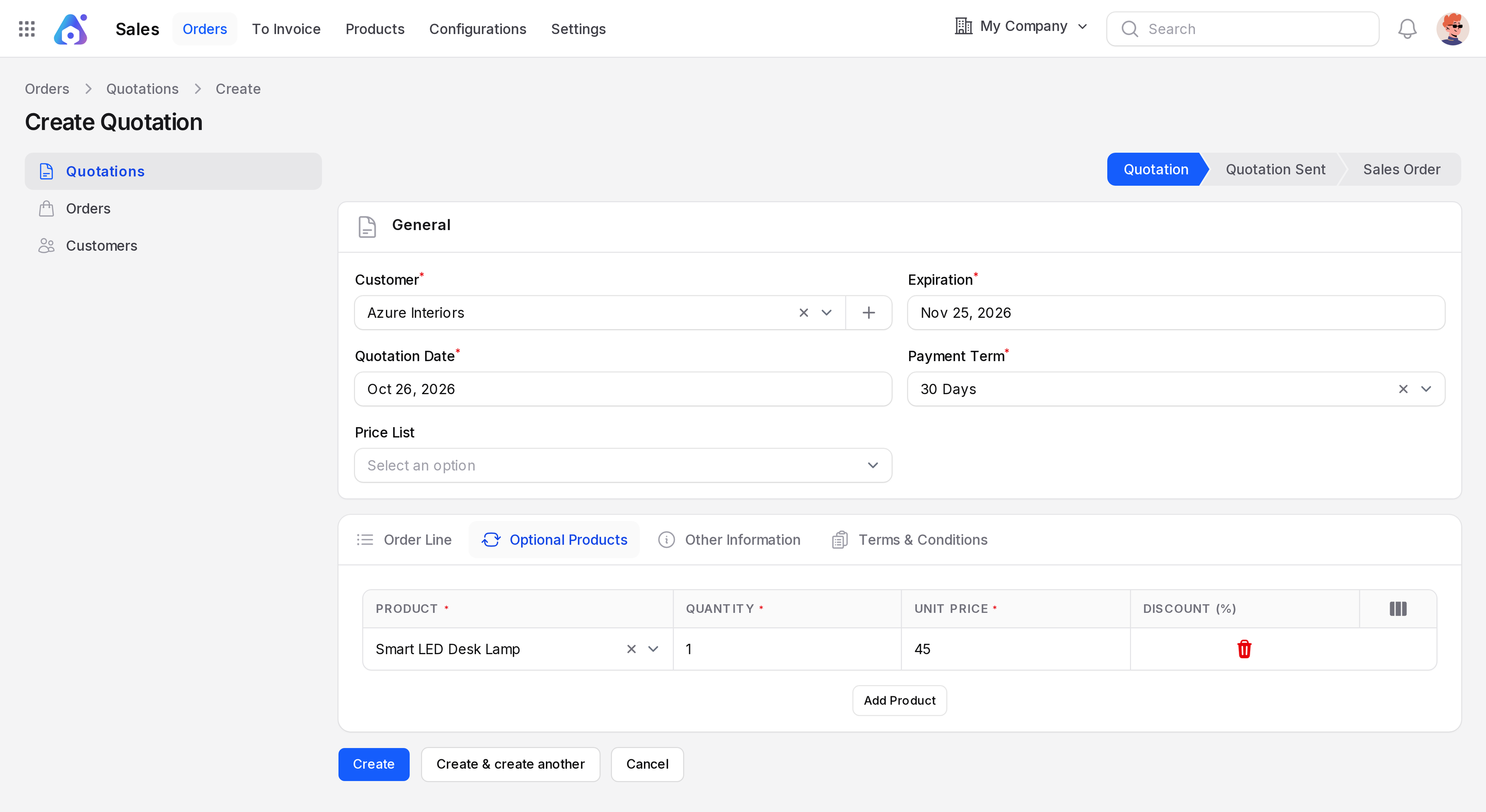
To remove a line, click its delete icon and confirm.
Move an optional product to the order
When the customer says yes to an extra item, turn it into a real order line.
- Open the quotation and click the Edit tab.
- Go to the Optional Products tab.
- On the line, click the cart icon. Its tooltip adds the product to the order lines.
- Open the Order Line tab. The product is there now, with its price and taxes filled in.
- Click Save changes.
After the move, the icon on the optional line turns into a green tick. This means the product is already on the order. If the product is already an order line, Aureus warns you and does not add it twice.
Example: Azure Interiors agrees to the lamp. You click the cart icon. The lamp appears on Order Line, and the Amount Total now includes it.
When the tab is visible
- The tab is available while the quotation is in Quotation or Quotation Sent. It is hidden once the order is confirmed or cancelled.
- On the view page, the tab shows only when the quotation has optional products. There it is a read-only table.
TIP
Add optional products before you click Send By Email. The customer then sees the suggestions in the same message.
INFO
Optional products do not change Untaxed Amount, Amount Tax or Amount Total. Only the Order Line tab does.