

Coins and bills
Coins and bills are the cash denominations your cashiers count. When a session opens or closes, the cashier counts how many of each coin and note is in the drawer. This list tells the counter which values to offer.
In simple words: It is the list of coins and notes in your cash drawer, such as 5, 10 and 20.
Overview
Go to Point of Sale → Configurations → Coins/Bills.
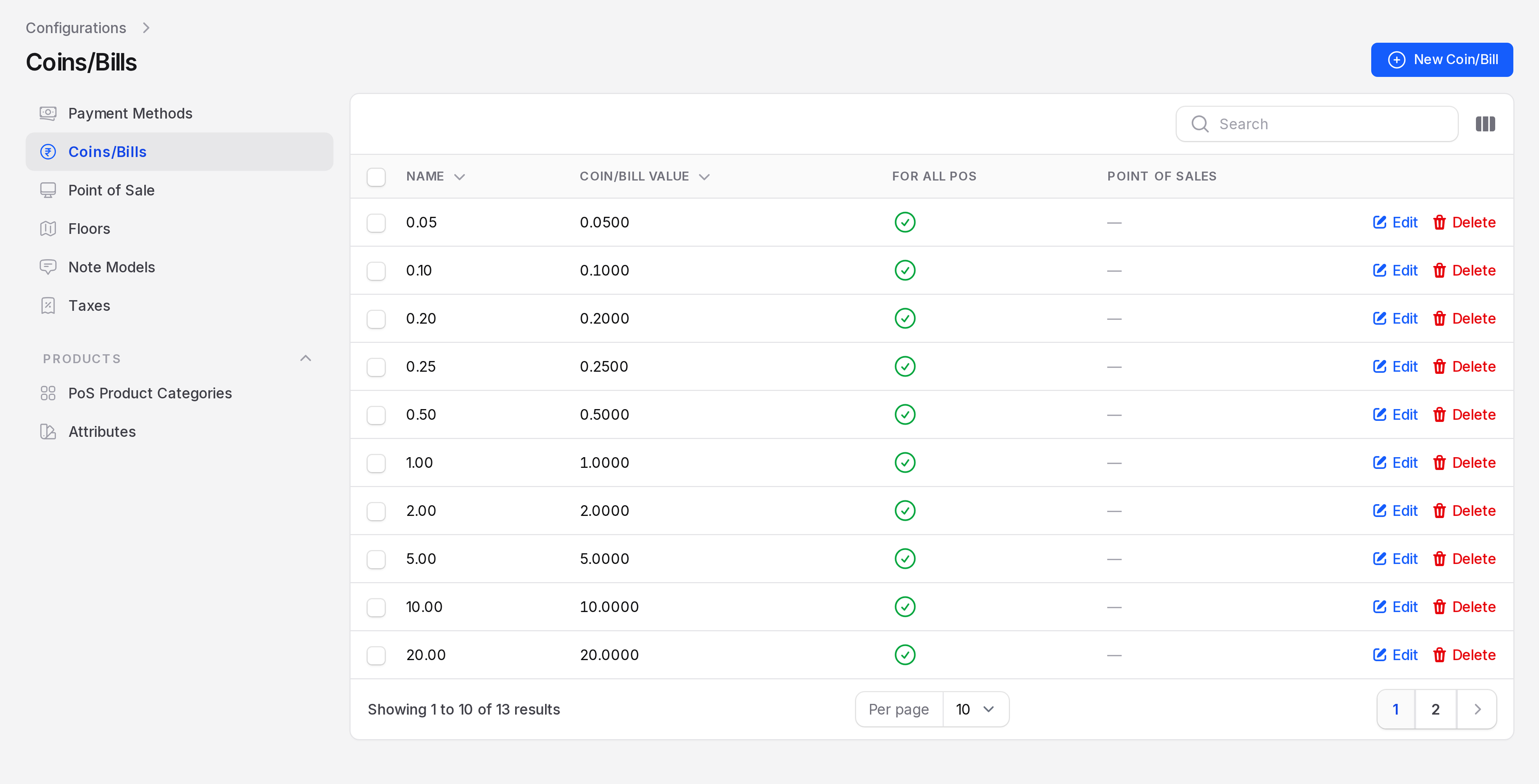
The list shows these columns:
- Name: The label, such as 10.00.
- Coin/Bill Value: The numeric value.
- For All PoS: Yes when every register uses it.
- Point of Sales: The registers that use it, when it is not for all.
The list is sorted by value. It has 13 denominations, from 0.05 up.
Create a coin or bill
Go to
Point of Sale → Configurations → Coins/Bills.Click New Coin/Bill. A window opens.
Fill in the General section.
- Name: Required. For example 50.00.
- Coin/Bill Value: Required. The value, such as 50.
- For All PoS: On by default. When on, every register offers it.
- Point of Sales: Pick the registers when For All PoS is off. The field is greyed out while it is on.
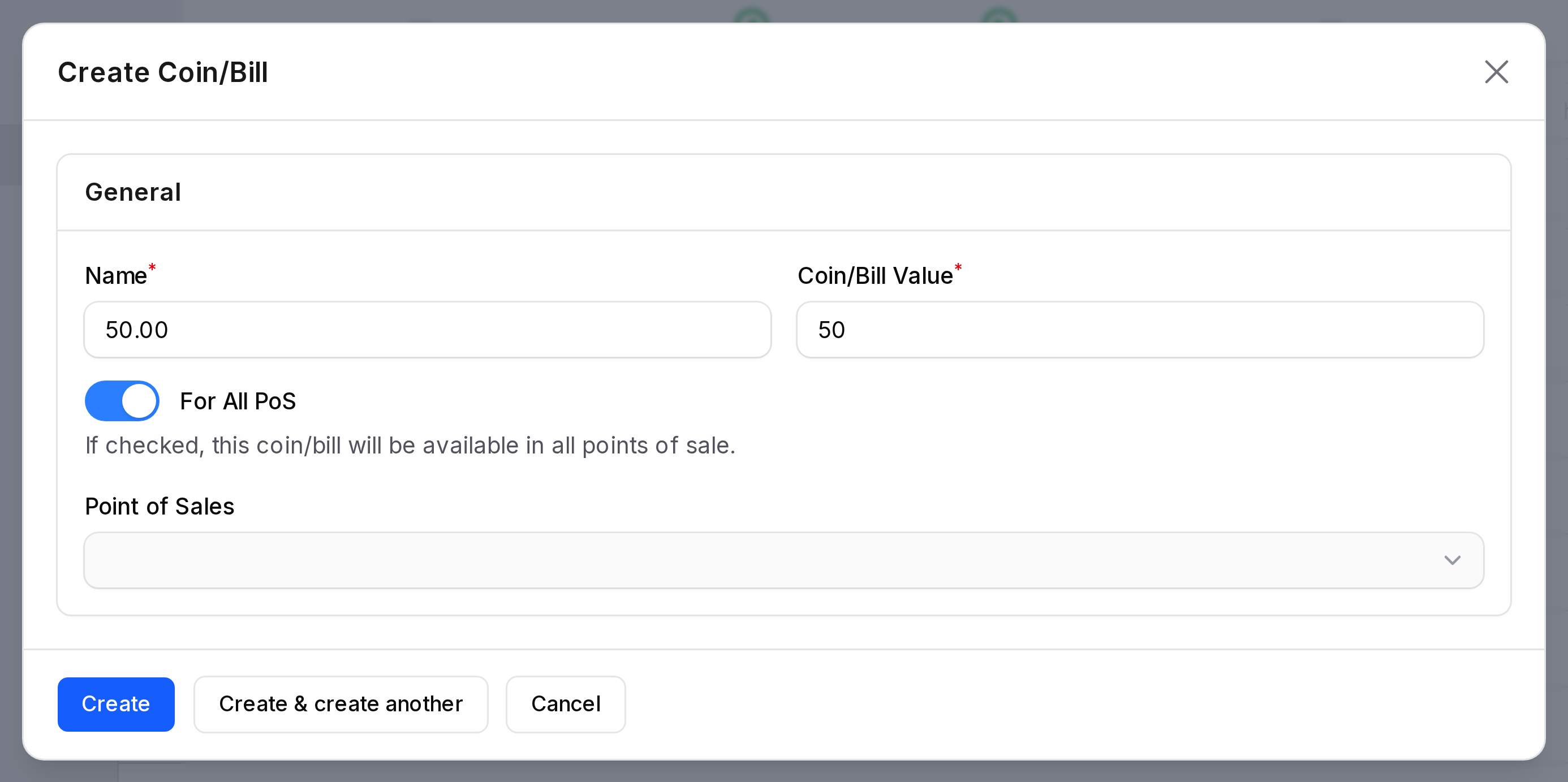
Click Create.
Use Edit or Delete on a row to change or remove one.
Where the list is used
Coins/Notes counter
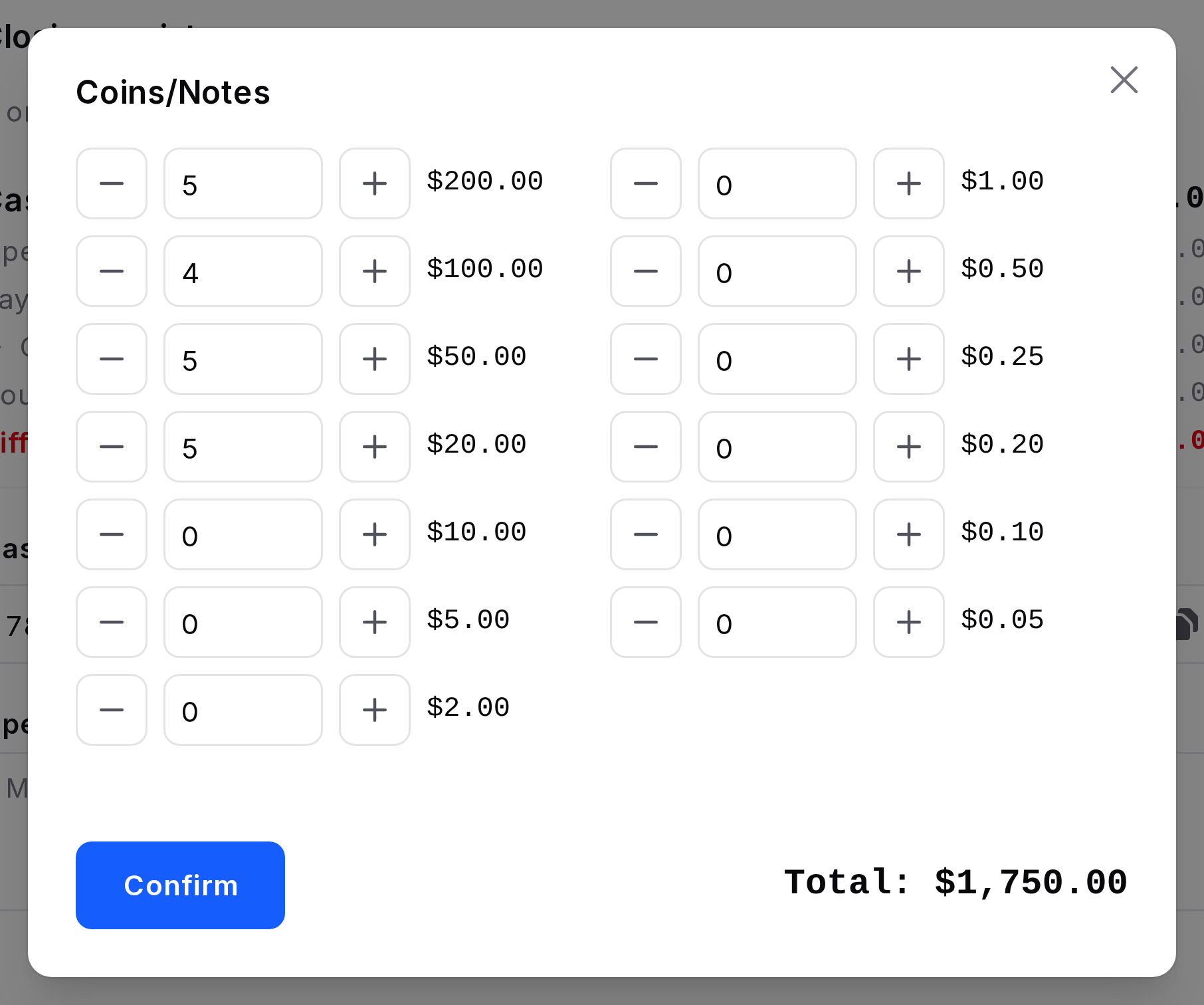
When a cashier opens a register, the Opening Control window has a coin counter icon. It opens the Coins/Notes window with a stepper for each value. The total fills Opening cash. The same window is used when you close the session. See Open a register and Close a session.
Register setup
Open a register in Point of Sale → Configurations → Point of Sale. On the Bills & Receipts tab, the Coins/Bills field shows the values for this register. The hint says "Denominations offered when counting the cash at opening and closing".
Cash rounding
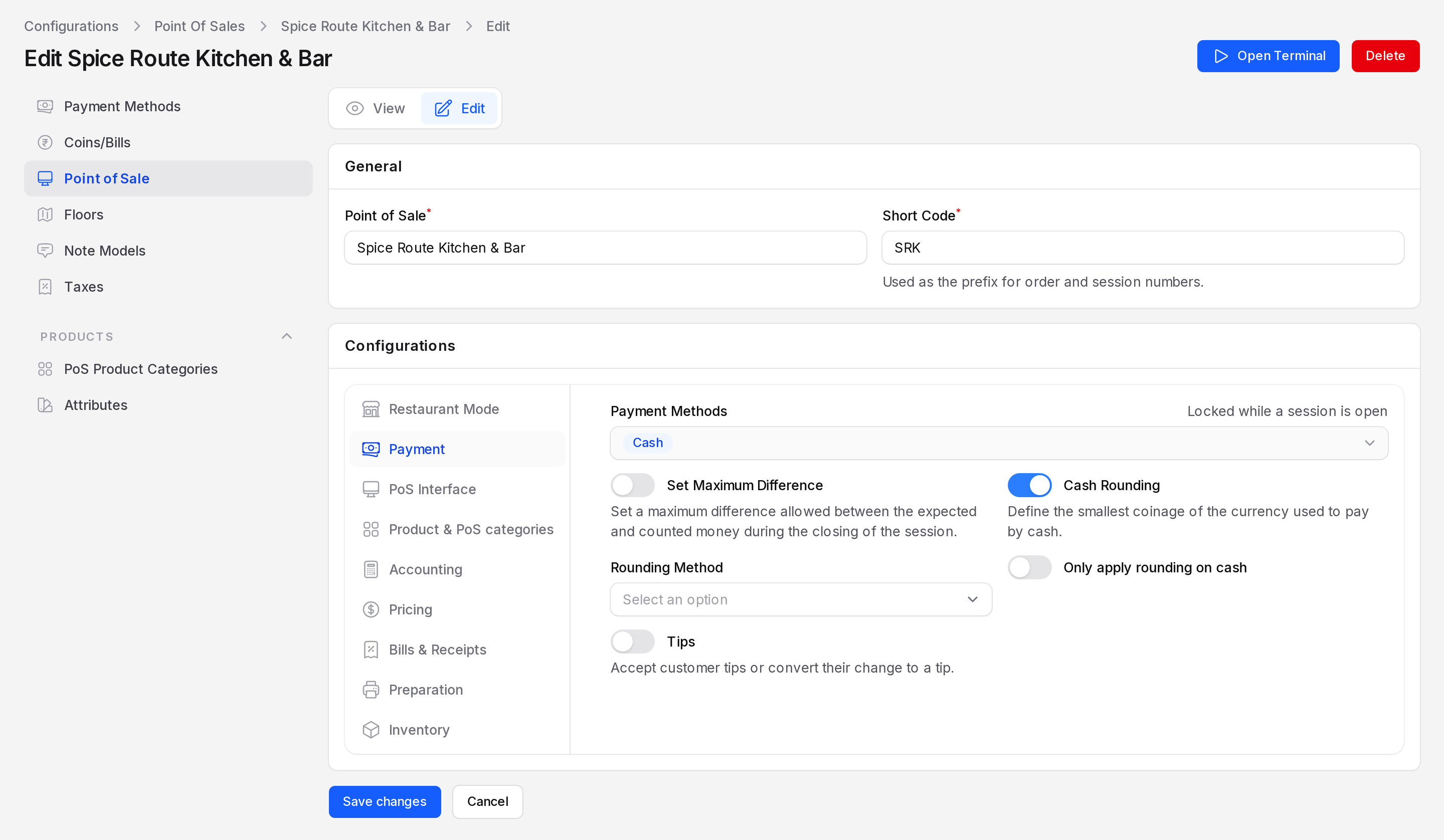
On the Payment tab, switch on Cash Rounding to define the smallest coin used to pay by cash. Then pick the Rounding Method. Only apply rounding on cash keeps other methods exact.
TIP
Add only the denominations you really hold. A short list makes counting faster.