

Process a request
Processing a request means moving it through its stages until the work is finished. You also keep notes, send messages and plan follow-up tasks on the same page. Everything about one job stays in one place.
In simple words: Click the next stage when the work moves on. Use the chat panel to talk about the job.
Open Maintenance → Maintenance Requests and click the request, for example Hydraulic press oil leak.
Before you start
Create the request first. See Create a maintenance request.
Move a request through the stages
The request page has two tabs at the top: View and Edit.
WARNING
On the View tab the stage bar does nothing when clicked. Open the Edit tab, click a stage, then click Save changes.
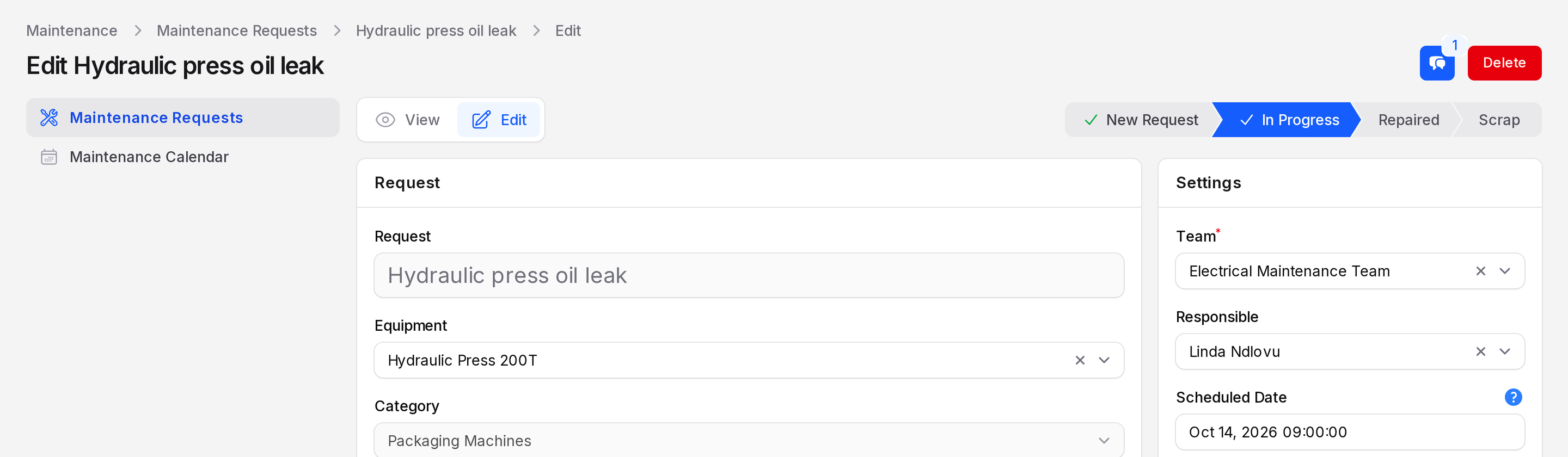
- Open the Edit tab of Hydraulic press oil leak.
- Click In Progress in the stage bar.
- Click Save changes. The stage does not save by itself.
- The notification Maintenance request updated appears. You stay on the Edit page with the new stage highlighted.
- When the work is done, click Repaired. Click Save changes.
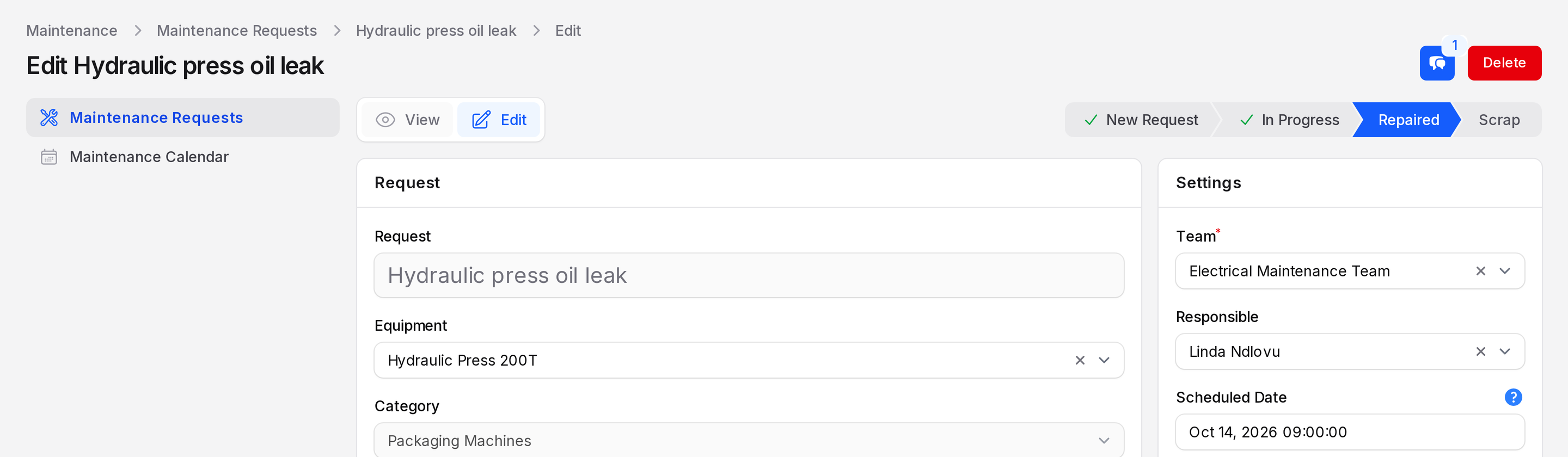
The current stage is blue. The other stages are white outlines. Each change is logged in Chatter, for example "Stage :: New Request -> In Progress".
Repaired and Scrap
Both stages carry the Done flag. This flag closes the request.
- Repaired: the equipment works again.
- Scrap: the equipment cannot be fixed and is written off.
A closed request leaves the To Do tab and appears in Done. On the calendar it turns green. See Maintenance request list.
What you can edit
The Request title is locked after creation. You can still change the equipment, the dates, the team, the responsible person, the priority, the notes and the instructions. Click Save changes to keep your edits or Cancel to leave.
Chatter panel
Click the blue Chatter button at the top of the request. A side panel opens with a Close button.
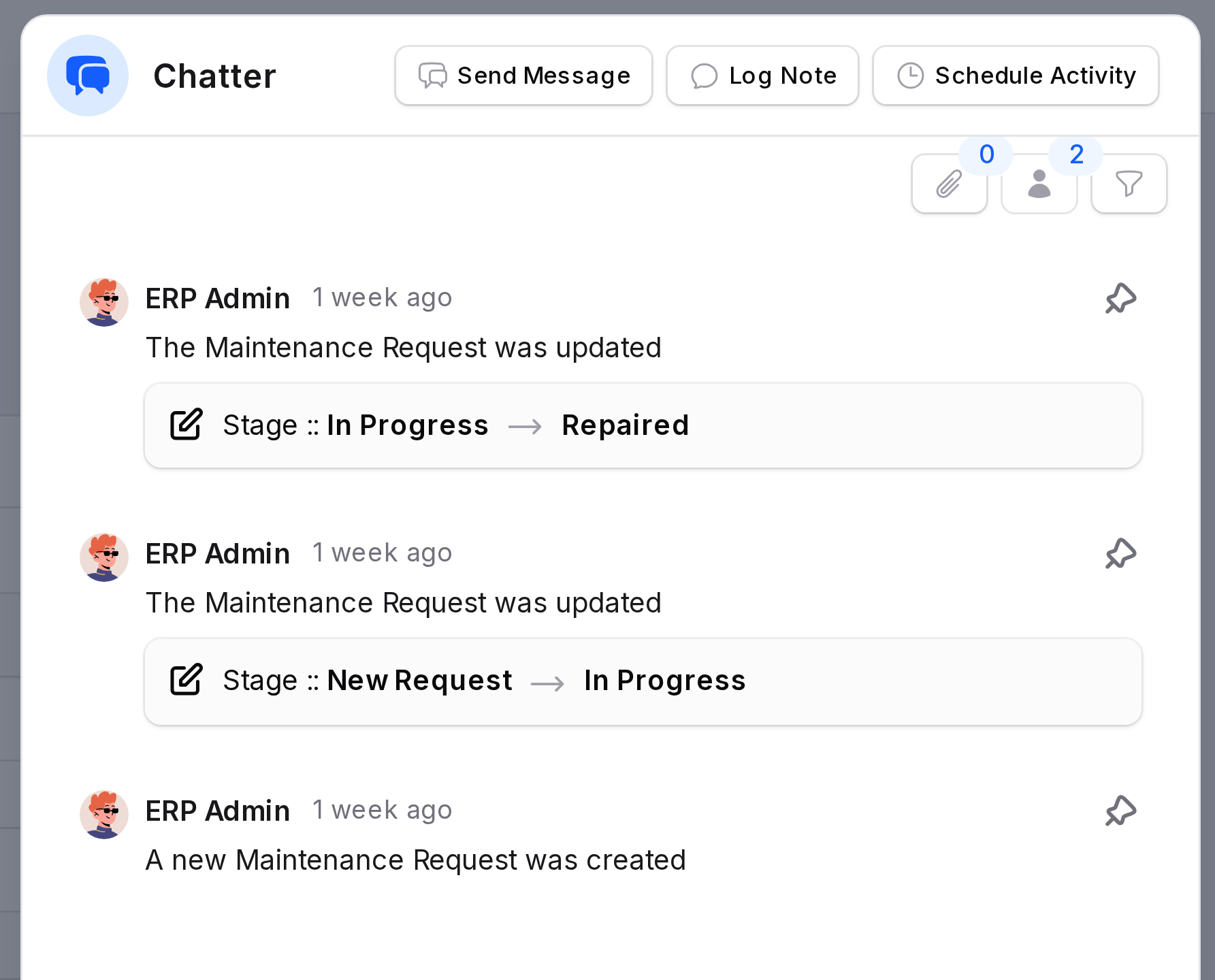
- Send Message: write a message to the followers.
- Log Note: write a note for your team.
- Schedule Activity: plan a task, such as a call to the supplier.
- File (paperclip icon with a count): attach a file.
- Follower (person icon with a count): choose who follows the request.
- Filters (funnel icon): narrow the list of Messages.
The badge on the button counts the entries. Read more in Chatter.
Activities on the list
Each row in the request list has a clock icon with the tooltip Schedule Activity. Click it to plan a task without opening the request. The icon sits at the right end of every row.
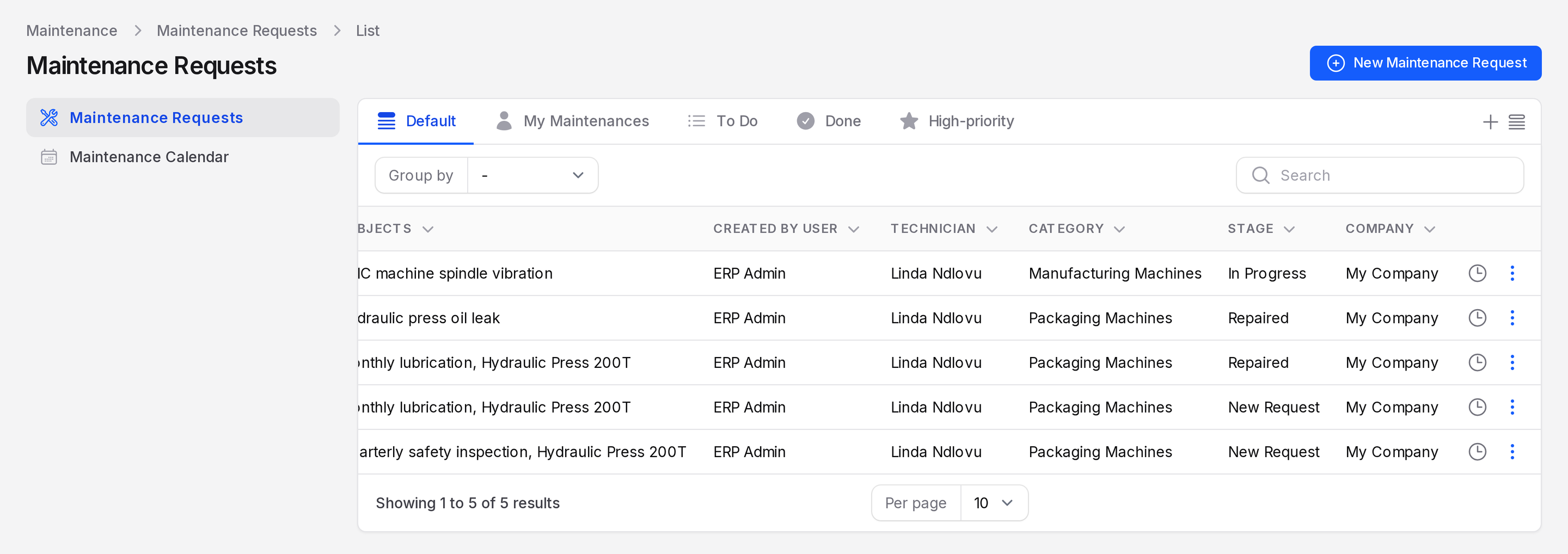
See Activities.
Delete and restore
Click the red Delete button on the request page, or use the row menu in the list. Aureus does not erase the request. It moves to the Cancelled view.
To bring it back, open the Cancelled view, tick the request and click Restore selected. Force delete selected removes it for good.
WARNING
Force delete cannot be undone.