

Packages
A package is a physical container that holds products, such as a box, a pallet or a parcel. You track it by name, so you can move or ship the whole thing and know what sits inside. A package type is the template: its size and weight limits.
In simple words: A package type is the kind of box. A package is one real box with a name.
Settings
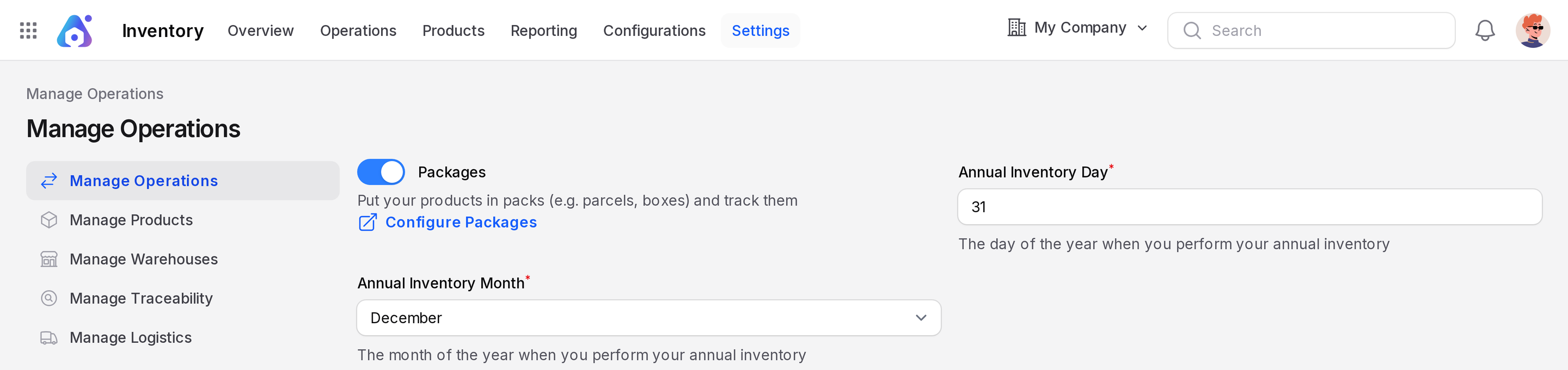
Go to Inventory → Settings → Manage Operations and turn on Packages. Click Save changes. This reveals Inventory → Products → Packages and Inventory → Configurations → Delivery → Package Types.
Create a package type
- Go to
Inventory → Configurations → Delivery → Package Types. - Click New Package Type. The list shows the columns Name, Height, Width and Length.
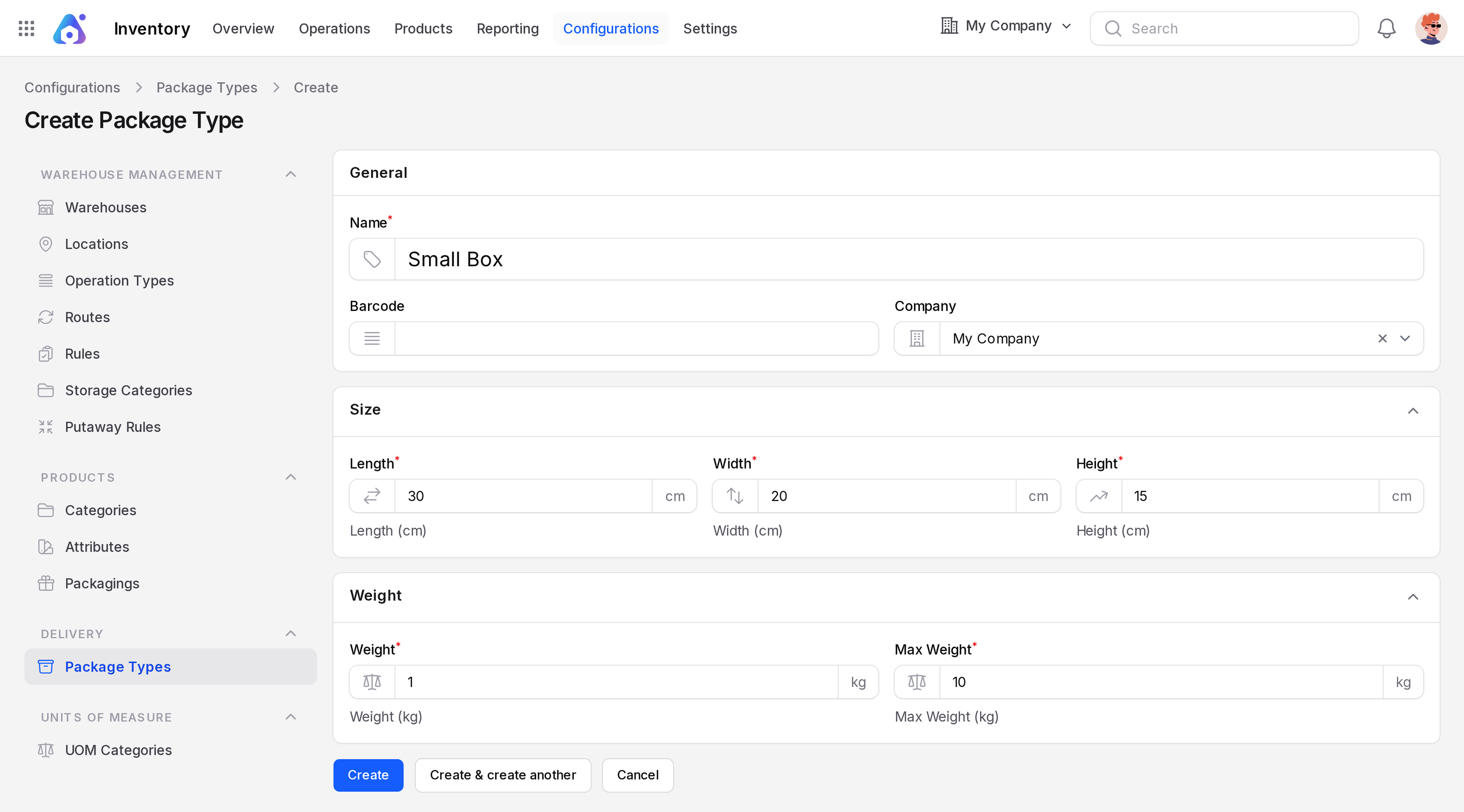
General
- Name: Required. For example Small Box.
- Barcode: Scan code of the type.
- Company: Owner company.
Size
- Length*, Width*, Height*: The inner size. Default 0.
Weight
- Weight: Required. Weight of the empty box.
- Max Weight: Required. The most it can carry.
- Click Create.
Create a package
- Go to
Inventory → Products → Packagesand click New Package.
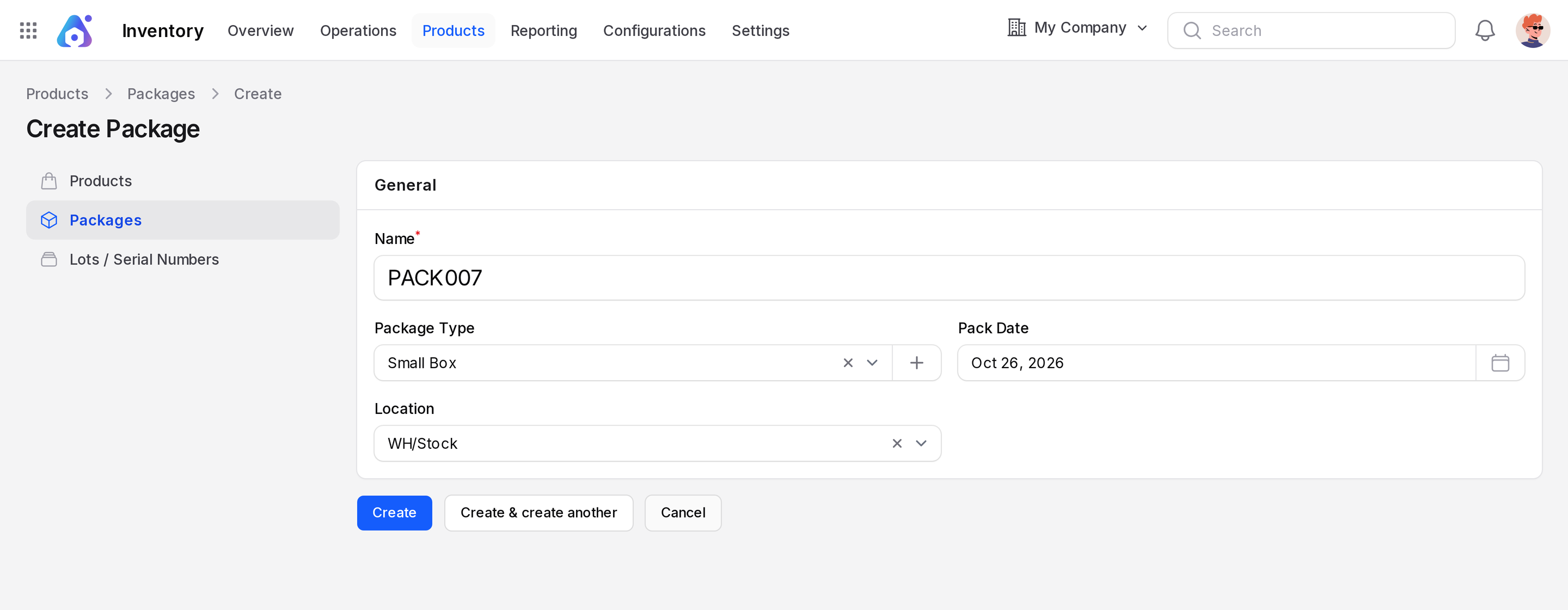
- Name: Required. Package code. The field placeholder reads eg. PACK007.
- Package Type: Pick a type such as Small Box. Click + next to it to create a type on the spot.
- Pack Date: The date it was packed. It defaults to today.
- Location: Where the package sits, such as WH/Stock.
- Click Create.
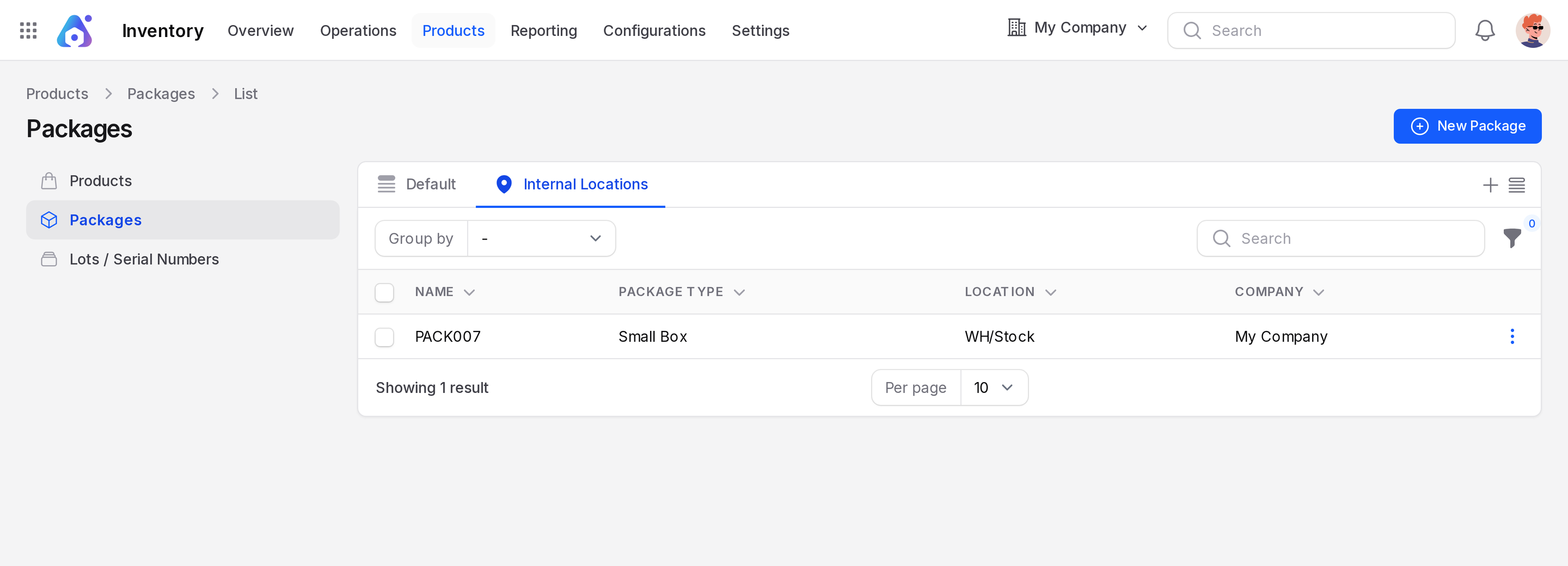
The list opens on the Internal Locations tab. The other tab is Default. It shows Name, Package Type, Location and Company. Group by Package Type or Location. A package in use cannot be deleted. Delete is in the three-dot menu at the end of each row.
Put stock in a package
A package must exist before you can pick it. Create it first, as shown above. On a receipt or other transfer, click the small list icon next to Quantity on the product row. Its tooltip reads Manage Stock Moves. Each line has Destination Package, a searchable select. It lists existing packages only. Choose the package that receives that quantity, then click Save.
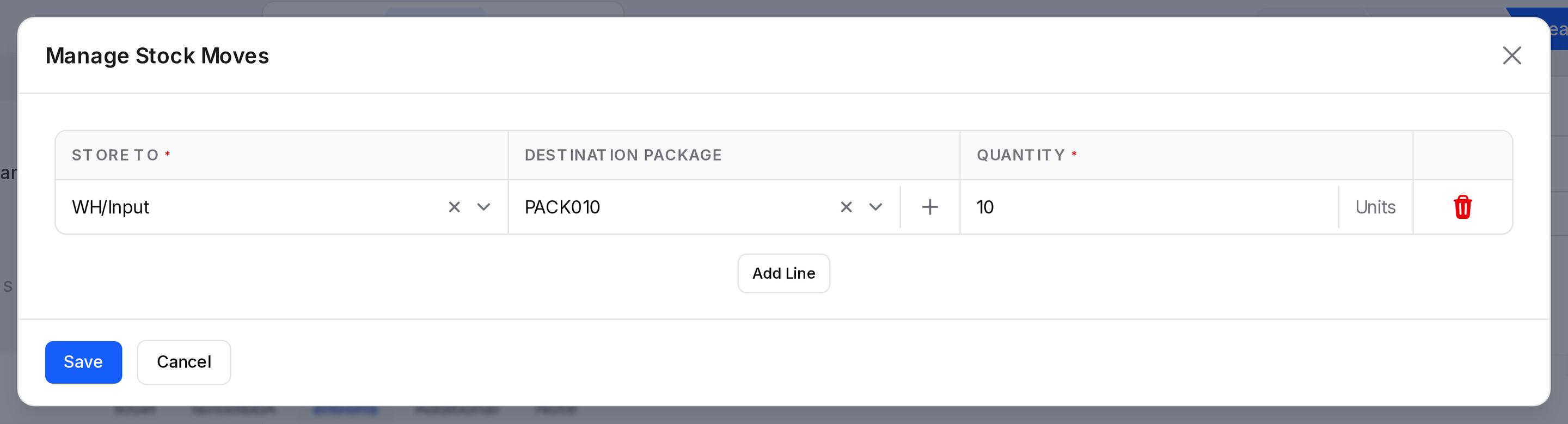
After validation, the Quantities tab and the Locations report show the Package column. You can also add a quantity directly with a package. See Configure a product.
WARNING
A package cannot move into itself. If you see "Can not move same package content", pick a different package.
Print package labels
Tick one or more packages in the list. Choose a bulk action.
- Print Barcode: Prints the package name as a barcode.
- Print Barcode With Content: Also prints what sits inside.
On a transfer, the Print menu has Packages.
Behind the scenes
A package is a label on stock, like a lot, but it also has a place. When you move a package, everything in it moves with it. Reports can group by Package.