

Manufacturing orders
A manufacturing order (MO) is the instruction to make a product. It names the product, the quantity, the recipe (bill of materials) and the date. From it, Aureus reserves the components, creates the work orders and records the finished goods in stock.
In simple words: An MO says "make 5 Business Laptops, using this recipe, starting on this date".
Open Manufacturing → Operations → Manufacturing Orders.
Settings
The Work Orders tab on the MO form and the Work Orders menu appear only when Work Orders is on. Go to Manufacturing → Settings → Manage Operations. See Manufacturing settings.
You also need a product with a bill of materials. See Bill of materials.
Overview
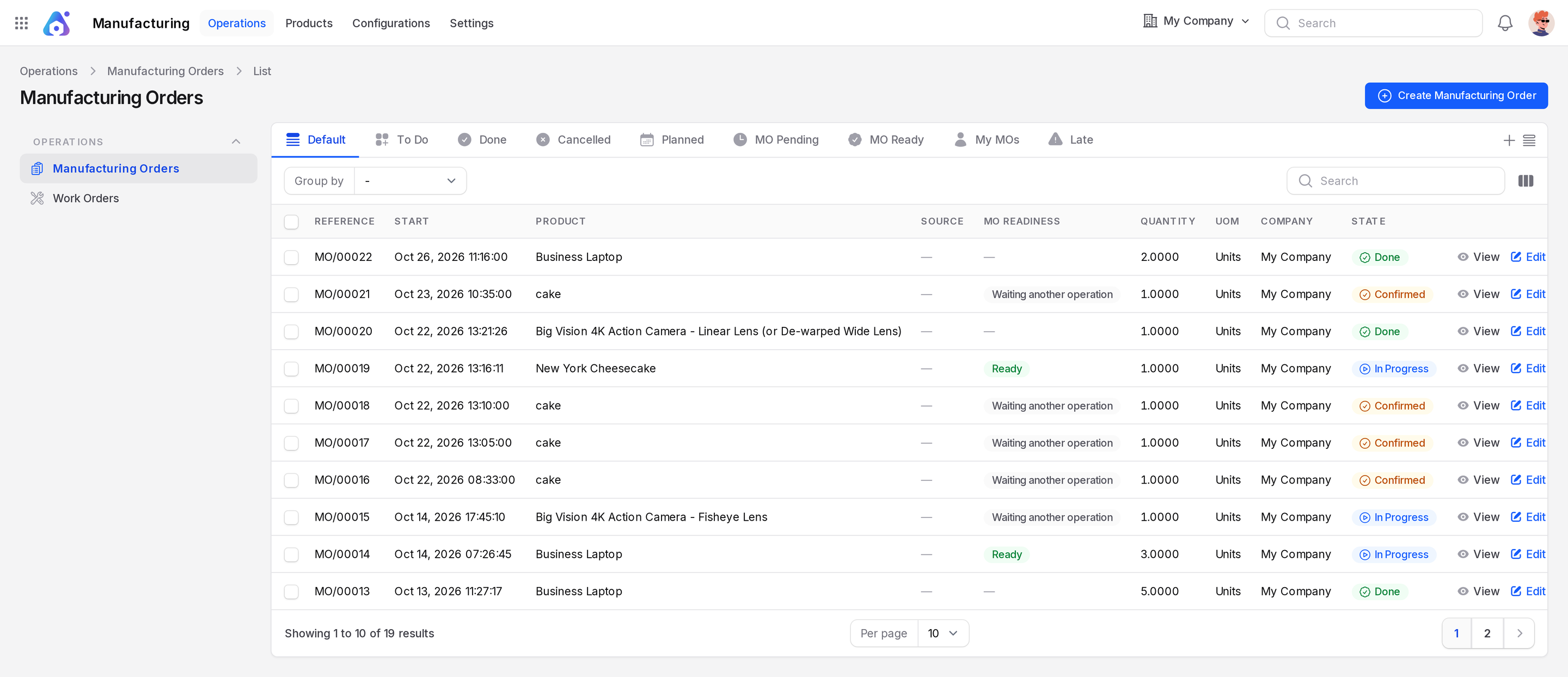
The list has these parts.
- Tabs: Default, To Do, Done, Cancelled, Planned, MO Pending, MO Ready, My MOs, Late.
- Columns: Reference, Start, Product, Source, MO Readiness, Quantity, UoM, Company, State. You can also show End, Deadline, Lot/Serial Number, Bill of Material, Responsible, Component Status, Consumption Efficiency, Expected Duration and Real Duration.
- Group by: State, Product, Bill of Material, Responsible, Deadline.
- Row actions: View, Edit, Delete.
MO Readiness tells you if the order can start.
| Readiness | Meaning |
|---|---|
| Waiting | Components are missing. |
| Ready | Components are reserved. |
| Waiting another operation | A work order waits for an earlier one. |
Create a manufacturing order
Scenario: make 5 Business Laptop with BOM-MC-LAPTOP.
- Click Create Manufacturing Order.
- Fill the General section.
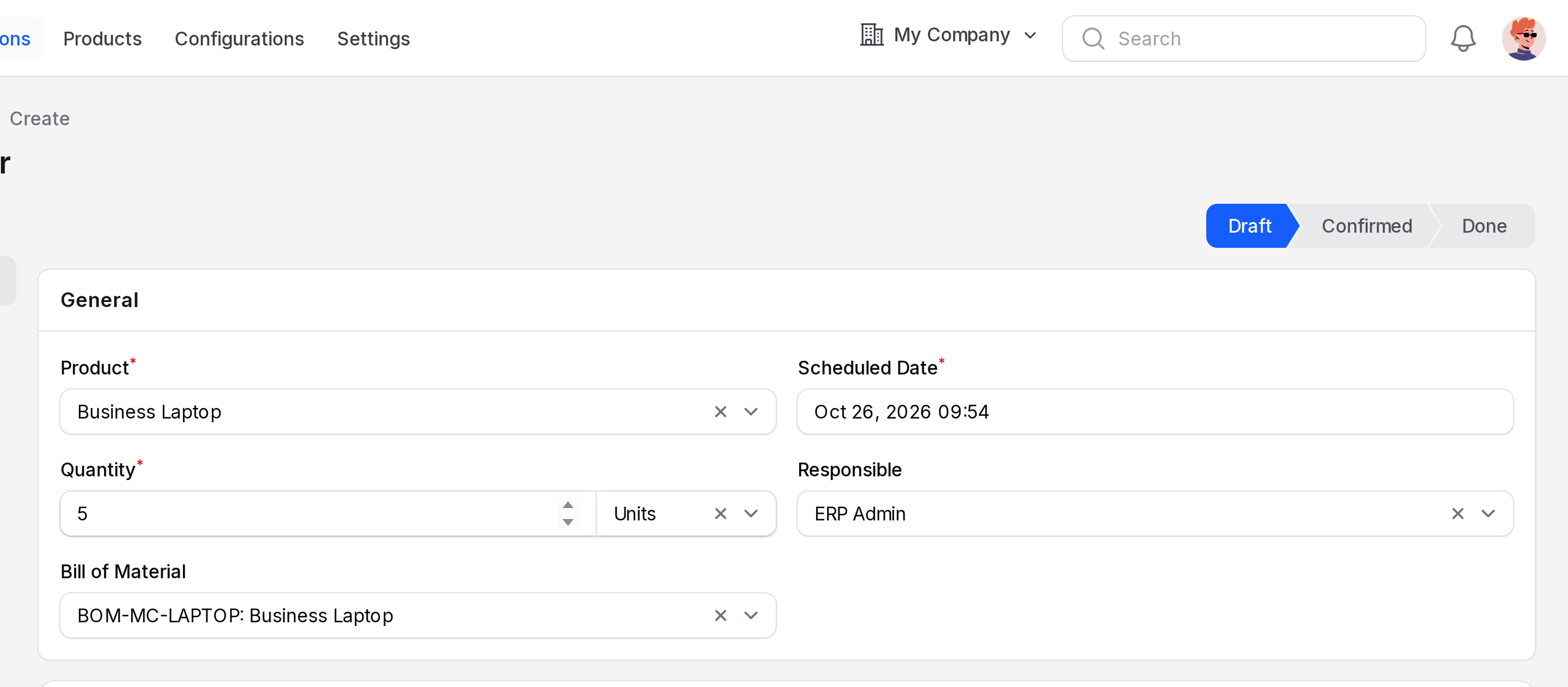
- Product: The goods you make. Pick a product with a bill of materials.
- Quantity: How many units to make. Required.
- Quantity Producing: How many you finished so far. It is hidden while the MO is Draft. See Produce and consume.
- UoM: The unit for the quantity. It follows the product.
- Bill of Material: The recipe. It fills in when the product has one.
- Scheduled Date: When production should start. Required.
- Scheduled End: When production should end. You cannot edit it. Aureus fills it in when you plan the order.
- Responsible: The user in charge.
TIP
Change the product, bill of materials, quantity or UoM and Aureus rebuilds the Components and Work Orders tabs from the recipe.
- Open the Components tab and check the list.
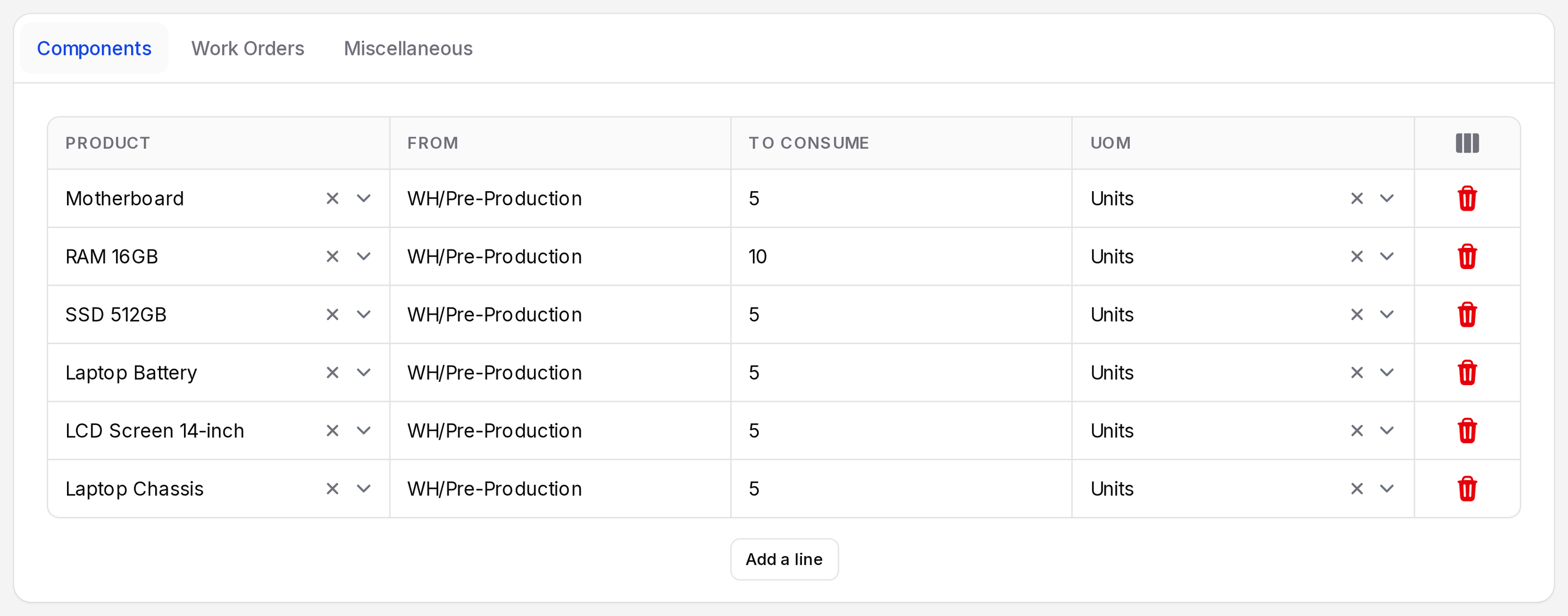
- Product: The component.
- From: The location it is taken from.
- To Consume: The amount the recipe needs for this quantity.
- Quantity: The amount actually used.
- UoM: The unit.
- Forecast: The expected stock position of the component.
Click Add a line to add one more component for this order only.
- Open the Work Orders tab. It lists one row for each operation of the recipe.
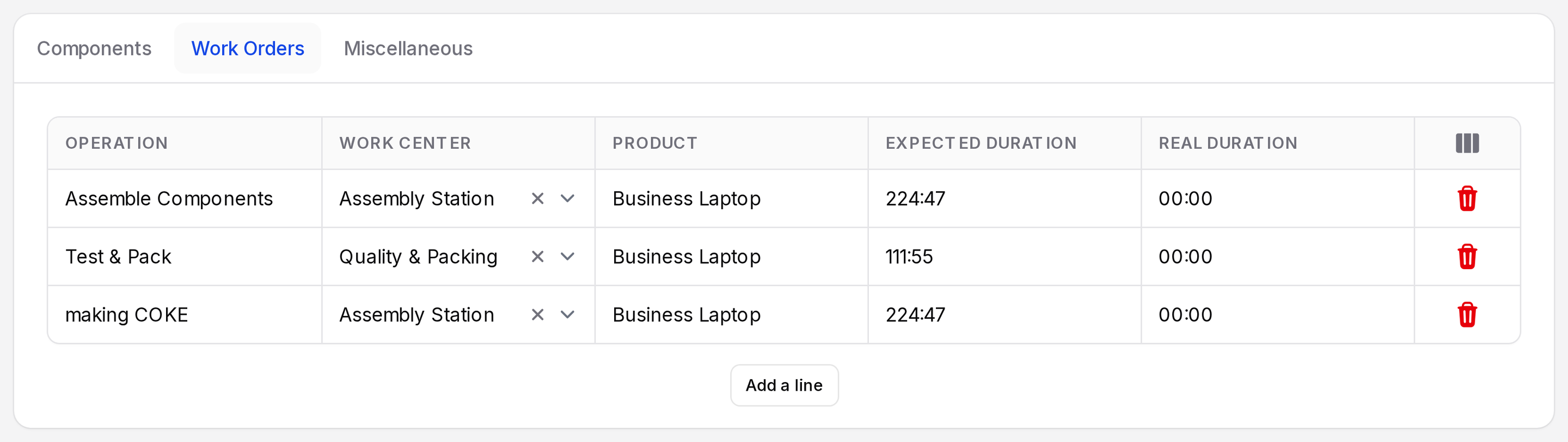
The columns are Operation, Work Center, Product, Quantity Remaining, Start, End, Expected Duration, Real Duration and Status. Each row has icon buttons to start, pause and finish. See Work orders.
- Open the Miscellaneous tab.
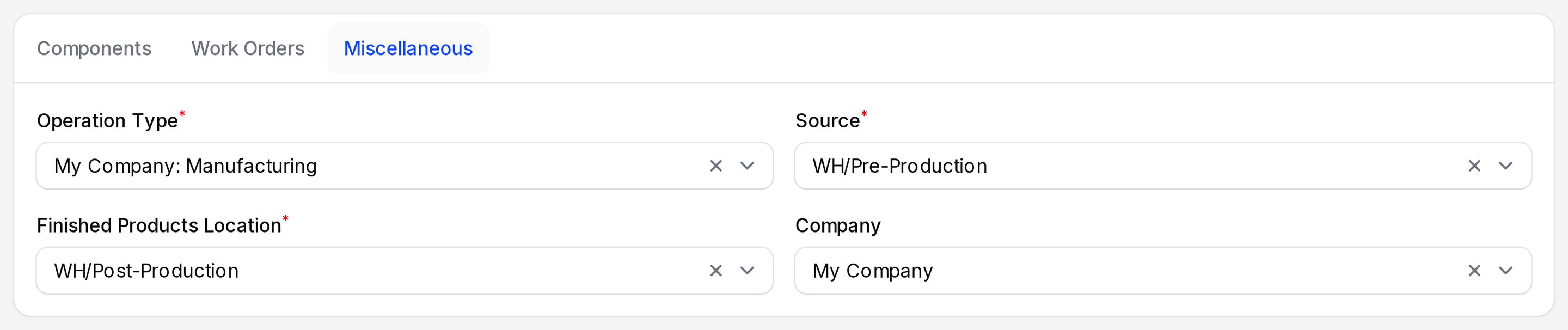
- Operation Type: The warehouse operation that records the production.
- Source: The document or reason behind this order.
- Finished Products Location: Where the finished goods are stored.
- Company: The owner company.
- Click Create. The MO is saved as Draft, for example MO/1.
Actions and statuses
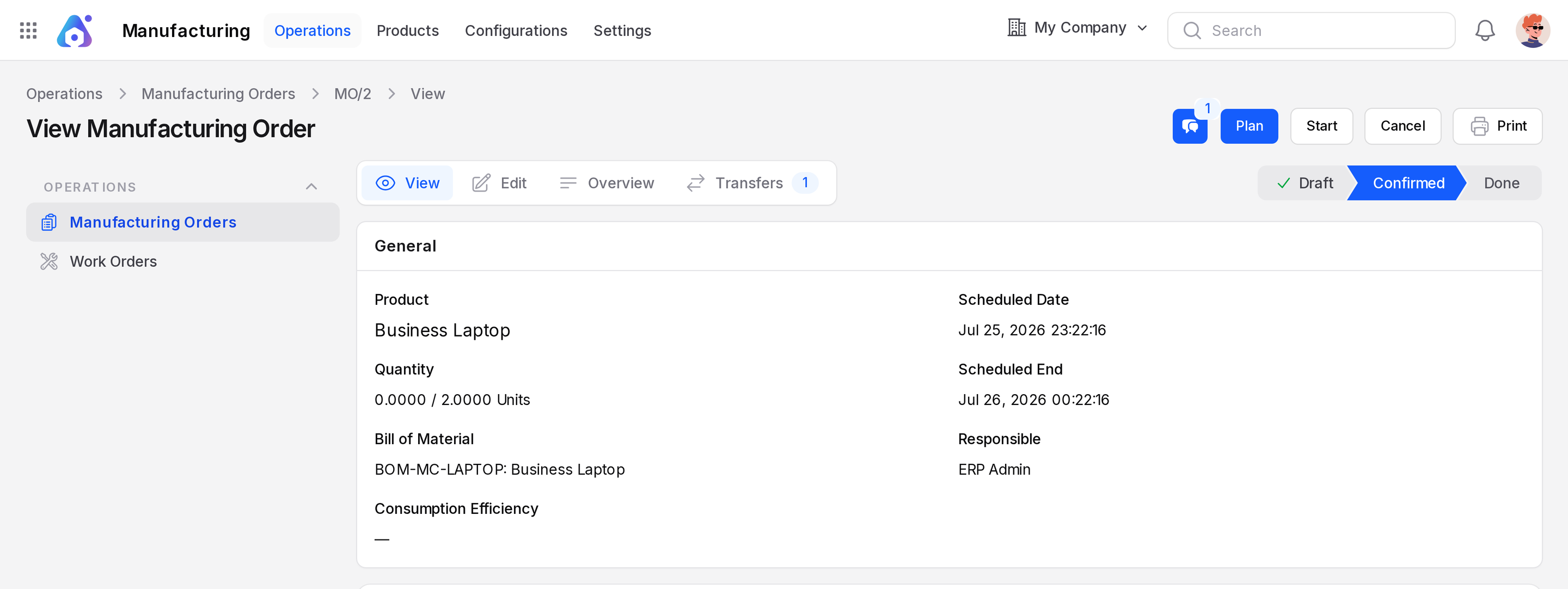
The state bar shows Draft, Confirmed and Done. In Progress, To Close and Cancelled appear when the order is in that state.
Draft → Confirmed → In Progress → To Close → Done
└──────→ Cancelled| State | Buttons | What happens |
|---|---|---|
| Draft | Confirm | Nothing is reserved yet. |
| Confirmed | Produce All, Plan, Start, Cancel, Print | Components are reserved. Work orders exist. |
| In Progress | Produce All or Produce, Cancel, Print | Work has started. |
| To Close | Produce All or Produce, Cancel, Print | All work orders are finished. Close the MO. |
| Done | None | The MO is locked. |
| Cancelled | None | The MO is closed. |
Confirm
Click Confirm and confirm the prompt. The stock moves and the transfers are confirmed. The state becomes Confirmed. You see Manufacturing order confirmed.
Start
Click Start. The state becomes In Progress. You see Manufacturing order started.
Plan and Unplan
Plan puts the work orders on the calendar of their work centers. Unplan removes those dates. See Plan and schedule.
Produce
Produce All completes the order. See Produce and consume.
Cancel
Click Cancel. Open work orders, stock moves and transfers are cancelled. The state becomes Cancelled. You see Manufacturing order cancelled. Finished work orders stay as they are.
Print
Click Print and choose one option.
- Print MO: downloads the order as a PDF.
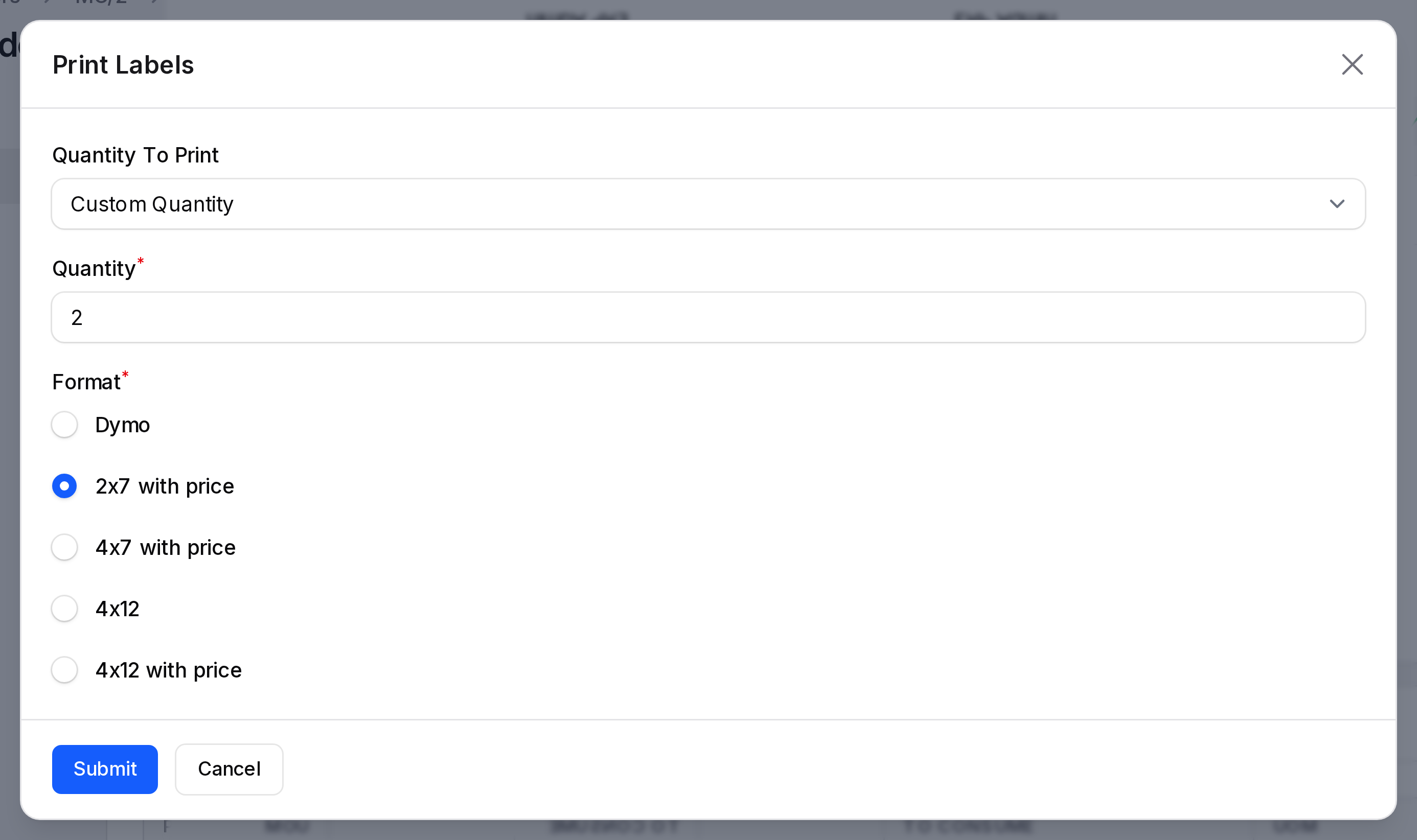
- Print Labels: asks for Quantity To Print (Operation Quantity or Custom Quantity), a Quantity from 1 to 100 and a Format. Formats are Dymo, 2x7 with price, 4x7 with price, 4x12 and 4x12 with price.
Overview and Transfers pages
Every MO has two extra pages in its sub navigation.
Overview shows costs and stock for each line.
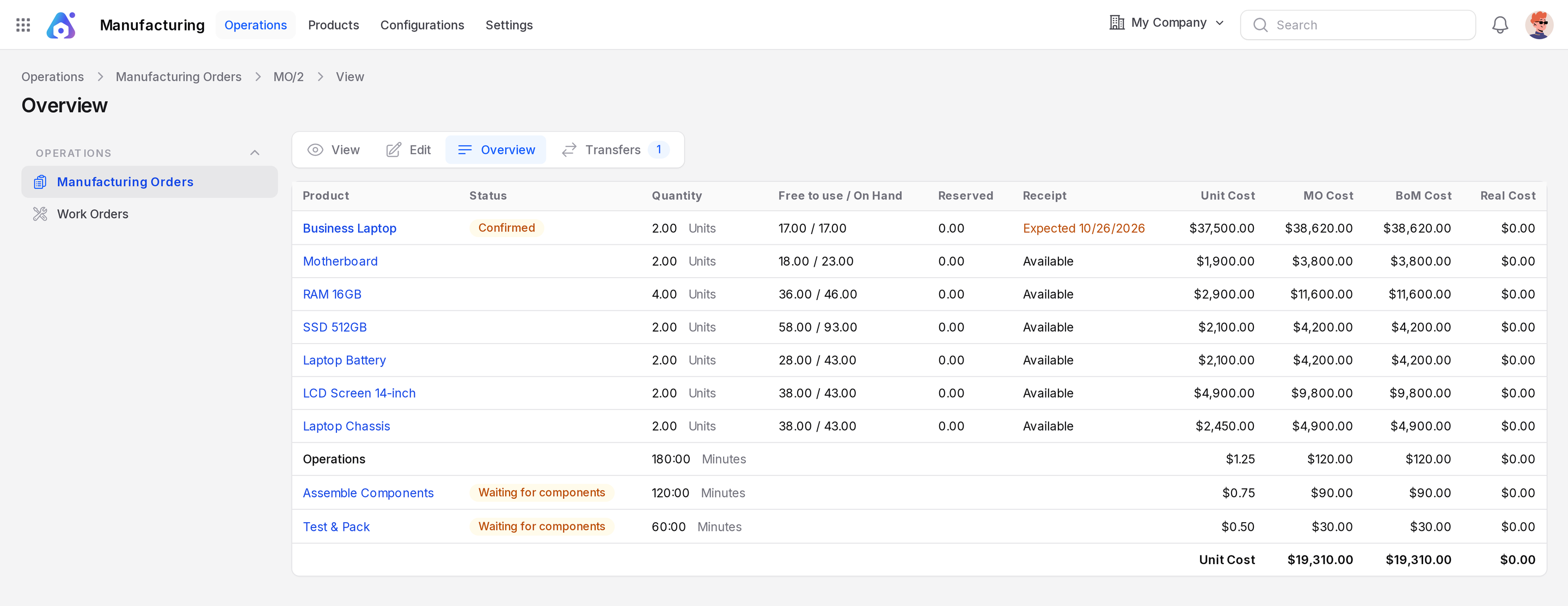
- Columns: Product, Status, Quantity, Free to use / On Hand, Reserved, Receipt, Unit Cost, MO Cost, BoM Cost, Real Cost.
- Operations: a row in minutes for each work order.
- Unit Cost: the total at the bottom.
See Manufacturing order costs.
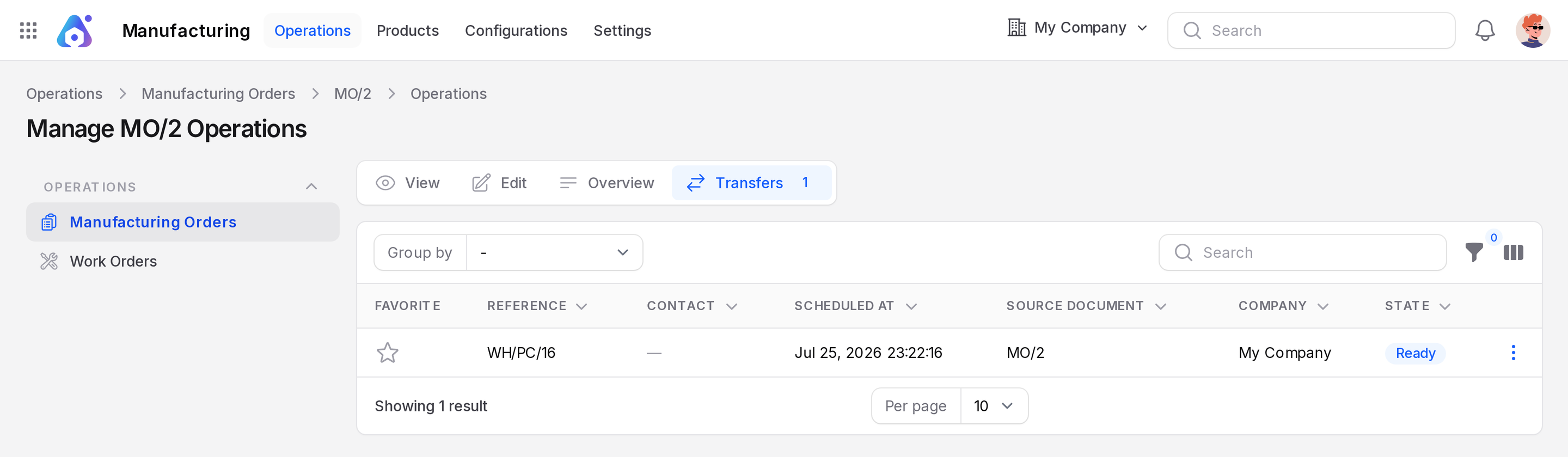
Transfers lists the stock transfers linked to the MO, for example the pick transfer WH/PC/16 with state Ready. With a three step warehouse it also lists the store transfer.
Behind the scenes
MO numbers run MO/1, MO/2 and so on. Pick transfers use the prefix WH/PC. Store transfers use SFP.
Components move from Stock to Pre-Production, then to Production when used. Finished goods move from Production to Stock.