

Scan adjustments
Count stock with a scanner. Scan a location, then scan each product or lot on its shelf. The app builds the counted quantity for you. When you are happy, apply it.
In simple words: Scan the shelf, count the items, then apply.
Open Barcode → Barcode App → Inventory Adjustments. The page subtitle is Count stock by location, product, or lot. It works on the same data as Inventory adjustments.
The list
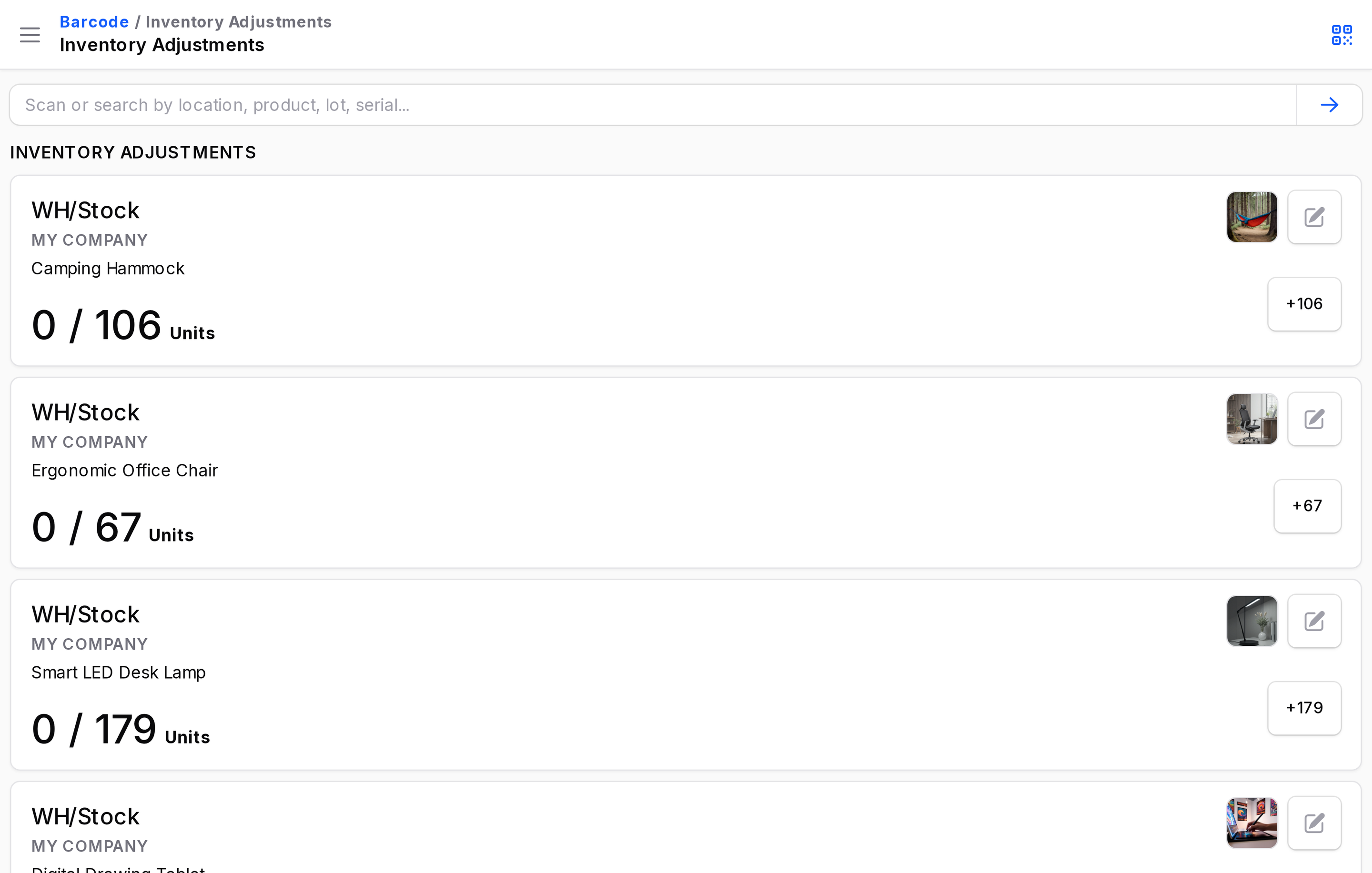
Each card is one stock row. It shows the location (for example WH/Stock), the product, the lot if any, and a progress such as 0 / 106 Units (counted over on hand). A quick button, for example +106, sets the count to the on hand quantity. Check and clear icons apply or discard the count.
Count by scanning
- Type or scan in Scan or search by location, product, lot, serial... and click Open.
- Scan a location. A message says Scanning location WH/Stock. Scan more products here or scan another location.
- Scan each product or lot. Each scan raises its counted quantity.
- Click Clear filters to remove the location filter.
Edit a count
Click the pencil icon. The Adjustment details screen says Review stock details and update the counted quantity. It shows Location, Lot/Serial, On hand and Counted.
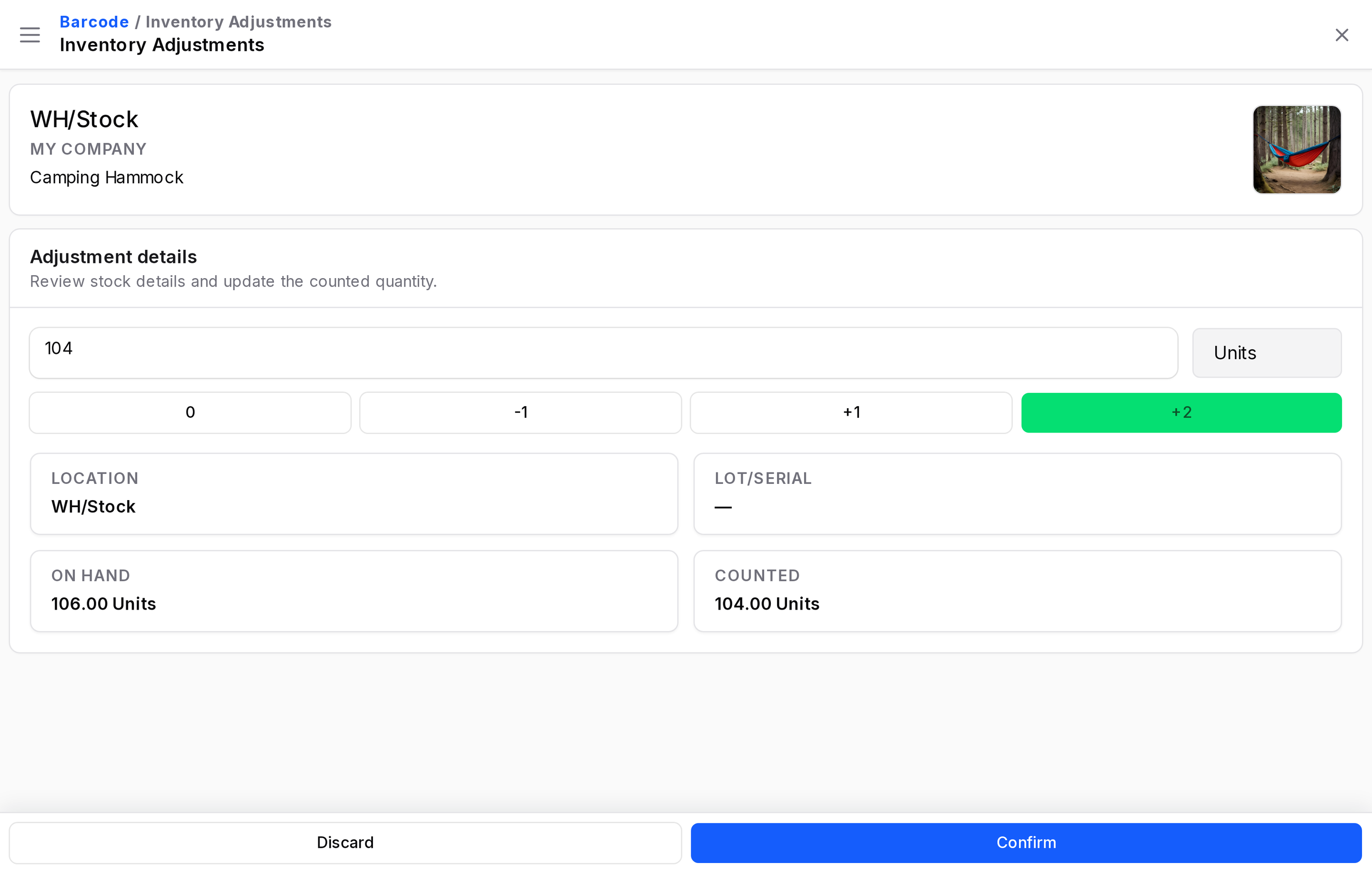
Use the buttons to set the count to 0, subtract 1, add 1 or fill the remaining quantity. Click Confirm to save, or Discard. A message says Inventory count saved.
Apply or clear
Click the check icon to apply. A message says Inventory adjustment applied. The stock is corrected. Click the clear icon to remove the count. A message says Inventory count cleared.