

Taxes
A tax tells Aureus how much to add to a line, and which accounts the tax amount is booked to. You set up each tax once, attach it to your products, and it works on every invoice and bill from then on.
In simple words: A tax is a rule: "add 15 % to the price and record it in the tax account".
When to use this page
- You start selling in a new country or at a new rate.
- You need a fixed fee per unit, or a tax with a special formula.
- You need two taxes shown as one, for example a state tax plus a city tax.
Open the page
- Invoices app:
Invoices → Configurations → Taxes - Accounting app:
Accounting → Configurations → Accounting → Taxes
Overview
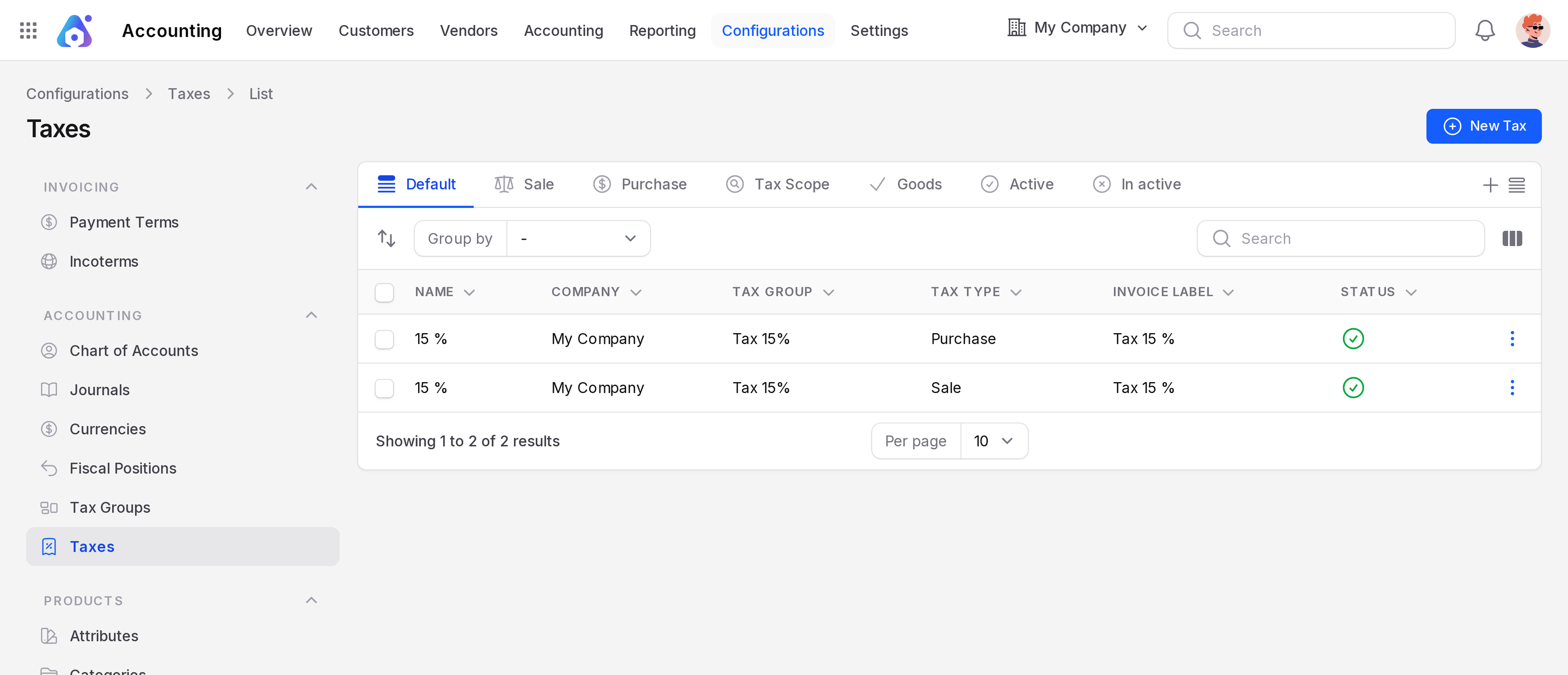
The list shows Name, Company, Tax Group, Tax Type, Invoice Label and Status. The tabs are Default, Sale, Purchase, a Service tab, Goods, Active and In active. You can also group by Name, Company, Tax Group, Country, Created By, Type Tax Use, Tax Scope or Amount Type.
Create a tax
- Open the Taxes page.
- Click New Tax.
- Fill in the form below.
- Click Create.
Main fields
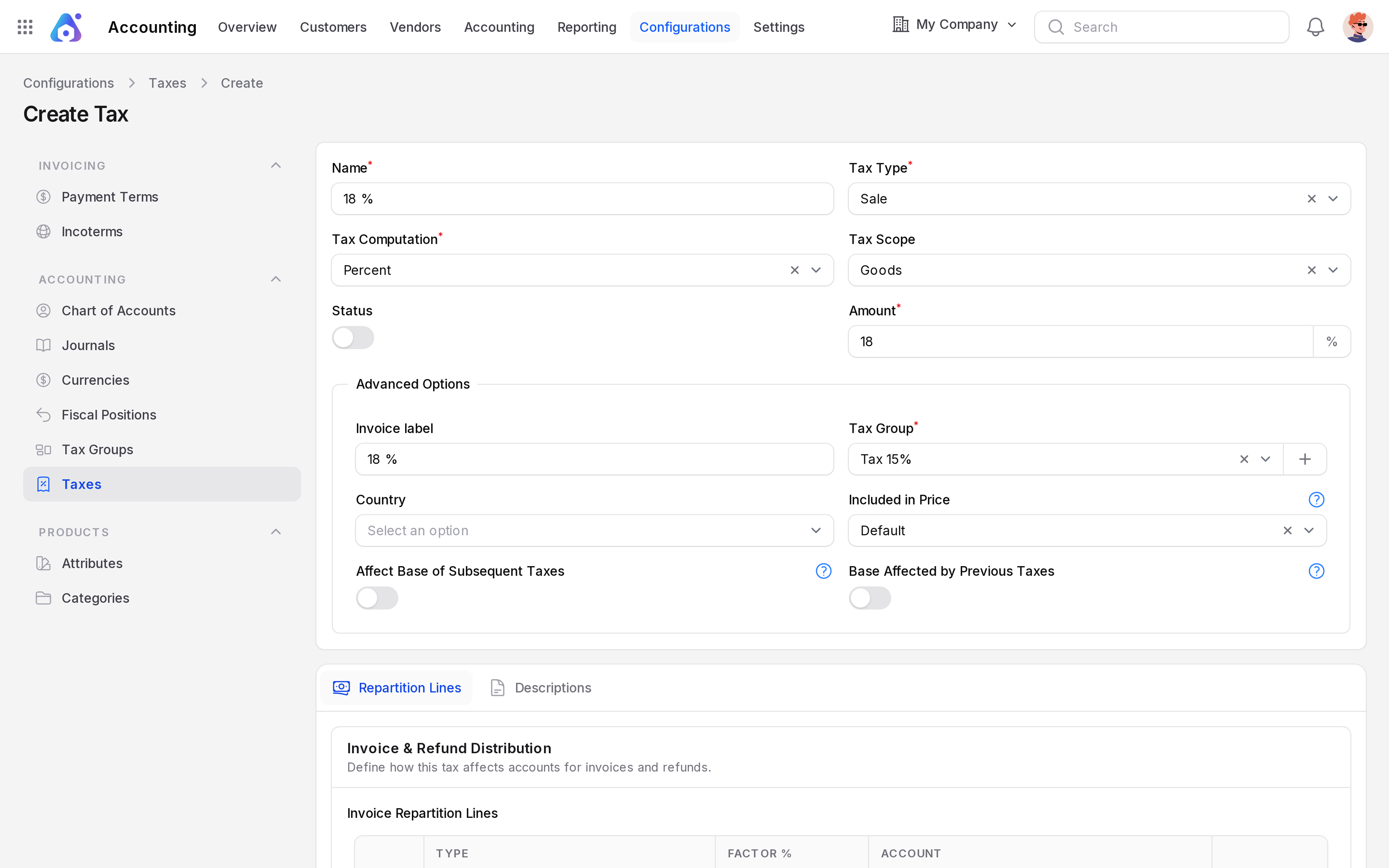
- Name: The name you pick on products and lines, such as
18 %. Required. - Tax Type: Sale, Purchase or None. Sale taxes show on invoices and credit notes. Purchase taxes show on bills. None is for taxes that only exist to be put inside a group. Required.
- Tax Computation: How the amount is worked out. Required. See the list below.
- Tax Scope: Optional. Mark the tax as for Service or Goods. It is used to filter the list.
- Status: Turn on to make the tax available. Turn off to retire it without deleting.
- Amount: The rate in per cent, or the fixed amount in your company currency. Shows for Fixed, Percent and Division.
- Formula: For Custom Formula only. See below.
- Children Taxes: For Group only. Choose the taxes to add together.
Tax Computation values
- Percent: the rate is a percentage of the price. 18 on a price of 100 gives 18.
- Division: the rate is a percentage of the price that already includes the tax. Use it for the "tax included" style of rate. Price 100 with 20 gives 20.
- Fixed: a set amount per unit. The tax is the amount times the quantity.
- Group: adds up several other taxes. You cannot use another group inside a group.
- Custom Formula: you write the calculation yourself.
Custom formula
The Formula field accepts only arithmetic: numbers, + - * / ( ), the functions min and max, and these variables: price_unit, quantity and price_subtotal. For example min(price_unit * quantity * 0.18, 500) is 18 % of the line, but never more than 500. Aureus checks the formula when you save and shows an error if it is not valid.
Group taxes
For a Group, Amount is hidden. The amount is the sum of the Children Taxes. Children must have the same Tax Type as the group, or None. A group has no distribution lines of its own.
Advanced Options
- Invoice label: The text printed for the tax on the invoice, such as
VAT 18 %. - Tax Group: The group the tax is shown under. Required. You can create one from this field. See Tax groups.
- Country: The country the tax belongs to.
- Included in Price: Default, Included or Excluded. Choose Included when the price you enter already contains this tax. See Tax settings.
- Affect Base of Subsequent Taxes: Turn on so that taxes after this one are calculated on the price plus this tax.
- Base Affected by Previous Taxes: Turn on so that this tax is calculated on the price plus the taxes before it.
Repartition Lines tab
This tab decides which accounts get the money. It shows for every type except Group. There are two tables: Invoice Repartition Lines and Refund Repartition Lines. The refund table is used on credit notes and refunds.
Each table has at least one line. A new tax starts with two lines: a Base line and an of Tax line at 100 %.
- Type: Base is the untaxed amount. of Tax is the tax amount.
- Factor %: The share of the tax this line gets. For of Tax lines it is required, 0 to 100. Use several lines to split a tax across accounts.
- Account: The account that receives the amount. Required for of Tax lines. The Base line has no account.
Pick your tax payable account on the of Tax line of the invoice table, and a tax receivable account on the purchase side.
Descriptions tab
- Description: An internal note about the tax.
- Legal Notes: Text for legal mentions linked to the tax.
How a tax works on a line
Example: a Camping Hammock sells for 100. The tax is 15 % Percent and Excluded.
| Line | Amount |
|---|---|
| Untaxed amount | 100.00 |
| Tax 15 % | 15.00 |
| Total | 115.00 |
When you confirm the invoice, the 15 is booked to the account on the of Tax line. The 100 goes to the income account.
If the same tax is Included, the price of 100 already contains the tax. The untaxed amount becomes 86.96 and the tax 13.04.
Delete a tax
WARNING
A tax that is in use cannot be deleted. Aureus shows "Tax could not be deleted". Turn Status off instead.