

Create a task
A task records one piece of work: what it is, who does it, when it is due and how many hours it should take. You create tasks inside a project, or on their own as private tasks. Every task sits in a stage and has a State.
In simple words: Fill in a title, pick a project, add people and a deadline, then save.
Open Project → Tasks, then click New Task.
Prerequisite
The project must already have task stages. The stage bar stays empty until you pick a project, and you cannot save without a stage. Add stages first. See Task stages and states.
In short: open Project → Configurations → Task Stages, click New Task Stage, and add New, In Progress, Review and Done for Website Revamp.
Create a task
The example creates Prepare launch announcement in the project Website Revamp.
Open
Project → Tasksand click New Task.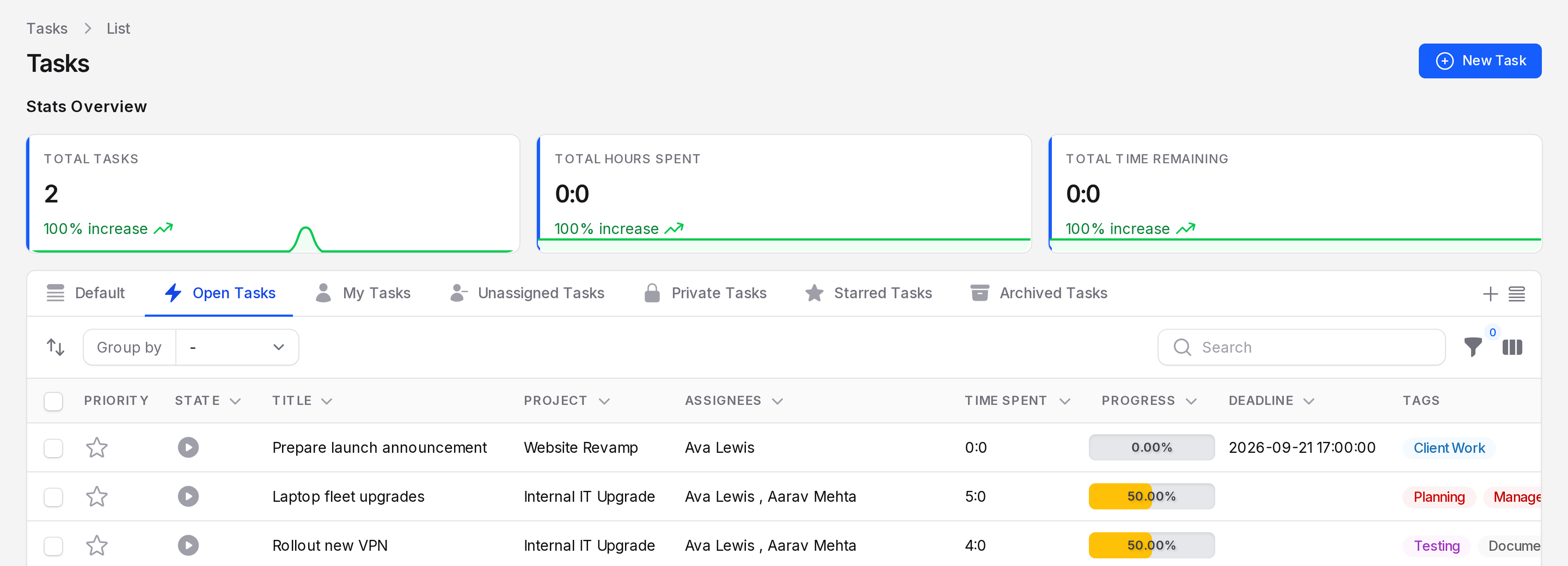
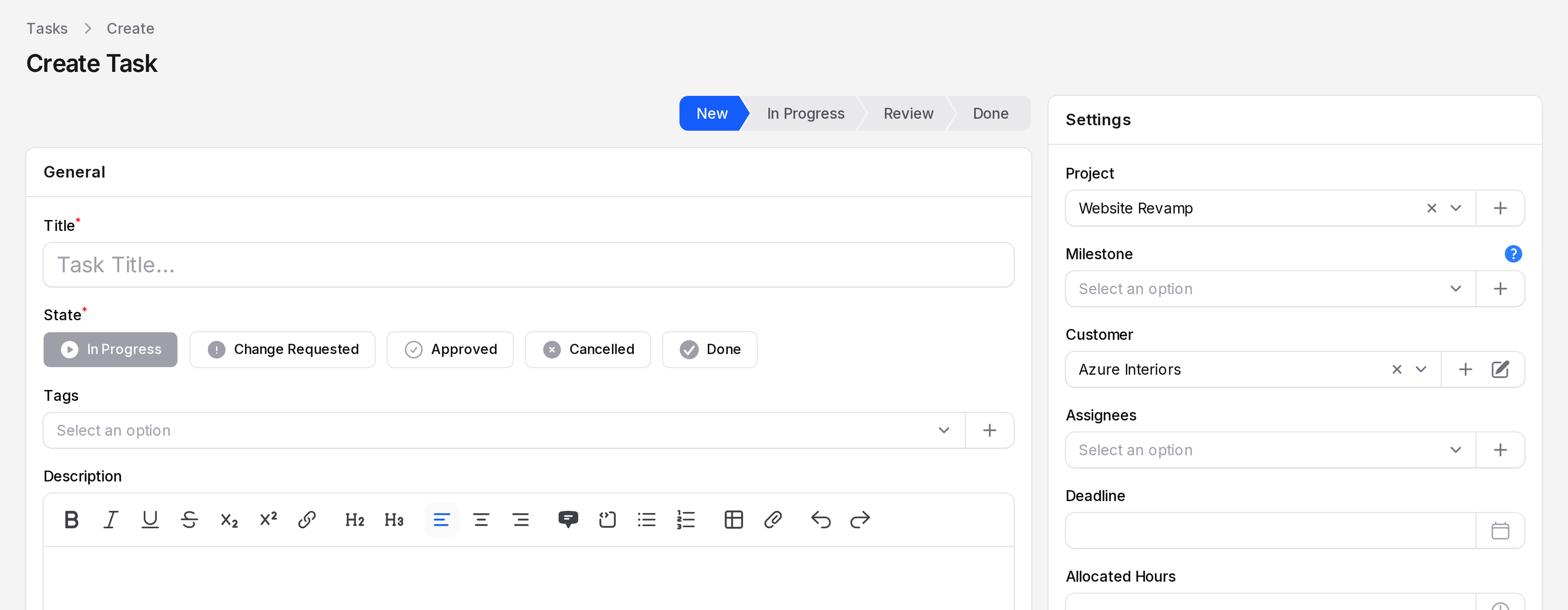
Open the Project field and choose Website Revamp. The stage bar now lists the stages of that project. The first one, New, is selected for you.
General
Fill in the fields of the General section.
- Title: (required) Name the work, for example Prepare launch announcement.
- State: (required) Choose how the work is going. The default is In Progress. Leave it for a new task. It is not the stage bar above the form. See Task stages and states.
- Tags: Pick one or more labels, for example Client Work. You can create a new tag from here. See Tags.
- Description: Add details, links or a checklist.
Settings
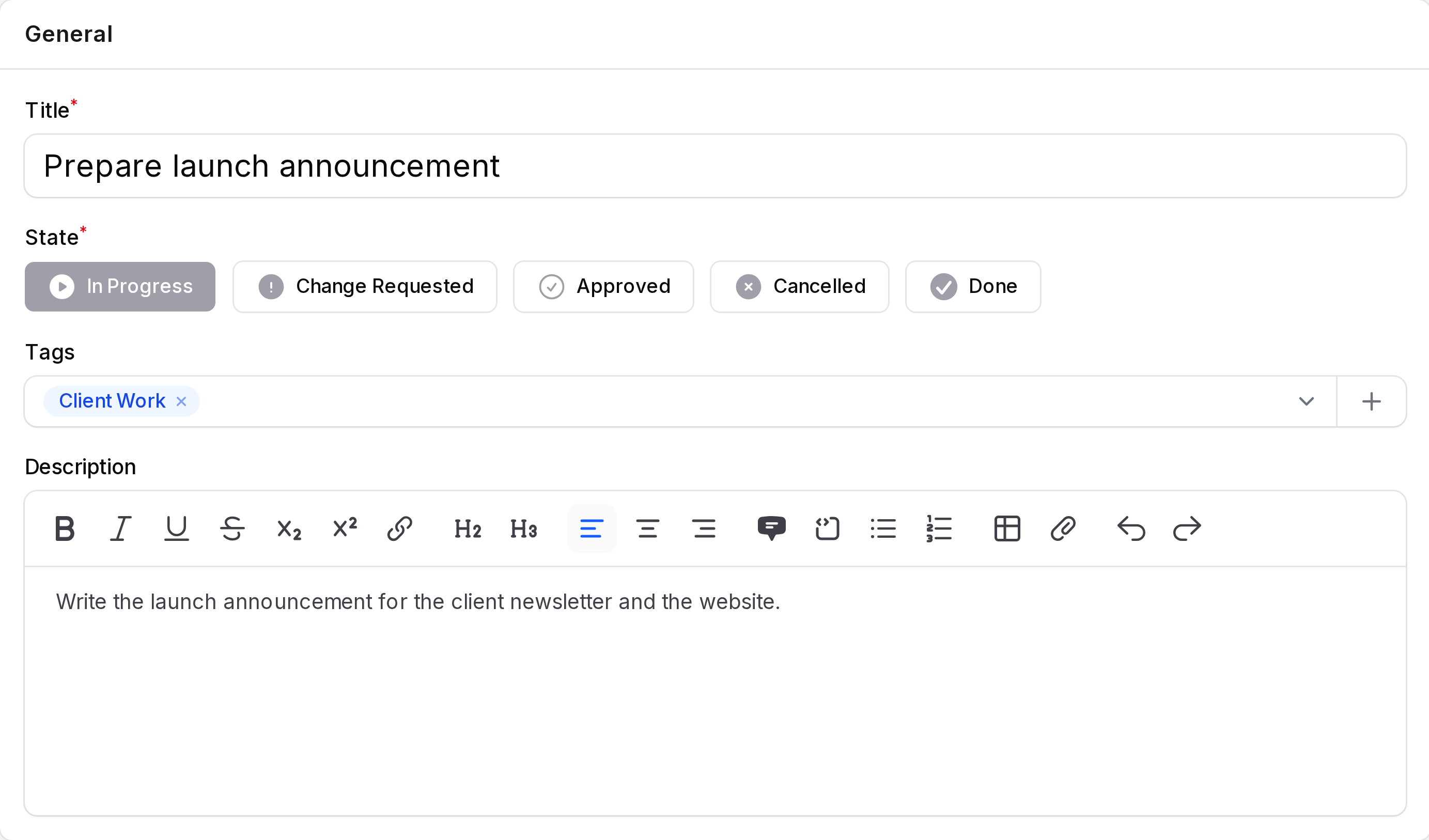
Fill in the fields of the Settings section on the right.
- Project: The project that owns the task. Leave it empty to make a private task.
- Milestone: The target this task helps to reach, for example Go Live. It shows only when Enable Milestones is on and the project has Allow Milestones on.
- Customer: Fills in from the project. Change it when one task is for a different customer.
- Assignees: One or more users who do the work, for example Ava Lewis.
- Deadline: The date and time the task is due, for example 21 Sep 2026.
- Allocated Hours: The planned effort, for example 10. It shows only when Enable Timesheets is on. Use decimals, so 1.5 means 1 hour 30 minutes.
Click Create. Click Create & create another to save and start a new form.
The system fills in the creator for you.
INFO
Changing the project clears the Milestone, resets the stage to the first one of the new project and copies the project customer.
Private tasks
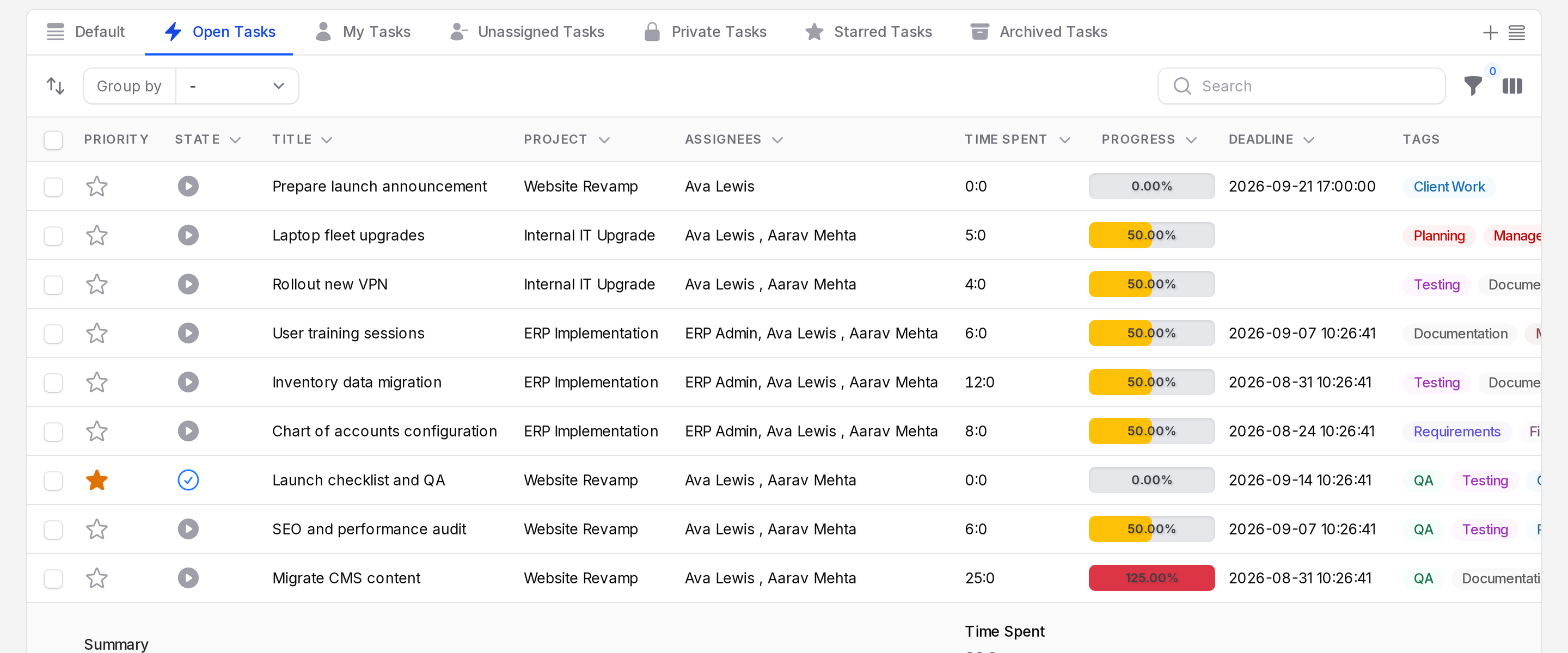
Project is optional. A task without a project is private. It appears under the Private Tasks tab. The project column shows Private Task.
Star a task
Priority is a star. In the task list, click the star icon in the Priority column. A filled star means high priority. Click again to remove it.
View, edit and archive
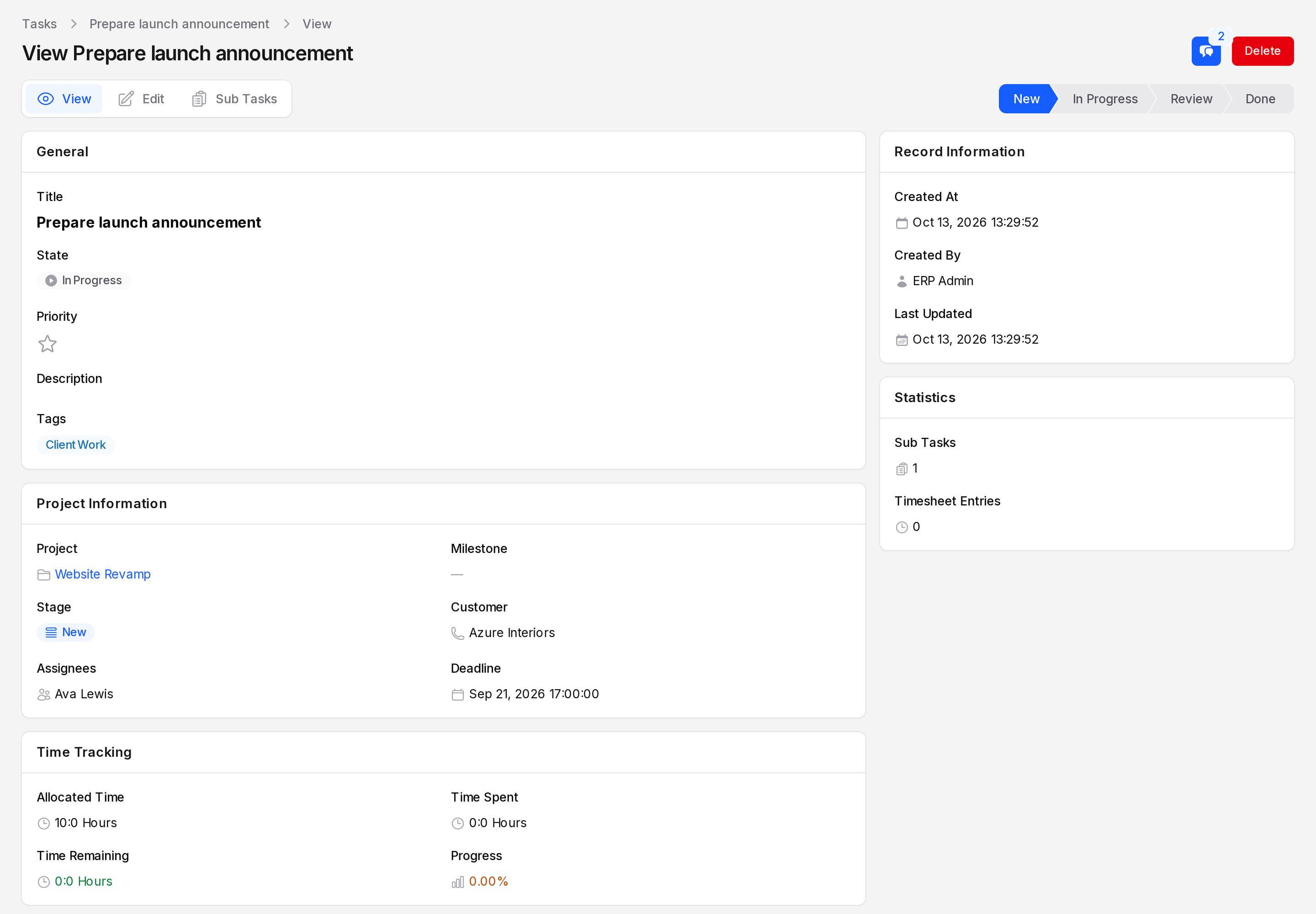
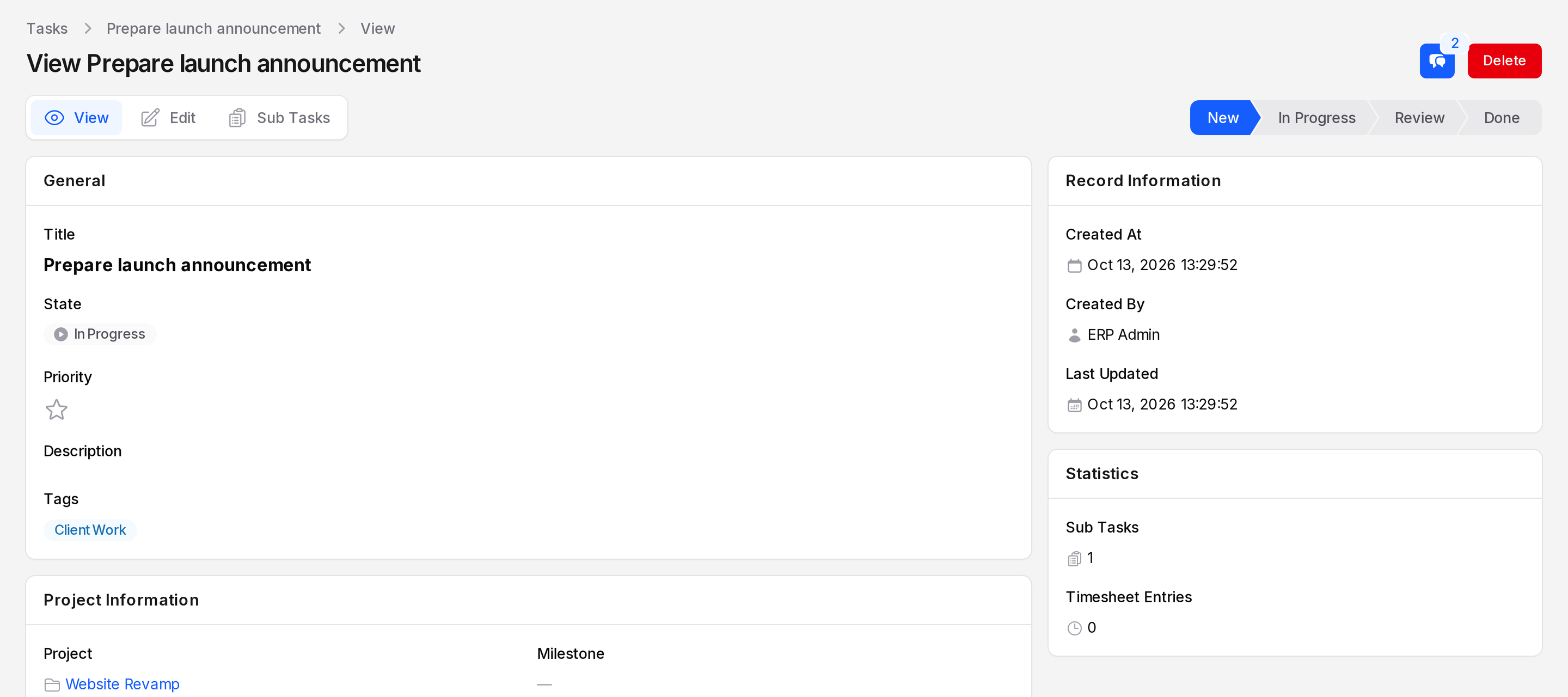
Click a task to open its view page. The page shows these parts:
- General: title, State, tags, priority and description.
- Project Information: project, milestone, customer, assignees, deadline and stage.
- Time Tracking: allocated time, time spent, time remaining and progress.
- Statistics: number of sub-tasks and timesheet entries.
The links at the top of the page are View, Edit and Sub Tasks. Sub Tasks opens a full page. The tab at the bottom of the View page shows the same list. See Sub tasks. Edit opens the same form. Scroll to the bottom of the View page to find the Timesheets tab. The Timesheets tab shows when timesheets are on for the project, or for a private task.
Actions and statuses
| Action | What it does |
|---|---|
| Chatter | Opens messages, notes, activities and followers. Activity plans can be started here. |
| Delete | Archives the task. It leaves the main lists. |
| Restore | Brings an archived task back. |
| Force delete | Removes the task for good. |
Find archived tasks under the Archived Tasks tab. See Task list views and filters.
TIP
Stage and State are different. The stage is the column of your workflow. The State is how the work is going. Change either one at any time.