

Payments overview
A payment is the record that money moved. It can come in from a customer or go out to a vendor. When you link a payment to an invoice or a bill, the open balance goes down and the document is settled.
This section explains how to pay an invoice or bill, how to manage the payments list, and how to keep bank accounts.
In simple words: An invoice says who owes money. A payment says the money was paid. Aureus links the two for you.
How a payment settles a document
Follow this path for a customer invoice:
- You confirm the invoice. It is Posted and the Payment State is Not paid.
- You click Pay on the invoice and fill in the Pay window.
- Aureus creates a payment, posts its journal entry and links it to the invoice.
- The Amount Due on the invoice goes down. The Payment State changes.
A bill works the same way, with money going out instead of in. See Register a payment for the full steps.
Customer and vendor payments
Every payment has a Payment Type.
- Receive: Money comes in from a customer. You create it from an invoice, or from
Customers → Payments. - Send: Money goes out to a vendor. You create it from a bill, or from
Vendors → Payments.
The menu path exists in both apps:
Invoices → Customers → PaymentsandInvoices → Vendors → PaymentsAccounting → Customers → PaymentsandAccounting → Vendors → Payments
Both apps show the same screens and the same data.
Payment status
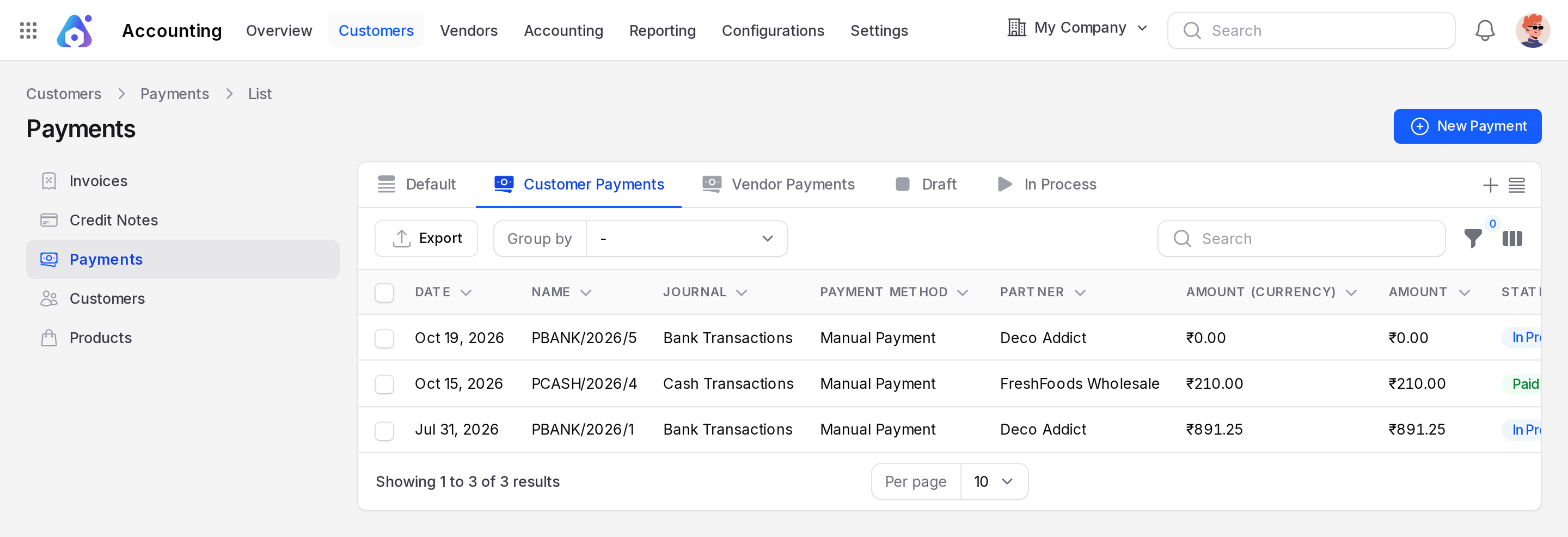
The payment itself has a status. You see it in the State column of the payments list.
- Draft: The payment is saved but not confirmed. It has no journal entry yet.
- In Process: The payment is confirmed and posted. The money is on its way.
- Paid: The payment is complete. A payment from a cash journal goes straight to this status.
- Not Paid: The payment is posted but the money is not received or sent.
- Cancelled: The payment was cancelled while still a draft.
See Manage payments for the buttons that change the status.
Payment State on the invoice or bill
The document has its own field, Payment State. It tells you how much is settled.
- Not paid: Nothing is paid yet.
- In Payment: A payment is registered and posted, and the money is on its way.
- Partial: Some money is paid and an Amount Due is left.
- Paid: The Amount Due is zero.
- Reversed: A credit note or refund cancelled the document.
Do not mix the two fields. The payment has a State. The document has a Payment State.
Partial payments
You do not have to pay everything at once. In the Pay window, enter a smaller Amount. The document becomes Partial and the Amount Due shows the rest. Pay again later to close it.
Two ways to create a payment
- From the document. Open a posted invoice or bill and click Pay. The payment is linked to the document at once. Use this in most cases.
- From the list. Open the Payments list and click New. Use this for a payment you want to enter first and match later.
Example flow
Invoice INV/2026/2 for Deco Addict is posted for 891.25.
- You click Pay and enter 891.25 with a bank journal.
- Aureus creates the payment PBANK/2026/3.
- The Amount Due falls to 0.00 and the Payment State becomes Paid.
- The Payments tab of the invoice lists PBANK/2026/3.
Where to find payments
- On an invoice or bill: Open the Payments tab. It lists the payments linked to that document.
- In the list: Open
Customers → PaymentsorVendors → Payments. The list has views for Customer Payments, Vendor Payments, Draft and In Process. - In the accounting entries: Each payment has a journal entry. See Journal entries and Journal items. These are in the Accounting app only.
In this section
- Register a payment: use the Pay window on an invoice or bill.
- Manage payments: the list, the form and the status buttons.
- Bank accounts: store the bank details of your partners.
- Payment numbers come from a payment sequence. See Sequences.