

Putaway rules
A putaway rule tells Aureus where to store goods when they arrive. Without a rule, goods go to the default destination of the document. With a rule, a product or category is sent to a chosen shelf or zone.
In simple words: When this product arrives here, store it over there.
Open it from Inventory → Configurations → Warehouse Management → Putaway Rules.
Gate
Needs Inventory → Settings → Manage Warehouses → Locations and Multi Steps Routes on. A Storage Category is optional. Create one under Configurations → Storage Categories.
Overview
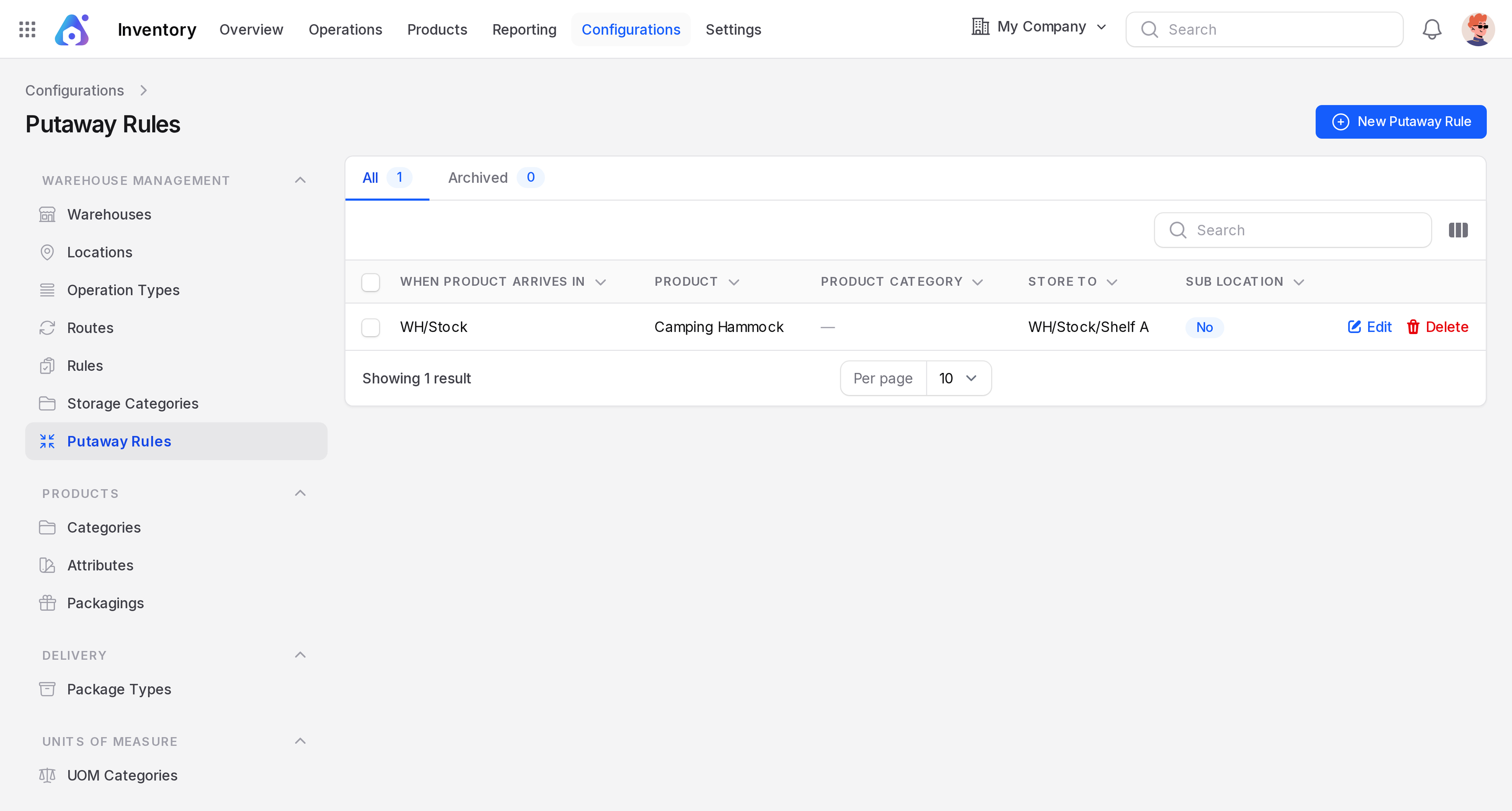
The list shows When Product Arrives In, Product, Product Category, Store To and Sub Location. It has tabs All and Archived. Each row has only Edit and Delete links.
Create a putaway rule
- Click New Putaway Rule. The Create Putaway Rule window opens.
- Fill in the fields.
- Click Create.
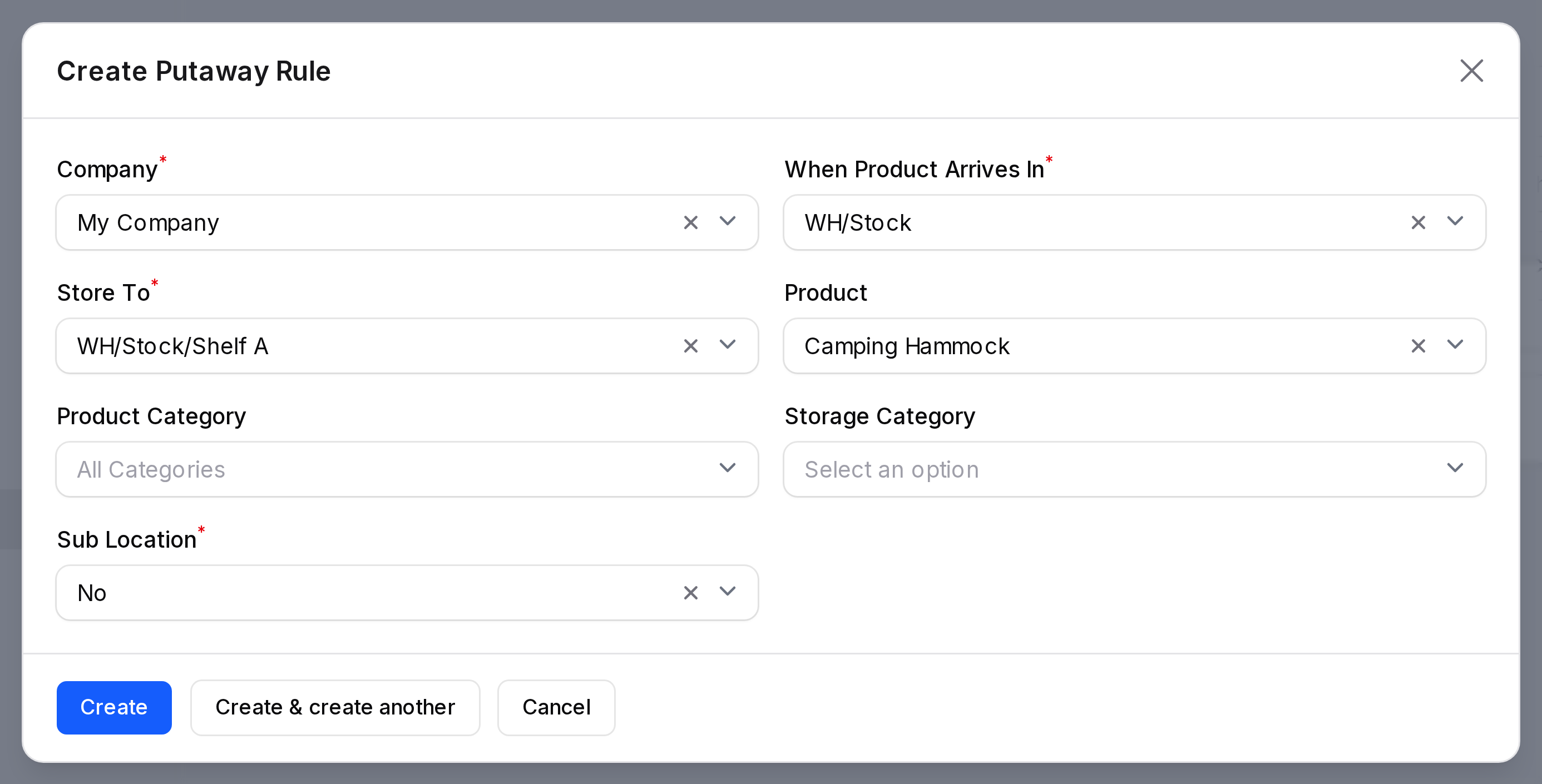
- Company: required. Defaults to your company.
- When Product Arrives In: required. The location where goods land, for example
WH/Stock. - Product: shows All Products until you pick one.
- Product Category: shows All Categories until you pick one.
- Storage Category: limits the rule to locations of that category.
- Store To: required. The final shelf. The list shows only the children of the arrival location. For example, WH/Stock/Shelf A appears after you choose
WH/Stockas the arrival location. - Sub Location: required. Default is No. Other choices are Last Used and Closest Location.
Example
Camping Hammocks should go to WH/Stock/Shelf A.
- Create locations
WH/Stock/Shelf Aas a child ofWH/Stock. See Locations. - Create a rule: arrives in
WH/Stock, product Camping Hammock, store toWH/Stock/Shelf A. - Receive hammocks. When the transfer into stock is validated, the goods are placed on Shelf A.
Putaway vs routes
A route decides which steps happen. A putaway rule decides the final shelf inside the last step.