

Configure a product
Every manufacturing order makes one product from several components. The finished item and each component are ordinary products. This page shows what a product needs so it can be built, consumed and tracked.
In simple words: Use a goods product, turn on stock tracking, then attach a recipe in the Bills of Materials tab.
Open products from Manufacturing → Products → Products. This is the same product form as in Inventory.
Settings
A product can only be built or consumed when Type is Goods and Track Inventory is on. A service has no stock. Choosing Track By needs Inventory → Settings → Manage Traceability → Lots & Serial Numbers to be on. See Inventory settings.
Overview
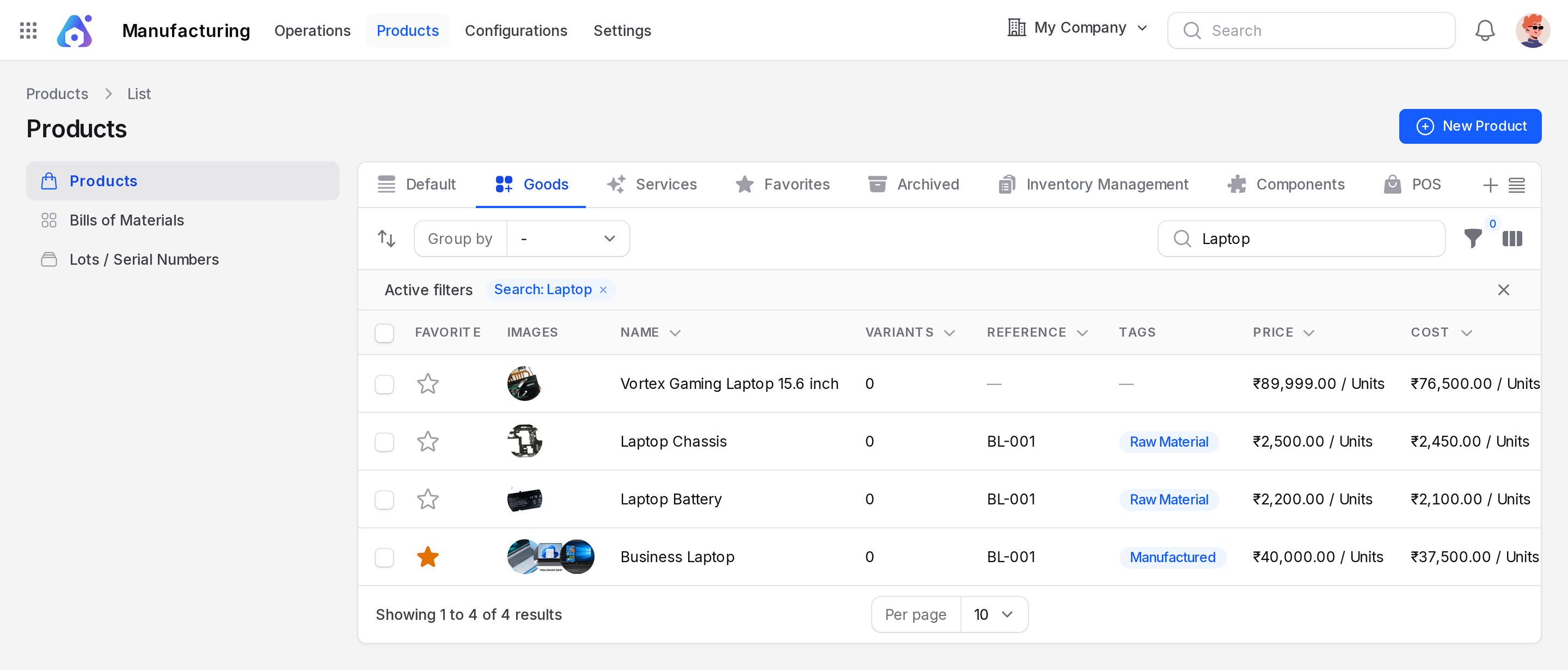
The list shows every product with its price and stock. Use it to find finished goods and components.
Create the finished product
- Go to
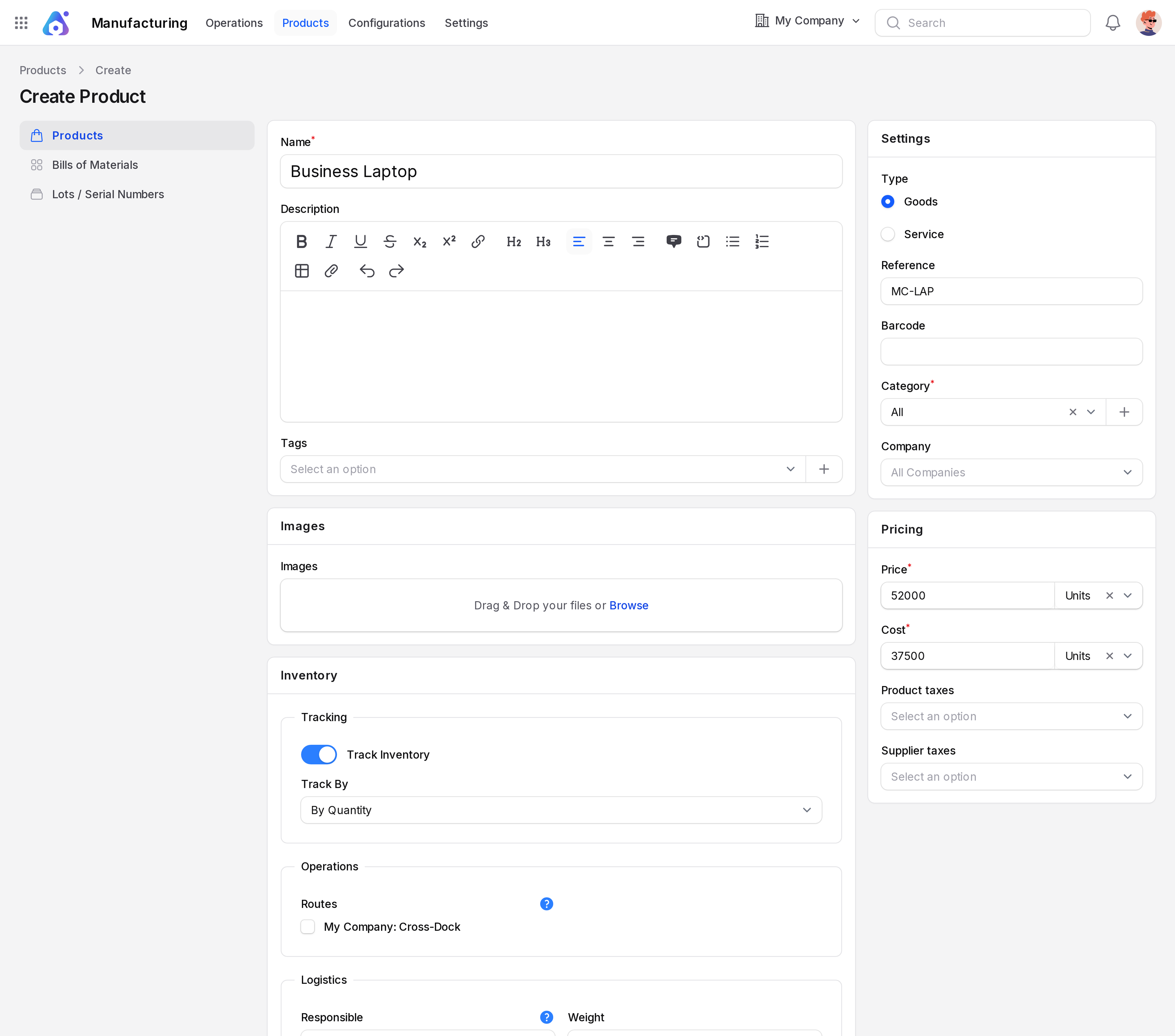
Manufacturing → Products → Productsand click New Product. - Enter the Name Business Laptop.
- Set Type to Goods.
- Fill Price and Cost.
- In the Inventory section turn on Track Inventory.
- Click Create.
Fields that matter for manufacturing
- Name: The name shown on orders and work orders.
- Type: Choose Goods. Manufacturing needs stock.
- Track Inventory: Turn on so Aureus counts the stock of components and finished goods.
- Track By: By Quantity, By Lots or By Unique Serial Number. Use lots or serial numbers when you must trace each batch or unit.
- Unit of Measure: The unit used on the recipe and the order, such as Units.
- Cost: Used to work out the cost of components and the finished unit. See Manufacturing order costs.
WARNING
Choose Track By before the first stock arrives. Changing it later can leave old quantities without a lot or serial number. See Lots and serial numbers.
Create the components
Create each component the same way. For the Business Laptop these are Motherboard, RAM 16GB, SSD 512GB, Laptop Battery, LCD Screen 14-inch and Laptop Chassis. Load opening stock with Update Quantity or a receipt. See Configure a product for inventory.
The Bills of Materials tab
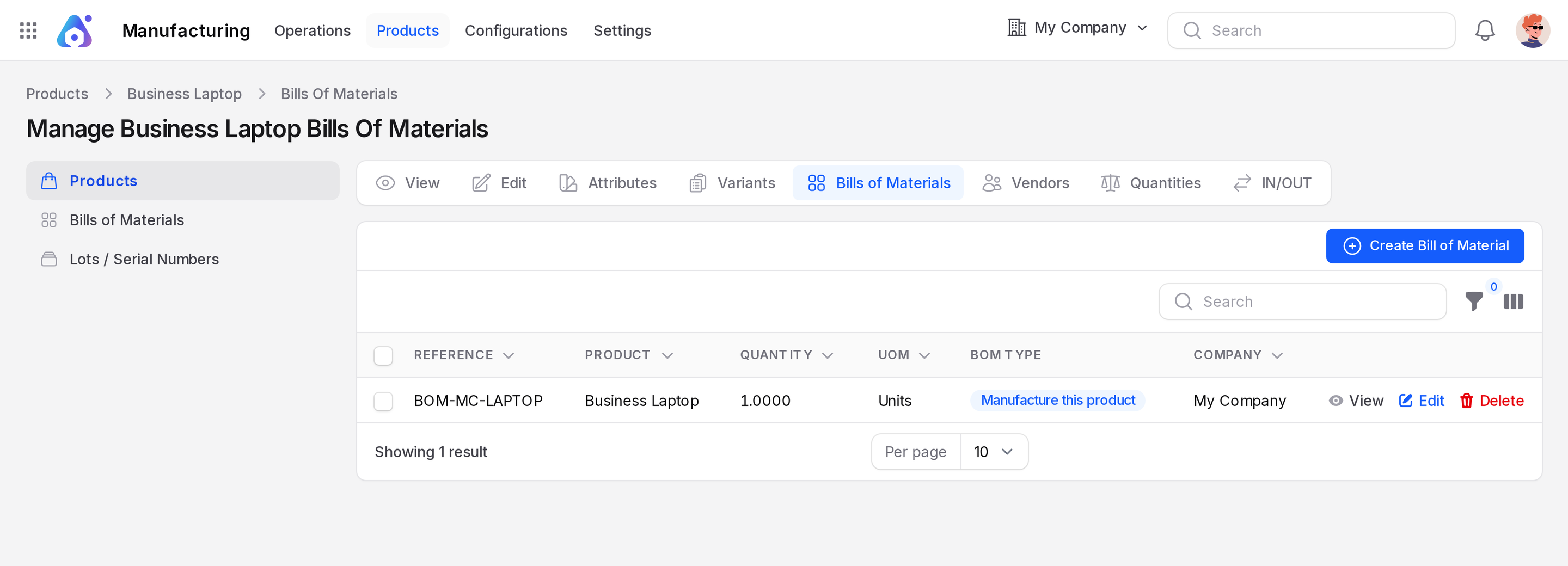
Open a saved product. The sub tabs next to View and Edit include Bills of Materials. It lists every recipe that builds this product.
- Open Business Laptop.
- Click Bills of Materials in the switcher at the top.
- Click Create Bill of Material. The product is already filled in.
See Bill of materials for every field.
Behind the scenes
Stock lives as a quantity per product and location. A manufacturing order reserves component quantities, then moves them out when you produce. The finished product is added to stock at the end.