

Product attributes
Attributes describe how a product can vary, such as size, material or colour. Each attribute has a list of options, and each option can add an extra price. You use them to create product variants.
In simple words: An attribute is a choice, such as Size. Its options are S, M and L.
INFO
Turn on Variants in Settings to use attributes on products.
Overview
Go to Sales → Configurations → Attributes.
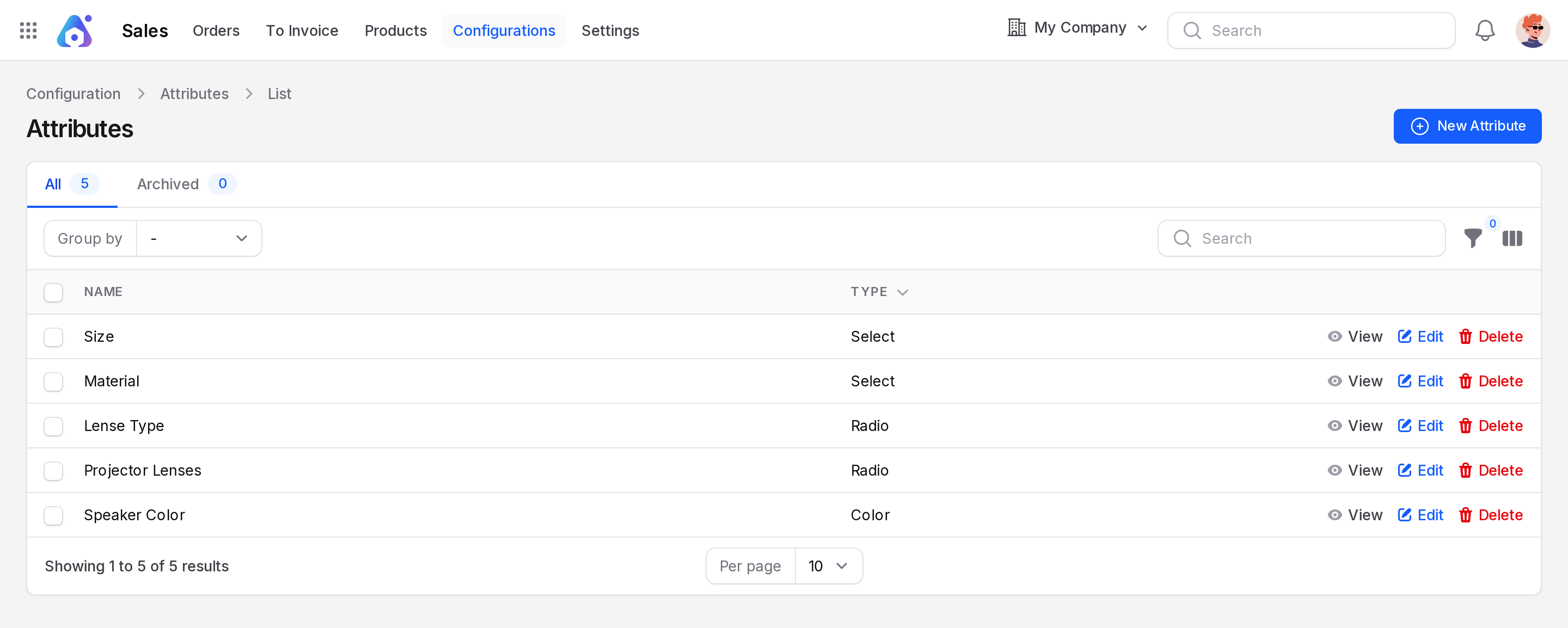
The list has two tabs: All and Archived. The columns are Name and Type (Select, Radio or Color). Use Group by to group by Type, Created At or Updated At. You can filter by Type.
Create an attribute
- Go to
Sales → Configurations → Attributes. - Click New Attribute.
General
- Name: Required. Enter the attribute name, such as Size.
- Type: Required. Choose Radio, Select or Color. The default is Radio.
Options
Add one row for each value. Click Add to options for more rows.
- Name: Required. Enter the option, such as Large.
- Color: Pick a colour. This shows only when Type is Color.
- Extra Price: Required. Enter the amount added to the product price when this option is chosen. The default is 0.

- Click Create.
Actions and statuses
- View: Open the attribute.
- Edit: Change the name, type or options.
- Delete: Move the attribute to the Archived tab.
- Restore: In the Archived tab, bring the attribute back.
WARNING
Aureus does not permanently delete an attribute that a product uses. It shows a message naming the product.