

Scan operations
Use the Barcode app to process a transfer by scanning. Each scan adds to the counted quantity of a line, so you validate with fewer taps and fewer typing errors.
In simple words: Scan the goods, then press Validate.
Open Barcode → Barcode App → Inventory Operations. See Barcode app.
Find the transfer
- Click an operation card, for example Receipts.
- The Transfers list shows reference, partner and status, for example WH/IN/00018 Consolidated Components Ready.
- Click a row, or type the reference in the Search... box and click Open.
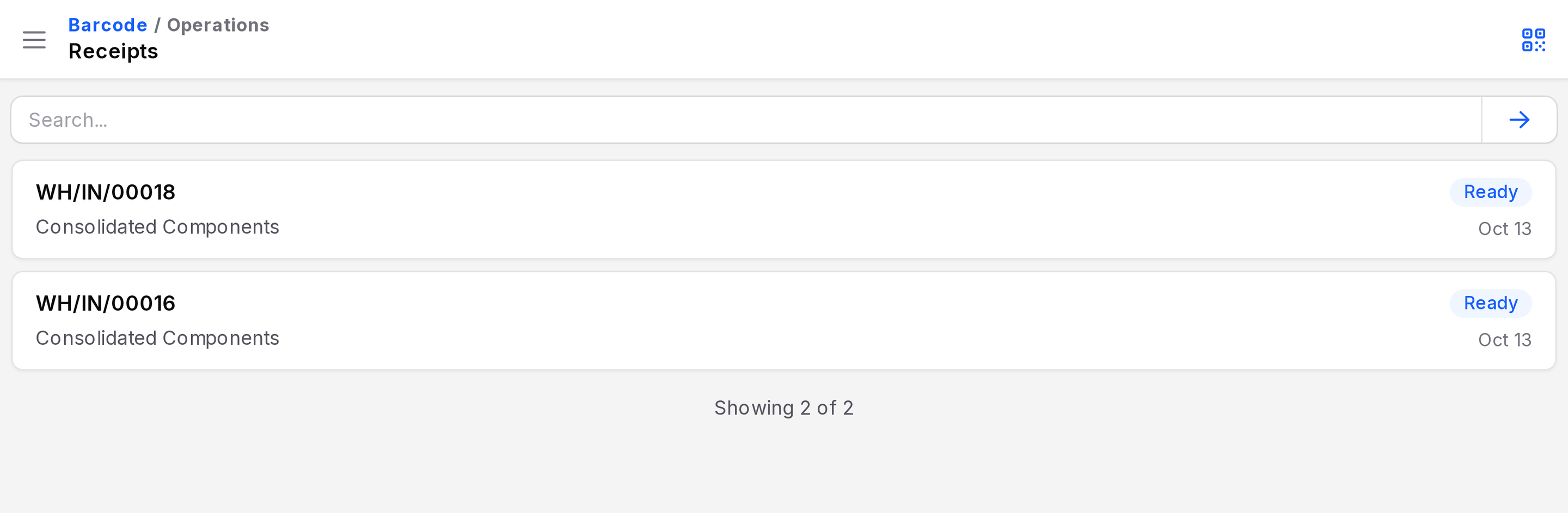
If nothing matches you see No active operation found for this barcode.
The operation screen
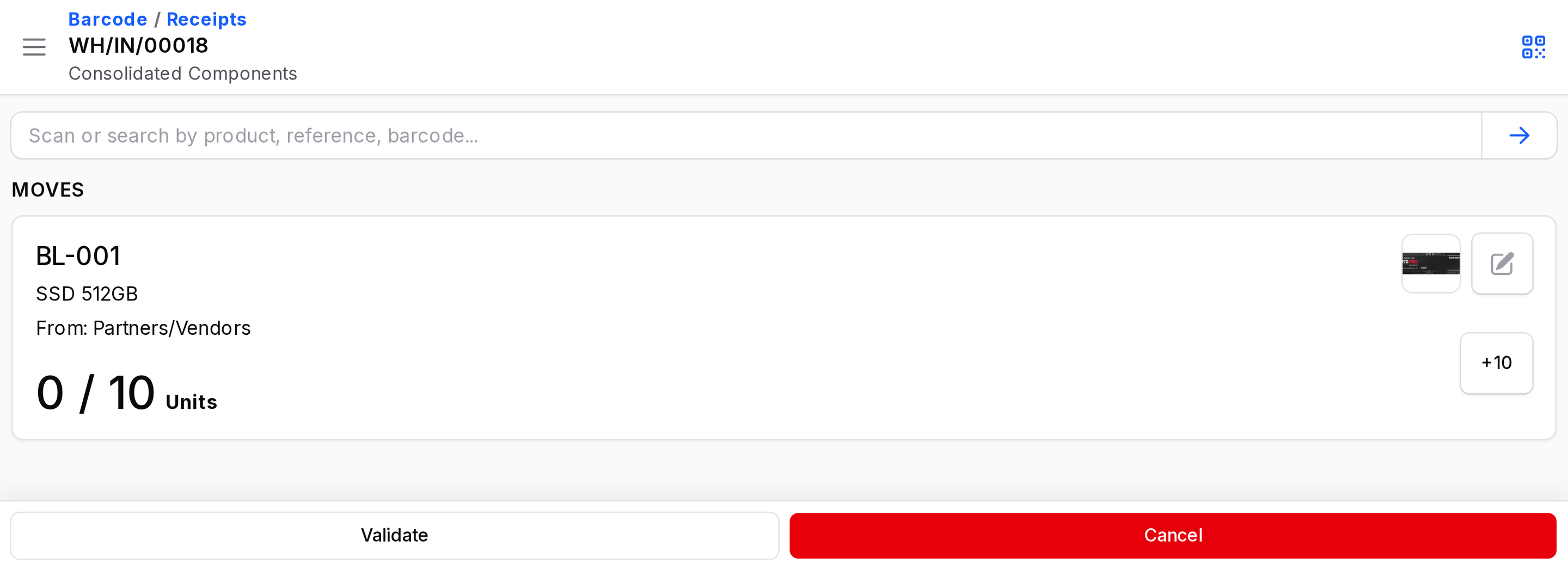
The title is the transfer reference. A MOVES section shows one card per line. Each card has the internal reference, the product name, the source (shown as From: Partners/Vendors) and progress, for example 0 / 15 Units.
- Scan box: type or scan a barcode, then click Submit scan.
- Pencil icon: edit the counted quantity.
- Quick button, for example +10: sets the count to the full demand.
What a scan matches
Aureus tries these in order: transfer name, product barcode or reference, packaging barcode, lot or serial number, package name. A matched product raises its count. Messages include Move quantity updated., This product is not part of the operation. and No matching barcode found.
Validate or cancel
- Validate: completes the transfer with the counted quantities. If lines are short, a window Incomplete Transfer lists Product, Done, To Do and Backorder. Choose Validate, No Backorder or Discard.
- Cancel: asks Are you sure you want to Cancel? Click Confirm.
A message Action completed. returns you to the list. The buttons are hidden once the transfer is Done or Canceled.
Example
For WH/IN/00018, scan the SSD 512GB barcode 10 times, or click +10, then Validate. Stock updates the same as validating on the desktop. See Receipts.