

Lots and serial numbers
A lot is one batch of identical goods made or bought together. A serial number is a code that belongs to exactly one unit. Use them when you must trace goods back to the vendor or forward to the customer, for example for recalls or warranty.
In simple words: Lot means "these 250 tablets share a label". Serial means "this one laptop has its own label".
| Lot | Serial number | |
|---|---|---|
| Units per number | Many | One |
| Example | MC-VITC-001, 250 tablets | SN-00045, one laptop |
| Track By option | By Lots | By Unique Serial Number |
Settings
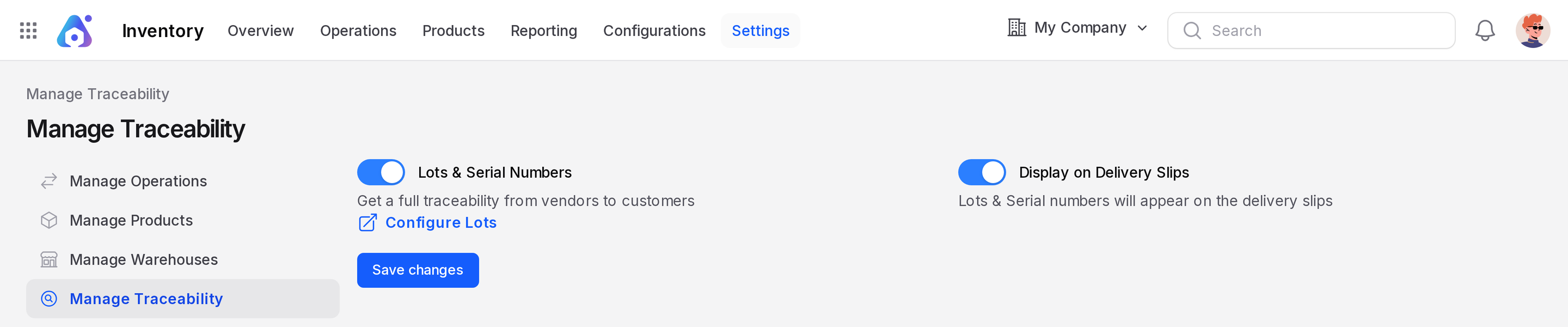
Go to Inventory → Settings → Manage Traceability and turn on Lots & Serial Numbers. Then click Save changes. This reveals Inventory → Products → Lots / Serial Numbers and the Track By field on products. Display on Delivery Slips is off by default. Turn it on to print the numbers on the slip.
WARNING
You cannot turn the setting off while products with tracking still hold stock. Switch off tracking on every such product first, then save.
Track a product by lot or serial
- Open the product in
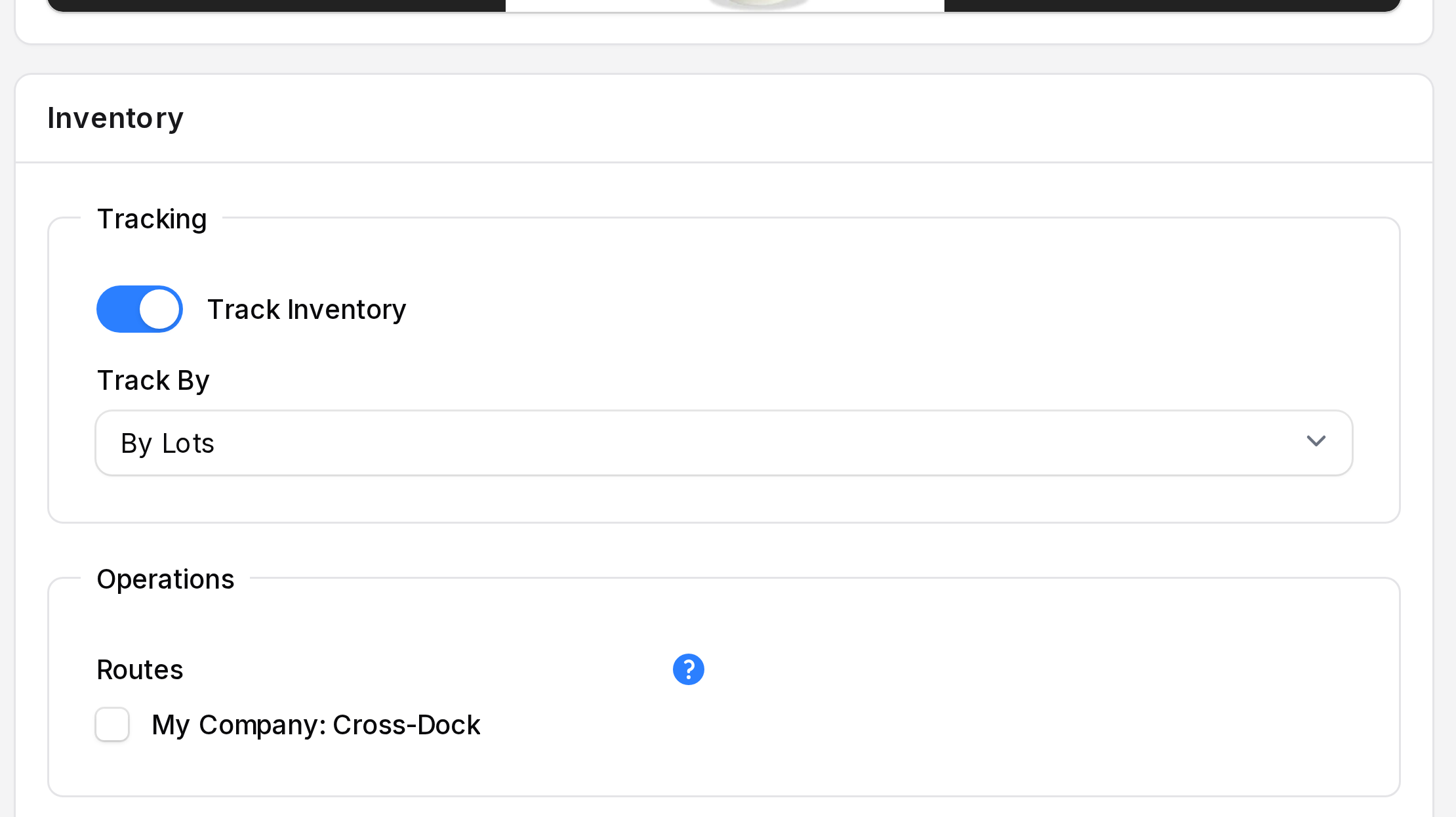
Inventory → Products → Productsand click Edit. - Turn on Track Inventory.
- Set Track By to By Lots or By Unique Serial Number.
- Click Save changes.
Allow numbers on an operation type
An operation type decides whether numbers can be created or picked. Go to Inventory → Configurations → Warehouse Management → Operation Types and open Receipts. In the Lots/Serial fieldset:
- Create New: You type new numbers while receiving.
- Use Existing: You pick numbers that already exist, or leave the field empty.
See Operation types.
Assign numbers on a receipt
- Open a Ready receipt, such as the one from a purchase order. See Receipts.
- Open the Edit tab and go to the Operations tab. On the tracked product's row, click the small list icon next to Quantity. Its tooltip reads Manage Stock Moves.
- In each line, fill Lot/Serial Number (the first column), Store To and Quantity. To create a new lot on the spot, click the + next to the lot field.
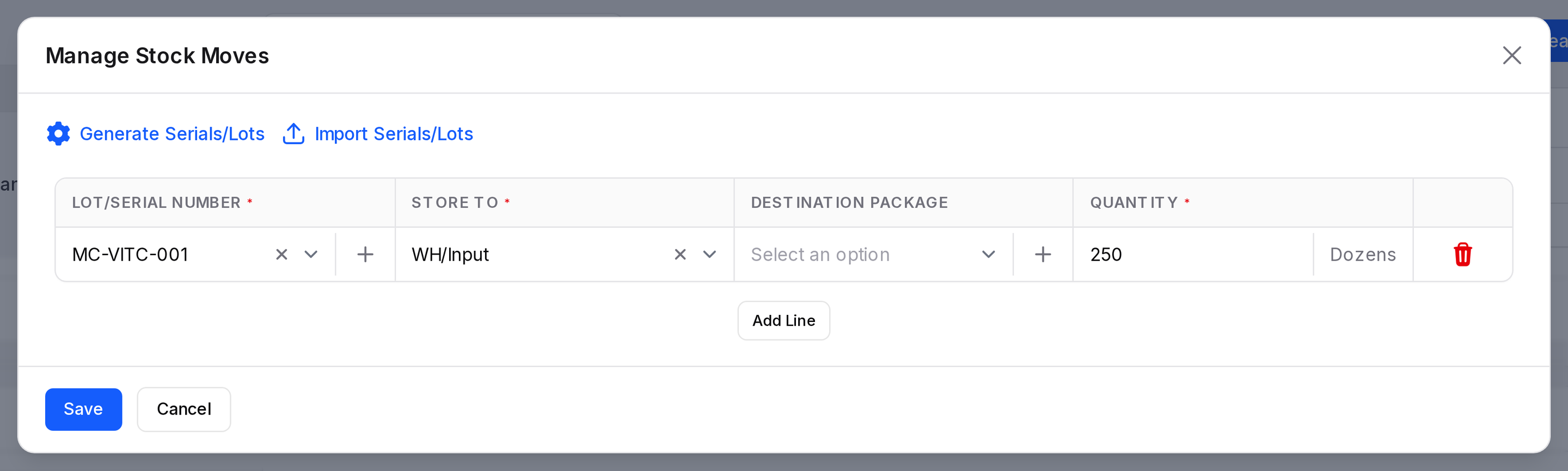
- Click Save, then Validate.
For serial products, use one line per unit, each with quantity 1.
Generate or import many numbers
For long lists, use the links at the top of the window.
- Generate Serials/Lots: Fill First Lot Number. Quantity per Lot and Quantity Received are prefilled. Click Submit. Aureus fills the line with the lot, quantity and unit, but does not save it. Click Save.
- Import Serials/Lots: Paste into Lot/Serial Numbers, one number per line. Click Submit, then Save.
- Keep current lines: Turn on this toggle to add to the lines you already have.
Assign numbers on a delivery
Open the delivery, click the list icon (Manage Stock Moves) next to Quantity and choose Lot/Serial Number and Pick From for each line. Quantities cannot exceed what that lot holds.
Validate warnings you may see:
- Supply Lot/Serial Number: A tracked product has no number. Add one.
- Serial Number Already Assigned: The serial is used on another line.
Create a lot by hand
- Go to
Inventory → Products → Lots / Serial Numbers. - Click New Lot / Serial Number.
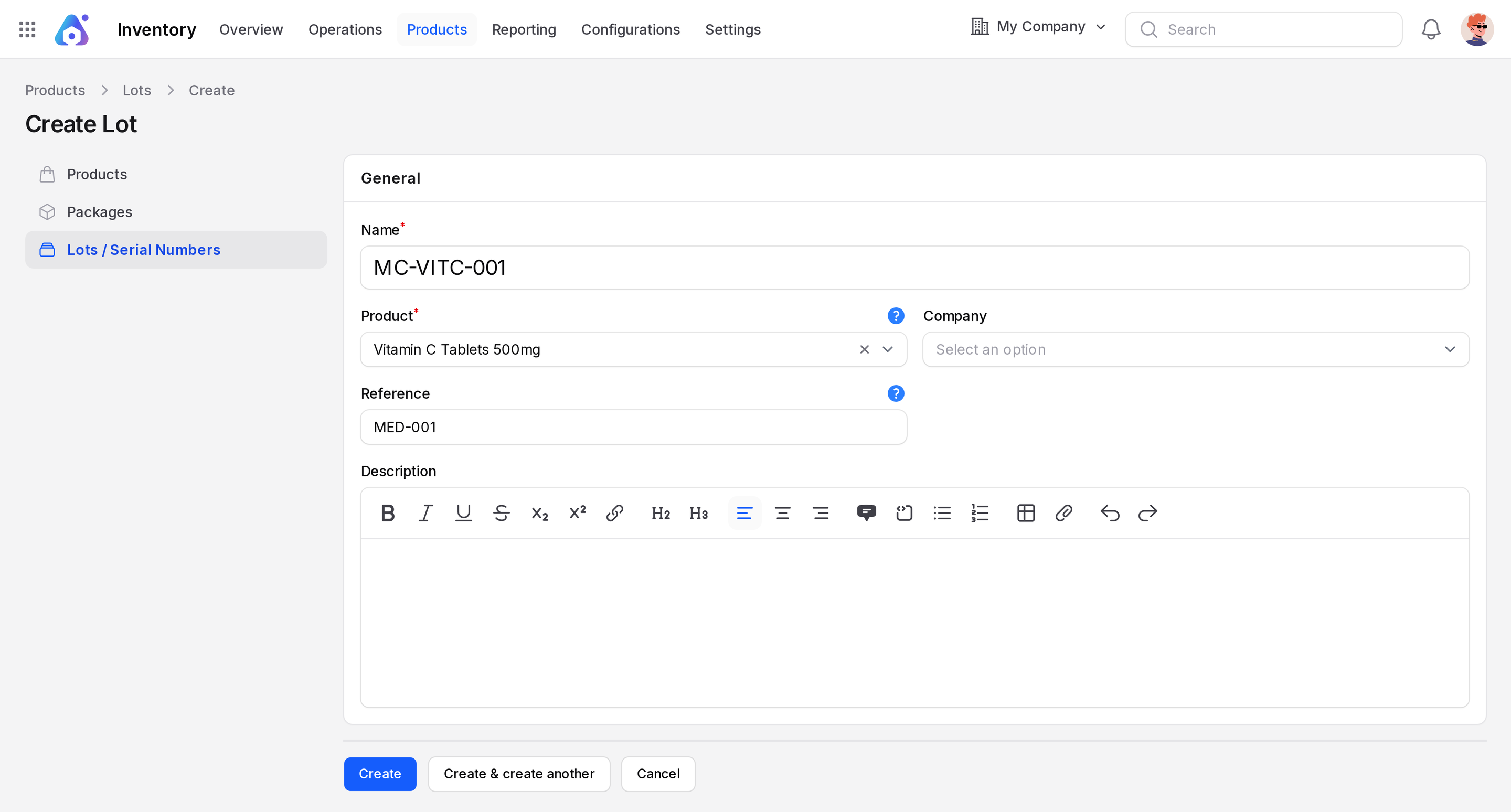
- Name: Required. The lot or serial code, such as MC-VITC-001. The placeholder shows the pattern LOT/0001/20121.
- Product: Required. The tracked product. It cannot change once the lot has moved.
- Company: Owner company. It is empty by default.
- Reference: An internal number if it differs from the maker's code.
- Description: Free notes.
- Click Create.
Lot list and view
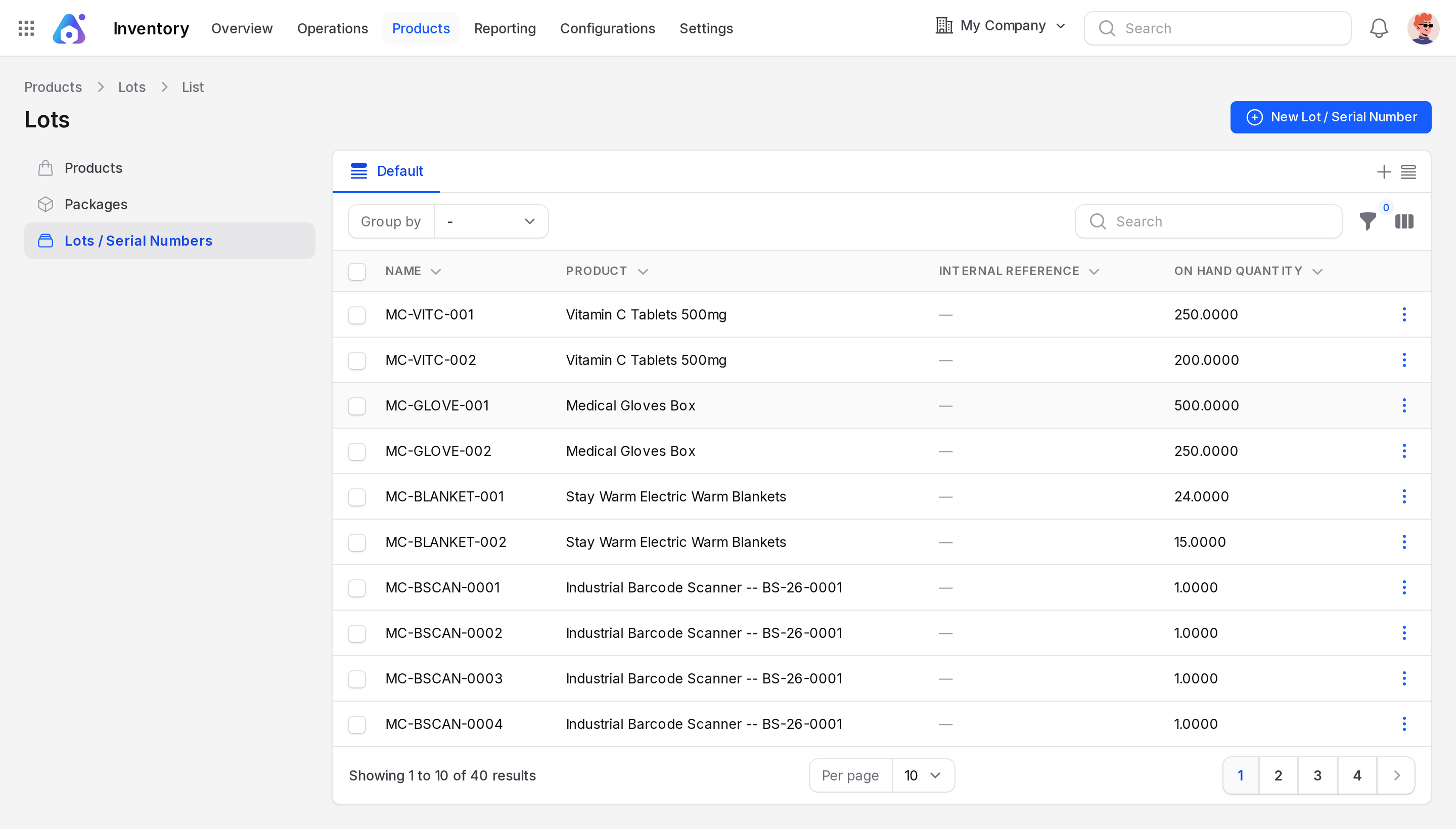
The list shows Name, Product, Internal Reference and On Hand Quantity. Group by Product or Location. A lot in use cannot be deleted.
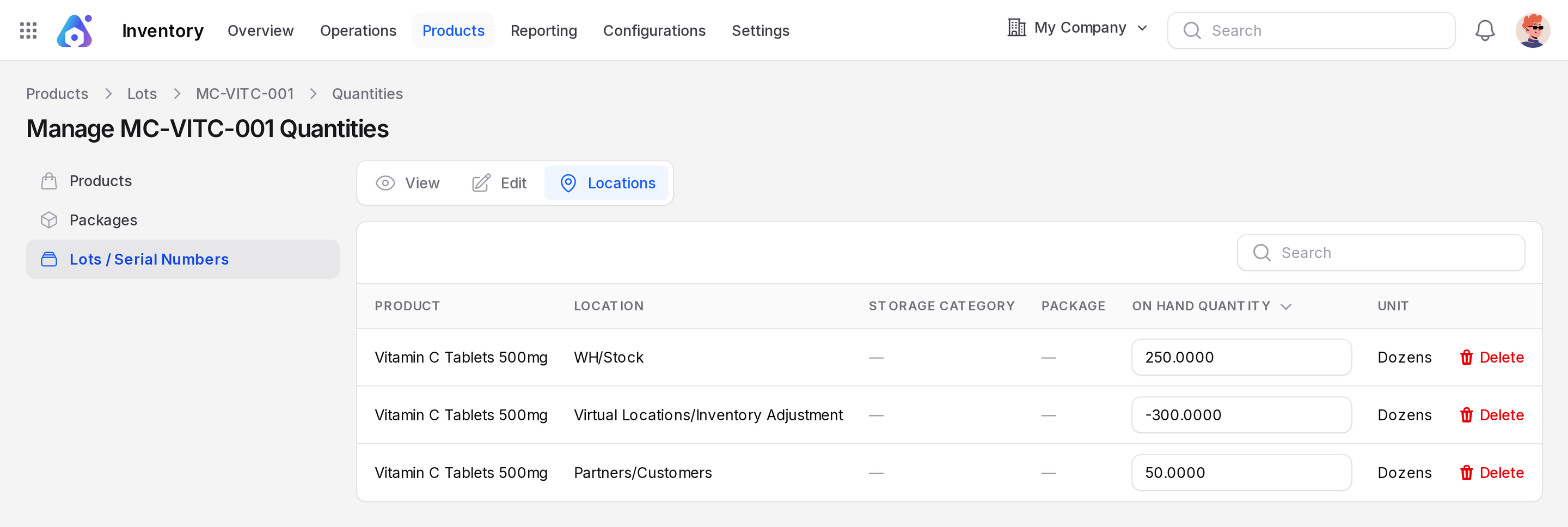
The lot view has the tabs View, Edit and Locations. Locations opens a page titled Manage ... Quantities (with the lot name). Its columns are Product, Location, Storage Category, Package, On Hand Quantity, Unit and Delete. The On Hand Quantity cells are editable inputs. The page shows where the lot sits now. It can also show negative stock at Virtual Locations/Inventory Adjustment for the lot.
Print labels
- On one lot, the header has the buttons Print and Delete. Click Print to download a PDF.
- On the list, tick lots and choose the bulk action Print Barcode.
Behind the scenes
A lot is a label on a stock quantity. The same product can hold several lots in one location. The Moves History and Locations reports can group by lot.