

Stages
Stages are the steps an opportunity moves through, from first contact to a won deal. They are the columns of your pipeline board. Every opportunity sits in exactly one stage, so the board shows where each deal stands.
In simple words: A stage is one step on the road from a new deal to a won deal. You decide the steps and their order.
Open CRM → Configuration → Pipeline → Stages.
The stage list
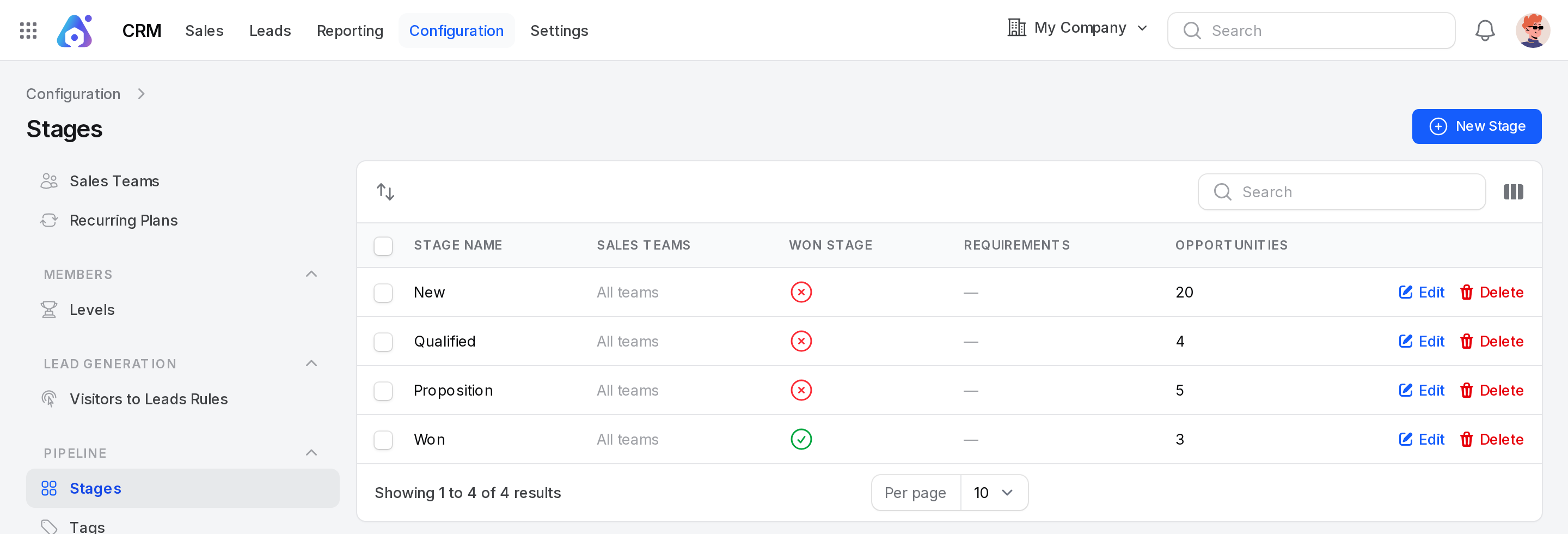
The list opens on one screen with no tabs. The default stages are New, Qualified, Proposition and Won.
Columns
- Stage Name: The name of the stage.
- Sales Teams: The teams that use the stage, as badges. It shows All teams when no team is chosen.
- Won Stage: A tick when the stage counts as won.
- Requirements: The guidance text, cut short after 60 characters. You can hide this column.
- Opportunities: How many leads and opportunities sit in the stage.
- Created At: Hidden at first. Show it with the column toggle.
Example: In the dev data, New holds 20 records, Qualified 4, Proposition 5 and Won 3. Won has the tick in Won Stage.
Search, order and export
- Type in the search box to find a stage by name.
- Drag the handle of a row to change the order. The board shows the stages in the same order.
- Select rows and use the bulk action to export them.
Create a stage
- Go to
CRM → Configuration → Pipeline → Stages. - Click New Stage.
- Fill in the form.
- Click Create.
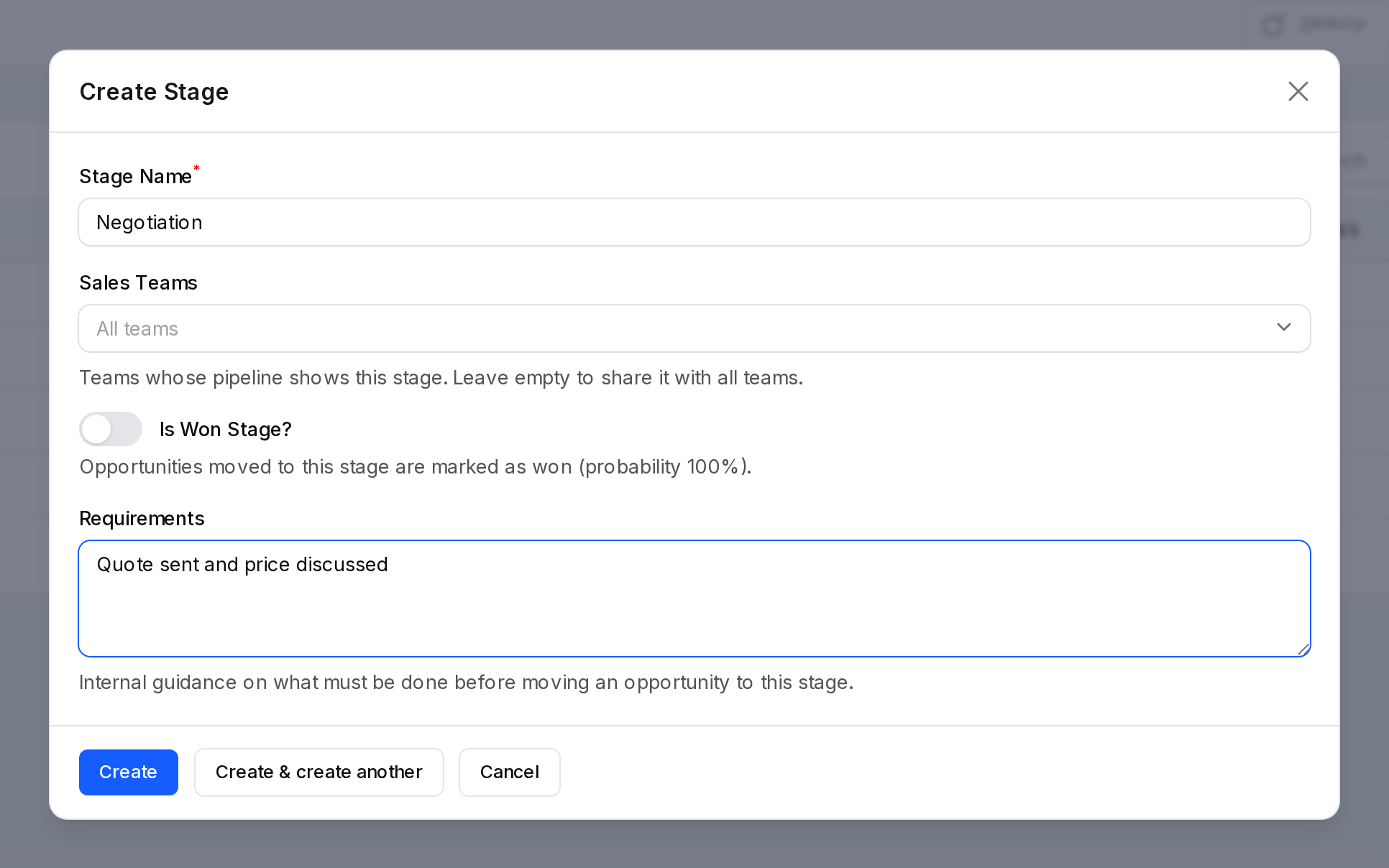
- Stage Name: The name on the board column. Required. Up to 255 characters.
- Sales Teams: The teams whose pipeline shows this stage. You can pick several. Leave it empty to share the stage with all teams.
- Is Won Stage?: Switch on if an opportunity that reaches this stage counts as won. It is off at first. Moving a deal here sets its probability to 100%.
- Requirements: Internal guidance on what must be done before a deal moves to this stage. Text, three rows high.
Example: Name Negotiation, leave Sales Teams empty, leave Is Won Stage? off, and write Quote sent and price discussed in Requirements.
A notice says the stage was created.
Edit a stage
- Click Edit at the end of the row.
- Change the fields.
- Click Save. A notice says Stage updated.
Delete a stage
- Click Delete at the end of the row.
- Confirm.
A stage can only be deleted when no record uses it. Aureus counts every lead and opportunity in the stage, lost ones too. If any exist, the dialog lists the count and has no confirm button. A red notice says the stage can't be deleted and asks you to move its records to another stage first.
Stages on the pipeline board
The board is built from the stages you see here. A stage with chosen Sales Teams shows only on the board of those teams. A stage with no team shows for everyone.
You can also add, edit or delete a column from the board. See Manage opportunities.
Behind the scenes
- Opportunities in a stage with Is Won Stage? on count as won. The Won tabs and reports use that rule.
- The Won button on an opportunity moves it to a won stage. You need at least one such stage, or the button cannot finish. See Mark won or lost.
- Reports group by stage in the order you set here.
- Changing the name or order does not touch the opportunities. They stay in the same stage.
TIP
Keep the list short. Four to six stages are easy to read on a board.
WARNING
Move the records out of a stage before you delete it. Aureus will not delete a stage that still has records.