

Work Centers
Work Centers are the physical (or virtual) production resources where manufacturing operations are performed — for example Assembly Line 1, CNC Machine, Packaging Station, or Quality Check Booth.
They define capacity, working hours, costs, and efficiency for every operation that runs through them, allowing the system to schedule work orders realistically and report on shop-floor performance.
Use Case:
Set up a Work Center for every distinct machine, line, or area that performs production steps. Once configured, Work Orders are routed to the right station with the correct duration, cost, and capacity.
In simple words: A Work Center is a place where work happens — a machine, a table, or a team. Operations are assigned to Work Centers so the system knows where each production step is carried out.
Work Centers are only available when Work Orders is enabled in Manufacturing Settings.
Steps to Create a New Work Center
Navigate to
Manufacturing → Configurations → Work Centersas shown below: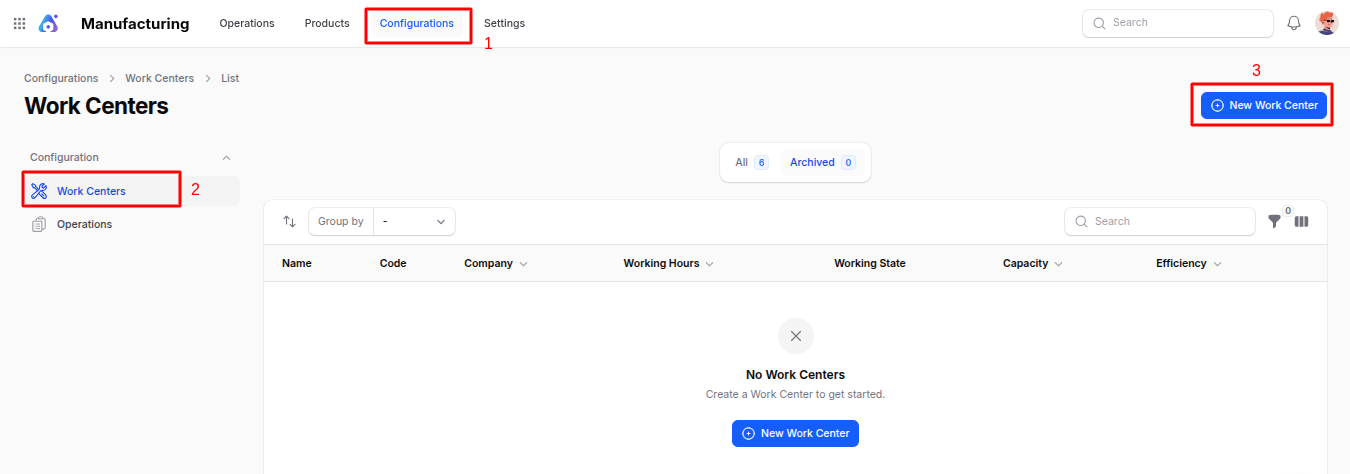
Fill in the following details:
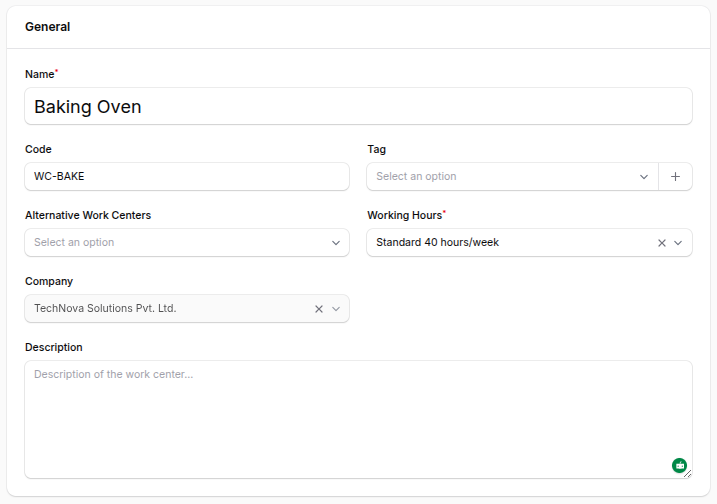
General Section
- Name: The display name of the work center (e.g.
Assembly Line 1). This is shown wherever the work center is referenced. - Code: A short identifier used internally and on reports (e.g.
AL1). - Tag: Add one or more tags to group similar work centers (e.g. Heavy Machinery, Manual, Automated).
- Alternative Work Centers: Select other work centers that can perform the same job. When the primary work center is busy, the system can suggest these alternatives so production isn't blocked.
- Company: Choose the company that owns this work center (useful in multi-company setups).
- Working Hours: Select the schedule (calendar) that defines when this work center is available (e.g. Standard 40h/week, Two Shifts).
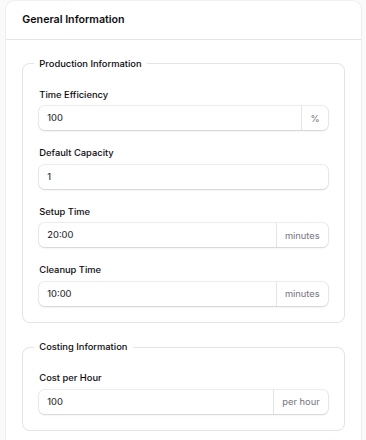
Production Information
- Default Capacity: The number of product units this work center can process simultaneously in one run. Example: an oven that bakes 24 units in one batch has a capacity of 24.
- Time Efficiency (%): Productivity factor of the work center. A value below 100% lengthens the planned duration to account for slowdowns; above 100% shortens it. Example: 80% means a 60-minute task is actually scheduled for 75 minutes.
- OEE Target (%): The target Overall Equipment Effectiveness for this work center. Used as a benchmark in reports to compare planned vs. actual performance.
Costing Information
- Cost per Hour: The operating cost charged for every hour the work center is in use (energy, labor, depreciation). Used to compute the production cost of each manufacturing order.
- Setup Time (minutes): Time required to prepare the work center before an operation starts (e.g. machine warm-up, tool change).
- Cleanup Time (minutes): Time required to clean or reset the work center after an operation finishes.
Description
- Description: A free-text field to add notes, safety guidelines, or specific instructions about the work center. Visible to operators and managers.
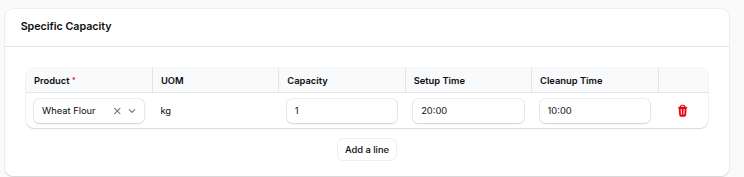
Specific Capacity
Used when the work center handles different products at different capacities. For example, an oven might bake 24 small pizzas but only 12 large pizzas per cycle.
Click Add a line and provide:
- Product: Product whose capacity differs from the default.
- UOM: Unit of measure for this product.
- Capacity: Number of units processed per cycle for this specific product.
- Setup Time: Override setup time for this product (minutes).
- Cleanup Time: Override cleanup time for this product (minutes).
- Name: The display name of the work center (e.g.
Action Buttons:
- Create – Save and open the work center record.
- Create & Create Another – Save and immediately open another blank form.
- Cancel – Discard the entry and return to the list view.
Work Center View Page
After creation, you are redirected to the Work Center View Page, where you can review every detail and manage related operations.
View: See all general information, production parameters, costing data, and the specific capacity table.
Edit: Modify any of the saved fields.
Operations: Navigate to the Operations sub-tab to view and manage every routing Operation assigned to this work center.
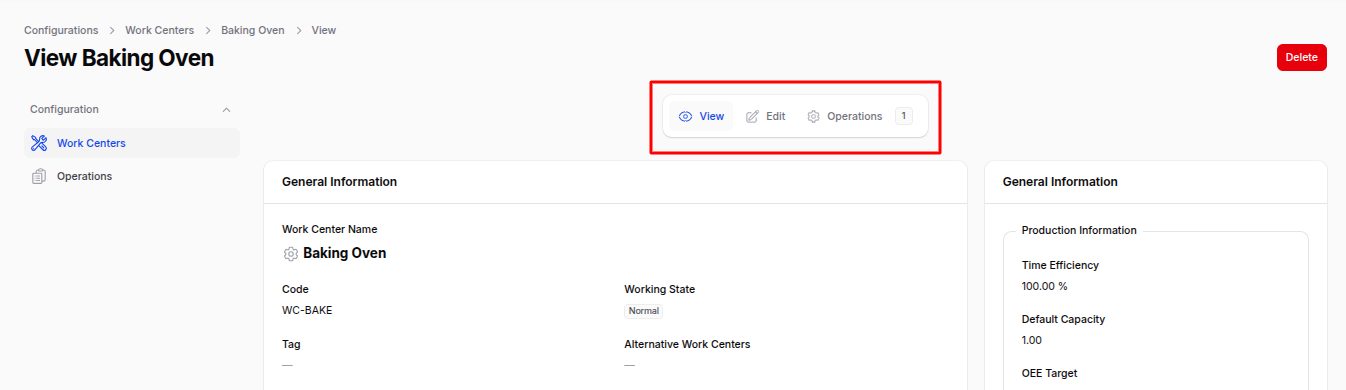
Delete / Archive: Remove or archive the work center. Archived work centers stay in the database but no longer appear in selection lists.
List View — Filters & Actions
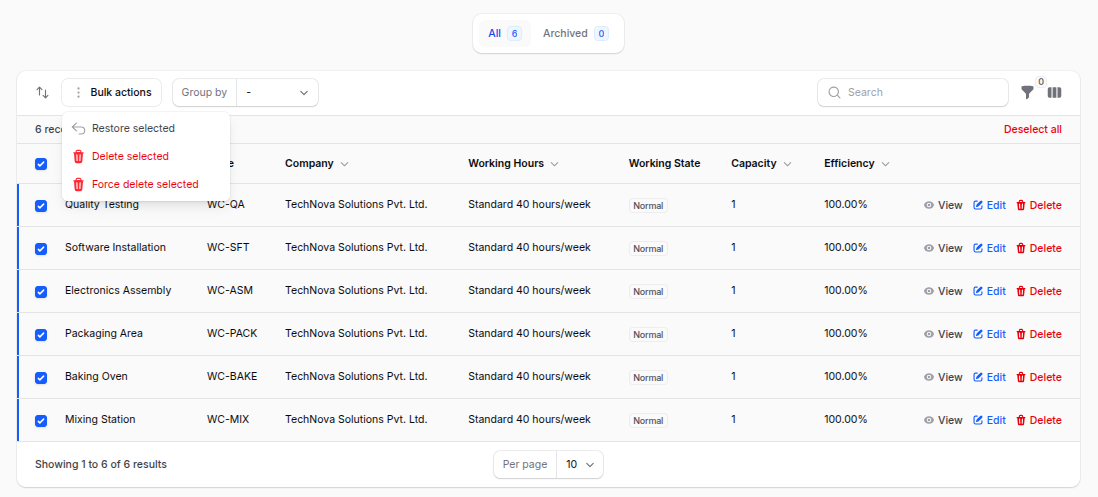
The Work Centers list view shows every configured work center with the following columns: Name, Code, Company, Working Hours, Working State, Capacity, Efficiency, and Cost per Hour.
You can:
- Filter by: Company or Working State.
- Group by: Company.
- Bulk Actions: Archive, restore, or permanently delete selected records.
Summary
Work Centers define where, how fast, and at what cost your production runs. Configure each station accurately so the system can:
- Schedule Work Orders realistically.
- Track real vs. expected duration and OEE.
- Compute manufacturing costs.
- Suggest alternatives when a station is overloaded.
Next step: Once your Work Centers exist, create the Operations that run on them.