

Maintenance Requests
A Maintenance Request is a work ticket raised whenever a piece of Equipment needs attention — either because it broke down (corrective) or because it is due for a routine check-up (preventive). Each request tells the system what is wrong, which equipment is affected, who will fix it, when the work is planned, and how long it should take.
Use Case: Create a maintenance request every time something needs to be repaired, inspected, or replaced. The request travels through your custom Stages — New Request → In Progress → Repaired — until the work is complete.
In simple words: A Maintenance Request is a job card. It says "Fix this laptop" or "Service this machine on Monday". The system then tracks the job from start to finish.
Before You Begin — Setup Checklist
A Maintenance Request needs a few supporting records to exist first. Complete them in this order:
| Step | What to set up | Where | Guide |
|---|---|---|---|
| 1 | At least one Stage for the workflow | Maintenance → Configurations → Stages | Stages |
| 2 | At least one Maintenance Team | Maintenance → Configurations → Teams | Teams |
| 3 | One or more Equipment Categories (optional but recommended) | Maintenance → Configurations → Categories | Categories |
| 4 | The Equipment you want to maintain (optional — a request can be raised without equipment too) | Maintenance → Equipment | Equipment |
| 5 | The Maintenance Request itself | Maintenance → Maintenance Requests | This page |
Note: A stage and a team must exist before you can create any request — the system uses the first stage and any team as defaults.
Steps to Create a New Maintenance Request
Navigate to
Maintenance → Maintenance Requestsas shown below: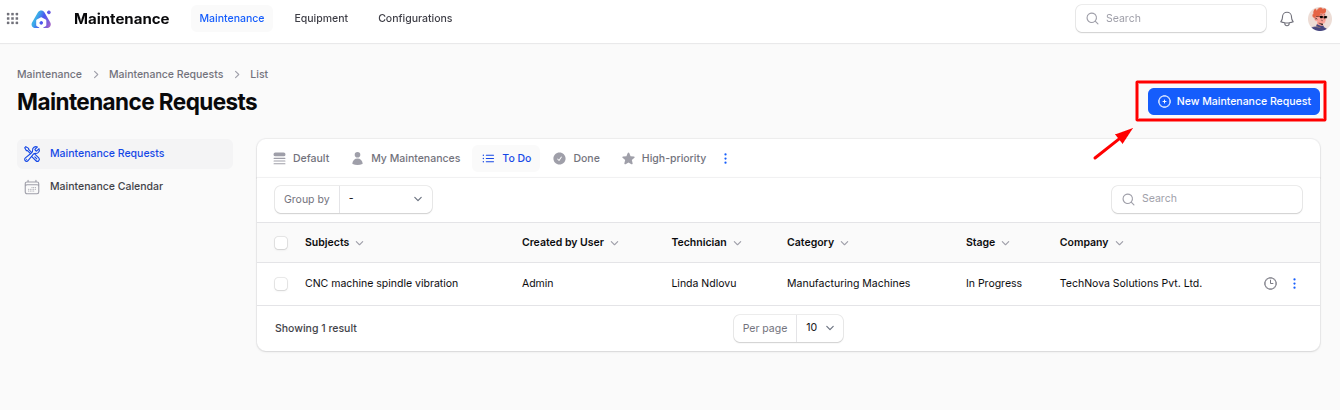
Click New Request and fill in the following details:
Stage Progress Bar
At the top of the form you see a progress bar with every Stage you configured. The first stage is selected by default — you can click any stage to move the request through the workflow.

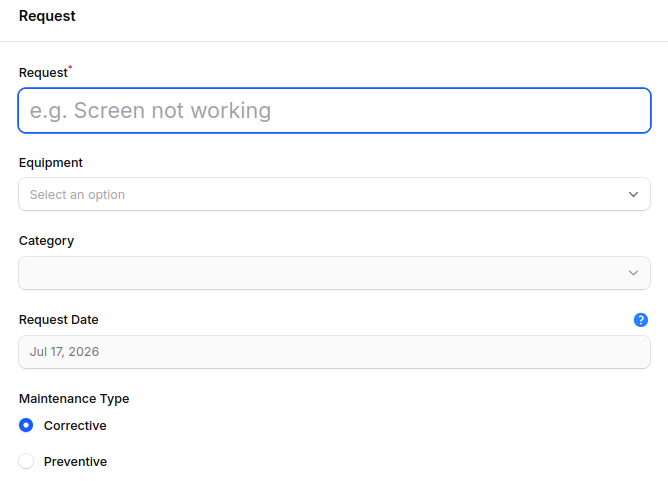
Request Section
- Request: A short title for the issue (e.g.
Screen not working,Quarterly oil change). This is the main label used everywhere. - Equipment: Select the Equipment that needs maintenance. Once chosen, the system auto-fills the Category, Request Date, Team, Responsible, and Company based on what is set on the equipment.
- Category: The category the equipment belongs to (auto-filled from the equipment and read-only).
- Request Date: The date the issue was reported. Auto-filled from the equipment's effective date or today's date; read-only.
- Maintenance Type: Choose one:
- Corrective – Reactive work: something is broken and needs to be fixed.
- Preventive – Proactive work: a scheduled check-up to prevent future failures.
- Recurrent: (Visible only when Maintenance Type is Preventive.) Tick this if the same preventive work must repeat at a regular interval (e.g. every 3 months).
- Repeat Every: (Visible when Recurrent is ticked.) Define the recurrence rule with three fields:
- Interval – A number (e.g.
3). - Unit –
Day,Week,Month, orYear. - Type –
Forever(repeat indefinitely) orUntil(repeat until a specified date).
- Interval – A number (e.g.
- Request: A short title for the issue (e.g.
Configure the tabs below the request section.
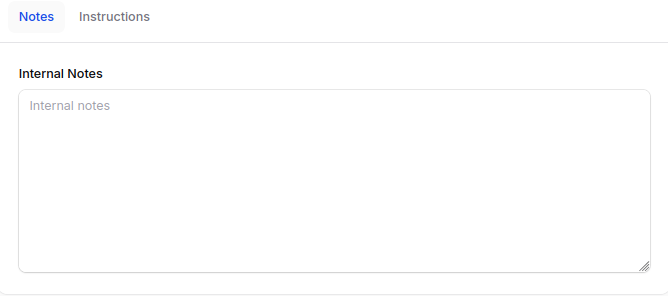
Notes Tab
A free-text Internal Notes field where you can describe the problem, list symptoms, or add any context that helps the technician understand the issue.
Instructions Tab
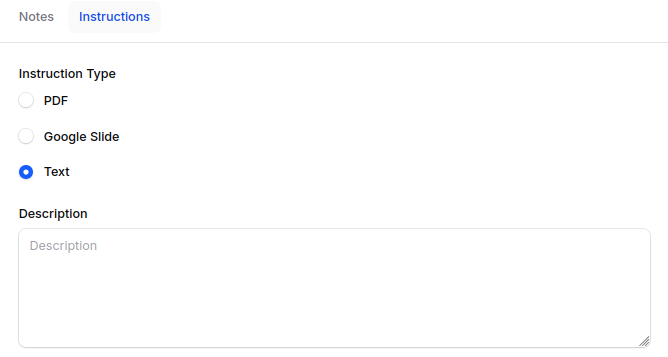
Instructions tell the technician exactly how to perform the maintenance. Choose one of three formats:
- PDF: Upload a PDF document (e.g. a service manual page).
- Google Slide: Paste a public Google Slides URL.
- Text: Type free-text step-by-step instructions directly in the form.
The system shows a preview of the selected instructions inside the tab, so the technician can confirm the right material is attached.
Settings Section (Right-hand Side)
The Settings panel on the right captures who does the work and when:
- Team: The Maintenance Team responsible for the request. Required.
- Responsible: The specific user accountable for closing this request. Defaults to the equipment's technician or the current user.
- Scheduled Date: The date and time when the work is planned to start. Shown on the Calendar.
- Duration: Expected length of the work in
HH:MMformat (e.g.01:30for one and a half hours). - Priority: A number between
0(low) and3(very high). Helps technicians decide what to do first. - Company: The company that owns the request. Required.
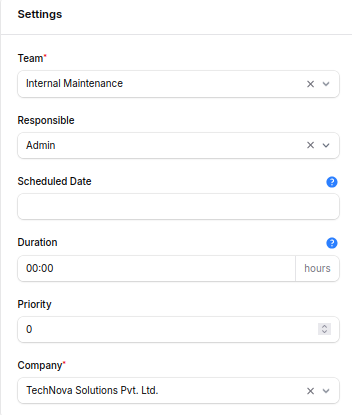
Action Buttons:
- Create – Save the request and open its view page.
- Create & Create Another – Save and immediately open a blank form for the next request.
- Cancel – Discard.
Maintenance Request View Page
After creation, you are redirected to the Request View Page which summarizes everything in a read-only layout.
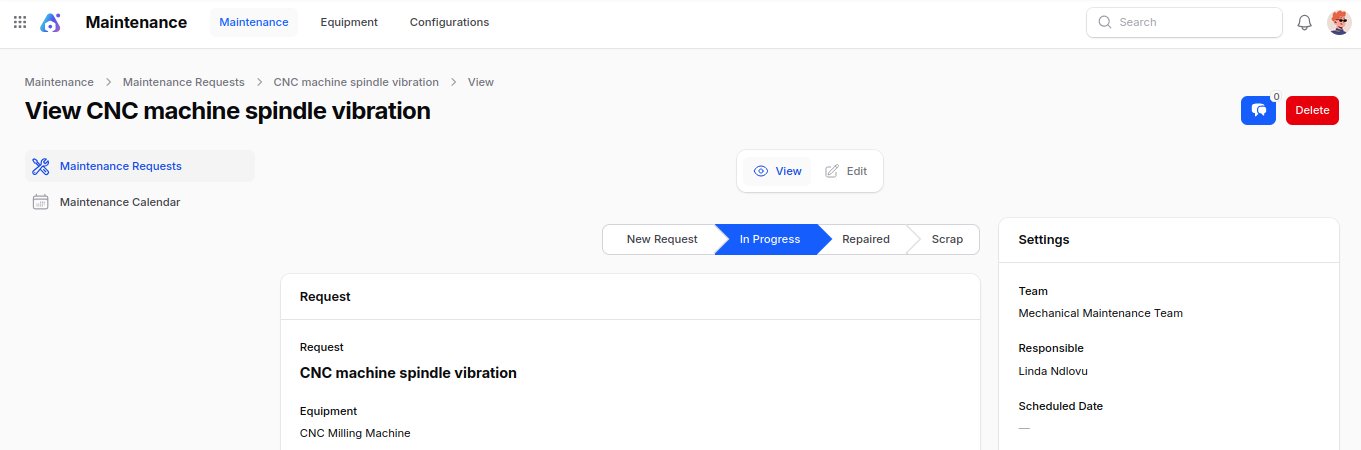
From here you can:
- Move Stages: Click any stage on the progress bar at the top to advance (or roll back) the request — e.g. from New Request → In Progress → Repaired.
- View Instructions: See the attached PDF, Google Slide, or text instructions.
- Edit: Update any of the saved fields.
- Archive / Restore: Soft-delete the request (it stays in the database). Restore later from the list view.
- Delete (Permanent): Force-delete a request that is no longer needed.
- Activities (Chatter): Log activities, leave comments, and follow the conversation around the request.
Recurring Preventive Requests — what happens behind the scenes: When you move a preventive recurring request to a Done stage (e.g. Repaired), the system automatically creates the next request in the series. The new request keeps the same equipment, team, instructions, and recurrence rule, but its Scheduled Date is moved forward by the configured interval (e.g. +3 months). This continues forever (or until the Until date you configured).
List View — Filters, Groups & Actions
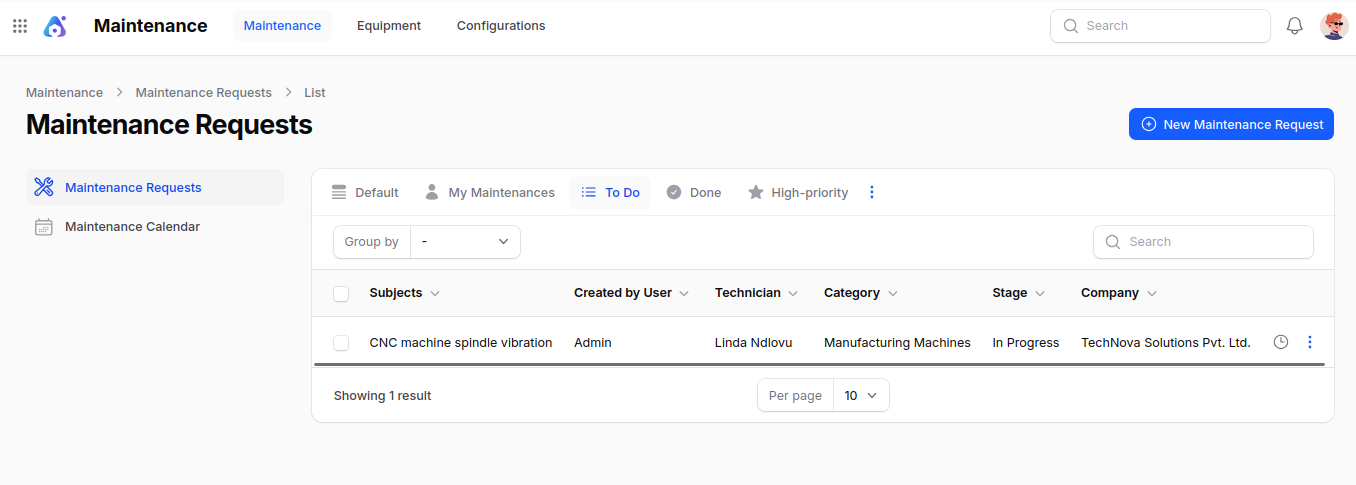
The Maintenance Requests list view shows every request with the following columns: Subject, Created by User, Technician, Category, Stage, and Company.
You can:
- Group by: Stage, Assigned to, Category, or Created By.
- Search by: Subject.
- Sort by: Any column.
- Bulk Actions: Archive, restore, or permanently delete selected requests.
Summary
A Maintenance Request is the heart of the Maintenance module — it ties the Equipment, the Team, the technician, and the Stage workflow together. Use Corrective requests for unexpected breakdowns and Preventive requests (with recurrence) for routine check-ups so your equipment keeps running with minimum downtime.
Maintenance Flow — Start to End
The diagram below shows the typical journey, from setting up the basics to closing a request. Steps 1–4 are one-time setup (do them once, reuse forever). Steps 5–6 are repeated every time you raise a request.
        ┌──────────────────────── ONE-TIME SETUP ────────────────────────┐

  STEP 1                STEP 2                 STEP 3                STEP 4
┌─────────────┐      ┌──────────────┐      ┌──────────────┐      ┌──────────────┐
│  Create the │      │  Create the  │      │   Create     │      │  Create the  │
│   STAGES    │ ───▶ │ MAINTENANCE  │ ───▶ │  EQUIPMENT   │ ───▶ │  EQUIPMENT   │
│ (workflow   │      │   TEAMS      │      │  CATEGORIES  │      │  (the actual │
│  steps)     │      │ (the crews)  │      │ *(optional)* │      │   asset)     │
└─────────────┘      └──────────────┘      └──────────────┘      └──────────────┘
                                                                         │
        ┌──────────────────────── EVERY REQUEST ─────────────────────────┐
                                                                         ▼
  STEP 5 — Raise a Maintenance Request:                              ┌──────────────┐
                                                                     │   Create a   │
   Pick equipment ─▶ Choose Corrective or Preventive ─▶ Assign team │  MAINTENANCE │
                                                                     │   REQUEST    │
                                                                     └──────────────┘
                                                                              │
  STEP 6 — Move it through the stages:                                        ▼

   New Request ─▶ In Progress ─▶ Repaired (Done)
                                  │
                                  └──▶ If preventive + recurring →
                                       system auto-creates the NEXT request
Quick mental model: Equipment + Categories + Teams = the "who and what", Stages = the "how the workflow looks", and the Maintenance Request = the "do it now".
Next step: Use the Maintenance Calendar to see all scheduled requests in a single month/week/year view.