

Work Orders
A Work Order (WO) represents a single operation of a manufacturing order executed at a specific Work Center.
Work orders give shop-floor operators a focused view of what needs to be done, with worksheets, time tracking, and component checklists.
Use Case:
Use Work Orders to schedule, dispatch, and track every production step in real time. They are essential for businesses that produce items in multiple stages (cutting → assembly → painting → packaging) and want operator-level visibility.
In simple words: If a Manufacturing Order says "build 10 chairs", the Work Orders are the individual to-do items for the floor: "cut the wood", "assemble the frame", "polish the surface" — each handled at its own station.
Work Orders are available only when Work Orders is enabled in Manufacturing Settings. Sequencing requires Work Order Dependencies to also be enabled. Each work order runs an Operation at a Work Center.
How Work Orders Are Created
Work orders are generated automatically — there is no manual creation step. When you confirm a Manufacturing Order whose Bill of Material has Operations defined, the system creates one work order for each operation.
To open them, navigate to Manufacturing → Operations → Work Orders as shown below:
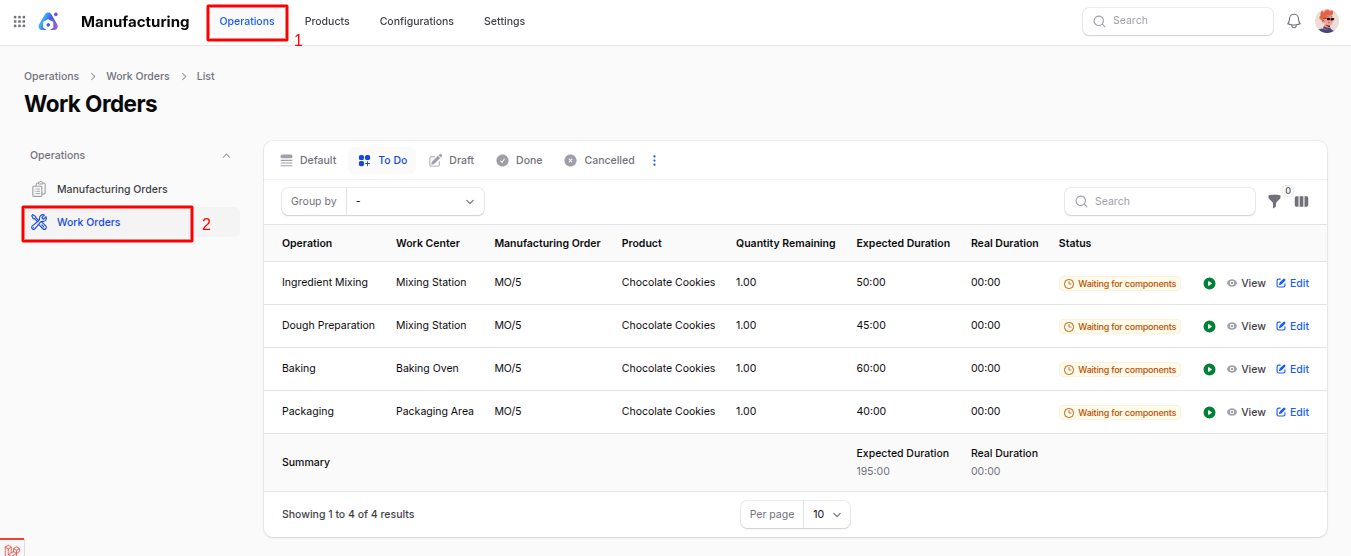
Work Order List — Start, Stop & Finish
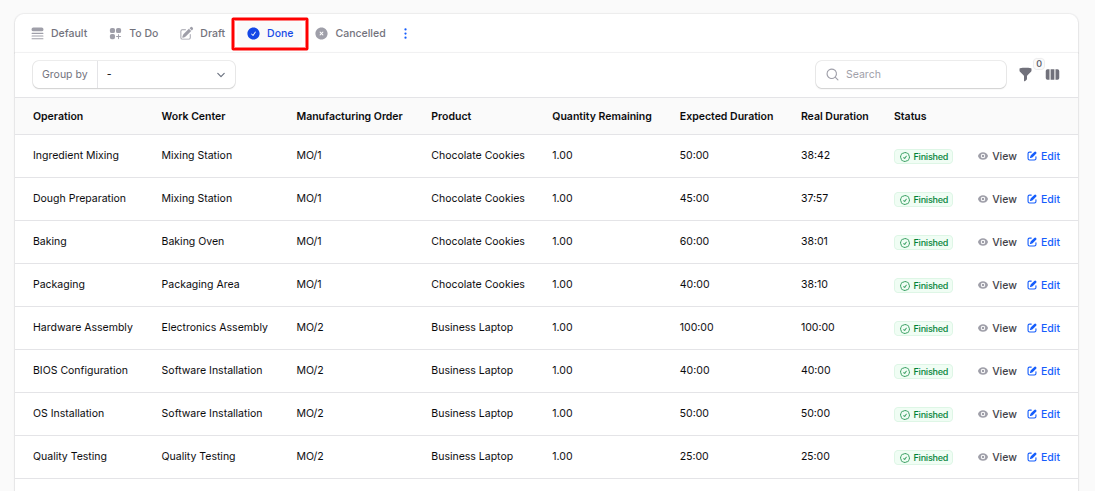
The Work Orders list shows every operation across all manufacturing orders in one place, so operators always know what to run next. Each row displays: Operation, Work Center, Manufacturing Order, Product, Quantity Remaining, Lot/Serial, Start, End, Expected Duration, Real Duration, and Status.
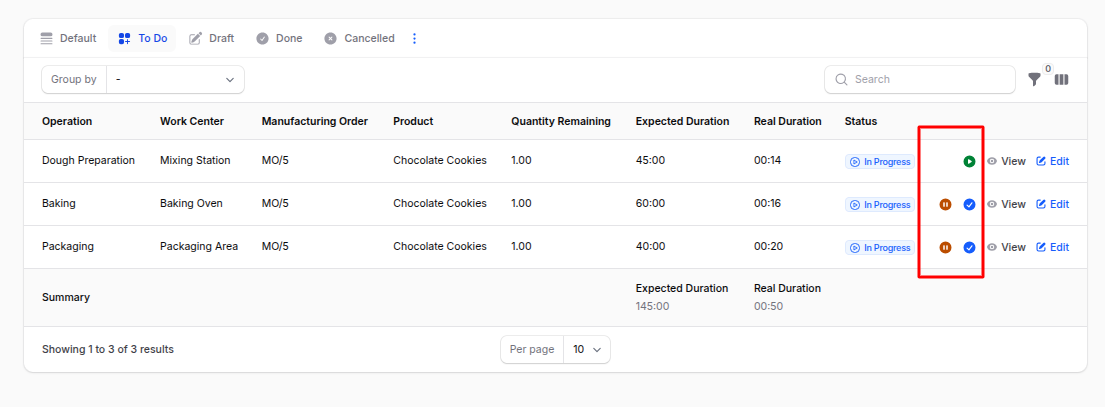
Each row carries inline controls to run the operation directly from the list:
- Start — begins the operation and starts a live timer. The Real Duration counts up in real time and the status changes to In Progress.
- Stop — pauses the timer (for a break, setup, or quality stop). The elapsed interval is saved to the Time Tracking tab; press Start again to resume.
- Finish — marks the operation complete once the work is done. The status changes to Finished and the next work order in the sequence is unblocked.
You can also:
- Group by: Status, Work Center, Manufacturing Order, Product, Start, or End.
- Filter by: Work Order, Status, Operation, Work Center, Manufacturing Order, Product, Start/End date, Created at, or Updated at.
The Real Duration is calculated automatically from every Start/Stop interval — operators never type it in by hand.
Work Order Stages
A work order moves through the following stages:
Waiting for another Work Order → Waiting for Components → Ready → In Progress → Finished
| Stage | Meaning |
|---|---|
| Waiting for another Work Order | A predecessor operation (listed in the Blocked By tab) has not finished yet. |
| Waiting for Components | The components needed for this step are not yet available in stock. |
| Ready | All dependencies and components are satisfied — the operation can be started. |
| In Progress | An operator has clicked Start; the timer is running. |
| Finished | The operation is complete. |
Work Order View Page
Click View on any row to open the Work Order View Page, where you can run the operation and see its full detail.
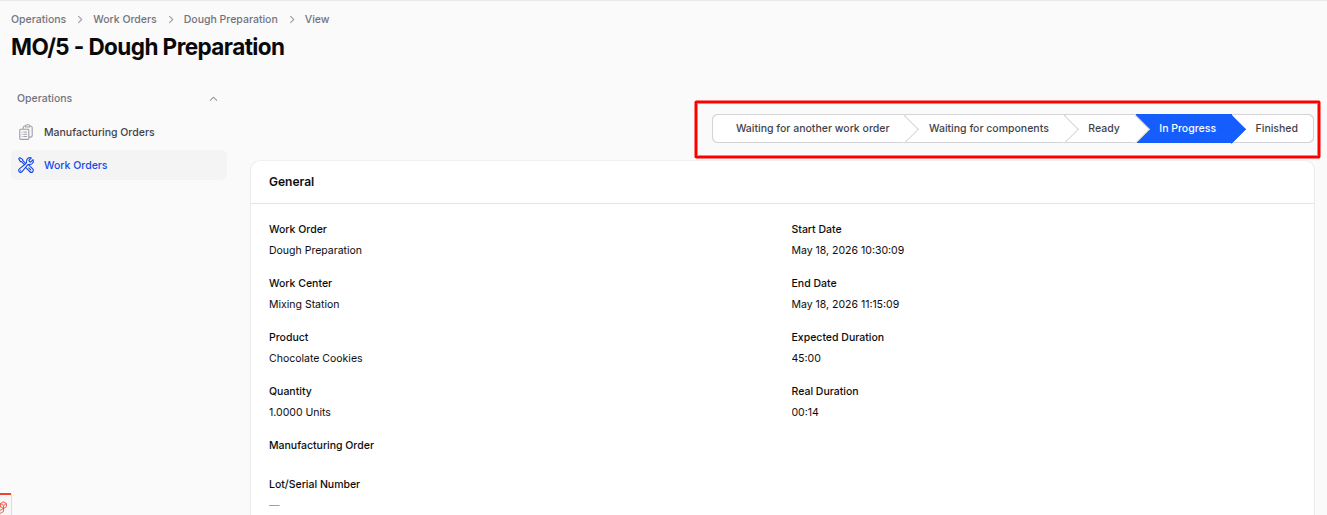
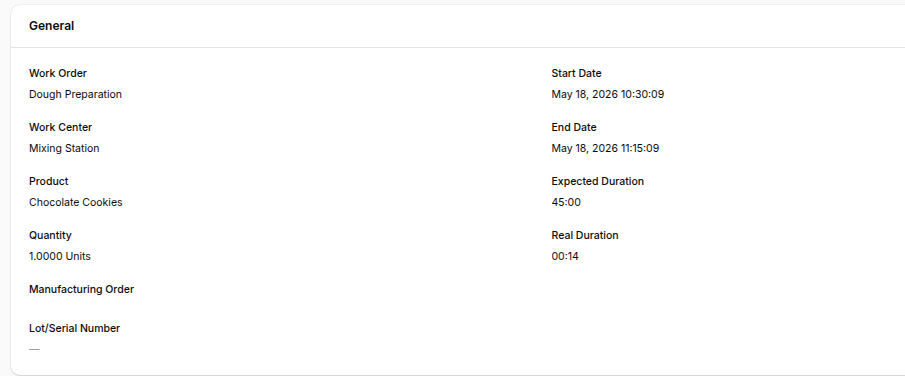
The general section shows the key details of the operation:
- Work Order: Name/title of the operation (e.g. Assembly).
- Work Center: Station where the operation runs.
- Product: Product being produced or processed at this step.
- Quantity: Quantity that must be processed at this work center.
- Manufacturing Order: Parent MO this work order belongs to.
- Lot/Serial Number: Lot or serial assigned to the produced unit (used when the product is tracked).
- Start Date / End Date: Scheduled time window (
Start to End). - Expected Duration: Planned duration in minutes.
- Real Duration: Actual time logged via the Start/Stop timer (read-only).
The view page also exposes the same Start, Stop, and Finish controls as the list, plus the following tabs.
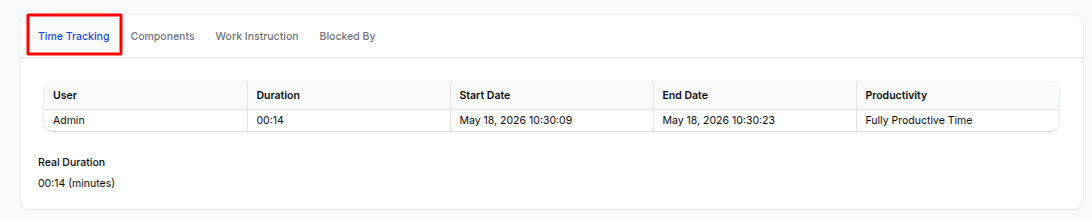
Time Tracking Tab
Records every time block logged against this work order. Multiple operators can contribute, and every Start/Stop interval is appended here automatically.
- User: Operator performing the work.
- Duration: Time spent (auto-computed from start/end).
- Start Date / End Date: Time window of the block.
- Productivity: Productivity reason (e.g. Production, Setup, Break, Quality Control) — used in OEE reports.
A footer total displays the cumulative Real Duration.
Components Tab
Shows the components consumed at this work order — auto-populated from the BoM (linked through Consumed in Operation).
- Product: The component.
- To Consume: Planned quantity.
- Quantity: Actual consumed quantity (filled in during production).
- UoM: Unit of measure.
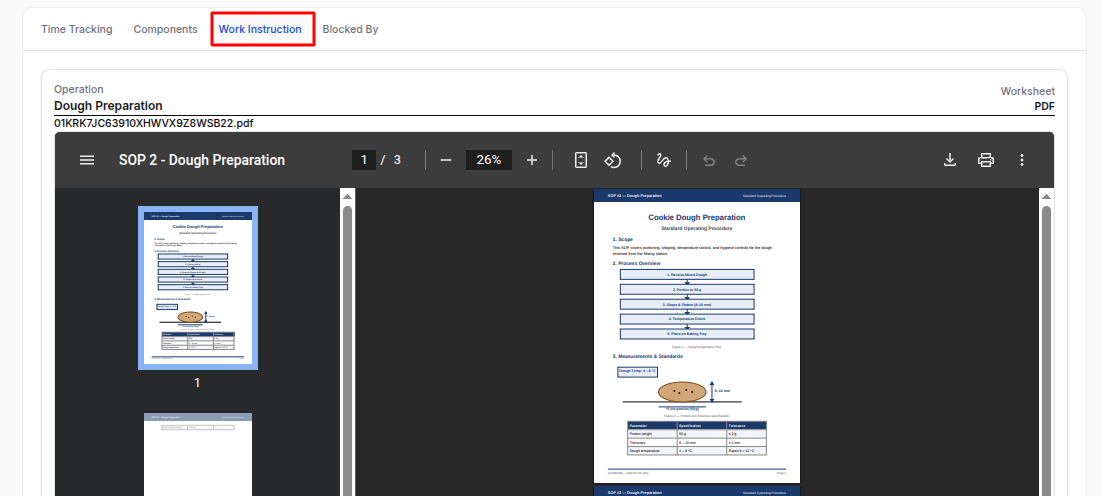
Work Instruction Tab
Displays the operator instructions configured on the operation.
- Operation: Linked operation name.
- Worksheet: Embedded PDF, Google Slide, or text description that operators follow to complete the work.
Blocked By Tab
Visible when Work Order Dependencies is enabled. Lists every work order that must finish before this one becomes Ready — while any predecessor is unfinished, this work order stays in the Waiting for another Work Order stage.
- Work Order: Predecessor work order.
- Work Center: Work center of the predecessor.
- Status: Current status of the predecessor — when all show Finished, this work order becomes available.
Running a Work Order
From the Work Orders list (or the view page), find an operation in the Ready stage.
Click Start to begin — the timer runs and the status becomes In Progress.
Click Stop to pause for a break or quality stop; click Start again to resume. Every interval is saved to the Time Tracking tab.
When the work is complete, click Finish. The status becomes Finished and the next work order in the sequence is unblocked.
Summary
Work Orders bring your manufacturing plan to life on the shop floor:
- They are created automatically when a Manufacturing Order is confirmed — one per operation.
- Operators run them straight from the list with Start / Stop / Finish controls.
- Real-time time tracking feeds productivity and OEE reports.
- Dependencies keep Operations in the correct sequence automatically.
- Component consumption is recorded at the exact step where it happens, giving you accurate cost and traceability data.
Related: Work Orders are generated and driven by the Manufacturing Order. To change a step's default duration or worksheet, edit its Operation.