

Bills of Material
A Bill of Material (BoM) is the recipe of a finished product. It defines which components are required to produce one unit of an item, in what quantity, through which operations, and on which work centers.
The BoM is the single source of truth used by every manufacturing order to:
- Reserve raw materials.
- Generate work orders.
- Compute lead time and cost.
- Track consumption and produced quantities.
Use Case:
Create a BoM for every product that is manufactured (instead of purchased) or every kit assembled from existing components for sale or delivery.
In simple words: A Bill of Material is a recipe. Just like a cake recipe lists flour, sugar, and eggs, a BoM lists the components and quantities needed to build one finished product.
Where it fits: The BoM is used by the Manufacturing Order to know what to consume and which Work Orders to generate. Make sure the finished product and its components already exist before creating a BoM.
Steps to Create a New Bill of Material
Navigate to
Manufacturing → Products → Bills of Materialsas shown below: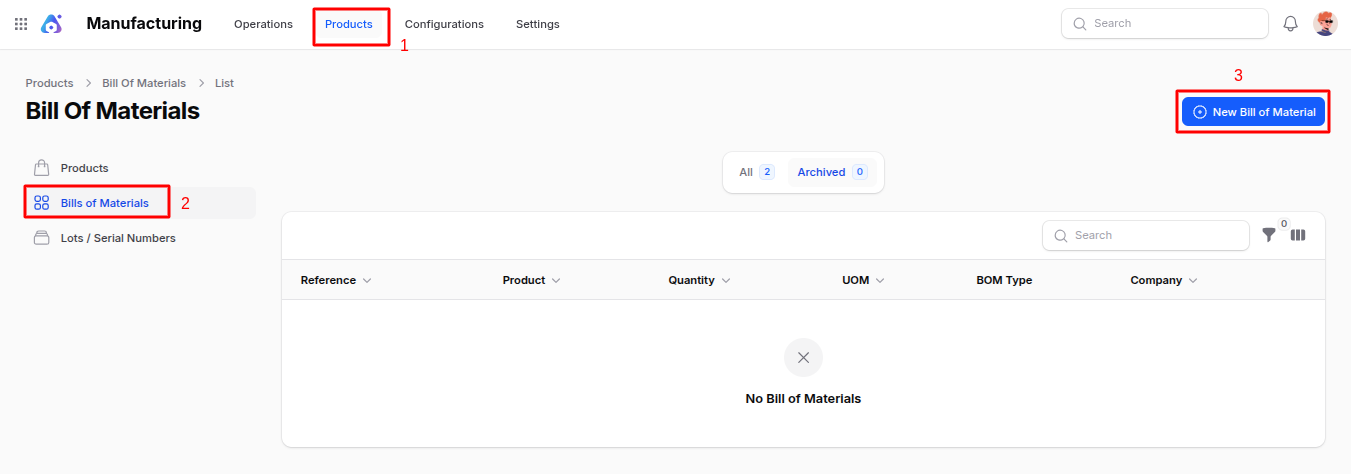
Fill in the following details:
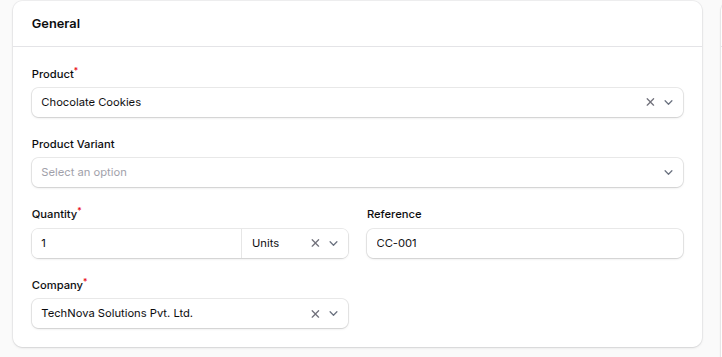
General Section
- Reference: Unique identifier for the BoM (e.g.
BOM-001). Useful when a product has multiple BoMs. - Product: The finished product this BoM produces.
- Product Variant: If the product has variants, choose the specific variant this BoM applies to. Leave empty for the BoM to apply to all variants.
- Quantity: The number of finished units produced when this BoM is consumed once (usually
1). - UOM: Unit of measure for the produced quantity (e.g. Units, Kilograms).
- Company: Company that owns this BoM.
Miscellaneous Section
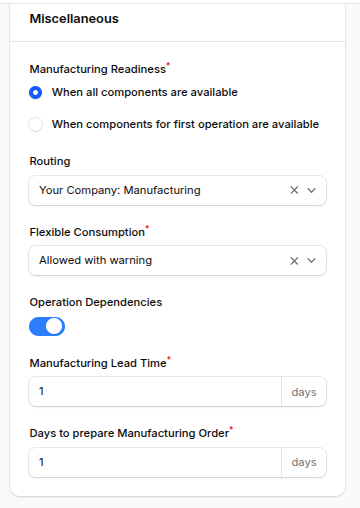
Fine-tune how the BoM behaves on the manufacturing order.
- Manufacturing Readiness: Choose when the manufacturing order should be marked Ready:
- When components are available – Ready as soon as all materials are in stock.
- When the components for the 1st operation are available – Ready when only the first operation's components are on hand (useful for long routings).
- Routing: Display-only summary of the operations sequence linked to this BoM.
- Flexible Consumption: Controls how strictly the system enforces the planned consumption:
- Allowed – Operators can consume more or less without warning.
- Allowed with Warning – Variations are allowed but a warning is shown.
- Blocked – Quantities must match exactly.
- Operation Dependencies: Enable to use the Blocked By relationships configured on individual operations. Requires Work Order Dependencies to be enabled in settings.
- Manufacturing Lead Time (days): Overrides the global lead time configured in Manage Planning for this specific BoM.
- Days to prepare Manufacturing Order: Extra preparation days needed before launching production based on this BoM.
- Reference: Unique identifier for the BoM (e.g.
Configure the tabs below the general section.
Components Tab
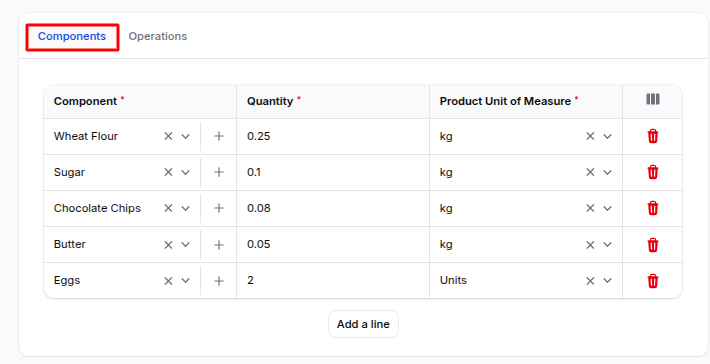
The Components tab lists every raw material or sub-assembly required to produce one unit of the finished product.
Click Add a line and fill:
- Component: Select an existing product. You can also create a new one inline by providing Name, Type, Category, Company, and UOM.
- Apply on Variants: Restrict this component to specific variants (e.g. only the Red variant needs the red dye).
- Consumed in Operation: Select the operation that consumes this component. Helps allocate raw material withdrawal to the right work order.
- Highlight Consumption: Toggle to highlight critical components on the manufacturing order for operator attention.
- Quantity: Quantity of the component required for one unit of the finished product.
- Product Unit of Measure: UOM of the component (auto-filled from the product master).
Operations Tab
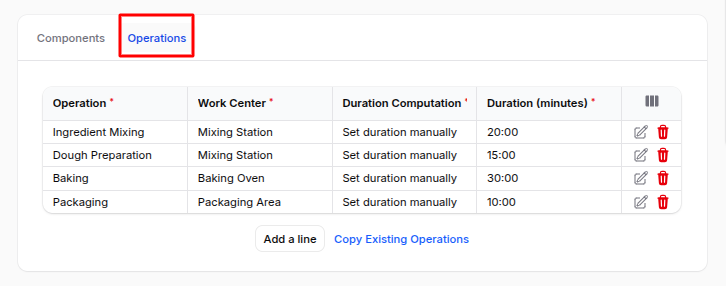
The Operations tab defines the routing — every shop-floor step required to assemble the finished product. Available only when Work Orders is enabled in Manufacturing Settings. Each line links an Operation to a Work Center.
Click Add a line to add a new operation, or click Copy Existing Operations to import operations from another BoM.
For each operation, configure:
- Operation: Name of the step (e.g. Cutting, Assembly).
- Work Center: Station where the operation runs.
- Duration Computation: Either Set Manually or Compute Based on Tracked Time.
- Computed on last … work orders: When automatic computation is selected, the number of past work orders averaged.
- Company: Company owning the operation.
- Apply on Variants: Restrict the operation to selected variants.
- Duration (minutes): Default time required when manual mode is used.
Use the Edit Operation action on a line to open the full operation form (including worksheet and dependencies).
Action Buttons:
- Create – Save and open the BoM record.
- Create & Create Another – Save and open a blank form to create another BoM.
- Cancel – Discard the entry.
Bill of Material View Page
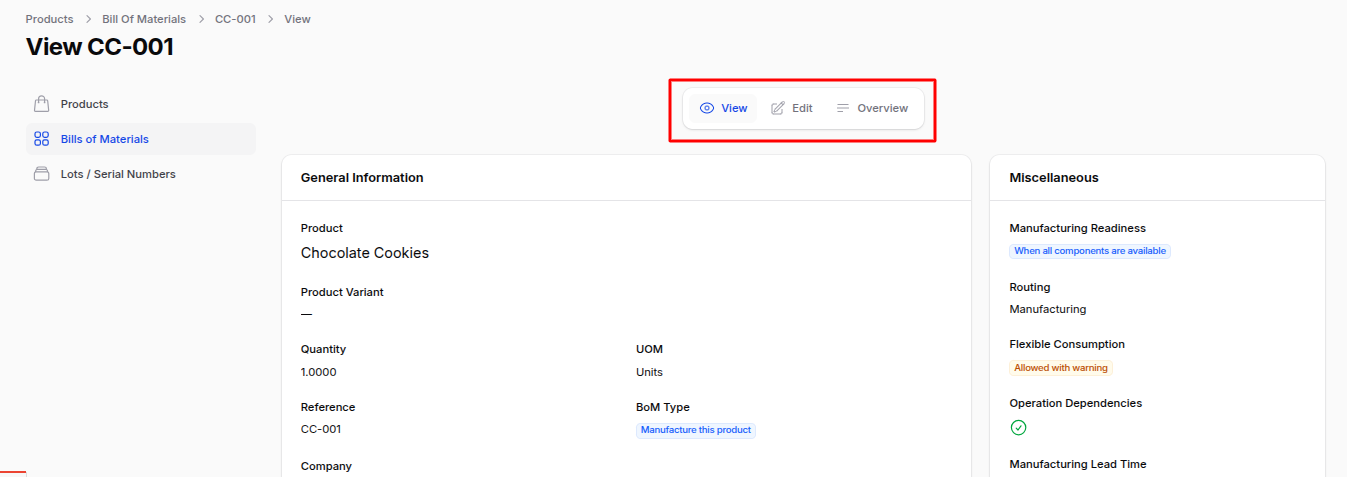
After creation, you land on the BoM View Page with all tabs and a few extra controls.
View: Read-only summary of the BoM, including general info, components, operations, by-products, and the miscellaneous configuration.
Edit: Modify any field.
Overview: Opens the BoM Overview report — a hierarchical, exploded view of the BoM showing every level of components, sub-BoMs, costs, and lead times.
Print: Export the BoM as a printable document.
Duplicate: Create a copy to quickly build a variant BoM.
Archive / Delete: Remove a BoM that is no longer used.
List View — Filters & Actions
The Bills of Materials list view shows: Reference, Product, Quantity, UOM, BoM Type, and Company.
You can:
- Filter by: Product, BoM Type, or Company.
- Bulk Actions: Archive, restore, or permanently delete selected BoMs.
Summary
A well-built BoM ensures that:
- The right components are reserved automatically when a Manufacturing Order is confirmed.
- Operators see the right Work Orders, on the right Work Centers, in the right sequence.
- Costs and lead times are computed accurately.
- By-products and kits are handled with the same data model as standard production.
Next step: Once your BoM is ready, you can launch production by creating a Manufacturing Order.