

Maintenance Calendar
The Maintenance Calendar is a visual planner that shows every Maintenance Request on a calendar grid based on its Scheduled Date. It helps managers and technicians see the whole maintenance plan at a glance — what is happening today, this week, this month, or this year — and quickly create new requests by clicking directly on a date.
Use Case: Use the calendar when you want to plan workload, balance the team's schedule, or check whether a date already has too many overlapping requests before adding a new one.
In simple words: The Calendar is a wall planner for maintenance work. Every coloured block is a request, and you can click any day to add a new one.
Opening the Calendar
Navigate to Maintenance → Maintenance Calendar as shown below:
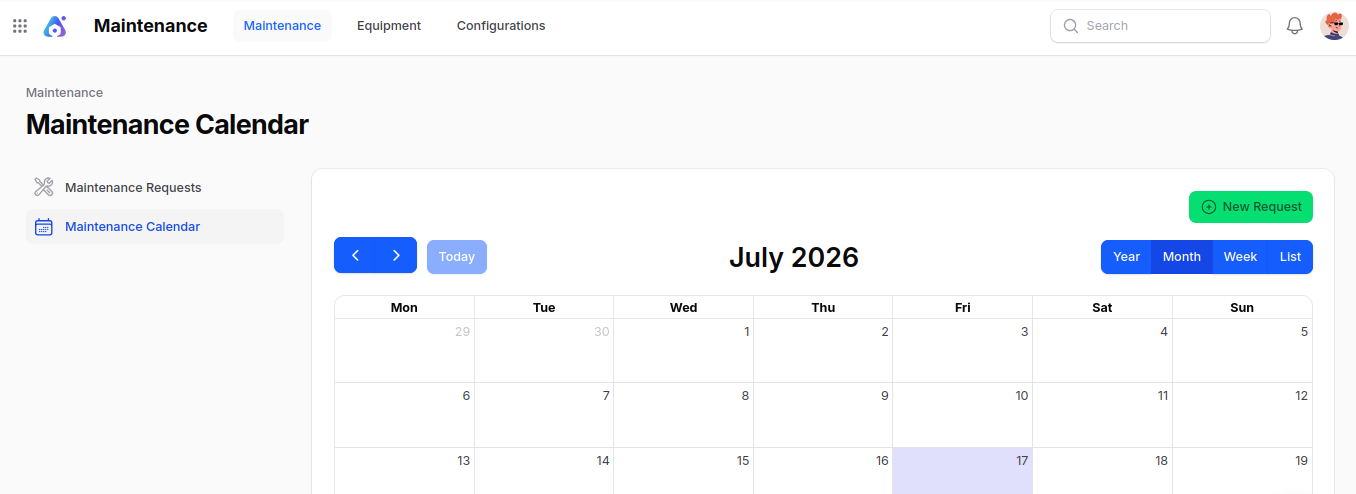
The calendar opens in Month view by default and lists every request that has a Scheduled Date set.
Switching Views
Use the buttons at the top-right of the calendar to switch between views:
- Year – See an overview of every month at once.
- Month – Default; one full calendar month.
- Week – A detailed week-by-week timeline.
- List – A clean weekly list of requests.
Use the prev / next buttons (top-left) to move forward or backward in time, and click Today to jump back to the current date.

Reading the Calendar
Each request appears as a coloured block on its scheduled date:
- Blue – The request is still in an open stage (e.g. New Request, In Progress).
- Green – The request is in a Done stage (e.g. Repaired, Scrap).
The block shows the request's subject, so you can identify it at a glance.
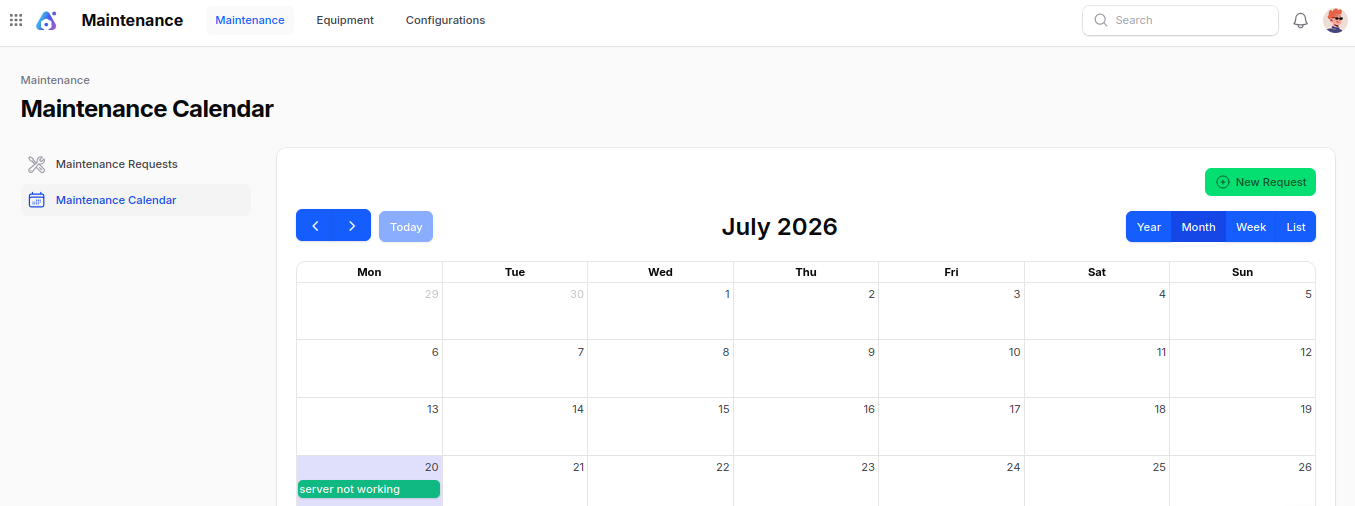
Viewing a Request from the Calendar
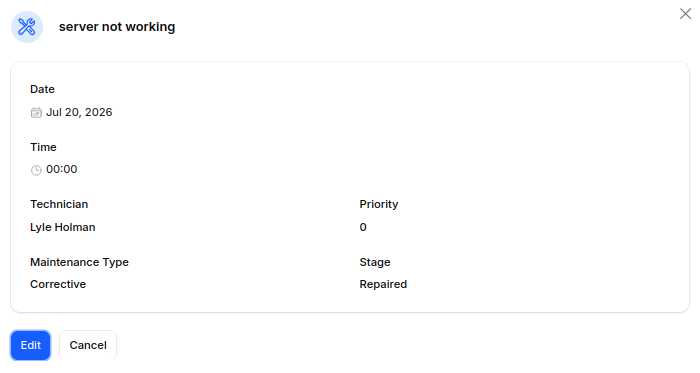
Click any coloured block to open a quick-view popup containing the most important request details:
- Date and Time (with duration if set).
- Technician assigned.
- Priority.
- Maintenance Type (Corrective / Preventive).
- Stage.
From the popup you can also click Edit to open the full request form for changes.
Creating a Request from the Calendar
There are two quick ways to create a new request without leaving the calendar:
Click the "New Request" button at the top of the calendar — opens a small modal where you type the Subject and save.
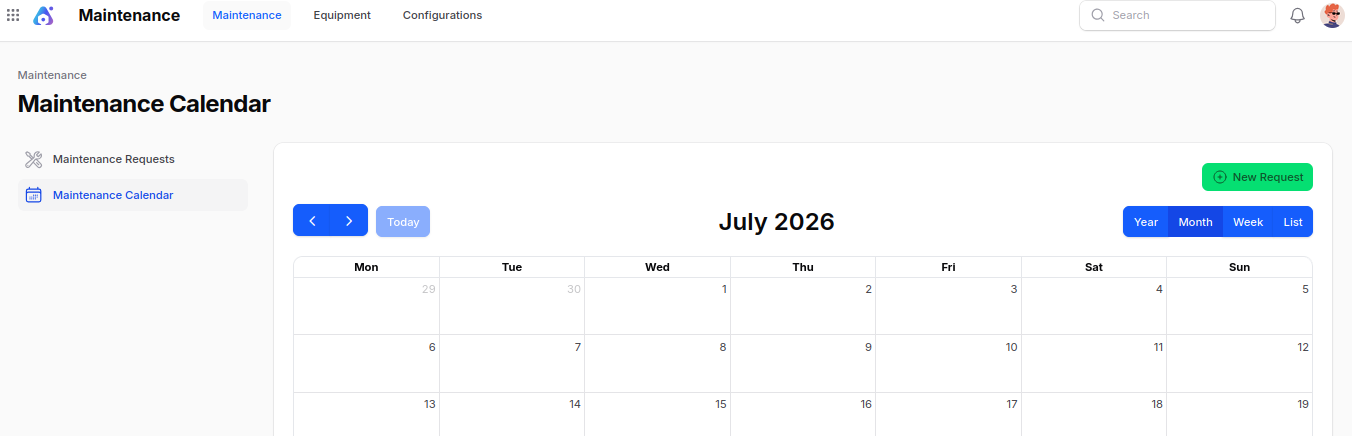
Click directly on a date in the calendar grid — the same modal opens with the Scheduled Date already filled in for that day.
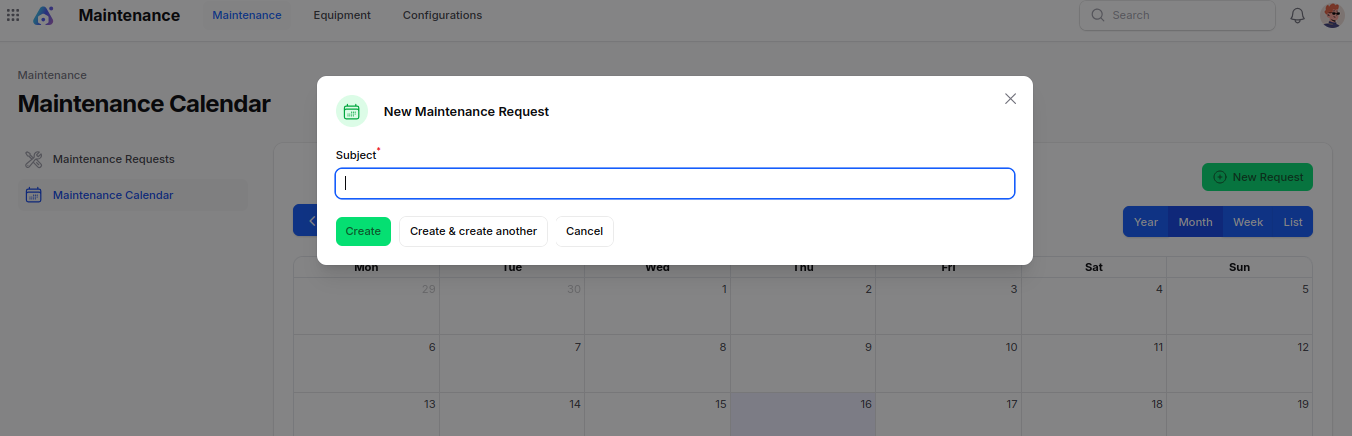
In both cases:
- The new request is created in the first stage (e.g. New Request).
- It is automatically of type Corrective.
- The first available team is assigned by default.
- The current user becomes the Responsible.
Important: The system needs at least one Stage and one Team configured before you can create a request from the calendar. If either is missing, the system shows an error message asking you to set them up first.
Summary
The Maintenance Calendar is the planning view of your maintenance work. Use it to:
- Spot overloaded days at a glance.
- Quickly create new requests on the right day.
- Track progress visually — blue blocks turn green as work is completed.
- Switch between year, month, week, and list views to match the level of detail you need.
Next step: To dig into the details of any request — assign technicians, add instructions, or attach PDFs — open the Maintenance Requests page.