

Stages
A Stage represents a step in the lifecycle of a Maintenance Request — for example New Request → In Progress → Repaired → Scrap. Stages appear as a progress bar on top of every request so the technician can see exactly where the work is and move it forward with one click.
Use Case: Customize the stages to match how your maintenance team actually works. You can add, rename, or reorder stages, and mark certain stages as Done so the system knows the request is closed.
In simple words: Stages are the steps a maintenance request goes through. The system ships with sensible defaults — change them only if your team uses different names.
Default Stages
When the Maintenance plugin is installed, the following stages are created automatically:
| Order | Stage Name | Done? |
|---|---|---|
| 1 | New Request | No |
| 2 | In Progress | No |
| 3 | Repaired | Yes |
| 4 | Scrap | Yes |
Requests in Done stages are treated as closed. For preventive recurring requests, moving to a Done stage also triggers the system to automatically create the next recurring request.
Steps to Create a New Stage
Navigate to
Maintenance → Configurations → Stagesas shown below: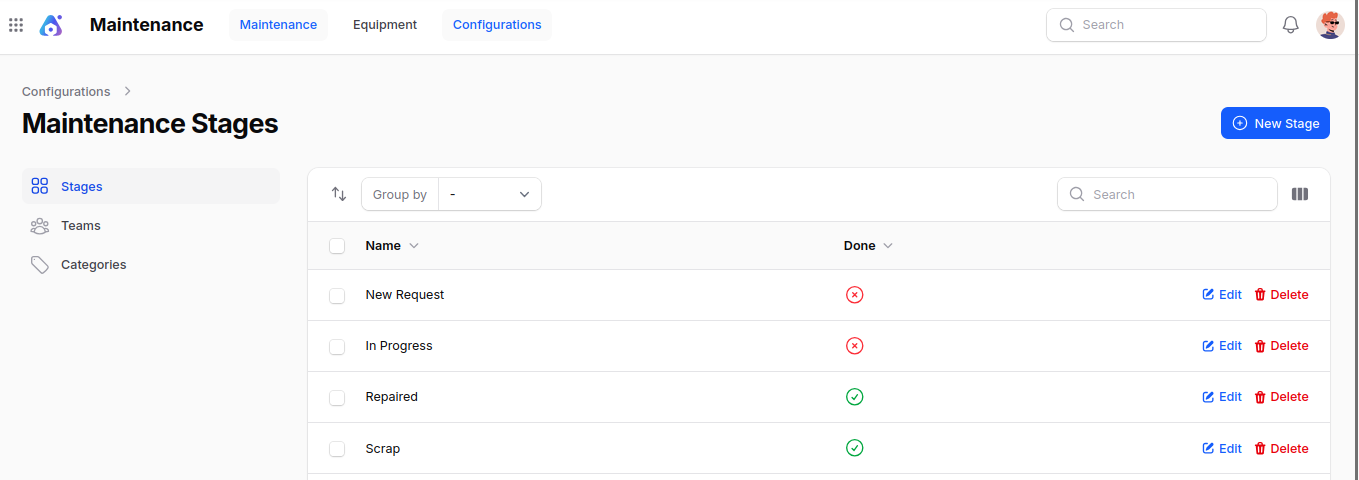
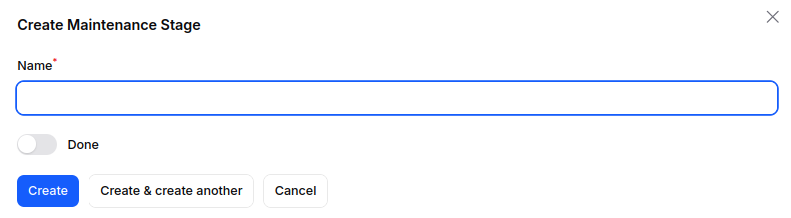
Click New Stage and fill in:
- Name: The display name of the stage (e.g.
Waiting for Parts,Quality Check). Must be unique. - Done: Toggle ON if a request reaching this stage should be considered closed/complete. Leave OFF for in-progress stages.
- Name: The display name of the stage (e.g.
Action Buttons:
- Create – Save the new stage.
- Cancel – Discard.
List View — Reordering & Actions
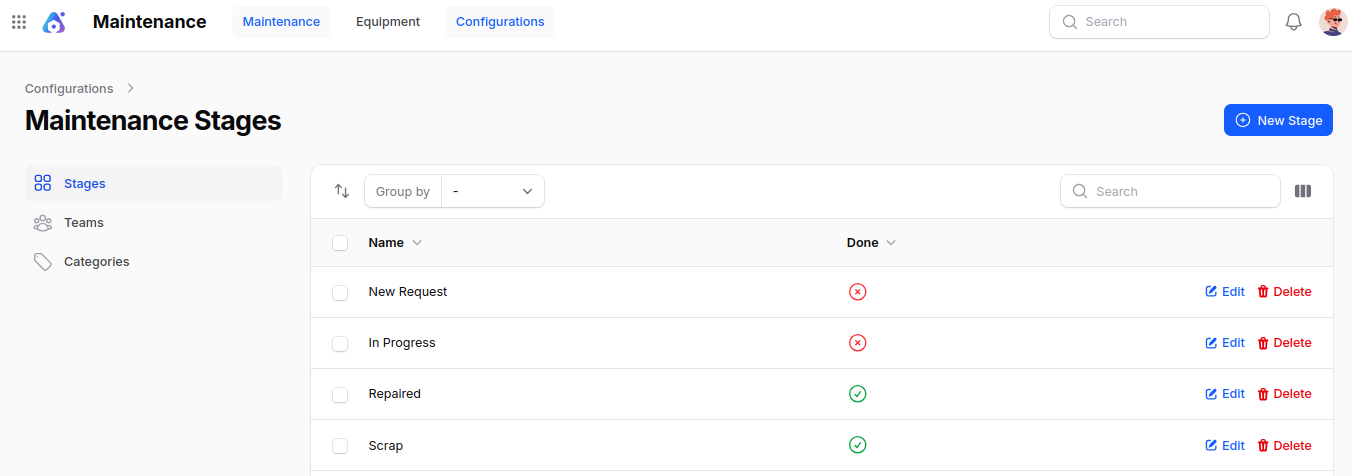
The Stages list view shows every stage with the following columns: Name and Done.
You can:
- Reorder Stages: Drag-and-drop stages to change the order in which they appear on the request progress bar.
- Group by: Done status or Created date.
- Edit: Rename a stage or change its Done flag.
- Delete: Remove a stage. Be careful — deleting a stage that requests are using will fail.
Summary
Stages give you:
- A clear visual workflow for every Maintenance Request.
- Control over what "done" means for your team.
- Automatic generation of the next request when a recurring preventive request is closed.
Tip: Keep the number of stages small — 3 to 5 stages usually work best. More than that and the progress bar becomes hard to read.
Next step: With stages, Teams, and Categories configured, you are ready to start creating Maintenance Requests.