

Maintenance Teams
A Maintenance Team is a group of users who are collectively responsible for taking care of a set of Equipment and handling Maintenance Requests. Examples: IT Support Team, Facility Team, Mechanical Team.
Use Case: Create one team per maintenance department or area of expertise. When a new request is raised, you simply pick the right team and the work lands in the right hands.
In simple words: A Team is a crew of people who fix things together. Add the right team members and assign the team to your equipment.
Steps to Create a New Maintenance Team
Navigate to
Maintenance → Configurations → Teamsas shown below: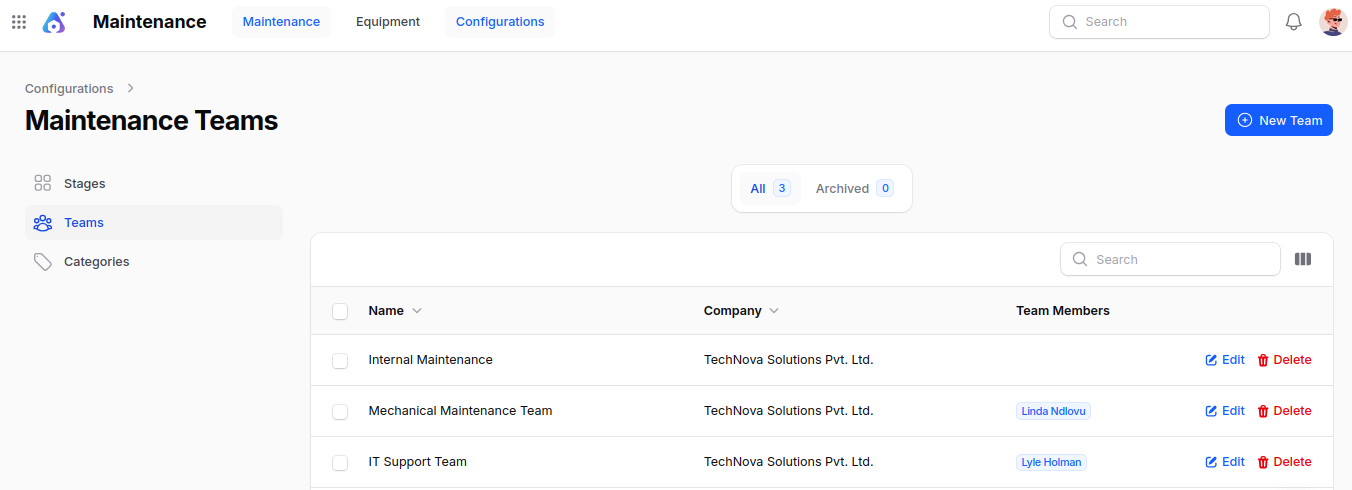
Click New Team and fill in the following details:
- Name: The name of the team (e.g.
IT Support,Facility Maintenance). Must be unique. - Team Members: Select one or more users who are part of this team. You can add as many people as needed.
- Company: The company the team belongs to (useful in multi-company setups).
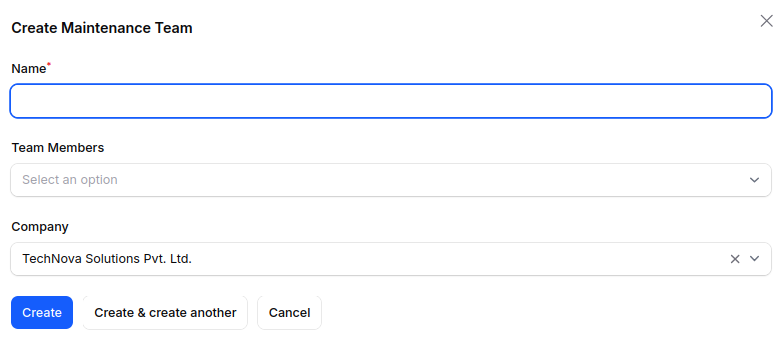
- Name: The name of the team (e.g.
Action Buttons:
- Create – Save the new team.
- Create & Create Another – Save and open a blank form for the next team.
- Cancel – Discard and return to the list.
List View — Columns & Actions
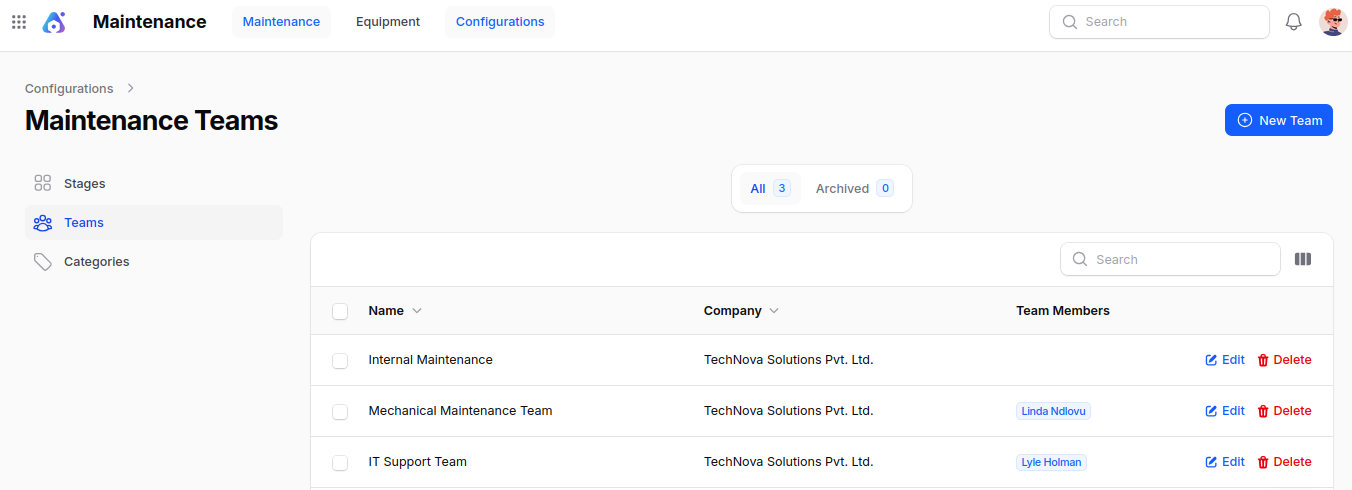
The Teams list view shows every maintenance team with the following columns: Name, Company, and Team Members (shown as badges).
You can:
- Search by: Name.
- Edit: Update the team name, members, or company.
- Archive / Restore: Soft-delete a team. Archived teams are hidden from selection lists but kept in the database. You can restore them later.
- Delete (Permanent): Force-delete a team if it is not used by any equipment or request.
Summary
Maintenance Teams help you:
- Route each Maintenance Request to the right group of people.
- Assign a default team to each piece of Equipment.
- Keep accountability clear — every request always has a team responsible.
Next step: After creating teams, define the workflow Stages used in maintenance requests.