

Equipment Categories
An Equipment Category is a label you use to group similar pieces of Equipment together — for example Computers, Vehicles, Office Furniture, or Heavy Machinery. Each category can have a default responsible technician, so every new equipment placed in that category automatically inherits the right person to look after it.
Use Case: Create a category for every type of asset you maintain. This makes filtering, reporting, and assigning the right technician much faster.
In simple words: A Category is a folder for similar equipment. Put all your laptops in a "Computers" category, all your trucks in a "Vehicles" category, and so on.
Steps to Create a New Equipment Category
Navigate to
Maintenance → Configurations → Categoriesas shown below: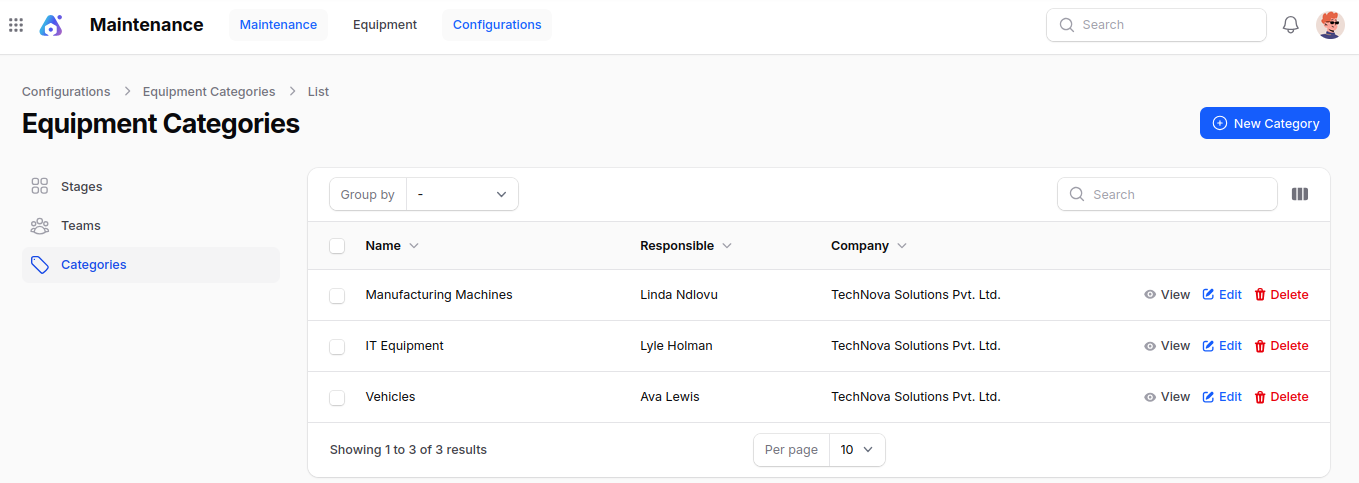
Click New Category and fill in the following details:
General Information
- Name: The name of the category (e.g.
Computers,Vehicles,Printers). Must be unique. - Responsible: The default technician who looks after every equipment placed in this category. New equipment will pick this person automatically.
- Company: The company the category belongs to (useful in multi-company setups).
- Note: A free-text description — anything that helps explain what kind of equipment belongs in this category.
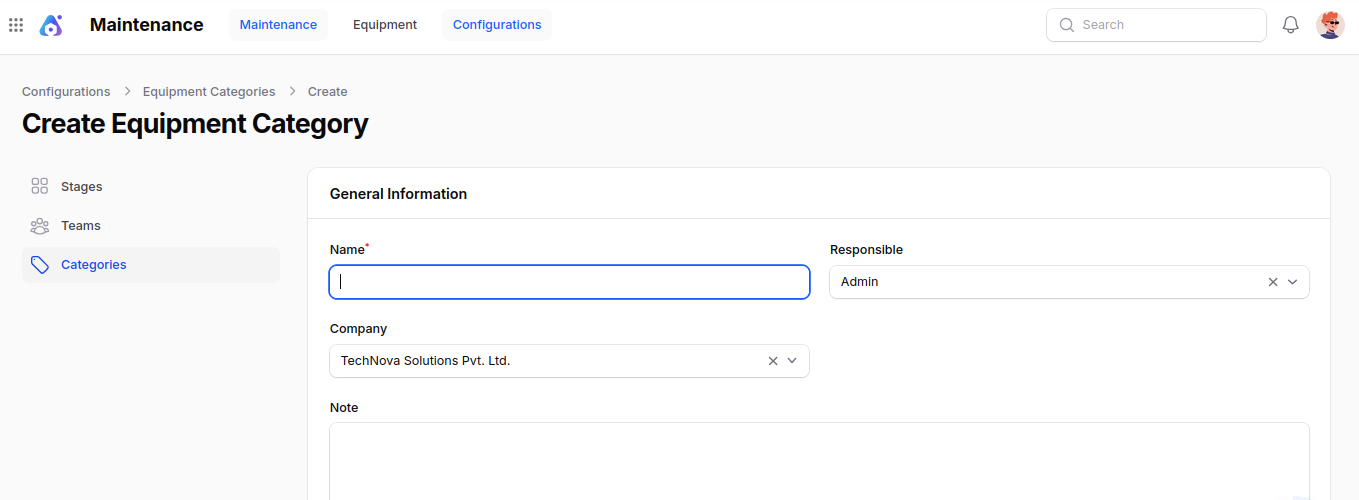
- Name: The name of the category (e.g.
Action Buttons:
- Create – Save and open the category record.
- Create & Create Another – Save and open a blank form for the next category.
- Cancel – Discard and return to the list.
Category View Page
After creation, you are redirected to the Category View Page which summarizes the general information you saved.
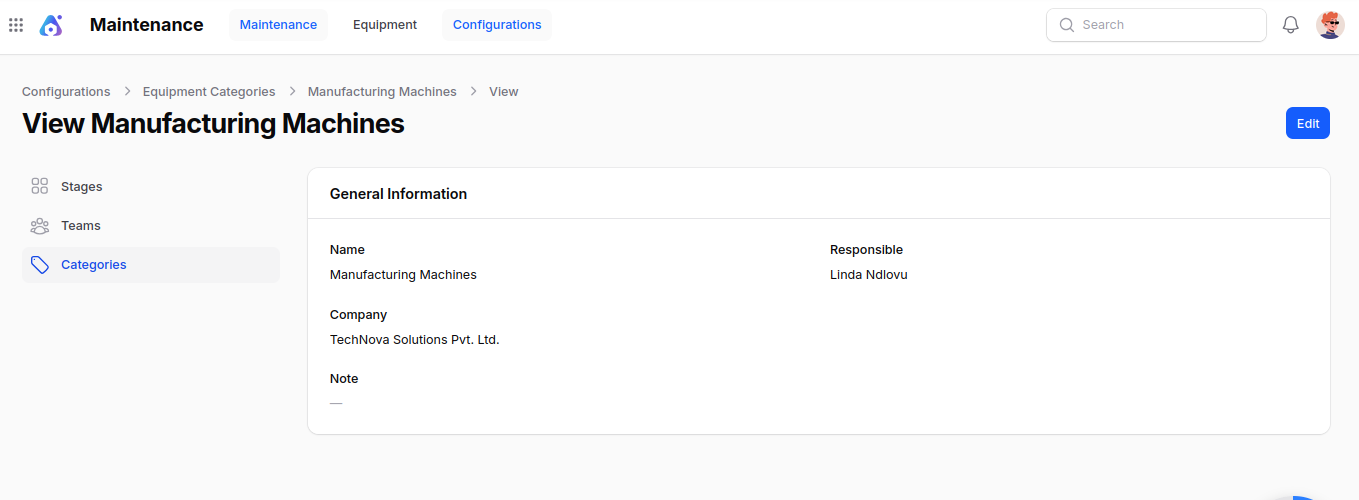
You can also:
- Edit: Modify any saved field.
- Delete: Remove the category. Note: deleting a category does not delete the equipment inside it — those records simply lose their category.
List View — Groups & Actions
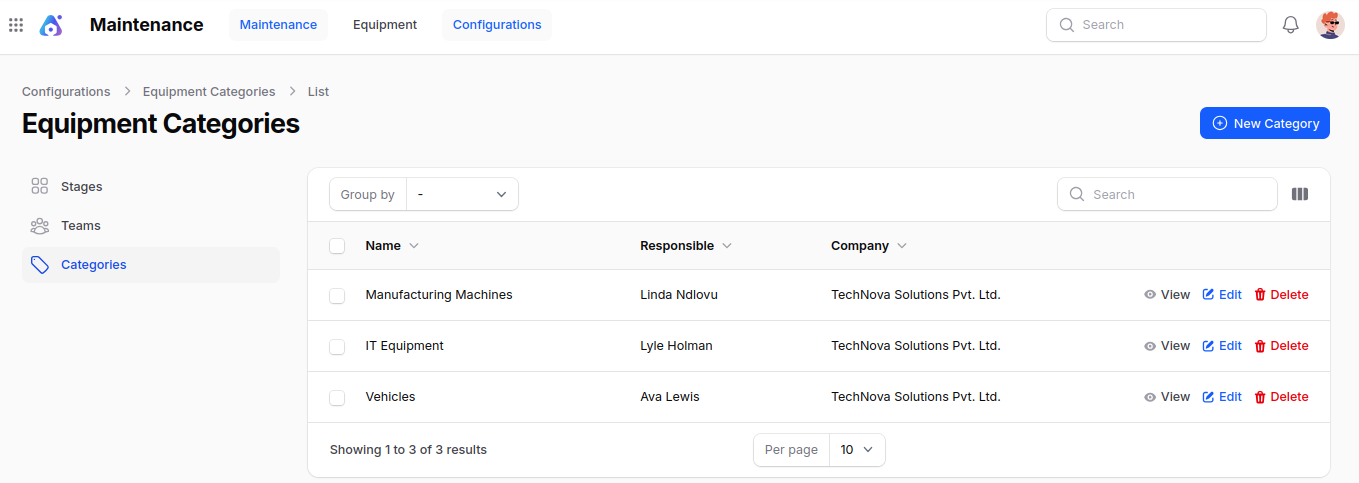
The Categories list view shows every category with the following columns: Name, Responsible, Company, and Created At.
You can:
- Group by: Responsible.
- Search by: Name.
- Bulk Actions: Delete selected categories.
Summary
Equipment Categories help you:
- Group similar Equipment together for easy filtering and reporting.
- Automatically assign the right default technician to every new equipment.
- Keep your equipment list organized as it grows.
Next step: After creating categories, set up your Maintenance Teams and the Stages used in maintenance requests.