

Equipment
In the Maintenance module, an Equipment is any physical asset your company owns and needs to keep in good working condition — for example a Laptop, Printer, CNC Machine, Forklift, or Air Conditioner. Each equipment record stores its identity (model, serial number), who owns it, who looks after it, when it was purchased, and how often it is expected to fail.
Use Case: Create an equipment record for every machine, tool, vehicle, or device you want to track. Once an equipment exists in the system, you can raise Maintenance Requests against it, assign a technician, and monitor how often it breaks down.
In simple words: Equipment is the thing you take care of. Before you can log a repair or schedule a check-up, the item must exist here.
Steps to Create a New Equipment
Navigate to
Maintenance → Equipmentas shown below: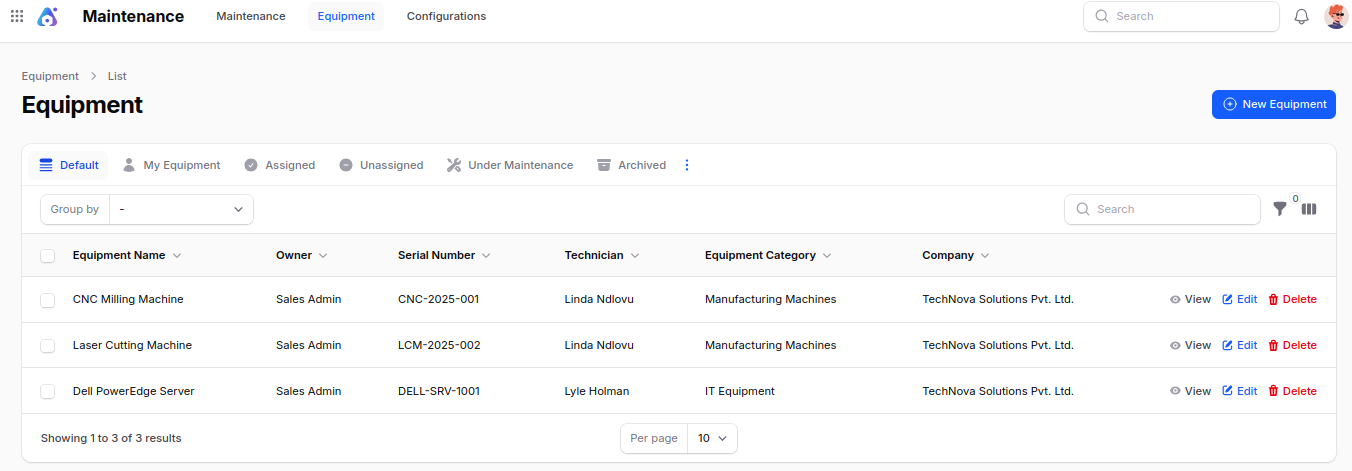
Fill in the following details:
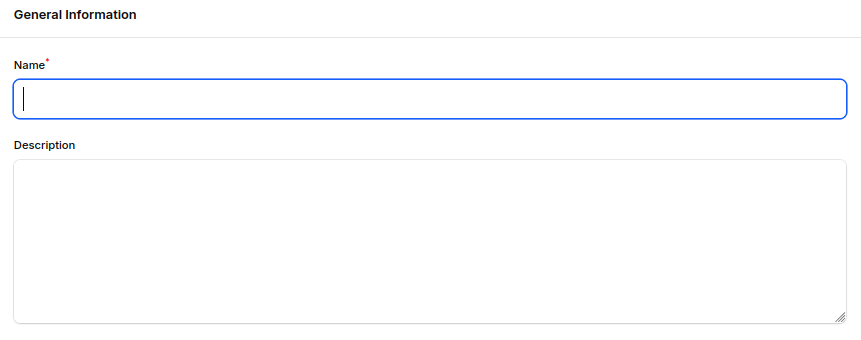
General Information
- Name: The name of the equipment (e.g.
Laptop - Dell Latitude 5420). This is shown everywhere the equipment is referenced. - Description: A free-text note describing the equipment, its purpose, or any extra information that helps identify it.
Product Information
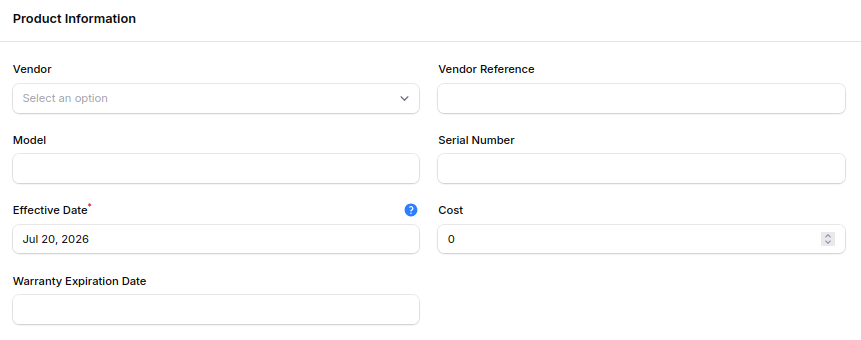
- Vendor: The supplier or vendor from whom the equipment was purchased.
- Vendor Reference: The reference number or code given by the vendor (e.g. invoice number, vendor SKU).
- Model: Model name or number of the equipment (e.g.
Latitude 5420). - Serial Number: Unique serial number printed on the equipment — useful for warranty claims and traceability.
- Effective Date: The date the equipment was put into use. This is the starting point the system uses to calculate the Mean Time Between Failures (MTBF).
- Cost: The purchase or acquisition cost of the equipment.
- Warranty Expiration Date: The date when the vendor warranty ends. Useful for planning replacements or claiming repairs under warranty.
Settings
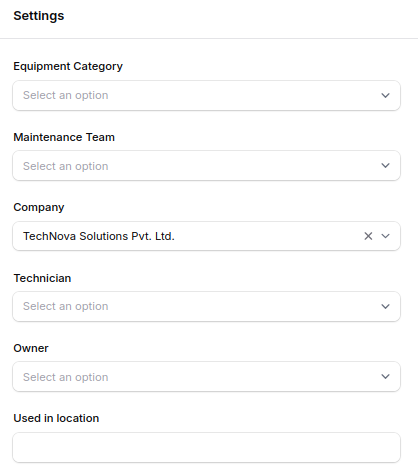
- Equipment Category: Choose a Category (e.g. Computers, Vehicles, Tools) to group similar equipment together. Selecting a category auto-fills the default technician for that category.
- Maintenance Team: The Team responsible for taking care of this equipment.
- Company: The company that owns this equipment (useful in multi-company setups).
- Technician: The person primarily responsible for maintaining this equipment. Defaults to the technician set on the chosen category.
- Owner: The user who owns or uses this equipment day-to-day (e.g. the employee a laptop is assigned to).
- Used in Location: Free-text field describing where the equipment is physically located (e.g. Floor 2, Cabin 12, Warehouse A).
Maintenance
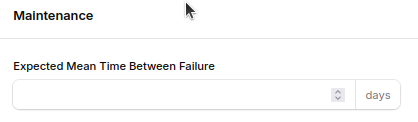
- Expected Mean Time Between Failure: The number of days you expect the equipment to run between two breakdowns. Helps you plan preventive maintenance before the next failure is due.
- Name: The name of the equipment (e.g.
Action Buttons:
- Create – Save and open the equipment record.
- Create & Create Another – Save and immediately open another blank form.
- Cancel – Discard the entry and return to the list view.
Equipment View Page
After creation, you are redirected to the Equipment View Page, where you can review every detail.
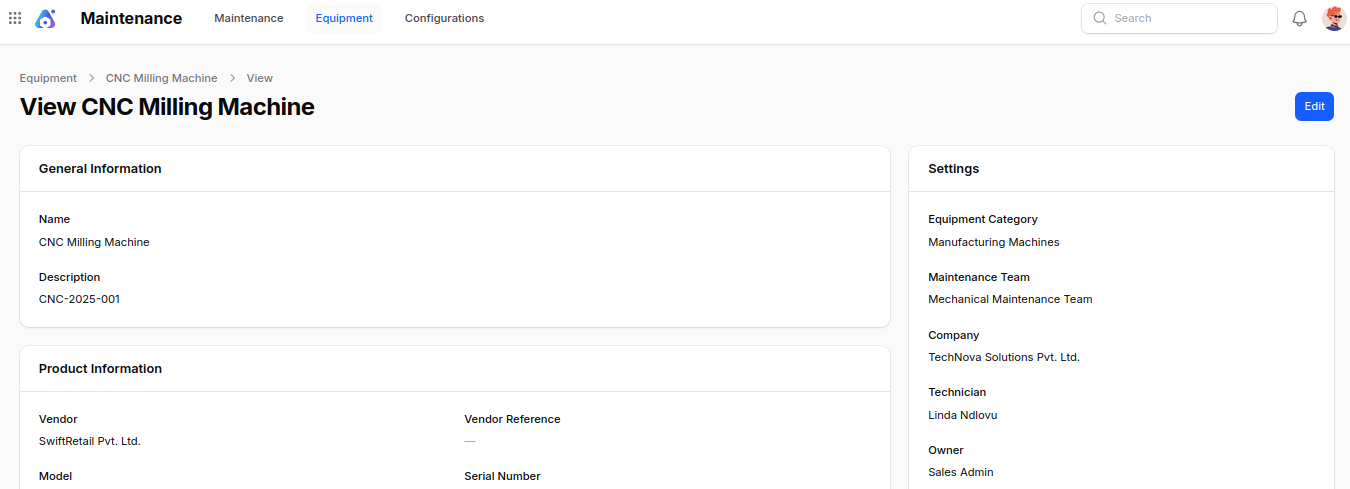
On this page you can see:
- General Information — name and description.
- Product Information — vendor, model, serial number, cost, dates.
- Settings — category, team, technician, owner, location.
- Maintenance — expected MTBF, total maintenance count, currently open maintenance count, assigned date, and scrap date.
You can also:
- Edit: Modify any saved field.
- Delete / Archive: Remove or archive the equipment. Archived equipment stays in the database but no longer appears in selection lists.
List View — Filters, Groups & Actions
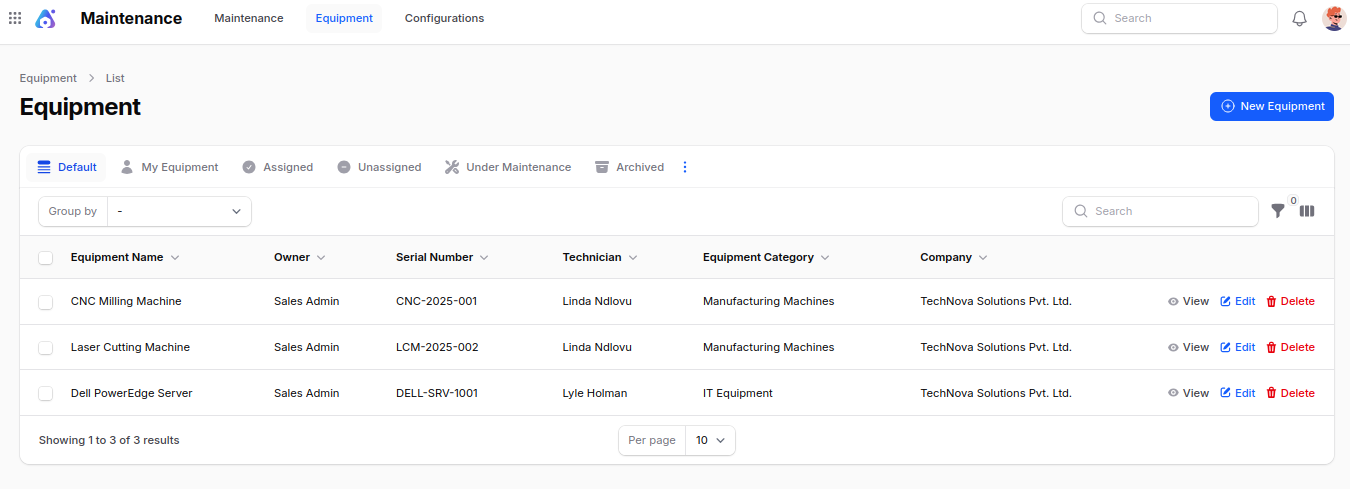
The Equipment list view shows every equipment record with the following columns: Equipment Name, Owner, Serial Number, Technician, Equipment Category, and Company.
You can:
- Filter by: Equipment Category, Maintenance Team, or Technician.
- Group by: Technician, Equipment Category, Owner, or Vendor.
- Search by: Name or Serial Number.
- Bulk Actions: Archive, restore, or permanently delete selected equipment.
Summary
The Equipment section is the foundation of the Maintenance module. By keeping every asset listed here with the right category, team, and technician, you can:
- Raise Maintenance Requests for any breakdown or check-up.
- Track how many times each equipment has been repaired.
- Plan preventive maintenance using the expected MTBF.
- Get warranty alerts before the warranty expires.
Next step: Once your equipment is added, set up the supporting Categories, Teams, and Stages, and then start logging Maintenance Requests.